
WP-CLI Commands: A Practical WordPress Cheat Sheet (2026)
WP-CLI commands are the fastest reliable way to repeat WordPress operations, especially updates, exports, search-replace, user management, cron work, and diagnostics. The command line is also unforgiving: scope, backups, dry runs, and readback matter more than typing speed.
Use this cheat sheet by task. Read-only commands are safe places to learn. Before a database write, plugin sweep, deletion, or migration, confirm the WordPress path and environment, create a recoverable backup, run a dry run when the command supports it, and verify the result.
Quick verdict
These commands cover the common operational loop. The risk column is part of the command, not a footnote.
| Task | Command | Risk | Required check |
|---|---|---|---|
| Confirm target | wp core version && wp option get home | Low | Path and canonical URL match the intended site |
| Inventory plugins | wp plugin list | Low | Review status and available updates |
| Export database | wp db export backup.sql | Low write to filesystem | File exists, is non-empty, and is stored safely |
| Preview URL change | wp search-replace OLD NEW –dry-run | Medium | Counts and tables match expectation |
| Apply URL change | wp search-replace OLD NEW –all-tables-with-prefix | High | Backup exists; read back home, siteurl, and sample content |
| Update plugins | wp plugin update –all | High on production | Backup, maintenance window, staged compatibility, public smoke test |
| Run due cron | wp cron event run –due-now | Medium | Know which jobs are due and inspect failures |
| Flush object cache | wp cache flush | Medium | Use only when the active cache layer supports the intended scope |
Use the same safe sequence for every write
A good WP-CLI habit is a short operational protocol you can repeat under pressure.
| Step | Action | Example |
|---|---|---|
| Identify | Confirm host, path, URL, environment, and current state | wp option get home |
| Back up | Export the database and preserve files when the change affects them | wp db export before-change.sql |
| Preview | List targets or use the command’s dry-run mode | wp search-replace OLD NEW –dry-run |
| Change | Use the narrowest scope that solves the problem | Prefer one plugin, user, post, table, or URL pattern |
| Read back | Query WordPress and inspect public behavior | wp option get home; wp plugin status NAME |
| Record | Keep the command, output summary, and rollback path | Enough context for another operator to reverse it |
What WP-CLI is and where it is safer than wp-admin
WP-CLI is the official command-line interface for WordPress. It exposes commands for core, plugins, themes, users, posts, options, cron, databases, multisite, and extension packages; the official WP-CLI documentation is the canonical command reference.
Its real advantage is repeatability. You can list the current state, preview a supported change, run the narrow command, capture output, and query the result. That is safer than a series of unrecorded clicks when the operator respects scope and backups.
The danger is the same repeatability at the wrong target. A command can update, delete, or rewrite thousands of records before you notice a path or environment mistake. Confirm the site first and avoid broad globs or shell pipelines until the target list has been inspected.
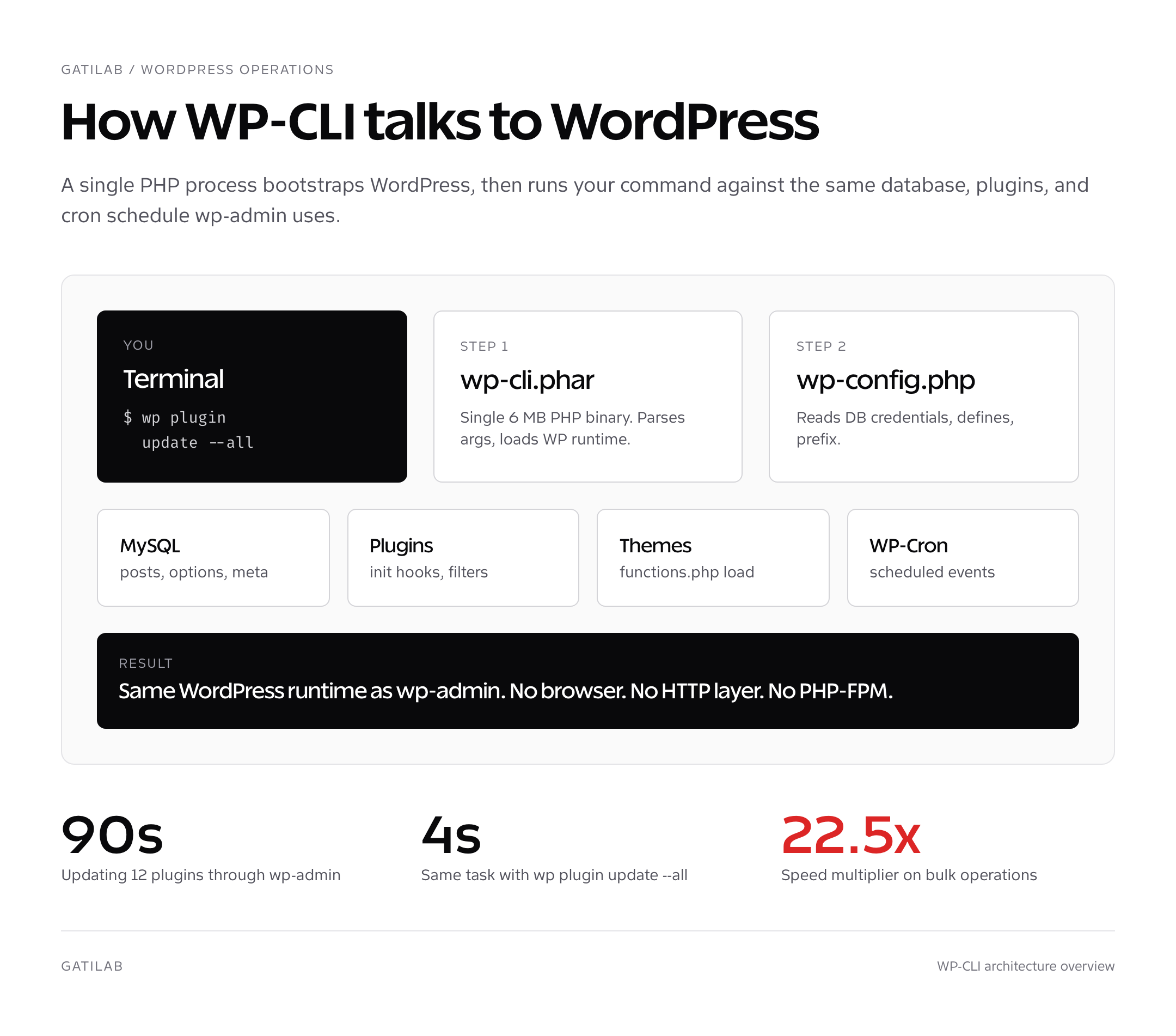
Install WP-CLI on your server
If your host does not ship WP-CLI, install the current Phar from the official project. WP-CLI requires PHP 7.2.24 or later and should run under a PHP version compatible with the target WordPress site. Verify the download and review the official installation instructions before placing it in a shared system path.
# Download the latest WP-CLI release
curl -O https://raw.githubusercontent.com/wp-cli/builds/gh-pages/phar/wp-cli.phar

# Verify it works
php wp-cli.phar --info

# Make it executable and move into PATH
chmod +x wp-cli.phar
sudo mv wp-cli.phar /usr/local/bin/wp

# Confirm install
wp --info
Run wp --info from your WordPress root to see the loaded WP version, PHP version, MySQL version, and config path. If it errors with “This does not seem to be a WordPress installation,” cd into the directory containing wp-config.php first. On shared hosting where you can’t write to /usr/local/bin, alias wp to php /home/you/bin/wp-cli.phar in your .bashrc instead.
For local development on macOS, brew install wp-cli handles installation, updates, and PATH. For remote production servers, the curl+chmod+mv pattern above is the standard install path. Both produce identical binaries.
Core WP-CLI commands: install, update, version
The wp core family handles WordPress itself: fresh installs, version updates, language packs, and verifications. Use these commands for installation, version checks, updates, database upgrades, and checksum verification.
# Download WordPress core files (no install yet)
wp core download --locale=en_US

# Generate wp-config.php (uses DB credentials you pass)
wp config create --dbname=mydb --dbuser=myuser --dbpass=mypass --dbhost=localhost

# Install WordPress (runs the famous 5-minute install)
wp core install --url=example.com --title="My Site" --admin_user=admin \
  --admin_password=strong_pw --admin_email=me@example.com

# Check current version
wp core version

# Update WordPress to latest
wp core update

# Update database after a manual core file replacement
wp core update-db

# Verify checksums of every core file (catches malware)
wp core verify-checksums
wp core verify-checksums is the underrated one. It compares every WordPress core PHP file against the official checksums on api.wordpress.org and reports any modified or extra files. It is a useful early check during an integrity investigation, but a clean checksum result does not rule out malicious plugins, themes, uploads, users, cron events, or database changes.
Plugin WP-CLI commands: install, activate, update, delete
The wp plugin family handles install, activation, update, status, and removal. Broad flags such as --all and bootstrap flags such as --skip-plugins change the risk and behavior, so use them deliberately.
# List all plugins with status, version, update available
wp plugin list

# List only active plugins
wp plugin list --status=active

# Install a plugin from wordpress.org and activate it
wp plugin install rank-math --activate

# Install from a specific version
wp plugin install rank-math --version=1.0.226 --activate

# Install from a zip URL or local zip
wp plugin install https://example.com/plugin.zip --activate
wp plugin install /tmp/plugin.zip --activate

# Update one plugin
wp plugin update rank-math

# Update every plugin (the daily driver)
wp plugin update --all

# Update everything except specific plugins
wp plugin update --all --exclude=woocommerce,elementor

# Activate / deactivate
wp plugin activate akismet
wp plugin deactivate hello

# Delete (must be deactivated first or use --force)
wp plugin delete hello

# Show plugin status
wp plugin status rank-math

# Search wp.org plugin directory
wp plugin search "schema markup"
For production, list available updates first, confirm backups and compatibility, update the narrowest safe set, and verify the public site before continuing. --skip-plugins can help recover from a plugin bootstrap failure, but using it routinely may bypass hooks or compatibility behavior you needed to observe.
Theme WP-CLI commands
# List installed themes
wp theme list

# Install and activate
wp theme install astra --activate

# Install from a specific version
wp theme install twentytwentyfive --version=1.0 --activate

# Update one theme
wp theme update astra

# Update all themes
wp theme update --all

# Activate
wp theme activate twentytwentyfive

# Delete an inactive theme
wp theme delete twentytwentythree

# Show child theme parent
wp theme get astra-child --field=template
List inactive themes and review each dependency before deletion. A child theme depends on its parent, and a default theme can provide a recovery fallback. Avoid piping every inactive theme into a delete command until the exact IDs have been inspected.
User WP-CLI commands: create, update, delete, role
The wp user family beats wp-admin for any operation involving more than one user. Bulk imports, role changes across hundreds of accounts, password resets, and meta updates all run faster from the CLI.
# List users
wp user list

# Create a new user
wp user create gaurav me@example.com --role=editor --user_pass=strong_pw

# Update a user (any field)
wp user update gaurav --user_pass=new_pw
wp user update 1 --user_email=new@example.com

# Reset password
wp user reset-password gaurav

# Change role
wp user set-role 5 administrator

# Delete a user (and reassign their content)
wp user delete 5 --reassign=1

# Add user meta
wp user meta update 1 first_name "Gaurav"
wp user meta get 1 first_name

# Bulk import from CSV (columns: user_login, user_email, user_pass, role)
wp user import-csv /path/to/users.csv

# Generate 100 fake users for testing
wp user generate --count=100 --role=subscriber
For a bulk user import, validate a small sample, confirm role mapping and duplicate handling, then read back user counts and representative metadata before processing the full file.
Post WP-CLI commands: create, update, delete, list
# List posts (default = published posts)
wp post list

# List drafts only
wp post list --post_status=draft --format=table

# Create a post from a file
wp post create ./content.html --post_title="My Post" --post_status=publish

# Create from inline content
wp post create --post_title="Hello" --post_content="World" --post_status=publish

# Update a post
wp post update 123 --post_title="New Title"

# Delete (move to trash)
wp post delete 123

# Force delete (skip trash)
wp post delete 123 --force

# Empty the trash
wp post delete $(wp post list --post_status=trash --format=ids) --force

# Generate test posts
wp post generate --count=50 --post_type=post --post_status=publish

# Get a post field
wp post get 123 --field=post_title

# List all post meta on a post
wp post meta list 123

# Update meta
wp post meta update 123 _yoast_wpseo_focuskw "WordPress hooks"
Database WP-CLI commands
The wp db family wraps mysqldump and mysql with the credentials from wp-config.php so you don’t have to type them. Daily backups, schema repairs, and ad-hoc queries all run through here.
# Export the entire database to a SQL file
wp db export backup-$(date +%F).sql

# Export a single table
wp db export --tables=wp_posts posts-only.sql

# Export with gzip compression
wp db export - | gzip > backup.sql.gz

# Import a SQL file
wp db import backup.sql

# Drop and recreate the database
wp db reset --yes

# Open an interactive MySQL prompt
wp db cli

# Run a one-off query
wp db query "SELECT post_title FROM wp_posts WHERE post_status = 'draft' LIMIT 10"

# Optimize the database
wp db optimize

# Repair corrupted tables
wp db repair

# Database size
wp db size --tables --human-readable
wp db size --tables --human-readable is a useful inventory command during a performance diagnosis. Large tables are clues, not diagnoses. Check autoloaded option size, query behavior, indexes, retention policies, and the plugin that owns a table before deleting or truncating anything.
Search-replace, cron, cache, options, transients
These commands expose operational workflows that wp-admin does not express as cleanly. The full deep-dive on serialized replacements lives in the WP-CLI search-replace guide.
# SEARCH AND REPLACE (handles serialized PHP data correctly)
wp search-replace 'http://staging.example.com' 'https://example.com' --dry-run
wp search-replace 'http://staging.example.com' 'https://example.com'
wp search-replace 'old' 'new' --skip-columns=guid --report-changed-only

# CRON (manage WP scheduled events)
wp cron event list
wp cron event run --due-now
wp cron event run wp_version_check
wp cron event delete recurring_task
wp cron schedule list

# CACHE (object cache management)
wp cache flush
wp cache get my_key my_group
wp cache set my_key my_value my_group 300

# OPTIONS (the wp_options table)
wp option list --search="active_plugins"
wp option get siteurl
wp option update blogname "New Site Name"
wp option add my_custom_option "value"
wp option delete deprecated_option

# TRANSIENTS (cached temporary data)
wp transient list
wp transient delete --all
wp transient delete cached_query

# REWRITE (permalinks)
wp rewrite flush --hard
wp rewrite list
Use --dry-run before every search-replace, read the affected tables and counts, and apply the write only when they match the intended scope. If the count is materially different from expectation, stop and inspect.
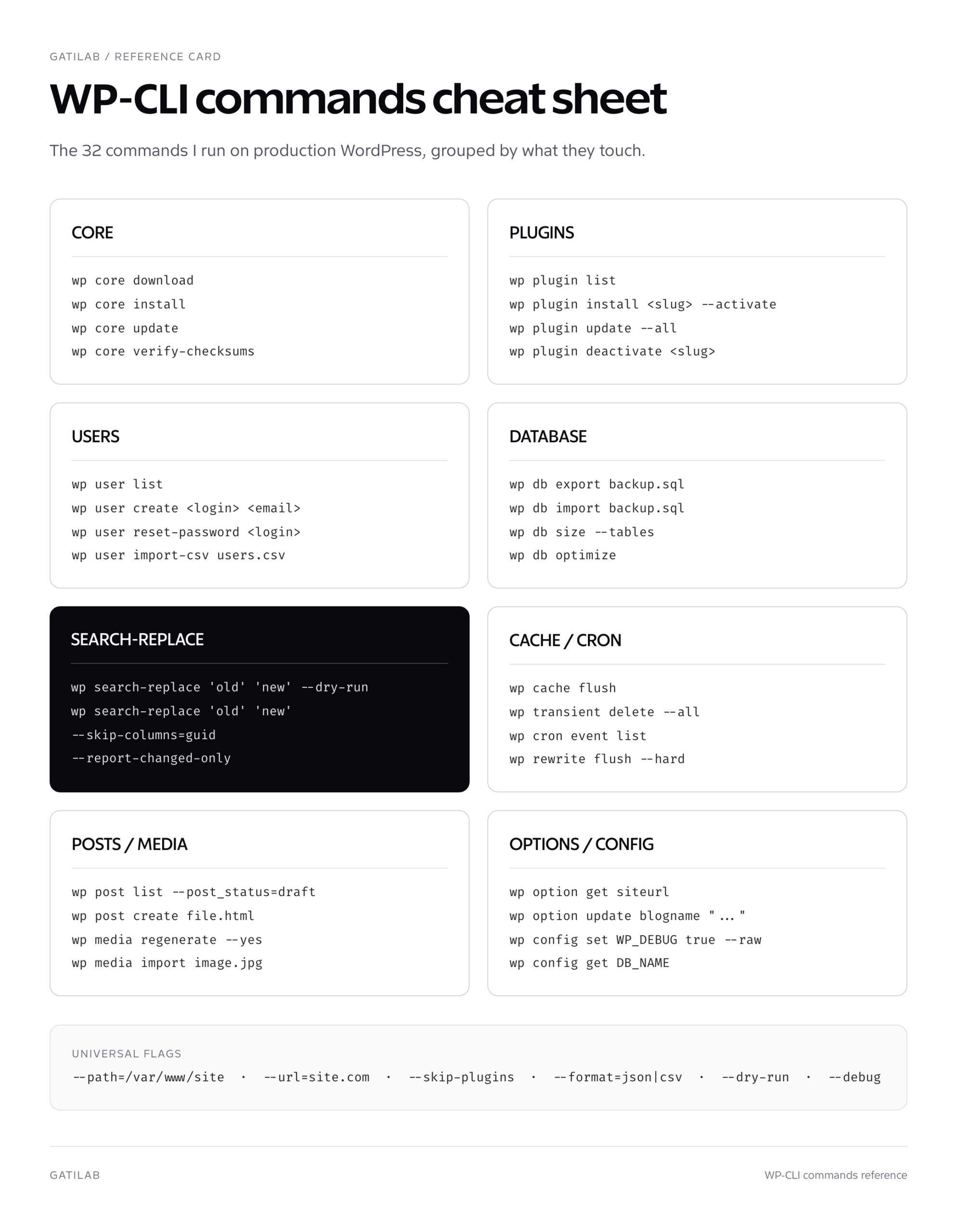
Media, comment, and term WP-CLI commands
# MEDIA
wp media import /path/to/image.jpg --title="Hero Image"
wp media import https://example.com/photo.jpg --post_id=123 --featured_image
wp media regenerate --yes
wp media regenerate 123 --image_size=thumbnail

# COMMENTS
wp comment list --status=hold
wp comment approve 123
wp comment spam 456
wp comment delete $(wp comment list --status=spam --format=ids) --force

# TAXONOMIES + TERMS
wp term list category
wp term create category "WordPress" --slug=wordpress
wp term update category 5 --name="WP Tips"
wp term delete category 5

# CATEGORIES on a post
wp post term add 123 category "WordPress"

# SITE (multisite)
wp site list
wp site create --slug=newsite --title="New Site"
wp site activate newsite
wp site empty 5

# CONFIG (wp-config.php)
wp config get DB_NAME
wp config set WP_DEBUG true --raw
wp config delete WP_DEBUG
wp media regenerate rebuilds registered image sizes after size definitions change. Inventory the affected media and storage first; use --only-missing when only absent sizes need generation, and verify representative crops afterward.
Safe WP-CLI patterns worth reusing
Reuse protocols, not blind one-liners. Each pattern below begins with target confirmation or read-only inventory and keeps the write separate from verification.
# Confirm the WordPress target
wp option get home
wp core version

# Inventory updates before applying them
wp plugin list --update=available
wp theme list --update=available

# Export to an explicit, pre-created backup directory
wp db export /srv/backups/example.com/before-maintenance.sql

# Preview a serialized-safe URL replacement
wp search-replace 'https://staging.example.com' 'https://example.com' --all-tables-with-prefix --dry-run

# Inspect cron before running due events
wp cron event list --fields=hook,next_run_relative,recurrence
wp cron event run --due-now

# Audit administrators
wp user list --role=administrator --fields=ID,user_login,user_email,user_registered
After a write, query the changed object and smoke-test the public behavior affected by it. Do not hide a production update, deletion, or database rewrite inside an alias whose target is inferred from the current directory.
Download task-based WP-CLI references, safe scripts, backup-first examples, configuration, and a pre-flight checklist.
Useful flags every WP-CLI command supports
Every WP-CLI command accepts global flags that change scope, output format, or error behavior. Knowing six of them turns ad-hoc CLI work into scriptable automation.
| Flag | What it does | When to use |
|---|---|---|
--path=/var/www/site | Run against a specific WordPress install | When you’re not in the WP root |
--url=example.com | Run against a specific multisite subsite | Multisite operations on a target site |
--user=admin | Run as a specific user | Operations that require capability checks |
--skip-plugins[=plugin1,plugin2] | Disable plugins during the command run | Updates, migrations, search-replace |
--skip-themes | Disable theme functions.php during run | Theme updates, debugging |
--format=json|csv|table|count|ids|yaml | Change output format | Piping output to other tools |
--quiet | Suppress non-error output | Cron jobs, scripts |
--debug | Show every WordPress query and notice | When a command misbehaves |
--dry-run | Preview the changes without applying | Before any destructive operation |
--skip-plugins can help when a plugin bootstrap failure prevents WP-CLI from loading. It also bypasses plugin hooks the requested command may depend on, so name the problem plugin when possible and read back the result with the normal bootstrap restored.
When WP-CLI commands fail (and how to fix them)
Start with three common failure modes when a WP-CLI command will not run.
- “This does not seem to be a WordPress installation” : you’re not in the WP root.
cdto the directory with wp-config.php or pass--path=/full/path. - “Error establishing a database connection” : wp-config.php credentials are wrong, the DB server is down, or the socket is misconfigured. Check
wp config get DB_HOSTand trywp db check. - “PHP Fatal error: Allowed memory size exhausted” : inspect the failing command and PHP configuration. If a higher temporary CLI limit is justified, set
WP_CLI_PHP_ARGS="-d memory_limit=512M"for the scoped session rather than inventing a WP-CLI global flag.
For everything else, wp --debug in front of any command shows the full stack trace, every database query WordPress runs, and every notice or warning the bootstrap throws. Search the relevant line on the WP-CLI GitHub issues and you’ll usually find a fix in under five minutes.
For deeper WordPress development on the same stack, the WordPress hooks tutorial, the WordPress REST API guide, and the headless WordPress guide use WP-CLI as a baseline. If you run a network of sites, the WordPress multisite setup guide shows how every wp command above changes when you add --url. For hosting that ships WP-CLI pre-configured, see the best managed WordPress hosting roundup.
FAQs about WP-CLI commands
Are WP-CLI commands safe to run on production?
Read-only commands are lower risk, not risk-free: they can still expose sensitive output or target the wrong environment. Before a production write, confirm the site, back up, preview when supported, narrow scope, and read the result back.
Can I run WP-CLI commands on shared hosting?
Yes when the host provides SSH, a compatible PHP CLI runtime, access to the WordPress files, and permission to run the command. Check the host’s current documentation because availability varies by plan.
What’s the difference between wp plugin update and wp plugin update –all?
wp plugin update SLUG updates one named plugin. wp plugin update –all updates every plugin with an available update. Use the named form for staged rollout and –all only after compatibility, backup, maintenance-window, and verification planning.
How do I run WP-CLI commands on a multisite network?
Use –url=site.example to target a subsite. Network-wide loops and –network operations need an explicit target list, backups, failure handling, and per-site readback; do not paste an unreviewed shell loop into production.
What’s the difference between wp db export and a phpMyAdmin export?
wp db export wraps the database dump utility using credentials from WordPress configuration. It is scriptable and avoids a browser timeout, but options, privileges, compression, storage, and restore testing still determine whether the backup is usable.
Can WP-CLI commands break my site?
Yes. Database resets, forced post deletion, plugin or theme deletion, and search-replace can remove or rewrite large amounts of data quickly. A backup and dry run reduce risk only when the backup can be restored and the dry-run scope is understood.
How do I write my own WP-CLI commands?
Register a command with WP_CLI::add_command() in a plugin or mu-plugin, define arguments and validation, return clear success and error output, and test it outside production. Keep operational commands out of a theme.
Does WP-CLI work with WordPress.com hosted sites?
WP-CLI availability on WordPress.com depends on the current plan and SSH access. Check WordPress.com’s current support documentation rather than relying on an old plan-name table.
Bottom line on WP-CLI commands
Learn target confirmation, inventory, database export, dry-run search-replace, narrow updates, and readback first. Those habits matter more than memorizing a long command list. Use wp help and the official command documentation for flags you do not recognize.
Tell Google you want more of this.
Add Gatilab as a preferred sourceOne tap, and this site shows up more often in your own Top Stories, AI Overviews and AI Mode. Remove it any time.