
WordPress Multisite Setup: Complete Network Guide 2026
WordPress multisite is the network mode that lets one WordPress installation power any number of sites from a single codebase, single database, and single admin login. Instead of maintaining 12 separate WordPress installs for 12 client sites, multisite serves them all from one wp-config.php with shared plugins, shared themes, and a network-level “Super Admin” role. I’ve run multisite networks ranging from 4 sites for a small agency to 4,200 sites for a SaaS that gives every customer their own WordPress instance. The architecture is powerful, opinionated, and has rules you can’t break without consequences.
This guide covers what WordPress multisite actually is, when it’s the right call (and when it isn’t), the subdomain vs subdirectory decision, the wp-config.php and .htaccess setup that turns single-site into multisite, the network admin interface, plugin and theme management across the network, domain mapping for branded subsite URLs, hosting requirements that catch most teams flat-footed, migrating an existing single-site install into multisite, and the plugin set I install on every multisite I run. By the end you’ll know if multisite is right for your project and how to configure it correctly the first time.
What WordPress multisite is
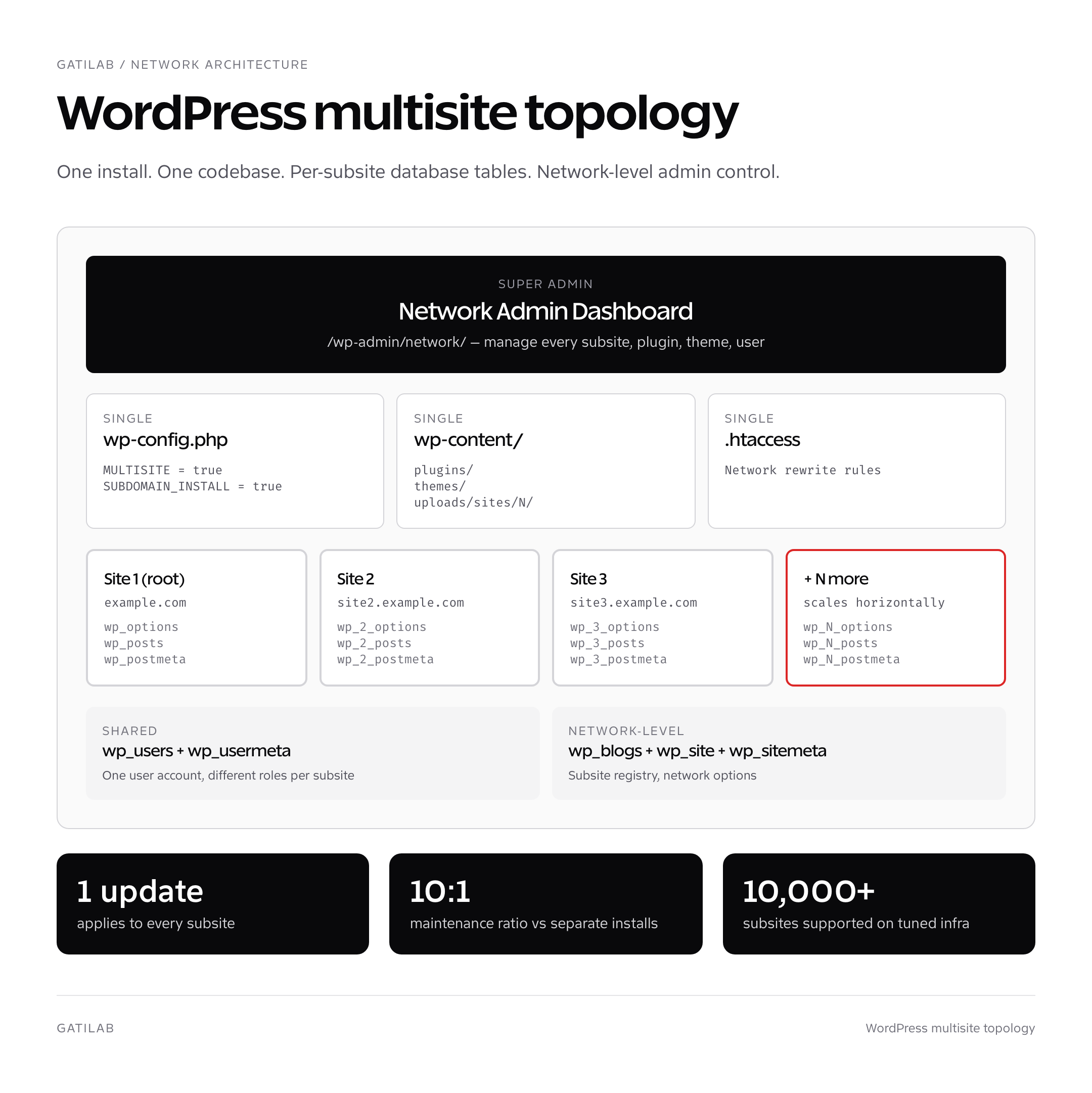
WordPress multisite is a feature of WordPress core that turns a regular install into a “network” of sites. The network has one wp-config.php, one wp-content directory, one set of plugin files, and one set of theme files. Each subsite has its own database tables (wp_2_options, wp_2_posts, wp_3_options, wp_3_posts, etc.), its own admin URL, its own users (or shared ones, depending on configuration), and its own URL (subdomain or subdirectory of the network’s primary domain).
The big idea: every plugin update, theme update, and core update happens once across every site in the network. Disk space stays small (no duplicate plugin files for each site). Maintenance scales sub-linearly with the number of sites. The trade-off: every plugin must be multisite-compatible, network-level decisions affect every site, and certain operations (search-replace, exports, migrations) become subtly more complex.
When to use WordPress multisite (and when not)
WordPress multisite earns its complexity in five specific scenarios. Outside these, separate WordPress installs are simpler.
- Multi-language sites with shared brand. One network with a subsite per language (en.example.com, fr.example.com, de.example.com) gives independent editorial teams while keeping the same theme and plugin set.
- Multi-region or multi-store ecommerce. One network with a subsite per region (us.shop.com, eu.shop.com, uk.shop.com) lets each region have its own products, currency, and tax setup with shared theme.
- Agency hosting client sites under one umbrella. 20-200 client sites managed from one wp-admin, with the agency as Super Admin and the client as Site Admin on their own subsite.
- SaaS that gives each customer their own WordPress. Every signup creates a new subsite. Customer manages their own content; you manage core, plugins, themes.
- University or large org with many departments. One install for the whole institution, one subsite per department. Each department has editorial autonomy.
Don’t use multisite for: two completely unrelated sites with no shared plugins (separate installs are easier to maintain), a single complex site that you imagine “growing into” multisite (you can convert later if needed), and any site where a single subsite needs root-level plugin permissions that affect the network (this requires Super Admin role, which gives that subsite control over every other site).
If a plugin you need isn’t multisite-compatible, multisite isn’t the right call. Check every plugin’s network compatibility before committing. The Multisite Plugin Compatibility list at WPMU DEV is a useful starting point, but always test in staging.
Subdomain vs subdirectory: the structural decision
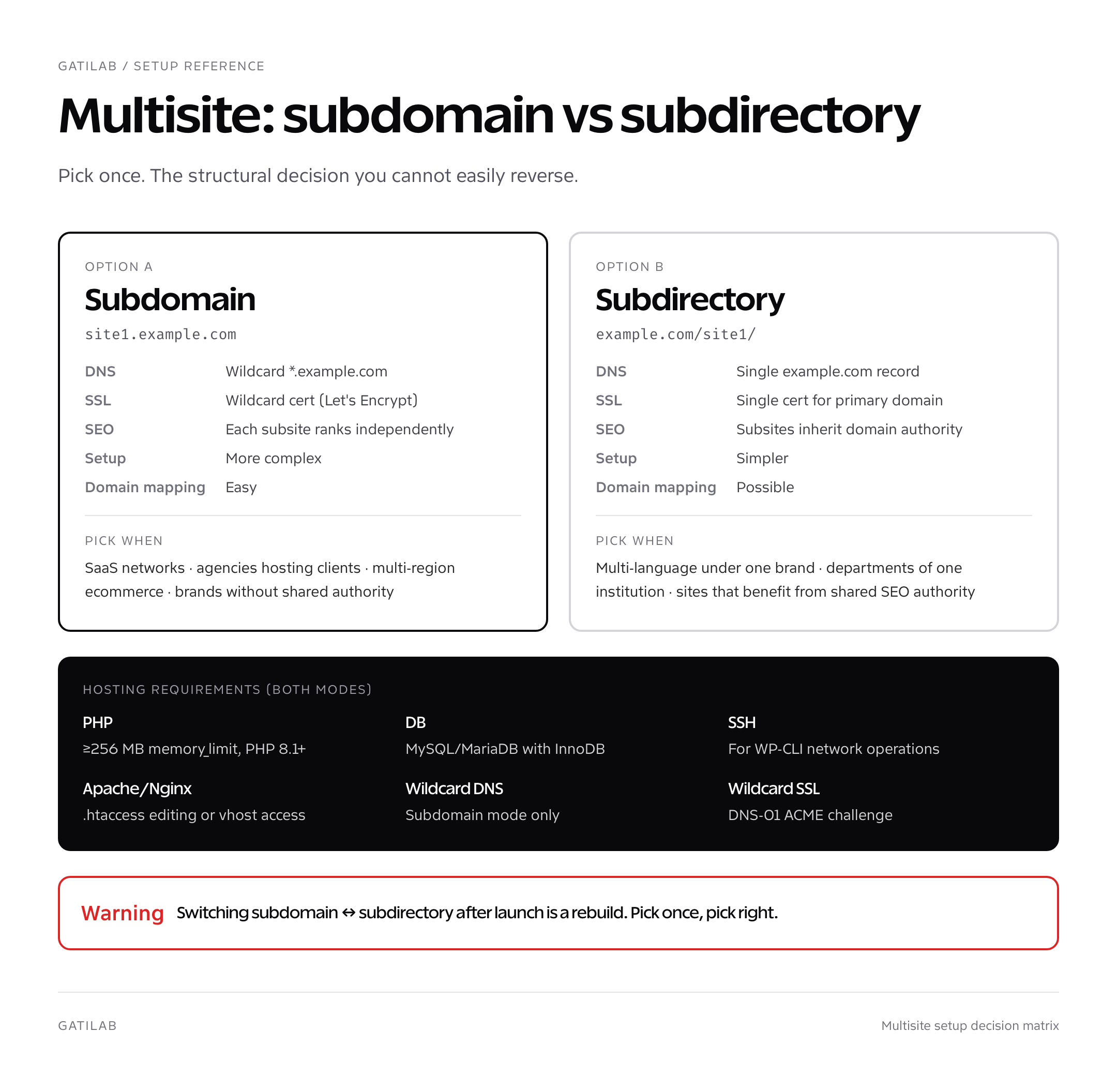
WordPress multisite supports two URL structures. You pick one when you set up the network and you can’t easily change it later (technically possible but requires reconfiguring DNS, .htaccess, and search-replacing every URL in the database).
| Aspect | Subdomain | Subdirectory |
|---|---|---|
| URL pattern | site1.example.com | example.com/site1/ |
| DNS setup | Wildcard *.example.com or per-site | Single example.com record |
| SSL handling | Wildcard cert or per-site | Single cert for primary domain |
| SEO impact | Each site treated as separate | Subsites inherit primary domain authority |
| Best for | Multi-region, agency hosting, SaaS | Departments, languages |
| Domain mapping | Easy (each subsite already has its own domain) | Same, possible via Domain Mapping |
| Setup complexity | Higher (wildcard DNS + cert) | Lower |
I default to subdomain when each subsite represents a different brand or client (no SEO value sharing). I use subdirectory when subsites are language or department variants of the same brand (where shared domain authority helps). For SaaS networks, subdomain is almost always the right call because customers expect their own URL.
Hosting requirements for WordPress multisite
Multisite has hard requirements that knock out cheap shared hosting on its first day.
- Wildcard DNS (subdomain mode only): your DNS provider must support a
*.example.comA record. Cloudflare, Route 53, GoDaddy DNS, and most modern providers do. - Wildcard SSL (subdomain mode only): Let’s Encrypt supports wildcard certs free; verify your host has DNS-01 challenge support if they auto-provision SSL.
- Apache or Nginx with rewrite rules: the multisite .htaccess (or Nginx equivalent) is more complex than single-site. Hosts that don’t allow .htaccess editing won’t work.
- PHP memory limit ≥ 256 MB: multisite admin operations consume more memory than single-site. 128 MB causes random WSOD on bulk operations.
- Database with InnoDB and MyISAM support: most modern MySQL/MariaDB installs cover this; a few legacy hosts run only MyISAM.
- SSH access: for WP-CLI, which is the only sane way to run network-wide operations.
Managed WordPress hosts that explicitly support multisite: WP Engine (any plan with multisite addon), Kinsta (Pro plan and up), Cloudways (any plan), Pressable (Premium and up), and SiteGround (GoGeek and up). The roundup of options is in our best managed WordPress hosting guide. For raw VPS, see the best web hosting services page.
wp-config.php and .htaccess setup
Enabling multisite is a two-step process: add a constant to wp-config.php, then run the network setup wizard which gives you the final wp-config.php and .htaccess block.
# Step 1: Edit wp-config.php BEFORE the "stop editing" comment
define('WP_ALLOW_MULTISITE', true);

# Step 2: In wp-admin, navigate to Tools → Network Setup
# Pick subdomain or subdirectory, fill in network title and admin email, click Install.
# WordPress shows you the exact wp-config.php and .htaccess to add.

# Step 3: Add the new wp-config.php block (replace YOUR DOMAIN)
define('MULTISITE', true);
define('SUBDOMAIN_INSTALL', true);  // false for subdirectory mode
define('DOMAIN_CURRENT_SITE', 'example.com');
define('PATH_CURRENT_SITE', '/');
define('SITE_ID_CURRENT_SITE', 1);
define('BLOG_ID_CURRENT_SITE', 1);

# Step 4: Replace the .htaccess block (subdirectory mode shown)
RewriteEngine On
RewriteRule .* - [E=HTTP_AUTHORIZATION:%{HTTP:Authorization}]
RewriteBase /
RewriteRule ^index\.php$ - [L]

# add a trailing slash to /wp-admin
RewriteRule ^([_0-9a-zA-Z-]+/)?wp-admin$ $1wp-admin/ [R=301,L]

RewriteCond %{REQUEST_FILENAME} -f [OR]
RewriteCond %{REQUEST_FILENAME} -d
RewriteRule ^ - [L]
RewriteRule ^([_0-9a-zA-Z-]+/)?(wp-(content|admin|includes).*) $2 [L]
RewriteRule ^([_0-9a-zA-Z-]+/)?(.*\.php)$ $2 [L]
RewriteRule . index.php [L]

# Step 5: Log out, log back in. You'll see "My Sites" in the top toolbar.
The wizard regenerates the exact constants and rewrite rules for your specific URL. Don’t copy from another network’s wp-config.php; the SITE_ID_CURRENT_SITE and DOMAIN_CURRENT_SITE values are unique to each install.
The Network Admin interface
After the network goes live, the wp-admin top toolbar gains a “My Sites” → “Network Admin” entry. The Network Admin is a separate dashboard at /wp-admin/network/ with menus for managing the whole network.
- Sites: list of every subsite, create new sites, delete sites, archive sites, mark spam.
- Users: every user across the network. Network-level user management.
- Themes: install, activate (network-wide), or “network enable” themes (lets individual subsites pick from the enabled set).
- Plugins: install, network-activate (forces every subsite to use the plugin), or just install (subsite admins choose to activate per-site).
- Settings: network title, admin email, registration policy, upload size limits, banned email domains, language settings.
- Updates: one click updates every plugin, theme, and core file across the network.
The “Super Admin” role exists only on multisite. Super Admins can do everything a regular admin can do plus install plugins, install themes, create new subsites, and edit any subsite’s content. Site admins (regular admin role on a specific subsite) cannot install plugins or themes; they can only activate from the network-enabled set.
Domain mapping for branded subsite URLs
By default, subsites in a WordPress multisite live at network.com/site1 or site1.network.com. Domain mapping lets each subsite have its own branded URL like clientsite.com or product.com while still being part of the same network. Since WordPress 4.5, domain mapping is built into core (no plugin needed).
# Step 1: Point the new domain's DNS at your network's server IP

# Step 2: In Network Admin → Sites → Edit site → Info tab
# Change "Site Address (URL)" from site1.network.com to clientsite.com

# Step 3: Update primary host with WP-CLI
wp site option update --url=clientsite.com siteurl 'https://clientsite.com'
wp site option update --url=clientsite.com home 'https://clientsite.com'

# Step 4: Run search-replace to fix any internal references
wp search-replace 'site1.network.com' 'clientsite.com' --url=clientsite.com \
  --skip-columns=guid --dry-run

# Step 5: Provision SSL for the new domain (Let's Encrypt or your host's auto-SSL)
The full search-replace workflow for migrations is in our wp-cli search-replace guide. Domain mapping doesn’t change anything else about how the subsite operates: same database tables, same plugins, same Super Admin access, just a different public URL.
Plugins I install on every WordPress multisite
- WP Migrate DB Pro ($99/year): the only sane way to push staging-to-production on a multisite. Handles cross-network table prefixes correctly.
- User Switching (free): lets a Super Admin switch into any user account without typing their password. Lifesaver for client support.
- Multisite Enhancements (free): adds useful network-level columns (last activity, post count, plugin count) to the Sites list.
- NS Cloner (free): clones a subsite to a new subsite. Useful for templated SaaS networks where every new customer gets a copy of a template subsite.
- WP Multi Network (free): manages multiple networks under one install. Niche, but useful for agencies running multiple multisite networks from one infrastructure.
- Multisite User Management (free): bulk role changes, user CSV imports, network-level capability tweaks.
I deliberately avoid “all-in-one” multisite suites. Each plugin should do one thing and play nicely with WP-CLI. The full wp-cli command set for managing multisite (network plugin updates, per-site search-replace, user role changes) is covered in our WP-CLI commands cheatsheet.
Migrating an existing site to WordPress multisite
Converting a single-site WordPress install into a multisite network is a one-way street. Plan the steps in advance and run them in order.
- Full database and files backup.
wp db export pre-multisite-$(date +%F).sql.gzover CLI plus a tar of wp-content. - Deactivate every plugin. Multisite needs to come up clean before reactivating per-site.
- Add
define('WP_ALLOW_MULTISITE', true);to wp-config.php. - Tools → Network Setup. Pick subdomain or subdirectory based on the decision above.
- Apply the wp-config.php and .htaccess changes from the wizard.
- Log out, log back in. The original site becomes Site ID 1 of the network.
- Network-activate must-have plugins; let subsite admins activate per-site plugins.
- Test the existing content on Site 1. Everything should look identical to before.
- Create new subsites from Network Admin → Sites → Add New.
Reverting from multisite to single-site is significantly harder. The database tables for Site ID 1 are reusable, but every other subsite would need to be migrated to its own install via WP Migrate DB or a manual export. Plan the conversion as a one-time decision.
For sites built on a custom code stack, the WordPress hooks tutorial covers network-aware hook patterns (the network_admin_menu action, the wpmu_new_blog action), and the WordPress REST API guide documents how the API behaves on multisite (the --url flag, the network root namespace). For headless setups, multisite is fully compatible with the patterns in our headless WordPress guide.
FAQs about WordPress multisite
Is WordPress multisite the same as a multi-language site?
No, but multisite is one approach to multi-language. The other is a single-site install with a translation plugin like WPML or Polylang. Multisite gives you full editorial independence per language at the cost of harder content syncing. WPML keeps translations linked but everything lives in one site. For brands where the French team and the English team operate independently, multisite is cleaner. For brands where every page exists in every language with linked translations, WPML is cleaner.
How many subsites can a WordPress multisite handle?
WordPress.com runs a single multisite network with millions of subsites. Self-hosted networks routinely handle 10,000+ subsites on properly tuned infrastructure. The bottleneck is rarely WordPress itself; it’s database row counts (every subsite adds 12+ tables), object cache memory, and admin operations that scale poorly past 5,000 subsites (Sites list paginates slowly, network plugin updates take longer). For most agencies, anything from 5 to 500 subsites runs without special tuning.
Can each subsite have a different theme on WordPress multisite?
Yes. Network-enable multiple themes from Network Admin → Themes, then each subsite picks one from the enabled set. Network-activated themes apply to every subsite (rare). Most networks enable a handful of themes and let subsite admins choose. Themes you don’t enable network-wide aren’t visible to subsites at all.
How do I export a single subsite from WordPress multisite?
Three options. Tools → Export inside the subsite gives you a WXR file (lossy: misses widget data and customizer settings). WP Migrate DB Pro exports the subsite’s tables as a SQL file you can import into a fresh single-site install. Manual: dump the subsite’s tables via wp db export --tables=wp_2_*, edit the table prefix to wp_, and import into a new install. Plan to also rewrite the URLs via wp search-replace afterward.
Does WooCommerce work on WordPress multisite?
Yes, with caveats. WooCommerce installs and runs per-subsite, so a network of 10 stores has 10 independent WooCommerce installs sharing the same plugin files. Each store has its own products, orders, customers, settings. Cross-store data sharing requires either custom code or plugins like Woo Multistore. Watch for memory consumption: each WooCommerce subsite’s autoloaded options add up across the network.
What’s the difference between network-activate and just activate on multisite?
Network-activate from Network Admin → Plugins forces the plugin on every existing and future subsite; subsite admins cannot deactivate it. Just activating from a subsite’s Plugins page (only available if the plugin is network-installed but not network-activated) turns it on for that subsite only. Network-activate plugins that every site must run (security, caching, analytics). Leave optional plugins network-installed but not network-activated.
Can subsites on WordPress multisite have separate user databases?
No, the user table is shared across the entire network. A user has one account that can have different roles on different subsites. To create truly separate user pools, you’d need separate WordPress installs, not a multisite network. The User Switching plugin and the Multisite User Management plugin help organize permissions across the shared user table.
Can I run WordPress multisite on shared hosting?
Technically yes, but most cheap shared hosts won’t be happy. You need wildcard DNS (subdomain mode), SSH access for WP-CLI, .htaccess editing, and at least 256 MB PHP memory. Hosts like Bluehost, SiteGround GoGeek, and HostGator Business support multisite on paper but the experience drops off above 5-10 subsites. Move to a managed WordPress host or VPS for any serious multisite network.
WP-CLI commands for WordPress multisite
Every WP-CLI command supports multisite with the addition of one or two flags. Memorize these and you can manage a network of any size from the command line.
# List every site in the network
wp site list

# Run a command on a specific subsite
wp plugin list --url=site2.example.com

# Run a command across the whole network (network-level)
wp plugin update --all --network

# Create a new subsite
wp site create --slug=newsite --title="New Site" --email=admin@example.com

# Activate a plugin network-wide
wp plugin activate myplugin --network

# Deactivate a plugin on one subsite only
wp plugin deactivate myplugin --url=site2.example.com

# Search-replace across the entire network
wp search-replace 'oldnetwork.com' 'newnetwork.com' --network --skip-columns=guid --dry-run

# Loop a command over every subsite
for url in $(wp site list --field=url); do
    wp cache flush --url="$url"
done

# Network database export (every site's tables)
wp db export multisite-backup-$(date +%F).sql

# Network DB size by table prefix
wp db query "SELECT table_name, ROUND(data_length/1024/1024) AS mb FROM information_schema.tables WHERE table_schema = '$(wp config get DB_NAME)' ORDER BY data_length DESC LIMIT 20"
The shell-loop pattern in the example above is the multisite admin’s secret weapon. Every operation that takes a --url flag can be run across every subsite with a single one-liner. Combined with cron, this scales network maintenance to thousands of subsites without any custom tooling.
Multisite gotchas every operator hits
- Plugin auto-update breaking on multisite. Some plugins assume single-site context and fail their auto-update routine on networks. Set
define('WP_AUTO_UPDATE_CORE', false);and run updates manually via WP-CLI. - The “wp_users autoincrement” surprise. Multisite shares users across every subsite, so a single subsite cannot reuse user IDs. If you migrate a single-site install with user ID 1 into an existing multisite that already has user ID 1, the migration fails silently. Always renumber or assign new IDs during migration.
- Mailgun/SES sending limits per subsite. Email plugins typically send from one configured account. On a 50-subsite network, that account hits sending limits faster than expected. Configure per-subsite SMTP or use a service with per-subsite API keys.
- Object cache key collisions. Some legacy object cache plugins don’t prefix keys with the blog ID. Two subsites both setting the cache key ‘recent_posts’ overwrite each other. Verify your cache plugin is multisite-aware before deploying.
- Backup plugins assuming single-site. UpdraftPlus, BackWPup, and a few others handle multisite correctly. Avoid plugins that don’t list multisite explicitly in their compatibility notes.
Each gotcha is the kind of issue you only hit in production at scale. Test your plugin set in a 5-subsite staging environment before launching a 50-subsite production network.
Bottom line on WordPress multisite
WordPress multisite is the right call when one team manages many sites that share a codebase. Pick subdomain or subdirectory based on whether subsites share brand authority, set up wildcard DNS and SSL before flipping the switch, choose hosting that explicitly supports multisite, install the network with the wizard rather than copy-paste from another install, and treat plugin compatibility as a hard requirement. Once it’s running, multisite scales to thousands of subsites with maintenance overhead that beats running them as separate installs by 10 to 1.
Tell Google you want more of this.
Add Gatilab as a preferred sourceOne tap, and this site shows up more often in your own Top Stories, AI Overviews and AI Mode. Remove it any time.