
WordPress REST API: Complete Developer Guide 2026
The WordPress REST API is the part of WordPress that answers in JSON instead of HTML. Every site on WordPress 4.7 or later has it switched on at /wp-json/, and it’s how the block editor saves your posts, how a headless frontend reads them and how automation tools publish into your site.
Most of the trouble with it starts in 2 places. A request that works in the browser fails with a 401 from a script, because the authentication doesn’t suit where the request comes from. Or someone reads that wp-json exposes usernames, switches the whole API off and quietly breaks the editor. Both have clean fixes, and both are below with code you can copy.
Before going into authentication, I want to ensure the basics are clear, because most 401 errors trace back to a wrong idea about which requests need it. Every code sample uses example.com and a user called editor, so swap in your own site and user.
What the WordPress REST API Is
REST is a convention for reading and changing data over plain HTTP. Each piece of content gets its own URL, and the HTTP method says what should happen to it. WordPress follows it closely:
GETreads a post, a list of posts or any other resource.POSTcreates a resource, and on an existing one it updates it.PUTandPATCHalso update an existing resource.DELETEmoves a post to the trash, or removes it for good withforce=true.
Two words come up constantly. A route is the URL path, such as /wp/v2/posts. An endpoint is a route plus a method, so GET and POST on /wp/v2/posts are 2 endpoints on 1 route. Core routes live in the wp/v2 namespace, and plugins register their own namespaces next to it, such as wp-site-health/v1.
The API shipped in WordPress 4.7 in December 2016 and has grown with every release since. A fresh WordPress 7.1 install registers more than 100 routes before you add a single plugin. Before it, remote access meant XML-RPC, which wraps every call in an XML envelope and still ships in core for older clients. For new work the REST API is the better choice:
- JSON is lighter to read and write than XML, and every language has a parser for it.
- Every route describes its own arguments and response fields, so clients can discover what’s there.
- Plugins and themes add their own routes without touching core.
The official REST API Handbook is the reference worth keeping open next to this guide.
How to Find Your WordPress REST API URL
On most sites the REST API lives at https://example.com/wp-json/. That address depends on pretty permalinks. A site on the default plain permalinks has no /wp-json/ rewrite, so the same API answers at https://example.com/?rest_route=/ and a route becomes ?rest_route=/wp/v2/posts.
You don’t have to guess which one a site uses. WordPress adds a Link header to every front-end page that points at the API root, so a HEAD request tells you the right base URL:
curl -sI https://example.com/ | grep -i 'api.w.org'
# link: <https://example.com/wp-json/>; rel="https://api.w.org/"
There are 3 quick ways to check that the API is actually working:
- Open
/wp-json/in a browser. A JSON document withname,namespacesandrouteskeys means it’s up. - Run
curl -s https://example.com/wp-json/ | jq '.namespaces'from a terminal to list every namespace without opening wp-admin. - Open Tools > Site Health in wp-admin. Its “The REST API is available” check turns into “The REST API encountered an error” when something blocks the request.
If /wp-json/ returns a 404 while ?rest_route=/ works, the rewrite rules are stale. Saving Settings > Permalinks once, without changing anything, rebuilds them.
Default WordPress REST API Endpoints
Core registers endpoints for every built-in content type, plus the site-building pieces the block editor needs. These are the routes you’ll use most, with what a request without authentication can read on WordPress 7.1. Every write needs authentication and the matching capability.
| Resource | Route | Without authentication |
|---|---|---|
| Posts | /wp/v2/posts | Published posts only |
| Pages | /wp/v2/pages | Published pages only |
| Media | /wp/v2/media | Readable |
| Comments | /wp/v2/comments | Approved comments |
| Categories and tags | /wp/v2/categories, /wp/v2/tags | Readable |
| Post types, taxonomies, statuses | /wp/v2/types, /wp/v2/taxonomies, /wp/v2/statuses | Readable |
| Users | /wp/v2/users | Users with published posts: name, slug, avatar |
| Search | /wp/v2/search | Readable |
| Settings | /wp/v2/settings | 401, needs manage_options |
| Plugins and themes | /wp/v2/plugins, /wp/v2/themes | 401 |
| Menus and menu locations | /wp/v2/menus, /wp/v2/menu-locations | 401, needs edit_theme_options |
| Templates and block types | /wp/v2/templates, /wp/v2/block-types | 401 |
Two rows surprise people. Menus return a 401 even though they appear on every page, because the API treats menu structure as admin data, so a headless frontend has to read them with an authenticated request or through a custom route that exposes only the public parts. And the users route answers anonymous requests, which is the reason behind most “should I disable wp-json” threads. That one gets its own section below.
The endpoint reference lists every core route with its arguments. For the routes on your own site, including the ones plugins add, ask the site itself:
curl -s https://example.com/wp-json/ | jq '.routes | keys'WordPress REST API Authentication
Public reads need no authentication at all. Anything that writes, and anything that reads private data such as drafts or settings, needs WordPress to know who is asking. WordPress ships with 2 ways to do that and leaves the rest to plugins.
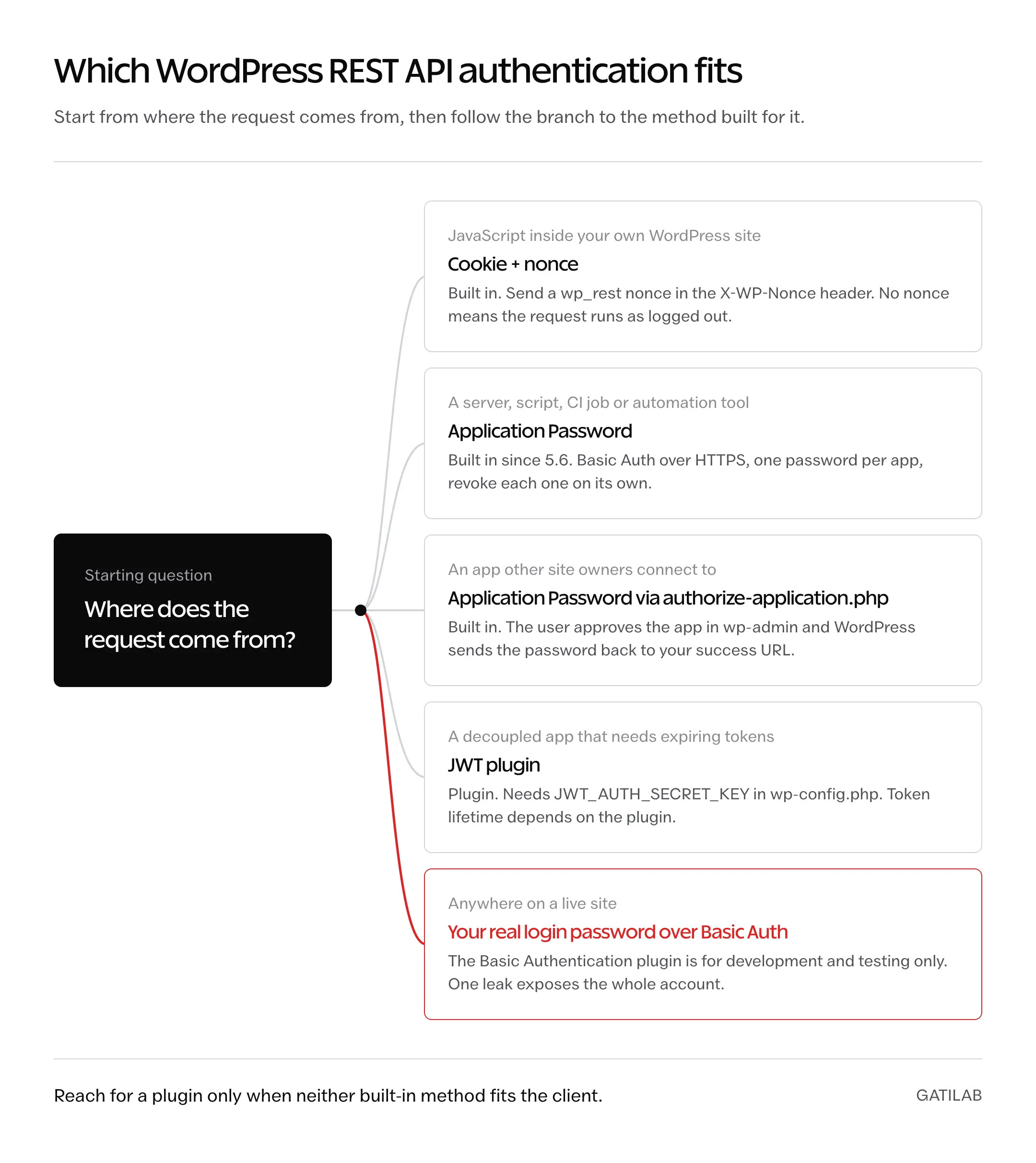
The right method depends on where the request comes from. JavaScript running on your own site already has a login cookie to lean on, while a server script or another app has nothing but what you give it.
Cookie and Nonce Authentication
This is the method the block editor itself uses. When you’re logged in, your browser already carries the WordPress auth cookie, so JavaScript on the same site only has to prove the request is intentional. It does that with a nonce, a short-lived token tied to the user and an action, here wp_rest.
The nonce goes in an X-WP-Nonce header or a _wpnonce parameter. Without it, WordPress sets the current user to 0 and treats the request as logged out, even in a logged-in browser. That rule is what stops another website from using your visitors’ cookies against your API.
// In a plugin or theme: give the script the API root and a nonce.
add_action( 'wp_enqueue_scripts', function () {
	wp_enqueue_script( 'my-app', plugins_url( 'app.js', __FILE__ ), array(), '1.0', true );
	wp_localize_script( 'my-app', 'myApp', array(
		'root'  => esc_url_raw( rest_url() ),
		'nonce' => wp_create_nonce( 'wp_rest' ),
	) );
} );
// app.js: create a draft as the logged-in user.
fetch( myApp.root + 'wp/v2/posts', {
method: 'POST',
headers: {
'Content-Type': 'application/json',
'X-WP-Nonce': myApp.nonce,
},
body: JSON.stringify( { title: 'Draft from the browser', status: 'draft' } ),
} )
.then( ( response ) => response.json() )
.then( ( post ) => console.log( post.id ) );Inside the block editor and other wp-admin screens, the @wordpress/api-fetch package handles this for you. It is a wrapper around window.fetch that adds the nonce and the API root, so apiFetch( { path: '/wp/v2/posts' } ) works without any setup. Cookie authentication only works on the same site, though. A script on another domain, a server or a phone app has no WordPress cookie to send.
Application Passwords
Application Passwords arrived in WordPress 5.6, and they’re what I’d pick for almost every server-to-server integration. Each one is a 24-character password generated for a single app, shown once and sent with HTTP Basic Auth. It can’t be used to log in to wp-admin, and you can revoke it without touching the user’s real password.
Creating one takes a minute:
- Open Users > Profile, or edit another user as an administrator, and scroll to Application Passwords.
- Type a name for the app, such as “Deploy script”, and click Add New Application Password.
- Copy the password straight away. WordPress stores only a hash and never shows it again.
A few rules decide whether it works:
- HTTPS is required. The section only appears when the site runs over HTTPS or its environment type is set to
local. On a plain-HTTP site it’s hidden, because Basic Auth over HTTP sends the password in readable form. - Spaces don’t matter. WordPress shows the password in groups of 4 characters and strips the spaces before checking it, so you can send it either way.
- Every app gets its own password. The profile screen shows when each one was last used and from which IP address, and revoking one leaves the others working.
- It only covers API requests. Application Passwords work for the REST API and XML-RPC, never for the login form.
- It carries the user’s full capabilities. There are no per-route scopes, so an integration should get its own user with the lowest role that does the job, never an administrator’s password.
# Create a draft with an Application Password
curl -X POST https://example.com/wp-json/wp/v2/posts \
  -u 'editor:abcd EFGH 1234 ijkl MNOP 6789' \
  -H 'Content-Type: application/json' \
  -d '{"title":"Hello from curl","content":"Created through the REST API.","status":"draft"}'

# Confirm who the password belongs to
curl -u 'editor:abcd EFGH 1234 ijkl MNOP 6789' https://example.com/wp-json/wp/v2/users/me
Passing only -u editor without the password makes curl prompt for it, which keeps the password out of your shell history.
If you’re building an app that other site owners connect to, don’t ask them to paste a password into a form. Send them to /wp-admin/authorize-application.php with your app_name, an optional app_id UUID and a success_url. They approve the request in wp-admin, and WordPress redirects back to your success URL with site_url, user_login and password in the query string. The success URL has to use HTTPS outside a local environment. The Application Passwords integration guide covers the full flow, including the /wp/v2/users/me/application-passwords route for managing passwords from code.
JWT Authentication Plugins
WordPress core has no JSON Web Token support. Two plugins add it, and both register the same /wp-json/jwt-auth/v1/token route, which makes them easy to confuse. They behave differently where it counts:
- JWT Authentication for WP REST API: version 1.5.0, updated February 2026, 60,000+ active installs. Tokens expire after 7 days by default, adjustable with the
jwt_auth_expirefilter. - JWT Auth: version 3.0.2, last updated May 2024 and tested only up to WordPress 6.5, 6,000+ active installs. Access tokens last 10 minutes and clients renew them with a refresh token.
Both need the same setup before they’ll issue a token:
- A
JWT_AUTH_SECRET_KEYconstant inwp-config.php, set to a long random string. - An optional
JWT_AUTH_CORS_ENABLEconstant when a browser app on another domain calls the API. - On many Apache hosts, a rewrite rule so the
Authorizationheader reaches PHP. The fix is in the errors section below.
# Exchange a username and password for a token
curl -X POST https://example.com/wp-json/jwt-auth/v1/token \
  -H 'Content-Type: application/json' \
  -d '{"username":"editor","password":"the-editor-login-password"}'

# Send the token on later requests
curl https://example.com/wp-json/wp/v2/users/me \
  -H 'Authorization: Bearer YOUR_TOKEN'
JWT earns its place when a decoupled frontend needs per-user sessions that expire. For a single backend talking to WordPress, an Application Password is simpler and leaves no plugin to keep updated. The token request sends the user’s real login password, so it must run over HTTPS too.
OAuth 1.0a and OAuth 2.0
OAuth 1.0a still turns up in older tutorials. The OAuth 1.0a Server plugin the handbook mentions is at version 0.4.4, was last updated in August 2024 and is tested only up to WordPress 6.6, so I wouldn’t start a new project on it. Self-hosted WordPress has no OAuth 2.0 server in core either. A guide that tells you to “enable OAuth 2.0” is describing a plugin or WordPress.com, which runs its own OAuth 2.0 API for sites it hosts.
The Basic Authentication plugin is a different thing again: it sends your real username and password with every request. The handbook’s authentication page limits it to development and testing, and that’s where it should stay.
WordPress REST API Examples
These are the requests worth keeping in a snippets file. Reads work anonymously; anything that writes uses the Application Password from the previous section.
Reading Posts With curl
# Latest 10 published posts (the default page size)
curl 'https://example.com/wp-json/wp/v2/posts'

# 5 posts with only the fields a listing needs
curl 'https://example.com/wp-json/wp/v2/posts?per_page=5&_fields=id,title,link'

# Search, newest first
curl 'https://example.com/wp-json/wp/v2/posts?search=caching&orderby=date&order=desc'

# Posts in category 7, with the author and terms embedded
curl 'https://example.com/wp-json/wp/v2/posts?categories=7&_embed=author,wp:term'
The _fields request comes back as a small array, with nothing the listing doesn’t use:
[
  {
    "id": 42,
    "link": "https://example.com/hello-world/",
    "title": { "rendered": "Hello world!" }
  }
]
Updating and Deleting a Post
# Change the title of post 42
curl -X POST https://example.com/wp-json/wp/v2/posts/42 \
  -u 'editor:abcd EFGH 1234 ijkl MNOP 6789' \
  -H 'Content-Type: application/json' \
  -d '{"title":"A better title"}'

# Move post 42 to the trash
curl -X DELETE https://example.com/wp-json/wp/v2/posts/42 \
  -u 'editor:abcd EFGH 1234 ijkl MNOP 6789'

# Delete it permanently, skipping the trash
curl -X DELETE 'https://example.com/wp-json/wp/v2/posts/42?force=true' \
  -u 'editor:abcd EFGH 1234 ijkl MNOP 6789'
Some firewalls and older HTTP clients block PUT and DELETE. The API accepts a POST with a _method=DELETE parameter or an X-HTTP-Method-Override header instead.
A Live Search in the Browser
Public endpoints need no nonce, so a few lines of JavaScript on any page can query them. This is the classic live-search pattern, built on the /wp/v2/search route:
const input = document.querySelector( '#live-search' );
const results = document.querySelector( '#live-results' );

input.addEventListener( 'input', async () => {
	if ( input.value.length < 3 ) {
		results.replaceChildren();
		return;
	}
	const url = '/wp-json/wp/v2/search?per_page=5&search=' + encodeURIComponent( input.value );
	const items = await ( await fetch( url ) ).json();

	results.replaceChildren( ...items.map( ( item ) => {
		const link = document.createElement( 'a' );
		link.href = item.url;
		link.textContent = item.title;
		const row = document.createElement( 'li' );
		row.append( link );
		return row;
	} ) );
} );
Building the list with textContent instead of an HTML string keeps a post title from ever being run as markup. On a site with plain permalinks, pass the API root from PHP with rest_url() instead of hardcoding /wp-json/.
Calling the API From PHP
From another WordPress site, wp_remote_post() and wp_remote_get() handle the HTTP side. Keep the password in wp-config.php or an environment variable, never in code you commit:
$response = wp_remote_post( 'https://example.com/wp-json/wp/v2/posts', array(
	'headers' => array(
		'Authorization' => 'Basic ' . base64_encode( 'editor:' . MY_APP_PASSWORD ),
		'Content-Type'  => 'application/json',
	),
	'body'    => wp_json_encode( array( 'title' => 'Synced post', 'status' => 'draft' ) ),
	'timeout' => 15,
) );

if ( is_wp_error( $response ) || 201 !== wp_remote_retrieve_response_code( $response ) ) {
	error_log( 'Post sync failed: ' . wp_remote_retrieve_body( $response ) );
}
Inside the same site, skip HTTP entirely. rest_do_request() runs a request through the API in-process, with the current user’s permissions:
$request = new WP_REST_Request( 'GET', '/wp/v2/posts' );
$request->set_query_params( array( 'per_page' => 5, '_fields' => 'id,title' ) );

$response = rest_do_request( $request );
$posts    = rest_get_server()->response_to_data( $response, false );
Custom Endpoints With register_rest_route
When no core endpoint returns what you need, register your own route on the rest_api_init hook. This one returns the word count of a published post:
add_action( 'rest_api_init', function () {
	register_rest_route( 'myplugin/v1', '/word-count/(?P<id>\d+)', array(
		'methods'             => WP_REST_Server::READABLE,
		'callback'            => 'myplugin_word_count',
		'permission_callback' => '__return_true',
		'args'                => array(
			'id' => array(
				'validate_callback' => function ( $value ) {
					return is_numeric( $value );
				},
				'sanitize_callback' => 'absint',
			),
		),
	) );
} );

function myplugin_word_count( WP_REST_Request $request ) {
	$post = get_post( $request['id'] );

	if ( ! $post || 'publish' !== $post->post_status ) {
		return new WP_Error( 'rest_post_not_found', 'Post not found.', array( 'status' => 404 ) );
	}

	return rest_ensure_response( array(
		'id'    => $post->ID,
		'words' => str_word_count( wp_strip_all_tags( $post->post_content ) ),
	) );
}
The route answers at /wp-json/myplugin/v1/word-count/42. A few details carry most of its safety:
- The
(?P<id>\d+)pattern captures the ID and rejects anything that isn’t digits before your code runs. validate_callbackandsanitize_callbackrun on each argument before the permission check and before the callback.permission_callbackis required. Since WordPress 5.5, leaving it out triggers a_doing_it_wrongnotice while the route keeps working, which is exactly why a missing check is easy to ship.__return_truebelongs only on data that is public anyway.- The status check matters on a public route. Without it, anyone could read the word count of a draft by guessing its ID.
- Returning a
WP_Errorwith astatus, or data throughrest_ensure_response(), lets WordPress build the HTTP response for you.
A route that changes data should check a capability instead of returning true:
'permission_callback' => function ( WP_REST_Request $request ) {
	return current_user_can( 'edit_post', $request['id'] );
},
The handbook’s page on adding custom endpoints goes further into controller classes and schemas, and our guide to rest_api_init and other WordPress hooks explains where this code should run.
Custom Post Types and Fields in the REST API
A custom post type stays invisible to the API until it’s registered with show_in_rest. The same flag makes it editable in the block editor, which talks to it through REST:
register_post_type( 'book', array(
	'public'       => true,
	'label'        => 'Books',
	'supports'     => array( 'title', 'editor', 'thumbnail', 'custom-fields' ),
	'show_in_rest' => true,
	'rest_base'    => 'books', // served at /wp/v2/books
) );
The rest of the options are covered in our guide to how you register a custom post type with show_in_rest.
For a stored meta value, register_post_meta() is the cleaner route. The value shows up under the post’s meta key, with its type checked and the same update path as core fields. On a custom post type, the type must support custom-fields for its meta to appear:
add_action( 'init', function () {
	register_post_meta( 'book', 'isbn', array(
		'type'          => 'string',
		'single'        => true,
		'show_in_rest'  => true,
		'auth_callback' => function () {
			return current_user_can( 'edit_posts' );
		},
	) );
} );
For values worked out on the fly rather than stored, register_rest_field() adds a field with its own callback:
add_action( 'rest_api_init', function () {
	register_rest_field( 'post', 'reading_time', array(
		'get_callback' => function ( $post ) {
			$words = str_word_count( wp_strip_all_tags( get_post_field( 'post_content', $post['id'] ) ) );
			return max( 1, (int) ceil( $words / 200 ) );
		},
		'schema'       => array(
			'type'    => 'integer',
			'context' => array( 'view', 'edit' ),
		),
	) );
} );
ACF Fields
Advanced Custom Fields has handled REST itself since version 5.11. Open the field group, go to Group Settings and turn on Show in REST API, and the values appear under an acf key on the post. The acf_format parameter switches between light (the default) and standard formatting. ACF’s REST API documentation covers the details.
The older ACF to REST API plugin was closed on WordPress.org on January 2, 2026 for a security issue. If it’s still installed on a site you look after, move those requests to ACF’s built-in support and remove the plugin.
Pagination, Filtering and Smaller Responses
Every collection endpoint shares the same family of parameters. These are the ones that matter for posts:
| Parameter | What it does |
|---|---|
per_page | Items per page, 1 to 100, default 10. Anything above 100 returns a 400 error. |
page | Page number, starting at 1. |
offset | Skips a number of items. |
orderby | author, date, id, include, modified, parent, relevance, slug, include_slugs or title. Pages also accept menu_order. |
order | asc or desc. |
search | Text search. search_columns limits it to post_title, post_content or post_excerpt. |
after, before | Publish-date limits in ISO 8601. modified_after and modified_before do the same for the last edit. |
categories, tags | Term IDs, comma separated. tax_relation=AND requires both. |
status | Drafts, private and scheduled posts, for authenticated users who can see them. |
_fields | Returns only the listed fields. Nested keys such as meta.isbn work since WordPress 5.3. |
_embed | Bundles linked resources into the response. Since WordPress 5.4 it can be limited, as in _embed=author,wp:term. |
_envelope | Moves the status code and headers into the response body, for clients that can’t read headers. |
Two headers come back on every collection: X-WP-Total with the number of matching items and X-WP-TotalPages with the number of pages. A client should read them before looping and stop when page reaches the total, instead of requesting pages until one fails. The pagination guide has the details.
_fields is the cheapest speed fix in the API. A default post response carries the rendered content, the excerpt, the links and more than 20 other fields, and a listing that needs a title and a link can drop all of it. The saving grows with every item on the page. _embed works the other way: it saves round trips by bundling the author, terms and featured image into one response, at the cost of a bigger and slower response, so it should be limited to the relations the page actually renders. When the two are combined, _fields has to include _links and _embedded, or the embedded data is filtered out. Both are documented with the other global parameters.
Caching, Rate Limits and Webhooks
WordPress doesn’t cache REST responses. Each request boots WordPress, runs the query and builds the JSON again, so a busy headless frontend or app feels it before a normal theme does. There are 3 layers worth adding:
- An edge or page cache for public
GETrequests, with a sensibleCache-Controllifetime. Requests that carry anAuthorizationheader or a login cookie must bypass it, or one user’s private data ends up in another user’s response. - A persistent object cache such as Redis, which keeps repeated queries out of MySQL.
- A custom route that returns only what the frontend needs, when a core endpoint does far more work than the page uses.
For the frontend side of this, including static builds and on-demand revalidation, the headless WordPress architecture guide picks up where this section stops.
Core has no rate limiting either. Any limit you hit comes from the host, a firewall such as Cloudflare or a security plugin, and it usually arrives as a 429 Too Many Requests response. An integration that makes thousands of calls a day should ask the host what it allows and back off when a 429 arrives, waiting as long as its Retry-After header asks when one is sent.
WordPress also has no outbound webhooks. When another system needs to know a post went live, a small hook sends the notification:
add_action( 'transition_post_status', function ( $new_status, $old_status, $post ) {
	if ( 'publish' !== $new_status || 'publish' === $old_status || 'post' !== $post->post_type ) {
		return;
	}

	wp_remote_post( 'https://hooks.example.com/wordpress-published', array(
		'headers'  => array( 'Content-Type' => 'application/json' ),
		'body'     => wp_json_encode( array( 'id' => $post->ID, 'url' => get_permalink( $post ) ) ),
		'blocking' => false,
	) );
}, 10, 3 );
Setting 'blocking' => false keeps the editor from waiting on the other server. Tools such as Zapier and Make connect through the same API, and it’s worth checking Zapier’s free plan limits before building a workflow on it. When the job is bigger than a hook and a webhook, our WordPress API integration service handles the build.
wp-json: Should You Disable It?
No. Switching off wp-json breaks the block editor, Site Health checks and any plugin that uses the API for its own screens or forms. The handbook’s FAQ recommends requiring authentication instead of disabling it, and for most sites even that goes further than needed.
The worry behind the question is real, though. An anonymous request to /wp-json/wp/v2/users lists every user who has published a post, with their display name and slug. The slug is often the same as the login username, which hands an attacker half of a login attempt.
There are broadly three ways sites handle this.
You can turn the whole API off with a plugin or a filter. That closes the users list and takes the editor down with it.
Or, you can leave everything as it is and accept that author slugs are public. On a blog where the author archive URL already shows the slug, the endpoint reveals nothing new.
The sensible middle is to keep the API on and close only what anonymous visitors don’t need, and for most sites that means the users routes. This filter returns a 401 to logged-out requests on /wp/v2/users and leaves logged-in requests alone, so the editor’s author picker and /wp/v2/users/me keep working:
add_filter( 'rest_pre_dispatch', function ( $result, $server, $request ) {
	if ( ! is_user_logged_in() && str_starts_with( $request->get_route(), '/wp/v2/users' ) ) {
		return new WP_Error(
			'rest_not_logged_in',
			'You must be logged in to view users.',
			array( 'status' => 401 )
		);
	}
	return $result;
}, 10, 3 );
A site that has nothing to offer anonymous visitors through the API, such as a members-only intranet, can use the handbook’s filter that requires authentication for every request:
add_filter( 'rest_authentication_errors', function ( $result ) {
	if ( true === $result || is_wp_error( $result ) ) {
		return $result;
	}
	if ( ! is_user_logged_in() ) {
		return new WP_Error(
			'rest_not_logged_in',
			'You are not currently logged in.',
			array( 'status' => 401 )
		);
	}
	return $result;
} );
Test the frontend after adding that one. Contact forms, search boxes and some themes call the API as a logged-out visitor, and they’ll start failing with a 401.
Hiding the users list doesn’t make usernames secret, because author archive URLs and many theme bylines still show them. The protection that actually stops a login attack is elsewhere:
- A strong, unique password for every account that can log in.
- Two-factor authentication on administrator and editor accounts.
- Login rate limiting at the firewall or through a security plugin.
Wordfence and Solid Security (formerly iThemes Security) both include settings that block username discovery through the API, if you’d rather manage it from a settings screen than in code. For a full review of a site’s exposure, our website security hardening service covers the API along with everything around it.
Common WordPress REST API Errors
Most failures come back as JSON with a code and a message, and the code tells you more than the status number. These are the ones you’ll meet most:
- 401
rest_not_logged_inorrest_forbidden: the request arrived without valid credentials. If the credentials are right, the server probably stripped theAuthorizationheader before PHP saw it. - 401
rest_cannot_viewon/wp/v2/menus,/wp/v2/menu-locationsor any?context=editrequest: these need a logged-in user with the right capability, even to read. - 403
rest_cookie_invalid_nonce: the nonce expired or belongs to another user. Nonces last 12 to 24 hours, so admin screens left open overnight and pages served from a cache hit this. The fix is a fresh nonce, never a cached one. - 403
rest_cannot_createorrest_cannot_edit: the user is authenticated but lacks the capability. Creating posts through/wp/v2/postsneedsedit_posts. - 404
rest_no_route: no route matches the URL and method. Check the namespace, the HTTP method and that the route is registered onrest_api_init. Therouteslist at/wp-json/shows what exists. - 400
rest_invalid_param: an argument failed validation, such asper_page=101. Thedata.paramsobject in the response names the parameter. - 500 errors: a fatal error inside a callback. With
WP_DEBUG_LOGon,wp-content/debug.loghas the file and line.
On Apache with PHP running through CGI or FastCGI, the Authorization header often never reaches WordPress, so Application Passwords and JWT both fail with a 401. This goes in .htaccess:
<IfModule mod_setenvif>
SetEnvIf Authorization "(.*)" HTTP_AUTHORIZATION=$1
</IfModule>
On nginx with PHP-FPM, the equivalent is fastcgi_pass_header Authorization; in the fastcgi block.
CORS errors in the browser are the other common one. WordPress already sends CORS headers that allow other origins on REST requests, and it relies on nonces rather than origin checks for protection against forged requests. So a CORS error usually means a server, CDN or security plugin is stripping those headers or blocking the OPTIONS preflight.
When something fails and the reason isn’t obvious, curl -i shows the status line, the headers and the JSON error together, which is usually enough to tell an authentication problem from a routing one. An OPTIONS request to any route returns its accepted methods and argument schema:
curl -i -X OPTIONS https://example.com/wp-json/wp/v2/postsMost of these errors come back to a user’s role, a capability or a stale rewrite rule, and our WP-CLI cheat sheet has the commands to check all three from a terminal.
The Abilities API Routes
WordPress 6.9 added the Abilities API, a registry where core and plugins describe actions that AI agents and other tools can discover and run. It ships with its own REST namespace:
GET /wp-json/wp-abilities/v1/abilitieslists the registered abilities.GET /wp-json/wp-abilities/v1/categorieslists the categories they’re grouped in./wp-json/wp-abilities/v1/abilities/{name}/runruns one, subject to that ability’s own permission check.
Every route in that namespace needs an authenticated user, so an Application Password is the usual way in. The Abilities API REST reference documents the request and response shapes.
FAQs on the WordPress REST API
Is the WordPress REST API free?
Yes. It’s part of WordPress core, released under the GPL like the rest of WordPress, and it needs no API key, account or paid plan. The only cost is the hosting that serves the requests, which starts to matter once an app or headless frontend sends heavy traffic.
Is the REST API enabled by default in WordPress?
Yes. Every install since WordPress 4.7 has it switched on. If /wp-json/ returns a 401, 403 or 404, a security plugin, a firewall rule or a custom filter is blocking it, or the permalink rewrite rules need rebuilding.
Why doesn’t the Application Passwords section show on my profile?
WordPress only shows it on sites served over HTTPS or with the environment type set to local. A security plugin can also switch the feature off through the wp_is_application_passwords_available filter, so check its settings if the site already runs on HTTPS.
What’s the difference between /wp-json/ and ?rest_route=?
They return exactly the same data. /wp-json/ is the pretty-permalink address, and ?rest_route= is the fallback that works on every site, including those on plain permalinks. A client that has to work on any site should read the API root from the site’s Link header.
Can I get more than 100 posts in one request?
Not through per_page, which is capped at 100. On a site you control, the rest_post_collection_params filter (or rest_{post_type}_collection_params for other types) can raise that maximum, but paging with X-WP-TotalPages is usually the better approach because each request stays fast.
Should I use the REST API or WPGraphQL?
WPGraphQL is a free plugin that adds a GraphQL endpoint, so a frontend can fetch a post, its author and its terms in one shaped query. The REST API is built in, caches cleanly by URL and is what nearly every plugin and integration speaks. REST is the sensible default, and GraphQL is worth adding when a JavaScript frontend keeps needing deeply nested data.
Tell Google you want more of this.
Add Gatilab as a preferred sourceOne tap, and this site shows up more often in your own Top Stories, AI Overviews and AI Mode. Remove it any time.