
WP-CLI Search-Replace: Safe WordPress Migrations Guide 2026
The wp-cli search-replace command is the only safe way to change URLs, paths, or any other string across a WordPress database. It’s the command I run on every site migration, every staging-to-production push, every HTTPS upgrade, and every domain change. The reason it matters is simple: WordPress stores serialized PHP arrays in the database, and a naive MySQL UPDATE statement breaks them silently. Run a raw SQL replace on your wp_options table and you’ll corrupt theme settings, widget data, ACF field configs, and every plugin that relies on serialized arrays.
This guide covers when to reach for wp-cli search-replace, why MySQL UPDATE breaks serialized data (with a proof), the exact command syntax with every flag I use, the dry-run workflow that has saved me from production disasters, the eight common scenarios where you’ll need it (URL changes, dev to prod migrations, HTTPS upgrades, multisite splits), and the backup-first ritual that keeps you out of trouble. By the end you’ll have a copy-pasteable workflow for any WordPress migration.
When to use wp-cli search-replace
You reach for wp-cli search-replace any time you need to change a string that’s stored in more than a handful of database rows. The command’s superpower is that it walks every table, decodes serialized PHP and JSON columns, replaces the target string, and re-encodes the result with correct length prefixes. Eight scenarios cover 95% of real usage.
- Migrating from a staging URL (staging.example.com) to a production URL (example.com).
- Moving a site from HTTP to HTTPS (replacing every http://example.com with https://example.com).
- Changing a domain entirely (example.com to newexample.com).
- Splitting a multisite subsite into a standalone install on its own domain.
- Updating an old uploads path after migrating to a new server (/home/old-user/public_html → /var/www/example.com).
- Bulk replacing a deprecated shortcode or block name across thousands of posts.
- Changing the WordPress table prefix in stored serialized data after a security migration.
- Cleaning up post-import garbage (Lorem ipsum, an old author URL, a placeholder phone number).
For one-off edits to a specific post or option, use the regular WordPress UI or wp post update / wp option update. wp-cli search-replace is for bulk operations across the whole database where you can’t realistically click through every affected row.
Why a raw MySQL UPDATE breaks WordPress
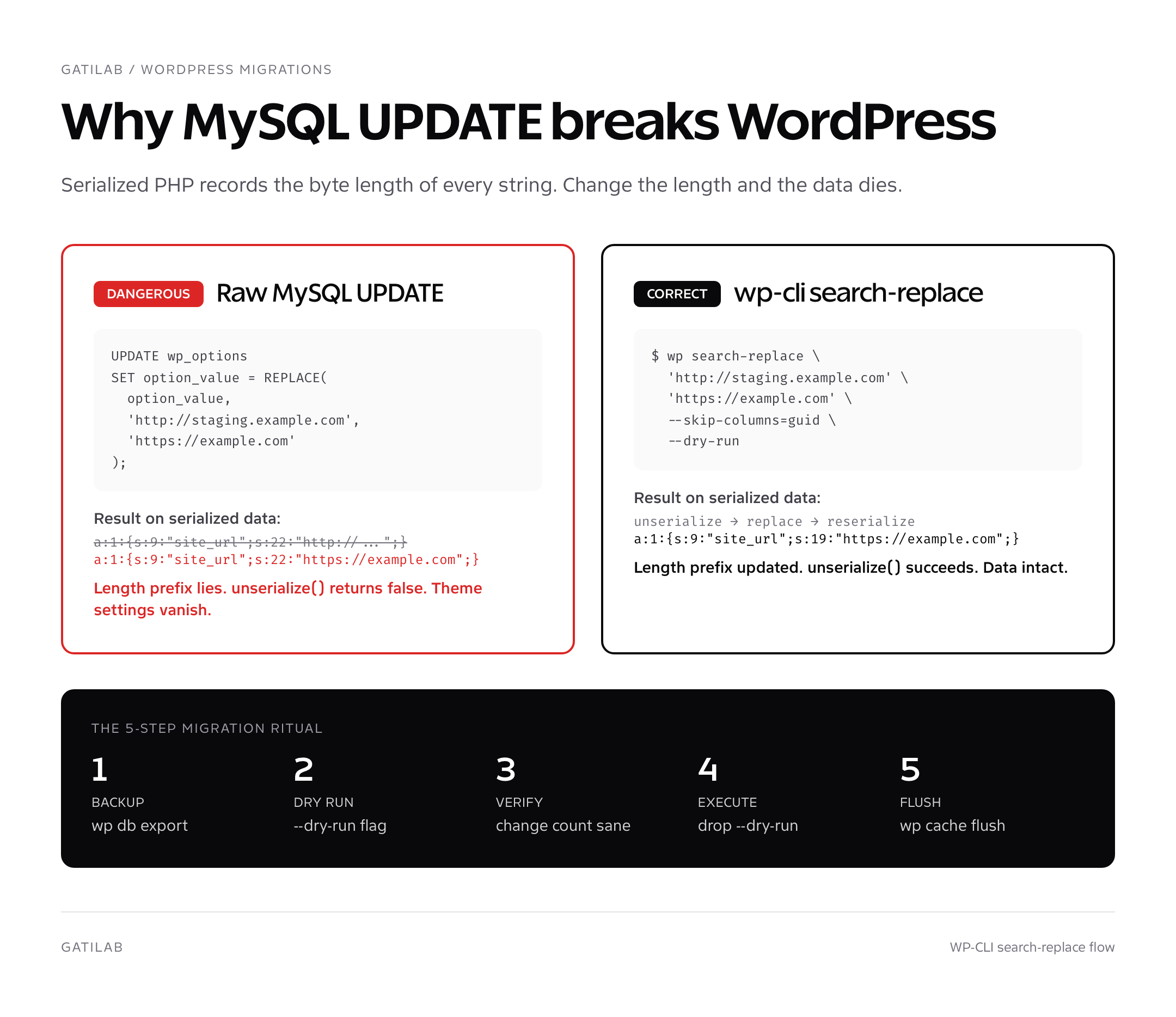
Half the developers I interview don’t know this trap exists. WordPress stores complex data structures (theme mods, plugin settings, widget configs, ACF field group definitions, customizer options) as serialized PHP. A serialized PHP string looks like this:
a:2:{s:9:"site_name";s:22:"http://staging.example.com";s:7:"version";s:5:"2.1.0";}
Notice s:22: in front of "http://staging.example.com". That’s the byte length of the string. PHP records the length of every string when it serializes. If you run UPDATE wp_options SET option_value = REPLACE(option_value, 'http://staging.example.com', 'https://example.com'), the new string is 19 characters but the prefix still says 22. PHP’s unserialize() function refuses to parse the row and returns false. Your theme settings vanish. Your widgets disappear. ACF fields throw warnings.
Never run a raw MySQL REPLACE on WordPress. The serialized data corruption isn’t dramatic; it’s silent. The site stays “up” but every plugin and theme that reads serialized data starts behaving incorrectly. By the time you notice, you’ve already pushed the broken database to production.
wp-cli search-replace fixes this by unserializing every column it touches, doing the string replacement on the unserialized value, and reserializing with the new length prefix. The output is always valid PHP-serialized data. This is the only correct way to change strings in a WordPress database, and it’s why the wp-cli search-replace command exists.
wp search-replace syntax and the flags that matter
The basic command is two positional arguments: the old string and the new string. Everything else is a flag.
wp search-replace 'http://staging.example.com' 'https://example.com'
That command runs the replacement on every wp_* table, modifies serialized data correctly, and prints a count of changed rows per table. In its default form it’s already safer than any SQL UPDATE you could write. But you should never run it without flags. The eight flags I use most:
| Flag | What it does | When I use it |
|---|---|---|
--dry-run | Counts changes without applying them | Always. Every single time. No exceptions. |
--skip-columns=guid | Excludes the post guid column | URL changes (guids should never change after publish) |
--skip-tables=wp_users | Excludes specific tables | Migrations where you don’t want user data touched |
--report-changed-only | Only show tables with changes | Reduces noise on large databases |
--all-tables | Include non-wp_-prefixed tables | Replacements in WooCommerce custom tables, ACF JSON, etc. |
--all-tables-with-prefix | Include all tables matching the prefix | Custom plugins with their own prefix |
--export=file.sql | Outputs SQL instead of writing to db | Generating migration files |
--precise | Forces unserialization on every column | Edge cases with unusually formatted data |
--regex | Treats search string as a regular expression | Pattern-based replacements |
The combination I run most: wp search-replace 'http://staging.example.com' 'https://example.com' --skip-columns=guid --report-changed-only --dry-run. That’s the safe preview. Once the change count looks right, I drop --dry-run.
The dry-run workflow that prevents disasters
The single rule: every wp-cli search-replace runs with --dry-run first, the count is verified against expectation, and only then does the real run happen. I built this habit after a 2017 incident where a hasty search-replace rewrote 47,000 strings instead of the 4,000 I expected. Investigation showed an old plugin had stored full HTML page bodies in the wp_options table, and my search string matched something inside that HTML. Without dry-run I’d have rewritten the entire backup history of that plugin’s data.
# 1. Backup first (always)
wp db export pre-replace-$(date +%F-%H%M).sql

# 2. Dry-run to count changes
wp search-replace 'http://staging.example.com' 'https://example.com' \
  --skip-columns=guid --report-changed-only --dry-run

# Output (example):
# +---------------+-----------------------+--------------+------+
# | Table         | Column                | Replacements | Type |
# +---------------+-----------------------+--------------+------+
# | wp_options    | option_value          | 24           | PHP  |
# | wp_postmeta   | meta_value            | 132          | PHP  |
# | wp_posts      | post_content          | 412          | SQL  |
# | wp_termmeta   | meta_value            | 8            | PHP  |
# +---------------+-----------------------+--------------+------+
# Success: Made 576 replacements (in dry-run mode).

# 3. Verify count is sane (576 ≈ what you expected)

# 4. Run for real (drop --dry-run)
wp search-replace 'http://staging.example.com' 'https://example.com' \
  --skip-columns=guid --report-changed-only

# 5. Flush caches and rewrite rules
wp cache flush
wp rewrite flush
If the count from step 2 shocks you (10x what you expected, or a count of zero), stop and investigate. A surprising count means either the search string matches more contexts than you thought, or it doesn’t match what you intended at all. Both are signals to read the wp_options table directly and verify the data layout before proceeding.
If you skip the backup in step 1, you have no rollback. wp-cli search-replace is destructive: once it commits, the only undo is restoring from a SQL dump. The 30 seconds it takes to run wp db export is the cheapest insurance in the WordPress world.
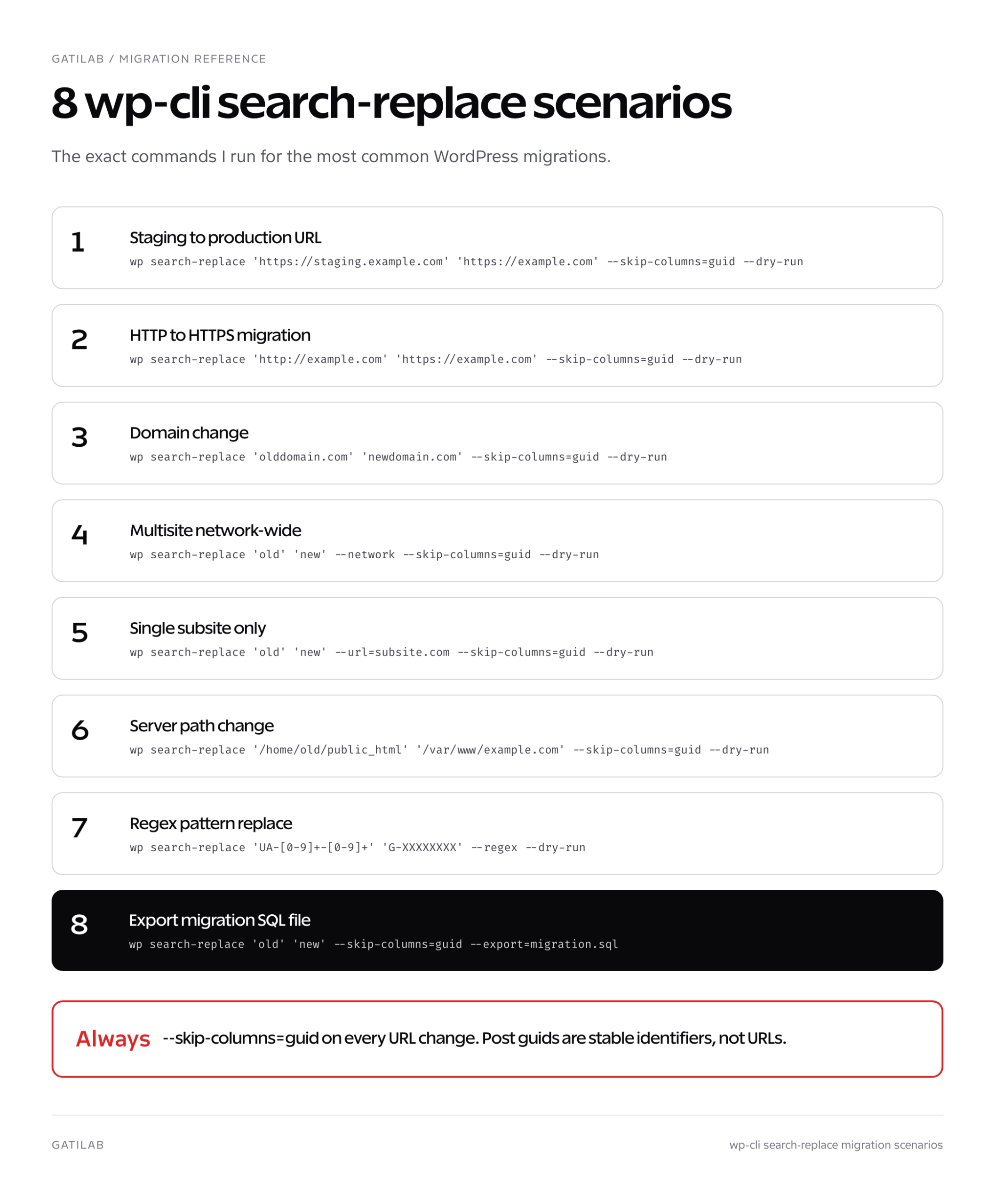
Common scenario 1: staging to production URL change
The most common wp-cli search-replace use. You’ve built a site on staging.example.com and you’re flipping the DNS to example.com.
# Step 1: Pull the staging DB to production server (or migrate site files first)

# Step 2: Update siteurl and home options before search-replace
wp option update siteurl 'https://example.com'
wp option update home 'https://example.com'

# Step 3: Search-replace every URL string
wp search-replace 'https://staging.example.com' 'https://example.com' \
  --skip-columns=guid --report-changed-only --dry-run

# Step 4: After verifying count, run for real
wp search-replace 'https://staging.example.com' 'https://example.com' \
  --skip-columns=guid --report-changed-only

# Step 5: Cover any non-https variants
wp search-replace 'http://staging.example.com' 'https://example.com' \
  --skip-columns=guid --report-changed-only

# Step 6: Flush
wp cache flush && wp rewrite flush
Skip the guid column. WordPress documentation, the Codex, every plugin author, and the WP-CLI team all agree: post guids are stable identifiers, not URLs, and changing them after publish breaks RSS readers, search-engine canonicals, and anything else that uses guid as a unique key.
Common scenario 2: HTTP to HTTPS migration
# Run after SSL is installed and verified working

wp option update siteurl 'https://example.com'
wp option update home 'https://example.com'

# Replace every http:// reference to your own domain
wp search-replace 'http://example.com' 'https://example.com' \
  --skip-columns=guid --report-changed-only --dry-run

wp search-replace 'http://example.com' 'https://example.com' \
  --skip-columns=guid --report-changed-only

# Don't forget the www variant if you have one
wp search-replace 'http://www.example.com' 'https://www.example.com' \
  --skip-columns=guid --report-changed-only

wp cache flush
Why not replace http:// with https:// globally? Because external links in your content (links to wikipedia.org, openai.com, anything) might still serve over HTTP. Replacing every http:// indiscriminately rewrites those external links to URLs that may not work. Always scope the replacement to your own domain.
Common scenario 3: domain change
# Update WordPress core options first
wp option update siteurl 'https://newdomain.com'
wp option update home 'https://newdomain.com'

# Replace every olddomain.com reference
wp search-replace 'olddomain.com' 'newdomain.com' \
  --skip-columns=guid --report-changed-only --dry-run

wp search-replace 'olddomain.com' 'newdomain.com' \
  --skip-columns=guid --report-changed-only

# Set up 301 redirects from olddomain.com to newdomain.com at the server level
# (Apache .htaccess, Nginx config, or DNS-level redirect, outside WP)

wp cache flush && wp rewrite flush
Domain change requires server-side redirects in addition to the database swap. The wp-cli search-replace updates internal references; a 301 redirect at the web server tells search engines and visitors that the old URL has permanently moved. Without 301s, every backlink to olddomain.com returns a DNS error and your search rankings disappear.
Common scenario 4: multisite search-replace
Multisite networks have one network-level table set (wp_blogs, wp_site, wp_sitemeta) plus per-site tables (wp_2_options, wp_2_posts, wp_3_options, etc.). wp-cli search-replace handles multisite correctly with one flag.
# Replace across the entire network (every subsite + network tables)
wp search-replace 'oldnetwork.com' 'newnetwork.com' \
  --skip-columns=guid --report-changed-only \
  --network --dry-run

# Replace on a single subsite only
wp search-replace 'staging.subsite.com' 'subsite.com' \
  --url=subsite.com --skip-columns=guid --report-changed-only --dry-run
The --network flag runs the replacement on every site in the multisite network. The --url flag scopes to a single subsite. For full multisite operations, see the WordPress multisite setup guide.
Common scenario 5: regex search-replace
The --regex flag treats the search pattern as a PHP-compatible regular expression. Useful for cleaning up patterns rather than literal strings.
# Strip every Google Analytics UA tracking code from post content
wp search-replace 'UA-[0-9]+-[0-9]+' 'G-XXXXXXXX' --regex --dry-run

# Replace any old Twitter handle pattern with the new one
wp search-replace '@oldhandle([^a-zA-Z0-9])' '@newhandle$1' --regex \
  --regex-flags='i' --dry-run
Regex search-replace is powerful and dangerous in equal measure. Test the pattern in a regex tester (regex101.com) first, then run with --dry-run, then run for real. A bad regex can match more strings than intended and corrupt unrelated content.
Common scenario 6: search-replace with export
# Export a search-replaced SQL file without modifying the live database
wp search-replace 'http://staging' 'https://prod' \
  --skip-columns=guid --export=migration.sql

# This generates migration.sql with the replacements baked in.
# Use it as a one-step migration: import migration.sql on the production
# server and you have a search-replaced copy ready to go.
The --export flag is the cleanest way to produce a “ready for production” SQL dump from a staging database. Run it on staging, copy the SQL file to production, run wp db import migration.sql on production, and you’ve completed the database half of a migration in three commands.
When wp-cli search-replace fails
Three failure modes account for almost every reported issue.
- Memory exhaustion on large databases. Add
--memory-limit=512Mto the command, or split it across tables:wp search-replace 'old' 'new' wp_posts wp_postmetaon table-by-table runs. - Strings nested inside double-encoded JSON. WordPress occasionally double-encodes JSON inside serialized PHP. The
--preciseflag forces wp-cli search-replace to unserialize every column, including non-serialized text columns, catching nested encodings. - Custom plugin tables outside the wp_ prefix. Add
--all-tablesto include them, or list them explicitly:wp search-replace 'old' 'new' my_custom_table.
For everything else, prefix the command with wp --debug to see every query WordPress runs and every notice or error the bootstrap throws. Combined with the dry-run output, that gives you everything you need to diagnose the issue.
Backup workflow that always works
The exact backup-first ritual I run before any wp-cli search-replace on production:
wp db export ~/backups/pre-replace-$(date +%F-%H%M%S).sql: full DB dump.gzip ~/backups/pre-replace-*.sql: compress (typical 70% size reduction).- Verify the backup file size is non-zero and the gzip is valid:
gzip -t ~/backups/pre-replace-*.sql.gz. - Optionally upload to off-server storage (S3, Backblaze B2):
aws s3 cp ~/backups/pre-replace-*.sql.gz s3://my-backups/. - Run the dry-run, verify the count.
- Run the real search-replace.
- Verify the site (homepage loads, login works, a couple of admin pages render correctly).
- If anything is broken:
wp db import ~/backups/pre-replace-*.sql.gzto restore.
Steps 1-4 take 60 seconds total on a typical 500 MB database. Steps 7-8 are your safety net. The discipline of running through this every time is the difference between developers who confidently migrate WordPress sites and developers who get pulled into 2 a.m. emergency calls.
For the full set of related WP-CLI commands, see the WP-CLI commands cheatsheet. For developers building on the same stack, the WordPress hooks tutorial and WordPress REST API guide cover the parts of WordPress you’ll touch most after migrations. If you’re choosing a host with reliable WP-CLI support, see the best managed WordPress hosting roundup.
FAQs about wp-cli search-replace
Is wp-cli search-replace safer than a phpMyAdmin SQL replace?
Yes, materially safer. phpMyAdmin runs raw MySQL UPDATE/REPLACE statements that do not understand serialized PHP. wp-cli search-replace unserializes every column, replaces the string, and reserializes with correct length prefixes. If your database has any serialized data (theme settings, widget configs, ACF fields, plugin options), wp-cli is the only correct tool.
Do I need to take the site offline during wp-cli search-replace?
For most operations no, the command finishes in seconds. For very large databases (>10 GB) or noisy production sites, enable maintenance mode first to prevent simultaneous writes that could conflict with the in-flight replacement. wp maintenance-mode activate enables it; deactivate after the operation completes.
What’s the difference between --skip-columns=guid and --skip-tables?
--skip-columns excludes specific columns inside tables (most common: guid in wp_posts). --skip-tables excludes entire tables. Use --skip-columns=guid on every URL replacement. Use --skip-tables when you specifically want certain tables (often wp_users, wp_usermeta) to remain untouched during a partial migration.
Can I undo a wp-cli search-replace?
Not directly. The command is destructive once committed. The only rollback is restoring the database backup you took with wp db export before the operation. This is why backup-first is non-negotiable. You can sometimes do a reverse search-replace (run the command with old and new swapped), but if any string in the database happened to match the new string before the operation, the reverse run will corrupt those.
Why does wp-cli search-replace miss strings inside post_content?
It doesn’t, normally. If a known string in post_content isn’t being replaced, it’s usually because the string is HTML-encoded (https://) rather than plain. Run a second search-replace with the encoded variant. Also check for trailing slashes: ‘http://example.com’ and ‘http://example.com/’ are different strings.
Does wp-cli search-replace work on WooCommerce sites?
Yes, with one caveat. WooCommerce uses HPOS (High-Performance Order Storage) since 8.2, which adds wp_wc_orders and wp_wc_order_meta tables. These have the wp_ prefix so they’re included by default. Older WooCommerce versions use post-type storage in wp_posts and wp_postmeta, which are also covered. Run --report-changed-only to confirm WC tables show up in the change report.
How long does wp-cli search-replace take?
On a typical 500 MB WordPress database, under 30 seconds. On a 5 GB database with heavy postmeta, 3 to 5 minutes. The bottleneck is the unserialize-replace-reserialize pass on every row of every column. Add --report-changed-only to keep the output readable on large operations.
What’s the alternative if I don’t have wp-cli installed?
The Better Search Replace plugin (free, by WP Engine) does the same thing through a wp-admin UI. It’s serialization-aware and runs the same logic as wp-cli search-replace. For one-off migrations on hosts without SSH, it’s the right call. For repeated operations, install wp-cli and use the command line. It’s faster and scriptable.
Verifying a wp-cli search-replace worked
After the command finishes, you need three quick checks before declaring victory. The change count from the run output is the first signal: if it matches the dry-run count, the operation completed correctly. The second check is loading the homepage and an admin page in your browser. If the homepage 404s or the admin redirects you in a loop, your siteurl or home option still points at the old URL. The third check is unique to migrations: spot-check a few posts in the editor to confirm the content is intact and that block-editor JSON inside post_content (Gutenberg uses HTML comments with JSON attributes) still parses.
# Spot-check siteurl and home
wp option get siteurl
wp option get home

# Confirm a sample of posts return correctly
wp post list --post_status=publish --fields=ID,post_title,post_modified --posts_per_page=5

# Check that nothing in post_content references the old URL
wp post list --post_status=publish --fields=ID,post_title \
  --search='staging.example.com' --post_type=any
If the search command in the third query returns any post IDs, those posts still contain the old string. That means your search-replace missed something, usually because the string was HTML-encoded, contained a typo, or was inside a column you excluded with --skip-tables. Run the command again with the encoded variant and verify the count drops to zero.
wp-cli search-replace alternatives compared
If wp-cli isn’t an option, three other tools handle WordPress search-replace correctly. Each has trade-offs.
| Tool | How it runs | When to use | Limit |
|---|---|---|---|
| wp-cli search-replace | SSH command line | Default for any host with SSH | Requires SSH access |
| Better Search Replace | WordPress plugin (free) | Shared hosts without SSH | Slower on large databases (PHP timeout risk) |
| Search Replace DB script | Standalone PHP script (interconnect/it) | Pre-WordPress install or broken admin | Manual upload, security risk if left on server |
| WP Migrate DB | WordPress plugin (paid) | Repeated staging sync workflows | Cost (around $99/year) |
I default to wp-cli search-replace for 95% of work. Better Search Replace is my fallback for clients on hosts where SSH costs extra. WP Migrate DB is worth its license fee on agency workflows where you push from staging to production weekly. The interconnect/it script is a 2009 relic that still works for emergency cleanups when WordPress itself won’t load.
Search-replace inside block editor JSON
Gutenberg blocks store their attributes as JSON inside HTML comments embedded in post_content. The wp-cli search-replace handles these correctly because they’re plain text, not serialized PHP. But there’s a subtle gotcha: image IDs inside block JSON like {"id":1234,"sizeSlug":"full"} are sometimes stored alongside the URL inside the same wp-block-image comment. Replacing the URL doesn’t update the ID; replacing the ID won’t update the URL.
For full media swaps after a migration, run two passes: one for the source_url string and one for the numeric ID inside JSON attributes. The publish.md workflow on the gauravtiwari.org playbook documents this three-step swap pattern in detail. For most search-replace operations on URLs only, this isn’t an issue: the URLs in src= attributes still resolve via the new domain, and the IDs remain valid because the media library was migrated alongside the database.
Bottom line on wp-cli search-replace
wp-cli search-replace is the single command every WordPress developer needs to memorize. It’s the only safe way to bulk-update strings in a WordPress database without corrupting serialized data. Always backup, always dry-run, always skip the guid column on URL replacements. Add the right flags, verify the count, run for real, flush caches. Three minutes of process beats three hours of restoring a corrupted production database.
Tell Google you want more of this.
Add Gatilab as a preferred sourceOne tap, and this site shows up more often in your own Top Stories, AI Overviews and AI Mode. Remove it any time.