
Regional Pricing and Currency Conversion in WordPress
Regional pricing in WordPress changes the amount you choose to charge in a market. Currency conversion expresses a price in another currency using an exchange rate. The difference matters when a converted price is awkward or unsuitable for the customers you want to serve.
You should decide the commercial price before configuring the display. Showing a currency symbol that looks local does not establish that the customer can pay that currency or that the final checkout will retain the displayed amount.
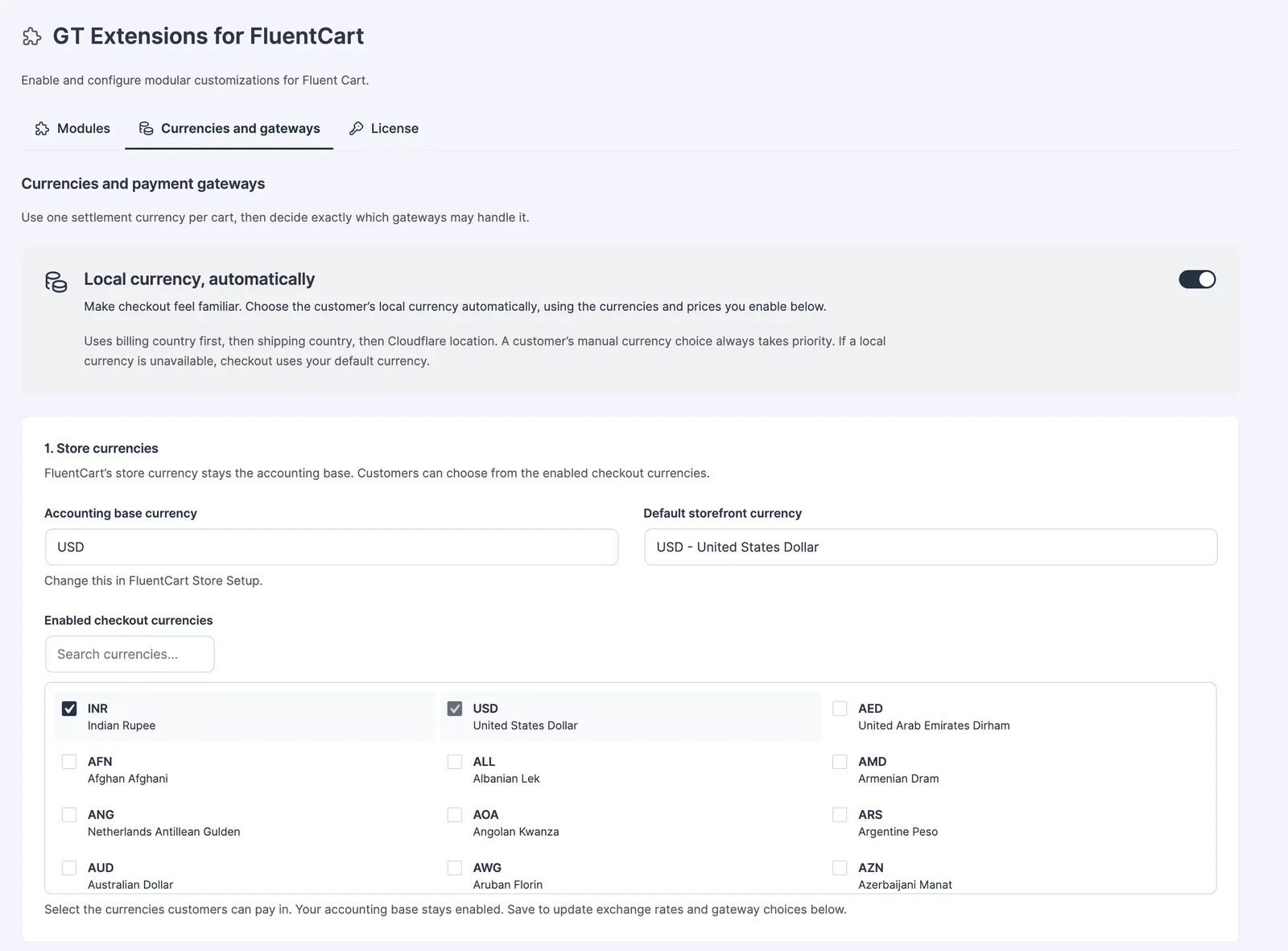
GT Extensions for FluentCart is our plugin for FluentCart store workflows. Its multi-currency tools include exact local prices, conversion and currency-based payment routes, letting you choose the approach for your store.
Choose Between Conversion and Local Prices
Conversion is useful when you want prices to follow a common base. An exact local price is useful when you deliberately set a market-specific amount that should not move with every exchange-rate change.
For a hypothetical digital product, a store might set one USD price and a separately chosen INR price. The INR amount is then a commercial decision, not a claim about the current exchange rate.
Before choosing, consider:
- Whether customers expect a stable local price.
- Whether your costs are tied to a particular currency.
- How frequently you can review regional amounts.
- Whether tax is included or added.
- Which currencies your payment providers actually accept.
Don’t hide the distinction in the interface. Staff should be able to tell whether an amount came from a fixed price or a conversion rule.
Keep Display and Payment Aligned
The product page and checkout should agree about the currency being charged. A customer should not discover a different charge currency only after selecting a payment method.
Check the full path using a sample purchase:
- View the product with the intended currency selected.
- Add the correct variation to the cart.
- Confirm the cart currency and amount.
- Apply any relevant discount.
- Check the payment-provider currency and the resulting order.
If your payment account cannot accept the selected currency, choose a supported route or make the limitation clear before payment. Currency routing cannot create provider capabilities that the merchant account lacks.
Handle Location Carefully
Location-based selection is a convenience, not perfect knowledge of the customer’s residence. Travel and VPNs can make a location signal disagree with billing details.
Let customers understand the selected currency and correct it where your store permits. If a price is restricted to a particular region, define the eligibility rule separately from the currency display.
Cached pages also need attention. A shared cached response should not show one visitor’s selected currency to everyone else. Follow the extension’s documented caching requirements and test the normal product URL in independent sessions.
Review Rounding and Refunds
Rounding can make converted prices easier to read, but it changes the amount. Check the final total after discounts and tax rather than inspecting only the catalog price.
Refunds need a clear relationship to the original transaction. Avoid promising that a customer will receive an identical amount in their bank’s home currency when the bank or processor may apply its own exchange rate and fees.
Keep the order’s charged currency and amount available to support staff. Those facts are more useful in a payment question than the exchange rate currently shown in your settings.
You can use the editable regional pricing in wordpress worksheet to record your settings and checks. It is a CSV file you can open in a spreadsheet.
Regional Pricing on WooCommerce
WooCommerce runs one store currency out of the box, so the same two approaches need a plugin there. Stackless for WooCommerce, our plugin for WooCommerce stores, covers both in 3 currency modules:
- Multi-Currency Checkout keeps one settlement currency per cart and order, with exact prices per product and variation, or manual or Frankfurter exchange rates with markup, rounding and missing-price rules.
- Currency-Aware Payment Gateways chooses which gateways handle each currency and which one shows first, and rejects an unsupported gateway on the server.
- Storefront Currency Selector lets shoppers pick a currency from a shortcode, a block or a selector above the payment methods, and switching reprices the cart on the server.
Each module has its own switch, so a store can set local prices without touching the rest of the plugin. Our Stackless for WooCommerce review covers what else it does and what it costs.
Start With the Markets You Can Support
I would add a small set of currencies with checked payment routes before expanding to every currency in the dropdown. Each route adds cases for refunds and support as well as another price to display.
If you sell through FluentCart and need exact local prices or currency-based payment choices, review GT Extensions. The useful purchase decision is whether its current rules match the markets you can actually serve.
Tell Google you want more of this.
Add Gatilab as a preferred sourceOne tap, and this site shows up more often in your own Top Stories, AI Overviews and AI Mode. Remove it any time.