
Let Customers Reschedule WordPress Appointments
WordPress appointment rescheduling can remove the back-and-forth over a new time, provided the customer can see genuine availability and your business has a clear cutoff. A request to move an appointment should not silently cancel the original before the replacement is secured.
You should decide the policy before enabling self-service. The customer needs to know when a change is allowed, what happens to the payment and how to contact you when the online cutoff has passed.
Core Bookings is our WordPress booking plugin. It offers private appointment management and customer self-service within configured cutoffs. It is beta, so check the change and payment behavior with sample bookings before using it for live customers.
Write the Rescheduling Policy
A useful policy explains what the customer can do without asking staff. Keep the rule visible before booking and in the confirmation message.
For a hypothetical consultation service, the policy might allow a move until 24 hours before the appointment. That is an example, not a recommendation for every business. Preparation-heavy services may need a longer cutoff.
The policy should answer:
- How far ahead a customer can reschedule.
- Whether they can change staff or service as well as time.
- Whether a price difference requires another payment.
- Whether the original deposit carries forward.
- What happens after the cutoff.
Don’t describe cancellation and rescheduling as interchangeable. A cancellation may end the engagement, while a move should preserve the agreed service unless both parties change it.
Use a Private Management Route
Appointment details should be accessible through the customer’s authorized account or private management link. Avoid a public page that reveals bookings from a guessable reference alone.
Core Bookings documents private management links and an email sign-in customer dashboard. Explain the route in the confirmation message and tell customers not to share private booking links publicly.
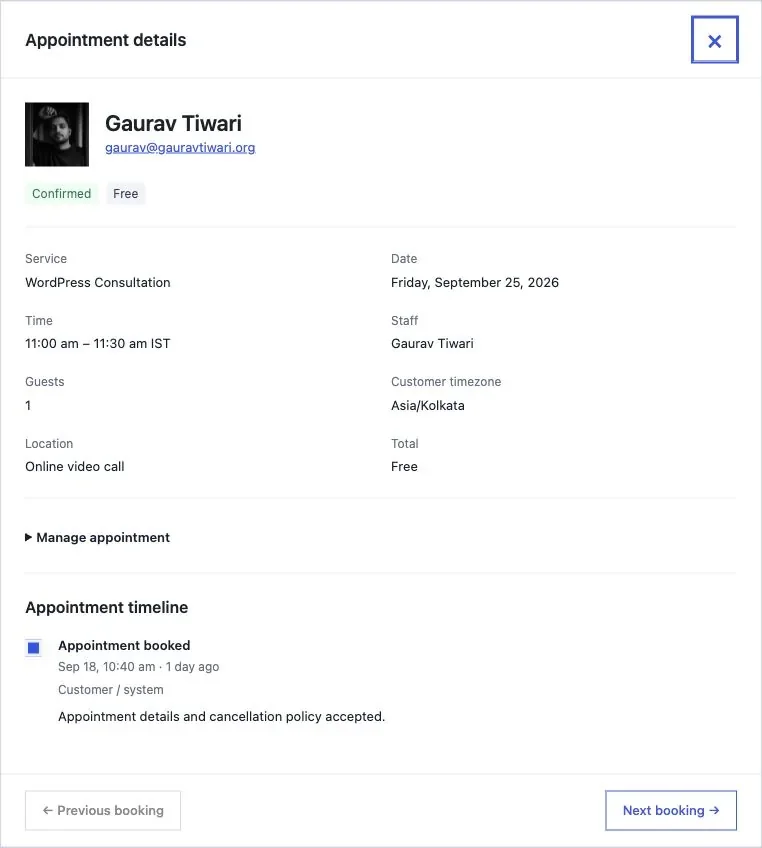
If someone cannot access their booking, provide a support route that verifies their identity. Don’t ask them to post the management link in a public comment or forum.
Check the Replacement Slot
Availability can change between opening the reschedule screen and submitting it. The system should recheck the requested time before committing the move.
Test these cases on staging:
- Move a booking to an available slot.
- Try a slot occupied by another appointment.
- Try a move after the cutoff.
- Check that a rejected move leaves the original booking intact.
- Confirm the old slot’s availability after a successful move.
Include the buffers around both appointments. Moving a 45-minute service to a gap of exactly 45 minutes may be invalid when preparation time also has to fit.
Reconcile Emails and Calendars
The customer should receive the new time with its timezone. Staff need the updated record too, especially if they use a connected calendar rather than the WordPress dashboard during the day.
Check whether the calendar event is updated or a replacement is created, and ensure the customer isn’t left with 2 apparently active appointments. Old confirmation emails remain in an inbox, so the latest message should make the change easy to recognize.
Reminder jobs also need to follow the current appointment. A reminder for the abandoned time undermines confidence even when the booking itself moved correctly.
You can use the editable wordpress appointment rescheduling worksheet to record your settings and checks. It is a CSV file you can open in a spreadsheet.
Keep Payment Decisions Separate
Rescheduling does not by itself prove that a refund or extra charge occurred. Check the booking’s payment record and your cancellation policy before promising either.
For exceptions after the cutoff, give staff a clear decision path. You can allow customer self-service for ordinary moves while keeping unusual changes under manual review.
If staff time is disappearing into rescheduling emails, review Core Bookings and test the private change flow with one service. The useful outcome is a confirmed new appointment that agrees everywhere the customer and staff will look.
Tell Google you want more of this.
Add Gatilab as a preferred sourceOne tap, and this site shows up more often in your own Top Stories, AI Overviews and AI Mode. Remove it any time.