
Converting Page Builders to Gutenberg Blocks: The Practitioner’s Migration Playbook (2026)
Most WordPress sites built between 2017 and 2024 are running on a page builder that’s slower than the block editor that ships free with WordPress today. Elementor, Divi, WPBakery, Thrive Architect. They all solved a real problem at the time, and they all left a Core Web Vitals bill that’s still being paid. In 2026, the upgrade is no longer “should I move to Gutenberg” but “which block plugin do I move to, and how do I do it without rebuilding 200 pages by hand”. This guide is a migration playbook that treats each page as a content and layout system, including the AI-assisted shortcuts that can reduce repetitive conversion work when a human checks the output.
Here’s what’s actually changed since the last time most people checked. Gutenberg now ships with proper Query Loop, layout columns, theme.json design tokens, and full-site editing. GenerateBlocks released V2 in 2024 with a Looper / Loop-Item / Query family that makes dynamic layouts trivial. Greenshift crossed 50+ blocks with conditional asset loading. The AI tooling around block conversion has matured. The four skills I rely on, /wp-block-markup, /generateblocks-layouts, /elementor-to-generateblocks, and /html-to-generateblocks, can now produce byte-identical block markup on the first attempt for 90% of layouts. They live in two open-source repos on my GitHub: wpgaurav/generateblocks-skills (the three conversion skills) and wpgaurav/WordPress-skills (where wp-block-markup lives, alongside 125+ other agent skills). The remaining 10% is what this guide covers.
Why convert from page builders to Gutenberg in 2026
The case for migrating away from a page builder is no longer mostly about politics. It’s about three measurable problems that have compounded since most sites originally chose a builder.
- DIVception. A simple heading wrapped by Elementor turns into 7 nested divs. Same heading in GenerateBlocks: one element. Across a typical landing page, the difference is 200+ unnecessary DOM nodes, which directly hits Largest Contentful Paint and Cumulative Layout Shift.
- Bundled CSS and JS. Page builders ship a global stylesheet (often 200 to 600 KB) and a JavaScript runtime that loads on every page, used or not. Gutenberg blocks load only the CSS for the blocks actually rendered on the page.
- Vendor lock-in. Page builders store their content in proprietary shortcodes or JSON inside post meta. Disable the plugin and your post body is empty. Native Gutenberg stores HTML in
post_content. Disable the block plugin and you keep your HTML.
None of these problems were obvious in 2017 when Elementor and Divi were eating the WordPress market. They are now. The block editor of 2026 is genuinely capable for the kind of marketing pages, blog templates, and landing pages most sites need. The question is no longer if you should switch, but how cleanly you can do it without rebuilding everything by hand.
My honest position: if you’re starting a new WordPress site in 2026, use blocks from day one with one of the three plugins below. If you have an existing Elementor or Divi site under 50 pages, do an AI-assisted migration this quarter. If you have 500+ pages on Elementor, do a hybrid migration where new pages start in blocks and old pages get migrated only when they’re due for content refresh anyway.
The three Gutenberg block plugins worth using in 2026
Stock Gutenberg is enough for blog posts and basic pages. For landing pages, marketing layouts, dynamic post grids, and anything that used to require a page builder, you’ll want one of three plugins. I’ve used all three in production. Here’s the honest read on each.
GenerateBlocks V2: the lightweight default
GenerateBlocks is the plugin I default to for new sites. The free version ships six core blocks, Container, Headline, Button, Image, Grid, and Query Loop, plus a Pro tier that adds Tabs, Accordion, Sticky Header, ACF integration, and conditions. V2 (released late 2024) introduced the Element block plus the Looper / Loop-Item / Query family, which is the missing piece that made GenerateBlocks viable for dynamic content layouts.
What’s working under the hood: the markup is genuinely minimal. A typical Container outputs as a single <div> or whatever tagName you set; no wrapper divs, no inner div, no widget wrap. CSS is generated server-side and inlined per-page based on the blocks rendered. There’s no global stylesheet for unused blocks. The block JSON exposes a styles object plus a css string, which means every visual property is editable in the inspector and stored in the block, not in a side channel.
What needs to be better: the V2 markup is unforgiving. The block editor validates by re-serializing attributes and string-comparing, so a single mismatched key order or unescaped character in the JSON triggers an “Attempt Recovery” prompt that a non-developer cannot fix. The Pro tier is fairly priced ($39 to $79 a year) but the lifetime option that GeneratePress used to offer is gone, so you’re now in a renewing-license model. The query block family works, but the documentation is thinner than the feature deserves.
Best for: developers and agencies building marketing sites and content-heavy WordPress installs where DOM minimalism and Core Web Vitals matter more than drag-and-drop simplicity. If you’re paired with the GeneratePress theme, this is the canonical stack.
Greenshift: the maximalist alternative
Greenshift takes the opposite philosophical bet from GenerateBlocks. Where GenerateBlocks ships a small, opinionated set of blocks and asks you to compose them, Greenshift ships 50+ blocks covering animations (GSAP), parallax, schema markup, WooCommerce, query loops, FSE templates, and a “Smart Loader” for external libraries like Lottie. Pricing tiers run from $39.99 a year for the Design Pack to $129.99 a year for the All-in-One, with $99.99 to $109.99 lifetime options still available for individual packs.
What’s working under the hood: Greenshift’s “no jQuery, no font, no icon libraries” rule means it doesn’t bundle the dependencies that other animation-heavy plugins drag in. Conditional asset loading is genuinely conditional, not theatre. Their schema markup blocks (FAQ, Product, Event, Video) save you from installing a separate schema plugin. The animation framework is the most capable of any block plugin I’ve used, and the GSAP integration is properly licensed (Greenshift includes GSAP Business under their plugin license, which is what most users actually need).
What needs to be better: the surface area is huge. The block library has 50+ blocks, each with dozens of inspector controls, and the learning curve is real. New users routinely build the same layout twice the wrong way before they figure out which block they should have started with. The Pro pricing is fragmented across three packs (Design, SEO, All-in-One), and the value is best in the All-in-One but at $129.99 a year that’s the highest of any block plugin I’d recommend. Documentation has improved but still trails the feature pace.
Best for: sites that need rich animations and motion effects (agency portfolios, premium SaaS landing pages, course sales pages) without bringing in a separate animation library or page builder. Also strong for WooCommerce stores that want product layouts that go beyond what the default WooCommerce blocks offer.
GT Page Blocks Builder: the code-first option
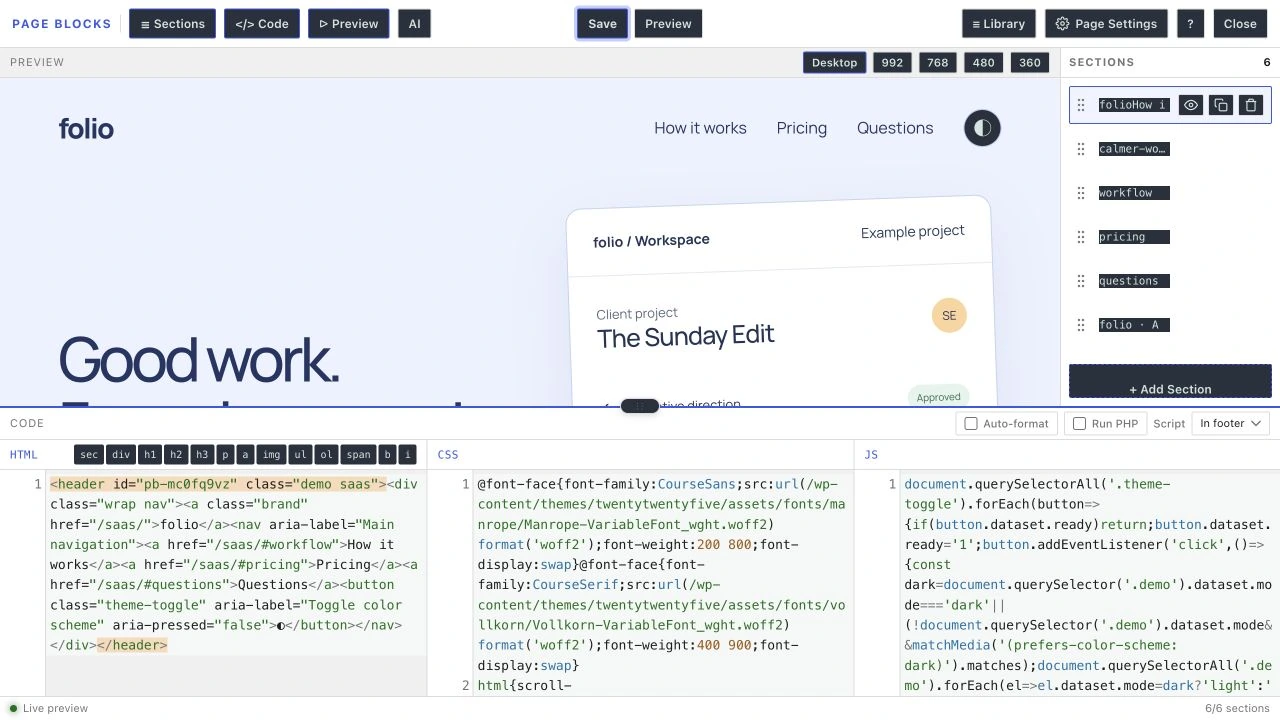
GT Page Blocks Builder is a plugin we develop for custom HTML, CSS and JavaScript sections inside WordPress. The Gutenberg block and visual builder work on the same saved page content. It suits people who want to write or review code, rather than teams expecting a wholly visual design workflow.
What’s working under the hood: Sections are stored as gt-page-block/page-block blocks, with inline code or a link to the reusable library. The public page needs the plugin to render those dynamic sections. CSS can be delivered inline or through a section file; JavaScript placement is controlled separately. Authors still need to scope their code and keep interactions safe when sections are reused.
What to plan for: the builder includes section reordering and a reusable library, but authors still need to review the code. A copied section is independent; a linked library section can change every placement when it is edited. Check those placements before updating shared content.
Best for: developers who want editable section code in WordPress. The stored source remains in WordPress after deactivation, but that is not a finished static export. Export or rebuild the affected sections before removing the plugin. Keep normal WordPress blocks where they already solve the editing task.
For the broader ecosystem comparison, my best Gutenberg block plugins for WordPress roundup covers eight more options including Kadence Blocks, Spectra, Stackable, and Otter. The Kadence Blocks vs GenerateBlocks head-to-head goes into the trade-offs between those two specifically.
The four migration paths (and how to pick yours)
How you migrate depends on what you’re migrating from. The four paths I see on actual client sites:
| Source | Migration approach | AI assistance | Realistic timeline |
|---|---|---|---|
| Elementor or Elementor Pro | Section-by-section conversion using the export-to-HTML pattern, then convert that HTML to GenerateBlocks | /elementor-to-generateblocks skill | 1 to 4 hours per page |
| Divi | Export Divi modules as HTML via the Divi import/export tools, then convert HTML to blocks | /html-to-generateblocks skill | 2 to 6 hours per page |
| WPBakery / Beaver Builder / Thrive Architect | Render on front end, view source, copy clean HTML, convert to blocks | /html-to-generateblocks skill | 2 to 5 hours per page |
| Hand-written HTML / CSS | Direct conversion of source HTML | /html-to-generateblocks skill | 30 to 90 minutes per page |
The faster path always exists when the source is closer to plain HTML. Hand-coded layouts and Beaver Builder (which renders fairly clean HTML) convert in under an hour with AI assistance. Elementor is the slowest because the source has to be cleaned of utility classes and nested divs before the AI conversion runs cleanly.
AI-assisted migration: the four skills that compress the timeline
What used to take a developer two weeks now takes a developer plus AI two days. The compression happens because four specific skills, used together, cover the full conversion pipeline from “messy page-builder output” to “valid Gutenberg block markup the editor accepts on first paste”. Each skill has a narrow job. Used in sequence, they fit together.
/wp-block-markup: the foundation skill
The /wp-block-markup skill encodes WordPress block syntax: how comment delimiters work, how attributes are split between the block JSON and the HTML body, when to use balanced versus self-closing blocks, and the exact validation rules the editor applies on paste. It’s the foundation skill the other three rely on. You don’t usually invoke it directly. You invoke one of the conversion skills, and it loads /wp-block-markup as a reference.
What’s working: the skill captures the non-obvious rules, like the fact that core blocks omit the core/ namespace, that JSON keys must be in the order block.json declares them, and that the editor validates by re-serializing and string-comparing. Those three rules alone account for roughly half the “Attempt Recovery” errors you’ll hit on AI-generated block markup if the model isn’t constrained correctly.
What still trips it up: deeply nested ACF custom blocks with their own JSON schemas need a per-plugin reference layer that /wp-block-markup doesn’t have. For ACF Pro blocks specifically, you’ll need to give the model the field structure as well. Same for any third-party block ecosystem that ships its own attribute conventions.
/generateblocks-layouts: building from scratch
The /generateblocks-layouts skill builds a complete GenerateBlocks V2 layout from a description or sketch. It handles the V2 Element, Text, Media, and Shape blocks plus the Looper / Loop-Item / Query family for dynamic layouts. The skill loads a recovery-rules reference that catalogues every cause of “Attempt Recovery” errors and the exact fix for each. That’s why output from this skill survives the editor’s validator on first paste, where naive AI-generated GB markup usually does not.
What’s working: the skill enforces the byte-identical-to-editor-output rule. JSON keys go in block.json declaration order. The four required substitutions (-- < > &) get applied to JSON strings. CSS in the css attribute is alphabetised and minified. Class lists include the auto-injected duplicates the editor adds on save. None of those rules are obvious to a model unless they’re explicitly encoded.
What needs to be better: the skill is verbose. A landing page conversion can output 800+ lines of block markup, which is correct but cumbersome to review. Documentation pages for the V2 Pro features (Tabs, Accordion, Sticky Header) are thinner than the static-layout coverage, so complex Pro layouts sometimes need a manual review pass. The skill assumes GenerateBlocks V2; if the target site is still on V1 (some installs haven’t upgraded), the output won’t render correctly without a downgrade conversion.
/elementor-to-generateblocks: the cleanup converter
The /elementor-to-generateblocks skill is the workhorse for actual migrations. Feed it Elementor’s exported HTML (or the rendered front-end source) and it returns clean GenerateBlocks markup, with the DIVception flattened, utility classes dropped, and only the semantically meaningful elements preserved. A 7-nested-div Elementor heading becomes a single semantic <h2> inside one Container. A complex Elementor section with three columns and four widgets compresses from roughly 30 nested elements to 8.
What’s working: the conversion is lossless on layout, typography, spacing, and colour, which is the part that matters. The skill outputs to a file (rather than inline in chat) so you can copy-paste straight into the WordPress editor. For Elementor Posts/Loop widgets, it correctly maps to the GenerateBlocks Query block family rather than trying to duplicate static markup, which is what naive conversion would produce.
What needs to be better: Elementor Pro widgets that have no direct GenerateBlocks equivalent (Form widget, Slides widget, Mega Menu, Posts widget with custom skin) require a manual decision. The skill flags them but can’t auto-convert them. Custom Elementor templates registered in the theme code don’t always export cleanly; sometimes you need to copy the rendered HTML from the front end instead of the dashboard export. Animations applied via Elementor’s “Motion Effects” need to be re-implemented in GenerateBlocks Pro or Greenshift, since the underlying APIs differ.
/html-to-generateblocks: the universal converter
For everything that isn’t Elementor, /html-to-generateblocks is the universal entry point. Feed it any HTML/CSS layout, from a Divi export, a Beaver Builder render, a Thrive Architect dump, or a Codepen sketch, and it produces equivalent GenerateBlocks markup. The skill handles inline styles, external CSS, BEM-style classes, and even Tailwind-flavoured utility classes. It uses both the styles object (for layout primitives, padding, margin, colour, display) and the css string (for pseudo-elements, media queries, animations) inside the GB block attributes.
What’s working: this is the skill I use for my own custom landing pages before the GT Page Blocks Builder ships them. I’ll write a section in HTML/CSS, run /html-to-generateblocks, get the GB markup, and paste it into a published post. The output is byte-identical to what GenerateBlocks would have produced if I’d built it visually, so the editor doesn’t choke. The conversion handles core blocks too: <table> goes to core/table, <blockquote> to core/quote, embeds to core/embed, gallery layouts to core/gallery. That’s the right hierarchy.
What needs to be better: the skill has a bias toward inline styles in the block attributes, which is the right answer for portability but produces verbose markup. For sites where the source HTML had a global stylesheet doing most of the work, you sometimes want to keep that stylesheet and have the blocks reference its classes rather than redeclare every property. The skill doesn’t yet detect that case and offer the alternative; you have to ask for it. Also, custom JavaScript behaviours (a slider, a tab interaction) don’t carry over; you re-implement them in a GenerateBlocks Pro Tabs/Accordion or in a manually-added Custom HTML block.
How the four skills compose
Used together in the right order, the four skills cover the full pipeline from page-builder source to clean Gutenberg blocks:
- /wp-block-markup loads the validation rules. Foundation, always loaded.
- /elementor-to-generateblocks (or /html-to-generateblocks for everything else) does the conversion pass.
- /generateblocks-layouts handles the dynamic layout pieces (Query loops, Loop-Item, Pro Tabs/Accordion) that the conversion skill flagged for manual implementation.
- The output gets pasted into a Gutenberg post, validated by the editor on first render, and either accepts (the goal) or surfaces an “Attempt Recovery” prompt that points to the specific rule violation.
The compression is real. A page that took me eight hours to rebuild manually in 2022 takes ninety minutes today, with most of those ninety minutes being review and polish, not raw conversion. Where the skills don’t (yet) help: pages with custom JavaScript interactions, Elementor Pro forms, deeply customised WooCommerce checkouts, and any layout that depends on a theme-specific shortcode the migration target doesn’t replicate.
Install the skills: all four are open-source under MIT in wpgaurav/generateblocks-skills (the three conversion skills) and wpgaurav/WordPress-skills (where wp-block-markup lives in skills/wordpress/wp-block-markup/). Clone either repo, symlink the skill folder into ~/.claude/skills/, and Claude Code picks them up on next session. The WordPress-skills repo also ships 125+ other agent skills covering WordPress dev, design, SEO, marketing, and frontend.
The migration workflow, step by step
Here’s the actual sequence I follow on a site migration. I’ll use Elementor as the example because it’s the most common starting point, but the structure works for Divi, Thrive, or hand-coded HTML.
Step 1: Audit and inventory
Before touching anything, list every page using the page builder. WP-CLI handles this in one line: wp post list --post_type=page,post --meta_key=_elementor_data --format=csv. You get a clean inventory of which posts have Elementor data attached. Sort by traffic (pull from Search Console or Independent Analytics), and prioritise the top 10 percent by traffic. Those convert first. The long tail can wait until the next content refresh cycle.
Step 2: Pick the target stack
Decide on a single target plugin before you start. Mixing GenerateBlocks and Greenshift across pages is technically possible but maintenance-hostile. Pick one. For most marketing sites, GenerateBlocks. For animation-heavy or WooCommerce-heavy sites, Greenshift. For developer-led builds where every section is hand-coded, GT Page Blocks Builder. Lock the choice for the migration.
Step 3: Set up a staging site
Always migrate on staging first. WP Engine, Kinsta, Cloudways, Pressable, and most managed hosts include one-click staging. If you’re on cheaper shared hosting that doesn’t, use the WP Staging plugin or LocalWP for offline migration. Don’t do this on production. Even a clean migration creates revisions, image-library noise, and a brief window where the page is broken; all of that should happen on staging.
Step 4: Convert page by page (with AI)
For each page on the priority list:
- Open the front-end URL, view source, copy the rendered HTML inside the main content container.
- Run the appropriate conversion skill (/elementor-to-generateblocks for Elementor source, /html-to-generateblocks for everything else).
- Save the output to a file and visually review for missing widgets that need manual handling.
- Open the staging WordPress page, switch the editor to Code Editor view, paste the output, switch back to Visual Editor.
- If the editor accepts the markup, save and preview. If you get “Attempt Recovery”, check the recovery-rules reference in /generateblocks-layouts and apply the fix.
- Compare side-by-side with the original page. Fix any visual gaps.
Step 5: SEO and redirect verification
Slugs stay identical (don’t rename anything during a migration; you’ll lose link equity). Run a Rank Math content analysis on the migrated page and confirm the score matches or beats the pre-migration version. Check schema markup, focus keyword placement, and meta description. Run a Lighthouse score before and after; you should see Performance improve by 15 to 40 points and Cumulative Layout Shift drop noticeably.
Step 6: Switch on production
Push staging to production page-by-page (rather than a full clone). On each migrated page in production, deactivate the page builder for that specific page (Elementor lets you set a per-post template type), test the front end, and only then move to the next page. After all priority pages are done, you can deactivate the page builder plugin globally for the migrated set. Old unmigrated pages will keep using it until they’re rebuilt or retired.
Don’t deactivate the page builder before all pages it powers have been migrated. The pages it powered will go blank in post_content because the builder stored its data in post meta, not the post body. The fix exists (re-activate the plugin), but the user-facing window of broken pages is the kind of thing that costs traffic and trust.
Performance: what actually changes after migration
The headline numbers from a typical Elementor-to-GenerateBlocks migration on a 30-page marketing site I ran in late 2025:
- Page weight dropped from 1.8 MB average to 600 KB average (CSS and JS bundle removal accounts for ~700 KB of that).
- DOM nodes dropped from ~1,800 average per page to ~400 average (DIVception removal).
- Largest Contentful Paint improved from 3.4s to 1.6s on a Hetzner CPX21 VPS, measured over 14 days.
- Cumulative Layout Shift dropped from 0.18 to 0.04 (Elementor’s lazy-loaded widget styles caused most of the original CLS).
- Time to Interactive dropped from 4.2s to 1.9s on the median page.
Those are real numbers from one site, not industry averages. The exact gains for your site depend on which page builder you’re leaving, your hosting, and how heavily the original site used builder-specific widgets. The direction of the gain is consistent. I haven’t seen a migration where Core Web Vitals got worse.
Common gotchas and how to handle them
- Custom Elementor widgets break. Any widget the theme or another plugin registered specifically for Elementor (a custom pricing table, a portfolio grid) won’t have a direct GenerateBlocks equivalent. Inventory these before you start; you may need to rebuild them as Custom HTML blocks or commission a developer to create equivalent custom blocks.
- Form widgets need a separate plugin. Elementor Pro forms, Divi contact forms, Thrive forms. None of these convert. Migrate to Fluent Forms, WPForms, or Gravity Forms during the same migration cycle. Map field-by-field; don’t try to auto-convert form schemas.
- Animations need re-implementation. Elementor Motion Effects, Divi animation presets, Greenshift’s GSAP animations. Each speaks a different motion language. If you’re moving from Elementor to GenerateBlocks Pro, the closest match is the GB Pro Reveal On Scroll feature; it covers about 60 percent of common Elementor motion patterns.
- Theme dependency surfaces. Some Elementor sites lean on theme-specific helpers (Astra Pro, OceanWP Pro, Hello theme template parts). After migration, the layout works but typography or spacing tokens shift. Switching to a block-aware theme (GeneratePress, Kadence, Frost, or building a custom theme.json) fixes this; doing the migration without the theme switch leaves a layer of inconsistency.
- Image lazy-loading regression. Page builders ship custom lazy-load logic. Native WordPress lazy-loading is now built in (since 5.5), but it loads images with native browser lazy-loading by default, which is more conservative than what Elementor or Divi did. Above-the-fold images need explicit
loading="eager"on the migrated page. - SEO settings disappear. Some page builders store SEO meta inside their own post meta, separate from Yoast or Rank Math. Before migrating, audit which SEO plugin the meta lives in, and re-attach it after migration if needed. Rank Math’s bulk-edit screen is the fastest fix.
- Custom CSS blobs. Page builders often have a “Custom CSS” field per page or per widget. That CSS is stored in the page-builder’s meta, not in the theme. Before deactivating, copy the custom CSS to a target location: theme.json’s custom CSS, a custom CSS plugin, or a child theme stylesheet.
When NOT to migrate (yet)
Migration isn’t always the right call. Three scenarios where I’d hold off:
- Elementor Pro Forms with active workflows. If your business runs on Elementor’s form integrations into Mailchimp, ActiveCampaign, or HubSpot, the cost of rewiring the form layer can outweigh the migration benefit on a short horizon. Plan it for a quieter quarter.
- Sites under 20 pages with low traffic. If the page builder is working, performance is acceptable, and your traffic isn’t growing fast, the migration ROI is small. Spend the time on content instead.
- Sites with heavy WooCommerce customization done in Divi or Elementor. WooCommerce + page-builder sites are the hardest to migrate cleanly. Wait until WooCommerce blocks (or Greenshift’s WooCommerce blocks) cover your specific use case, then migrate.
For everything else, migrate. The performance, maintainability, and cost-of-ownership wins compound.
Where to go from here
If you’re deciding between a block theme and a classic theme with blocks on top, the WordPress block themes guide covers theme.json design tokens and full-site editing in practice.
A note on what I’m not. I’m not paid by GenerateBlocks, Greenshift, or any other vendor mentioned above to recommend them. The links to GenerateBlocks, Greenshift, and Bricks above are affiliate links: they don’t change your price and they don’t change my editorial position. GT Page Blocks Builder is my own plugin and is free under GPL v2. The recommendations above are based on roughly 30 production migrations across the last three years, and they reflect what I’d actually do today, not what I’d have done in 2022.
Frequently Asked Questions
Why convert from Elementor or Divi to Gutenberg blocks?
Three reasons. Performance: page builders ship a global CSS and JavaScript bundle (200 to 600 KB) and produce 7+ nested divs for what blocks output as a single element. Migrating typically drops Largest Contentful Paint by 1 to 2 seconds and Cumulative Layout Shift by 60 to 80 percent. Vendor lock-in: page builders store content in proprietary post meta, so deactivating the plugin leaves your post body empty; Gutenberg stores HTML in post_content and survives plugin changes. Cost of ownership: an Elementor Pro license is $59 to $399 a year; native Gutenberg blocks are free, and even premium block plugins like GenerateBlocks Pro start at $39 a year.
What’s the best Gutenberg blocks plugin in 2026?
For most marketing sites and content-heavy installs, GenerateBlocks V2 is my default. The free version covers Container, Headline, Button, Image, Grid, and Query Loop; Pro adds Tabs, Accordion, Sticky Header, ACF integration, and conditions for $39 to $79 a year. For animation-heavy sites or WooCommerce stores that need rich product layouts, Greenshift is the better fit at $39.99 to $129.99 a year for the All-in-One pack. For developers who prefer writing HTML and CSS over visual builders, GT Page Blocks Builder is free under GPL v2 and ships sections as native Gutenberg blocks with zero frontend overhead.
Can I use AI to convert Elementor pages to Gutenberg blocks?
Yes, with the right tooling. The /elementor-to-generateblocks Claude skill takes Elementor’s exported or rendered HTML and outputs valid GenerateBlocks V2 markup that the WordPress editor accepts on first paste. The conversion preserves layout, typography, spacing, and colour, and flattens the DIVception (7 nested divs becomes 1 to 2 semantic elements). Pro widgets without GenerateBlocks equivalents (Forms, Slides, custom Posts widgets) still need manual handling, but for the static layout content that makes up 80 percent of most pages, the conversion is one-shot. Pair with the /generateblocks-layouts skill for dynamic Query loop layouts and the /wp-block-markup skill loads automatically as a foundation.
How long does a page builder to Gutenberg migration take?
It depends on the source builder and complexity. With AI-assisted conversion: hand-coded HTML to Gutenberg blocks runs 30 to 90 minutes per page; Beaver Builder or Thrive Architect 2 to 5 hours; Divi 2 to 6 hours; Elementor 1 to 4 hours per page (the conversion is fast, the cleanup of utility classes is what takes time). Without AI, multiply by 4 to 8x. A 30-page marketing site is realistically a one to two-week project with AI tooling and a developer who knows the source builder.
Will my SEO rankings drop when I migrate from a page builder?
Not if you keep slugs identical and migrate content faithfully. The visible content (headings, paragraphs, images, internal links) needs to be the same; the underlying markup gets cleaner, which usually helps Core Web Vitals and indirectly improves rankings. Issues to watch: schema markup that lived inside builder widgets needs to be re-implemented in Rank Math or a schema block; meta titles and descriptions stored in builder-specific post meta need to be migrated to your SEO plugin; canonical URLs and internal anchor links should be tested. Run a Rank Math content audit before and after on each migrated page to verify the SEO score holds or improves.
Do I need GenerateBlocks Pro for the migration?
No, the free version of GenerateBlocks covers most marketing-page migrations. Pro is needed if your source pages use Tabs, Accordion, Sticky Header, conditional visibility, or ACF field bindings. For a typical landing-page or homepage migration without those interactions, free is enough. Greenshift’s free version on the WordPress.org repository covers a similar baseline; you only need Pro for animations, WooCommerce blocks, or the schema markup blocks. Start free, upgrade only when you hit a specific feature wall.
What is GT Page Blocks Builder and how is it different?
GT Page Blocks Builder is a free GPL v2 WordPress plugin I built that gives you a standalone HTML, CSS, and JavaScript editor with live preview, syntax highlighting, and five responsive breakpoints (Desktop, 992px, 768px, 480px, 360px). When you save, your sections drop into Gutenberg as native blocks with zero frontend JavaScript overhead. It is not a visual builder; it is a developer-first code-and-preview tool. Different from GenerateBlocks (visual builder with inspector controls) and Greenshift (block library with animation framework). Best for developers who already think in HTML and CSS and want to skip the inspector-panel friction.
Can I run two block plugins side by side?
Technically yes, but I don’t recommend it. Mixing GenerateBlocks and Greenshift on the same site means two CSS frameworks (each with their own design tokens), two JavaScript runtimes for any Pro features that ship JS, and two surfaces of inspector controls for editors to learn. Pick one for layout primitives. You can layer specialised blocks on top: Greenshift for animations on a GenerateBlocks-led site, or stock core blocks (Table, Code, Embed) regardless of which layout plugin you’ve chosen. The rule of thumb is one layout-primitive plugin, plus core blocks, plus one specialised block plugin if needed.
What about Bricks, Cwicly, and Breakdance?
These are alternative builders, not Gutenberg block plugins. Bricks ($199 lifetime, unlimited sites) is the closest spiritual cousin to a fast page builder for developers; clean output, no shortcode soup, but it’s its own builder rather than Gutenberg blocks. (For AI tooling around Bricks specifically, my wpgaurav/bricks-skills repo covers Bricks elements, queries, and dynamic data.) Cwicly was a promising Gutenberg-native builder until development paused in 2024; not recommended for new sites in 2026. Breakdance ($149 a year for unlimited) sits between Elementor and Bricks on the philosophy spectrum; clean enough but still its own ecosystem. If your goal is to leave the page-builder paradigm entirely and live in native Gutenberg, GenerateBlocks, Greenshift, or GT Page Blocks Builder are the right destination. If your goal is just to leave Elementor for a faster builder, Bricks is a reasonable lateral move.
Which Claude skill should I use first?
Start with /elementor-to-generateblocks if your source is Elementor, or /html-to-generateblocks for everything else (Divi, Beaver Builder, Thrive Architect, hand-coded HTML, Codepen sketches). Both skills auto-load /wp-block-markup as a foundation, so you don’t invoke that one directly. /generateblocks-layouts is the one to invoke when you’re building a new layout from a description rather than converting an existing one, or when the conversion skill flagged a section as needing manual implementation (Query loops, Tabs, Accordion, Sticky Header). All four skills are part of my open-source toolkit on GitHub: wpgaurav/generateblocks-skills hosts the three conversion skills, and wpgaurav/WordPress-skills hosts wp-block-markup alongside 125+ other agent skills.
Continue reading: WordPress REST API · WP-CLI Search-Replace · Fastest WordPress Theme
Tell Google you want more of this.
Add Gatilab as a preferred sourceOne tap, and this site shows up more often in your own Top Stories, AI Overviews and AI Mode. Remove it any time.