
How to Handle Booking Timezones in WordPress
A WordPress booking timezone problem usually starts when a customer and a staff member interpret the same displayed time differently. Your booking system needs to preserve the actual appointment time while showing it in the timezone each person expects.
You should use named timezones where daylight saving matters. Europe/London can follow London’s seasonal changes; a fixed UTC offset cannot describe those changes throughout the year.
Core Bookings is our WordPress appointment plugin. Customers can choose their timezone, while staff can review appointments in the site’s configured timezone. It is currently beta, so check the dates and calendar connections your business will use before accepting live bookings.
Choose the Site and Staff Timezones
The site timezone should reflect how the business manages its schedule. In WordPress, check Settings > General and choose a city-based timezone that represents that operating location when appropriate.
Staff availability should describe the staff member’s actual working hours. If someone works from another country, don’t copy the owner’s 09:00 to 17:00 schedule and assume the numbers represent the same hours.
Write down the relationship:
- The business timezone used for administration.
- Each staff member’s working timezone.
- The timezone shown to the customer.
- The timezone included in confirmation messages.
A displayed time should include enough context to be useful when the customer rereads the email later. A bare “10:00” is easy to misunderstand.
Let Customers Confirm Their Local Time
Automatic timezone detection is convenient, but the customer should be able to check it. A traveler may book for a location different from the one their browser currently reports.
Core Bookings exposes timezone selection in its booking flow. Review the service page as a customer and change the selection deliberately. The offered time should change its local representation without turning into an unrelated appointment.
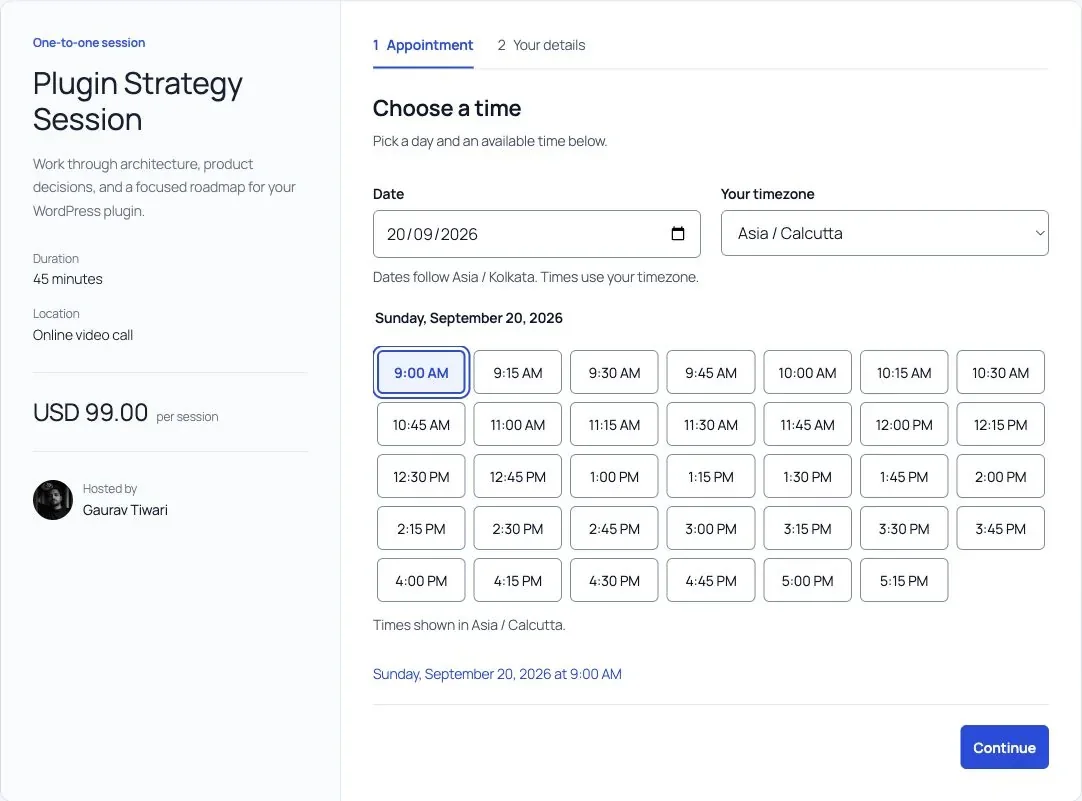
For a hypothetical example, a meeting at 09:00 UTC appears as 14:30 in Asia/Kolkata. The date and named timezone are part of that example; do not reuse the offset for a region whose daylight-saving rules make it seasonal.
Check Daylight-Saving Boundaries
Recurring appointments need a clear promise. “Every Tuesday at 10:00 in London” is different from “every 168 hours at the same UTC time” when the local clock changes.
You should decide whose local time remains fixed and then check the recurrence around a clock change. Core Bookings’ public documentation describes recurring sessions that retain their local time across daylight-saving changes. Verify the intended timezone in your configured series.
For any scheduling system, test dates on both sides of the transition. Some local times can be skipped or repeated when clocks change; a booking interface needs to handle those cases without asking the customer to infer which occurrence it means.
Verify Calendar Invitations
A correct booking page does not prove that the calendar invitation is correct. Check the resulting event in the calendar app your customers actually use.
- Make a harmless test booking with the customer timezone selected.
- Read the confirmation email and private appointment page.
- Add the invitation to a test calendar.
- Compare the instant and local display in both views.
- Reschedule and check the updated event rather than only the old email.
Core Bookings offers iCalendar downloads and add-event links. Its Outlook add-event link does not mean Outlook conflict synchronization is included. Keep that difference clear if your staff rely on Outlook to block busy periods.
You can use the editable wordpress booking timezone worksheet to record your settings and checks. It is a CSV file you can open in a spreadsheet.
Check Imported Appointments
An imported CSV may contain a local time without a timezone. You need to know what the source system meant before converting it. Guessing can move every appointment by the same number of hours while leaving the spreadsheet looking tidy.
Use a small import preview and compare a known appointment. Keep the source file and mapping until the destination schedule has been checked. Imported records may follow different notification rules from new bookings.
If your customers book across countries, review Core Bookings with a real timezone scenario from your business. One correctly checked appointment across the booking page, email and calendar is more useful than assuming the browser will handle everything.
Tell Google you want more of this.
Add Gatilab as a preferred sourceOne tap, and this site shows up more often in your own Top Stories, AI Overviews and AI Mode. Remove it any time.