
How to Update a Table Across Multiple WordPress Pages
A reusable WordPress table lets you keep the data in one place and display it on several pages. When copied tables start showing different prices or course details, the useful fix is to make those placements refer to the same dataset.
You should decide whether you need shared content or shared data first. A small static table can work inside a native synced pattern. A table that needs separate drafts, searching or selected public columns benefits from a dataset that exists independently of the page.
Core Tables is our WordPress dataset and table plugin. You can place one dataset through blocks or shortcodes and publish changes separately from the posts using it. It is early access, with limits that matter for larger imports.
Choose the Table to Reuse
Start with one table whose information should agree everywhere. A course schedule, service list or specification table is a useful candidate. Tables with intentionally different regional prices should not be combined just because their layouts look similar.
Define the columns before importing:
- A stable label readers recognize.
- The values each placement actually needs.
- A consistent unit for numerical fields.
- Any notes that must remain private.
For a small course example, Course, Duration and Delivery are enough. Keep staff comments in another system or explicitly private columns; hiding a column with CSS is not access control.
Create the Shared Dataset
Core Tables supports starting with a grid, importing CSV and converting a single HTML table. The current early-access limits are 500 rows, 30 columns and 2 MB per import or snapshot.
You should first import a small representative file. Check punctuation and units as well as values. A duration of 6 needs a unit, while an identifier such as 0012 should not become an ordinary number if its leading zeros are meaningful.
After the import, select which columns may appear publicly. Review the table before embedding it across the site. A mistake in shared data has a wider reach than a mistake in one copied table.
Place the Same Dataset on Each Page
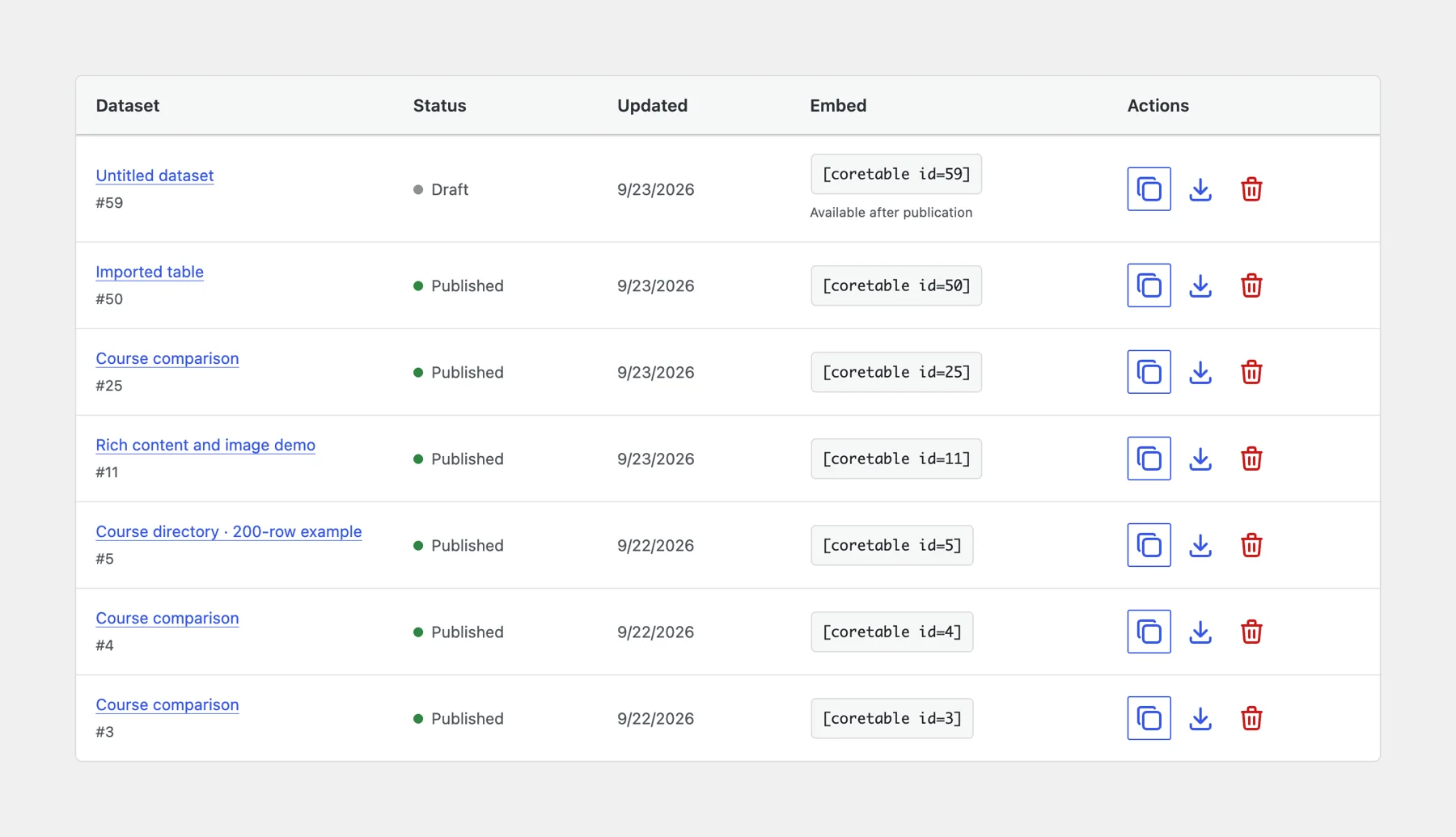
Use the Core Table block and select the same dataset on each page. In a classic-theme area that accepts shortcodes, use [coretable id=123], replacing 123 with the actual dataset ID.
Keep a placement list with the page URL and dataset ID. This gives you a practical checklist when the data changes and helps you identify which pages may still serve cached HTML.
If you copy the dataset itself and assign each page a different ID, you have created separate sources again. Reuse the placement, while keeping the dataset shared.
Edit Without Changing the Published Table
A draft gives you somewhere to prepare changes before readers see them. Core Tables separates saved draft data from the published dataset, so a routine save does not need to replace the public values immediately.
For a hypothetical course list, you can prepare next month’s delivery schedule while the current schedule remains published. Before publishing, check the rows that changed and any columns added by the import.
- Save the proposed dataset changes as a draft.
- Review the changed values against the source document.
- Check public-column selections.
- Publish the dataset when the new information should become public.
- Check the pages where the table is placed.
Revision recovery helps with mistakes, but the decision to restore still deserves a review. Restoring older data can bring back an outdated price as easily as it can correct a typo.
Refresh Cached Pages
Core Tables does not currently include automatic full-page cache purging. A published dataset can therefore be newer than the HTML a page cache serves.
After publishing a change, purge the affected page URLs through the cache system that owns those pages. If you use a CDN, check that layer too. The WordPress caching guide explains why server and plugin caches need clear ownership.
Google Sheets synchronization is also not included in this release. A CSV import is a snapshot, so editing the spreadsheet later does not update WordPress by itself.
You can use the editable reusable wordpress table worksheet to record your settings and checks. It is a CSV file you can open in a spreadsheet.
Start With a Small Reuse Test
Create a harmless dataset and place it on 2 test pages. Change one value in a draft and confirm the public table stays unchanged until publication. Then publish, refresh the affected caches and compare both placements.
That small check answers the maintenance question you came with: whether one deliberate update reaches every place that should share it.
If that is the maintenance workflow you need, review Core Tables and its early-access offer before moving your production data.
Tell Google you want more of this.
Add Gatilab as a preferred sourceOne tap, and this site shows up more often in your own Top Stories, AI Overviews and AI Mode. Remove it any time.