
How to Add Custom HTML and CSS to One WordPress Page
You can add custom HTML and CSS to one WordPress page without rebuilding the whole site. The important part is keeping the styles limited to that section so a button or heading elsewhere doesn’t change unexpectedly.
For a small static section, a Custom HTML block and a suitably scoped stylesheet may be enough. You need a more structured editing workflow when the section includes JavaScript or will be reused and maintained across pages.
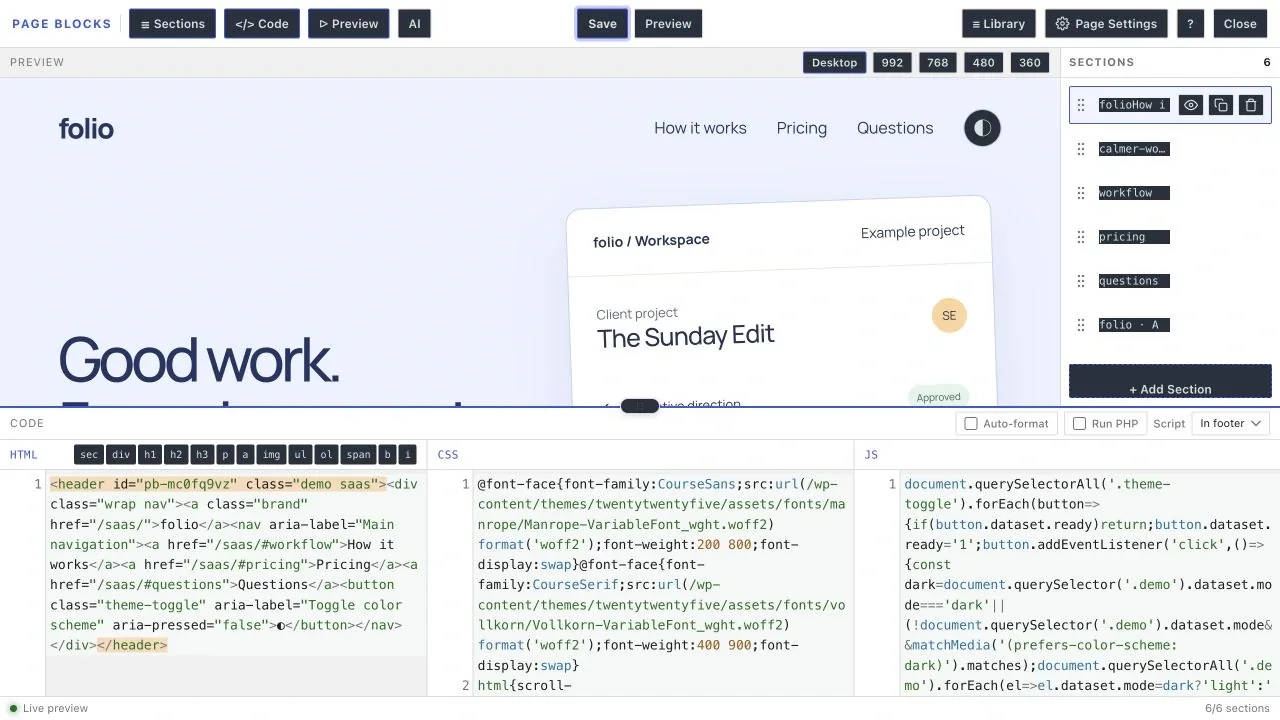
GT Page Blocks Builder is our free WordPress plugin for sections built with HTML, CSS and JavaScript. It provides separate editing panels and a reusable library while allowing ordinary Gutenberg content to remain part of the page.
Choose the Smallest Suitable Method
A Custom HTML block is useful when you need direct markup and can manage the CSS separately. A native synced pattern is useful when an ordinary block layout needs to stay consistent across pages.
Page Blocks Builder fits when the section’s code needs its own editing and preview workflow. It does not make a complex script accessible or secure automatically; those responsibilities remain part of the section you build.
If the page already works in Gutenberg, keep its useful blocks. The page-builder migration guide is relevant when you are actually moving a larger layout, rather than adding a single section.
Scope the CSS
Give the section a specific wrapper class and prefix its selectors with that class. Avoid broad rules such as button { ... } or h2 { ... } for a one-page component.
For example, this small section can sit within a page that already has its own title:
<section class="consultation-note" aria-labelledby="consultation-title">
  <h2 id="consultation-title">Discuss Your WordPress Project</h2>
  <p>Send the page URL and the change you want to make.</p>
</section>
Its CSS only targets that wrapper:
.consultation-note {
  padding: clamp(1rem, 3vw, 2rem);
  border: 1px solid currentColor;
}
.consultation-note h2 {
  margin-block: 0 0.75rem;
}
.consultation-note p {
  margin: 0;
  max-width: 60ch;
}
The heading level should fit the surrounding page. If you reuse the section more than once on a page, give each heading a unique ID and update its aria-labelledby reference.
Put the Code in Its Intended Fields
In Page Blocks Builder, keep markup in the HTML panel and styles in the CSS panel. Only add JavaScript when the section needs behavior. A static information section doesn’t need a script just because a JavaScript field exists.
WordPress may filter code according to the user’s permissions and site configuration. A piece of markup disappearing on save is a reason to inspect those rules, not a reason to grant every editor administrator access.
Never put API keys or other secrets in browser-delivered HTML or JavaScript. Anyone visiting the page can inspect code sent to their browser.
Check the Whole Page
Preview the section at narrow and wide widths in your own editing workflow. Check the page surrounding it as well; CSS leakage may be more obvious in an unrelated navigation button than in the new section.
- Text stays readable without horizontal scrolling.
- The section inherits suitable fonts and colors.
- Focus remains visible on any interactive controls.
- Heading order still makes sense.
- Images have meaningful alt text where needed.
- Scripts do not attach duplicate handlers when the section appears twice.
For reusable sections, record which pages use the shared version. An edit to shared code can affect all of them.
You can use the editable custom html and css worksheet to record your settings and checks. It is a CSV file you can open in a spreadsheet.
Keep a Recoverable Version
Save the previous working code before replacing it. Test a change in the preview workflow and retain a simple way to restore the earlier section if the page behaves differently after insertion.
If you need a maintained home for custom sections, Page Blocks Builder gives you that workflow. Begin with one section and keep its styles scoped before turning it into a sitewide component.
Tell Google you want more of this.
Add Gatilab as a preferred sourceOne tap, and this site shows up more often in your own Top Stories, AI Overviews and AI Mode. Remove it any time.