
WordPress Block Themes: A Practical Guide (2026)
Three years after WordPress 5.9 shipped Full Site Editing, WordPress block themes have stopped being the future and started being the default. Twenty Twenty-Six ships in January with a refined block-only template set, the classic theme directory has lost 60% of its new submissions to block themes since 2024, and the wp_template post type now drives every screen on a default WordPress install. If you’re still building classic themes with header.php and template-tags.php in 2026, you’re shipping legacy code that future-you will rewrite.
This is the working guide I use to onboard new developers at Gatilab into block theme territory. It covers theme.json structure with code that actually compiles, the templates and parts hierarchy, block patterns versus synced patterns, style variations, the best block themes shipping in 2026, and the migration path from classic themes when a client doesn’t want to rebuild from scratch. By the end you’ll know whether a block theme fits your project and how to ship one without the gotchas that ate my first three attempts.
What WordPress block themes actually are
WordPress block themes are themes built entirely from blocks, with templates stored as HTML files in /templates/, design tokens defined in theme.json, and the entire site editable through the Site Editor at /wp-admin/site-editor.php. There is no header.php, no footer.php, no the_content() loop in PHP. The template hierarchy still exists, but each level is an HTML file containing block markup, not a PHP file calling template tags.
The shift matters because block themes flip the responsibility model. In a classic theme, the developer controls layout and the user controls content. In a block theme, the user controls layout, content, colors, typography, and most styling, and the developer’s job is to ship the design tokens, the patterns library, and a sensible starting set of templates. That’s why theme.json is the single most important file in a block theme. Get it right and the user can customize freely without breaking design integrity. Get it wrong and they paint themselves into ugly corners.
Block themes vs classic themes: when to pick which
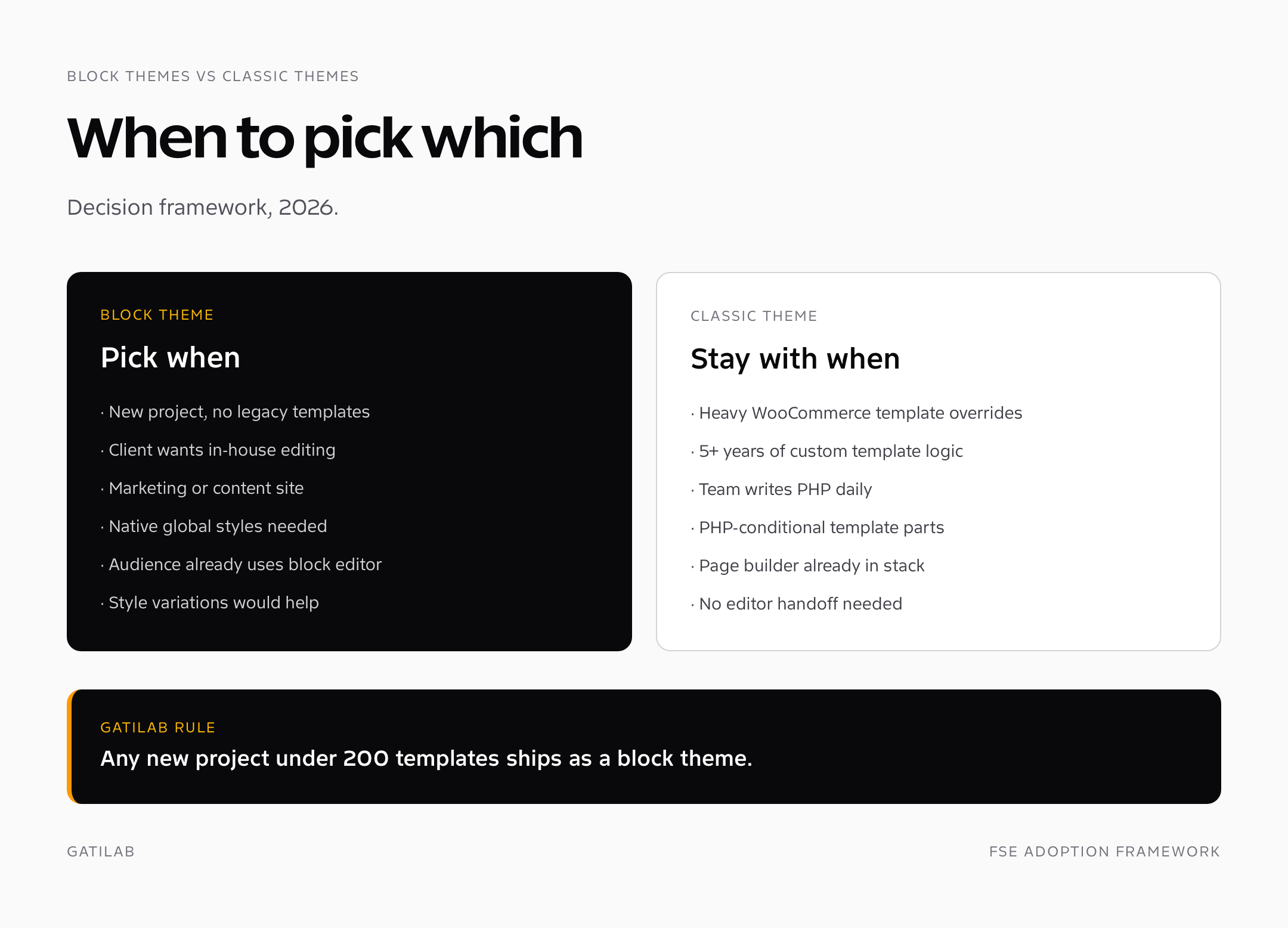
Use a block theme when: you’re starting a new project, the client wants in-house editing capability beyond posts and pages, you want native global styles instead of customizer hacks, you’re building a marketing site or content site, or you’re shipping for an audience that already knows the block editor.
Use a classic theme when: the client runs a WooCommerce store with heavy template overrides (block theme support is improving but still trails classic for advanced WC layouts), the codebase has 5+ years of custom template logic that would take weeks to port, the team writes PHP every day and doesn’t use the block editor, or you need template parts loaded conditionally with PHP logic that isn’t yet expressible in HTML templates.
My rule at Gatilab in 2026: any new client project under 200 templates ships as a block theme. Existing classic themes with extensive customization stay classic until a redesign forces the rewrite. Hybrid themes (classic with some block templates) are a transitional pattern, not a destination.
theme.json structure: the heart of every block theme
theme.json lives in your theme root and defines every design token, layout setting, and style WordPress understands. It replaces add_theme_support() calls, body class hacks, and 80% of the customizer code you’d write in a classic theme. The schema version in 2026 is “version”: 3, which adds support for variations, custom CSS, and font face declarations.
The four top-level keys that matter: settings, styles, customTemplates, and templateParts. Settings define what’s available (color palette, font sizes, spacing scale, layout widths). Styles apply those settings as defaults. customTemplates and templateParts register reusable HTML files. Here’s a working theme.json that ships a real block theme starter.
{
  "$schema": "https://schemas.wp.org/trunk/theme.json",
  "version": 3,
  "settings": {
    "appearanceTools": true,
    "color": {
      "palette": [
        { "slug": "background", "color": "#ffffff", "name": "Background" },
        { "slug": "foreground", "color": "#1a1a1a", "name": "Foreground" },
        { "slug": "primary",    "color": "#0f172a", "name": "Primary" },
        { "slug": "accent",     "color": "#dc2626", "name": "Accent" },
        { "slug": "muted",      "color": "#737373", "name": "Muted" }
      ]
    },
    "typography": {
      "fluid": true,
      "fontFamilies": [
        {
          "slug": "primary",
          "name": "Primary",
          "fontFamily": "'Inter Variable', system-ui, sans-serif",
          "fontFace": [
            {
              "fontFamily": "Inter Variable",
              "fontStyle": "normal",
              "fontWeight": "100 900",
              "src": [ "file:./assets/fonts/InterVariable.woff2" ]
            }
          ]
        }
      ],
      "fontSizes": [
        { "slug": "small",  "size": "0.875rem", "name": "Small"  },
        { "slug": "medium", "size": "1rem",     "name": "Medium" },
        { "slug": "large",  "size": "1.5rem",   "name": "Large"  },
        { "slug": "x-large","size": "clamp(2rem, 5vw, 3rem)", "name": "Extra large" }
      ]
    },
    "spacing": {
      "spacingScale": { "operator": "*", "increment": 1.5, "steps": 7, "mediumStep": 1.5, "unit": "rem" },
      "units": [ "px", "em", "rem", "vh", "vw" ]
    },
    "layout": { "contentSize": "720px", "wideSize": "1200px" }
  },
  "styles": {
    "color": { "background": "var(--wp--preset--color--background)", "text": "var(--wp--preset--color--foreground)" },
    "typography": { "fontFamily": "var(--wp--preset--font-family--primary)", "lineHeight": "1.6" },
    "elements": {
      "h1": { "typography": { "fontWeight": "600", "letterSpacing": "-0.02em" } },
      "link": { "color": { "text": "var(--wp--preset--color--accent)" } }
    }
  },
  "templateParts": [
    { "name": "header", "title": "Header", "area": "header" },
    { "name": "footer", "title": "Footer", "area": "footer" }
  ]
}
Three things this theme.json buys you: every block in the editor automatically picks up the color palette, font families, and spacing scale; the fluid typography setting means font sizes scale by viewport without media queries; and the registered template parts show up in the Site Editor for the user to edit. No PHP. No customizer code. No CSS classes.
Templates and template parts: where the markup lives
Block themes use the same template hierarchy as classic themes (index, single, page, archive, 404, search, taxonomy, author), but each template is an HTML file in /templates/ instead of a PHP file in the theme root. Template parts (header, footer, sidebar) live in /parts/ and get included via wp:template-part blocks.
theme-root/
├── theme.json
├── style.css           // Required by WP, can be minimal
├── functions.php       // Optional, only if you need PHP hooks
├── templates/
│   ├── index.html      // Default fallback
│   ├── single.html     // Single posts
│   ├── page.html       // Static pages
│   ├── archive.html    // Category, tag, custom taxonomy archives
│   ├── search.html
│   └── 404.html
├── parts/
│   ├── header.html
│   ├── footer.html
│   └── post-meta.html
├── patterns/
│   ├── hero-centered.php       // Pattern with i18n strings
│   └── pricing-three-tier.php
└── styles/                      // Optional, for style variations
    ├── dark.json
    └── high-contrast.json
A minimal templates/single.html for a blog post looks like this. Note the wp:template-part block referencing /parts/header.html, the wp:post-content block (no PHP loop needed; WordPress wires it up), and the bound wp:post-title block which renders the title element automatically.
<!-- wp:template-part {"slug":"header","tagName":"header"} /-->

<!-- wp:group {"tagName":"main","layout":{"type":"constrained"}} -->
<main class="wp-block-group">

  <!-- wp:post-title {"level":1} /-->
  <!-- wp:post-featured-image {"className":"is-style-rounded"} /-->
  <!-- wp:post-content /-->
  <!-- wp:template-part {"slug":"post-meta"} /-->

</main>
<!-- /wp:group -->

<!-- wp:template-part {"slug":"footer","tagName":"footer"} /-->
Block patterns: reusable layouts users can drop in
Patterns are the killer feature for client work. A pattern is a chunk of block markup with a registered name that shows up in the editor’s pattern picker. Users insert patterns the same way they insert blocks, and once inserted, the markup is theirs to edit. This is where I ship the design language: 12-20 patterns covering hero, features, pricing, testimonials, CTA, FAQ, and footer-content layouts. Clients build entire pages by stacking patterns.
Two flavors: file-based patterns (PHP files in /patterns/ that auto-register) and synced patterns (formerly “reusable blocks”) stored in the database and editable globally. File-based patterns ship with the theme and stay version-controlled. Synced patterns are user-created and persist across template changes. For an agency-built block theme, the file-based patterns library is your design system documentation.
<?php
/**
 * Title: Hero Centered
 * Slug: gatilab/hero-centered
 * Categories: featured, gatilab
 * Description: Centered hero with eyebrow, headline, sub, and dual CTAs
 * Keywords: hero, banner, header
 */
?>
<!-- wp:cover {"isUserOverlayColor":false,"minHeight":600,"align":"full"} -->
<div class="wp-block-cover alignfull" style="min-height:600px">
  <!-- wp:group {"layout":{"type":"constrained","contentSize":"720px"}} -->
  <div class="wp-block-group">
    <!-- wp:paragraph {"className":"is-style-eyebrow","align":"center"} -->
    <p class="is-style-eyebrow has-text-align-center"><?php esc_html_e( 'Eyebrow text', 'gatilab' ); ?></p>
    <!-- /wp:paragraph -->

    <!-- wp:heading {"level":1,"textAlign":"center"} -->
    <h1 class="wp-block-heading has-text-align-center"><?php esc_html_e( 'Headline goes here', 'gatilab' ); ?></h1>
    <!-- /wp:heading -->
  </div>
  <!-- /wp:group -->
</div>
<!-- /wp:cover -->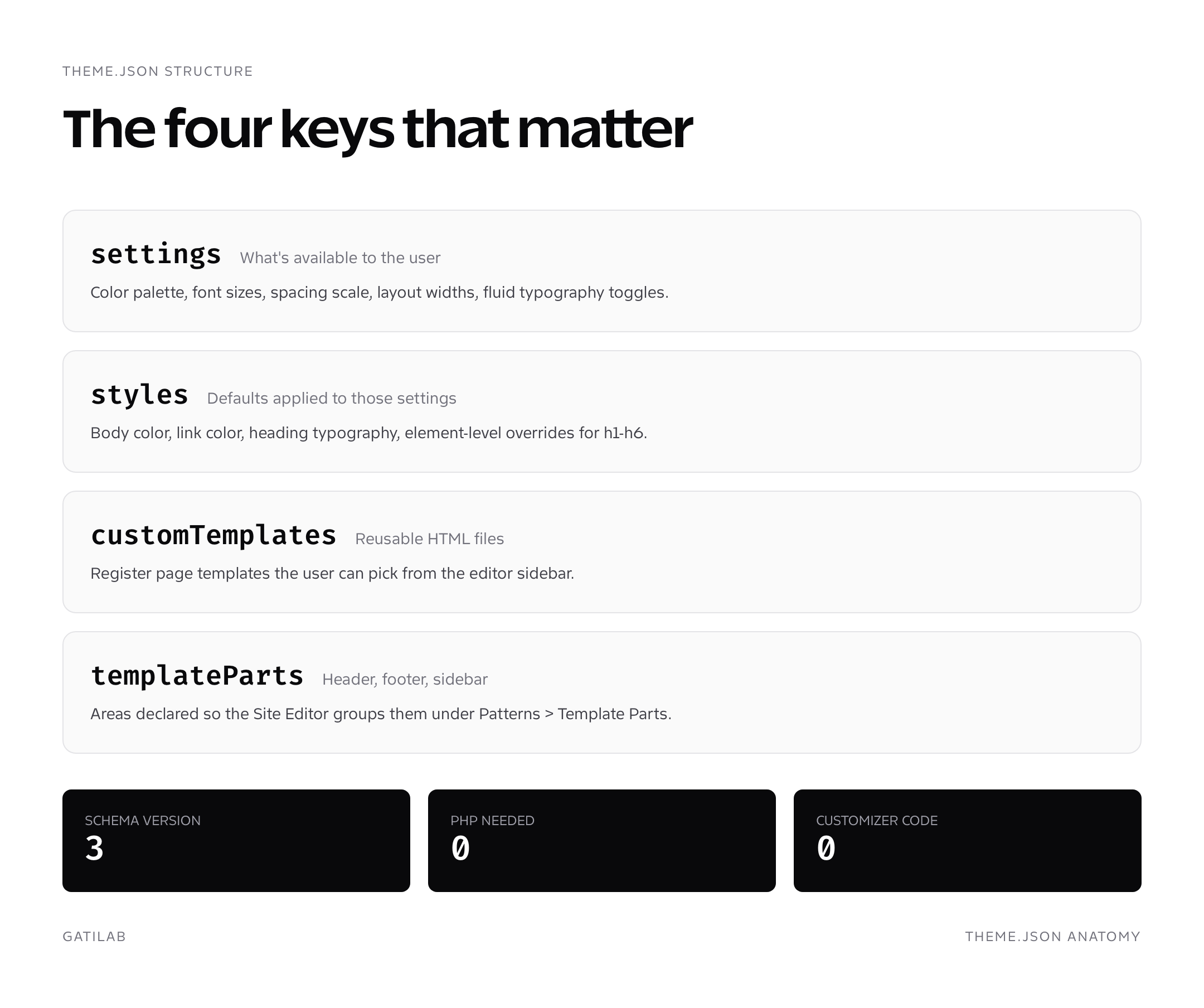
Concrete themes make the pattern model easier to evaluate. Hassium provides software-marketing layouts, while Osmium provides publication and review layouts. Both use core blocks; their designs serve different content needs.
Style variations: shipping multiple looks from one theme
Style variations let one block theme ship multiple visual moods (light/dark, editorial/playful, calm/loud) as separate JSON files in /styles/. Users switch with one click in the Site Editor under Design > Styles. Each variation file overrides the parent theme.json’s color palette, typography, and spacing without touching templates. Twenty Twenty-Four shipped with eight variations and was the first theme to make this approach widely visible.
For client work, variations replace the old “5 demos to import” approach. Ship one block theme with 4-6 variations and let the client pick the one that matches their brand. The variation file is just a partial theme.json with the same schema.
{
  "$schema": "https://schemas.wp.org/trunk/theme.json",
  "version": 3,
  "title": "Dark",
  "settings": {
    "color": {
      "palette": [
        { "slug": "background", "color": "#0a0a0a", "name": "Background" },
        { "slug": "foreground", "color": "#fafafa", "name": "Foreground" },
        { "slug": "primary",    "color": "#fafafa", "name": "Primary" },
        { "slug": "accent",     "color": "#f59e0b", "name": "Accent" }
      ]
    }
  }
}
Best WordPress block themes in 2026
The block theme ecosystem has matured enough in 2026 that “good defaults” actually exist. Here are the WordPress block themes I install on real projects, with what each one is good at.
Twenty Twenty-Six
The default theme shipping with WordPress 6.8 in January 2026. Restrained typography, fluid spacing, multiple style variations, designed by Mike McAlister and the WordPress design team. It’s the cleanest starting point for a block theme tutorial because every feature in this guide is exercised in the bundled patterns and templates. Free, GPL, comes preinstalled.
Ollie
Built by Mike McAlister (the designer behind Twenty Twenty-Four). Ollie ships with a refined design system, 80+ patterns, multiple style variations, and AI-assisted page generation in the Pro version. Free version is excellent for marketing sites. Ollie Pro is $89/year for unlimited sites.
Frost
Brian Gardner’s block theme, focused on typography-led design with strong vertical rhythm. Lightweight (under 30 KB CSS), accessibility-first, ships 100+ patterns. Free on WordPress.org with a Pro version on the Frost site. The right pick for blogs, newsletters, and content-led sites where typography does the design heavy lifting.
Spectra One
Built by the team behind the Spectra block plugin. Spectra One pairs with Spectra (free) to add 30+ extra blocks (advanced columns, info boxes, post grid variations). The combo is the closest thing in 2026 to “Elementor as a block theme stack.” Best for marketing sites that need patterns beyond core blocks. Free with optional Pro upgrade for the plugin.
Blockbase
Automattic’s block-theme-ification of their old Universal theme system. Blockbase parents 50+ child themes that were originally built for the classic Universal Themes line, including Seedlet, Stewart, and Blank Canvas. Stable, well-maintained, free on WordPress.org. The right pick if you want a familiar Automattic design language with FSE underneath.
- Twenty Twenty-Six: cleanest reference implementation, free
- Ollie: best agency-friendly defaults with AI patterns in Pro
- Frost: typography-led, blog and content sites
- Spectra One: Spectra blocks integration, marketing sites
- Blockbase: Automattic ecosystem, familiar UX
Migrating from a classic theme to a block theme
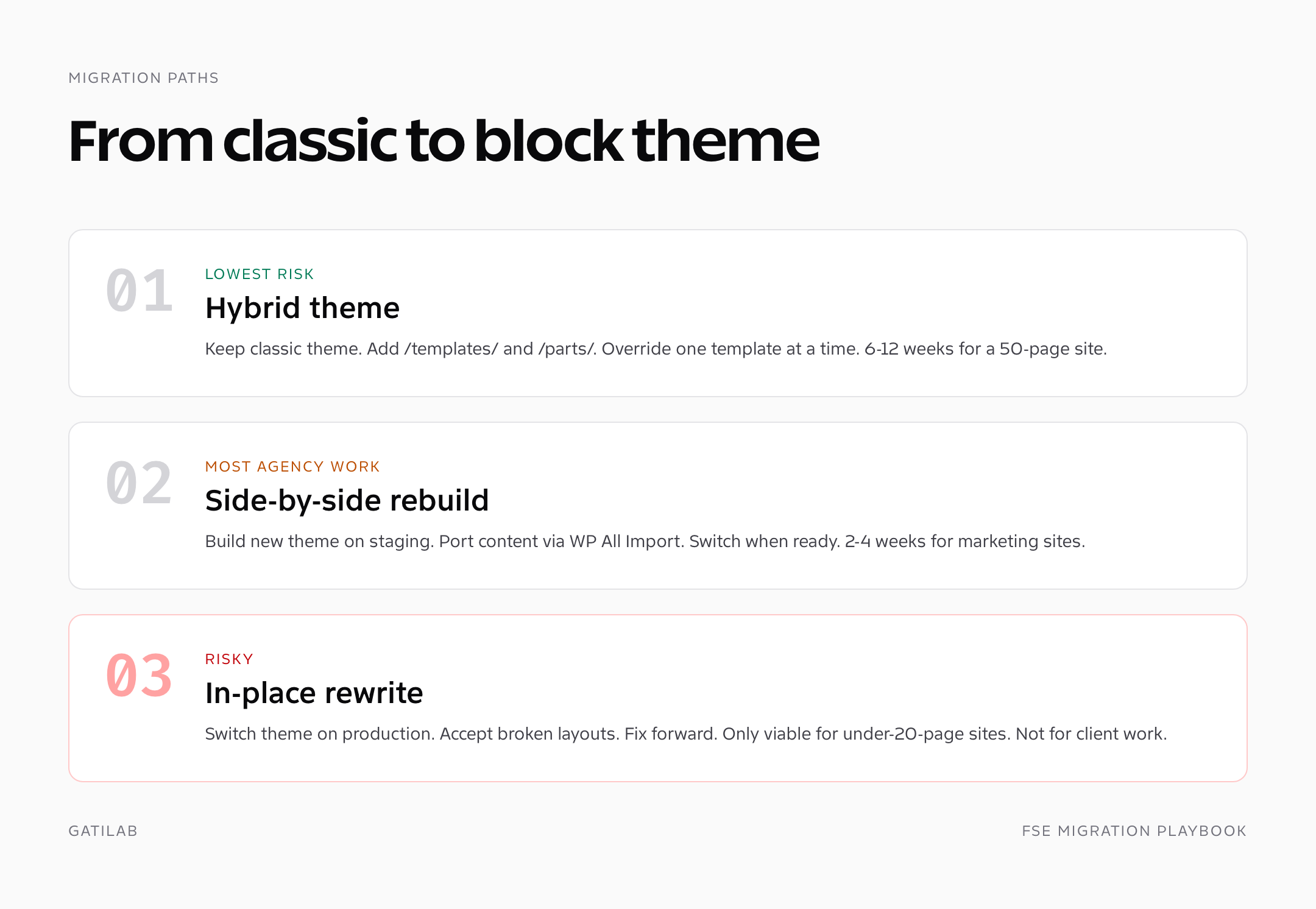
Three migration paths in 2026, in order of complexity. The right one depends on how much custom template logic the classic theme has and how much downtime the client tolerates.
- Hybrid theme: keep the classic theme, add /templates/ and /parts/ folders, register specific block templates that override classic ones one at a time. Lowest risk. Six to twelve weeks for a 50-page site.
- Side-by-side rebuild: build the new block theme in a staging environment, port content via WP All Import or wp-cli, switch when the rebuild is complete. Two to four weeks for a marketing site. Best for redesigns.
- In-place rewrite: switch theme on production, accept broken layouts, fix forward. Only works for sites under 20 pages and only if you can take 1-2 hours of broken styling. Don’t do this for client work.
The hidden gotcha in any migration: classic themes often hard-code template tags inside content (shortcodes, do_shortcode calls in templates, custom widgets). Audit those before you switch. I run a grep across the theme for <?php and the_ before any migration, and I document every PHP function that would need to become a block or a pattern.
When block themes are not the answer
Block themes still struggle in three places in 2026. WooCommerce: blocks support is improving but classic templates still beat block templates for advanced product layouts and checkout customization. Page builders: if your stack is Elementor or Beaver Builder, you’re already running a builder, so block themes’ editing layer is redundant. Highly dynamic templates: if your single-post template logic depends on PHP-level conditionals (post format, custom field values, user roles), classic themes still express that more cleanly than block templates with conditional pattern includes.
For a store in 2026, choose the editing model around the product and checkout behavior you need. A hybrid or classic theme can be appropriate when the implementation relies on PHP hooks, while a block theme may fit a block-based storefront. Check the actual commerce extension and template requirements rather than assuming a theme category is sufficient.
Bringing it together
WordPress block themes are the production default for new content sites in 2026. Master theme.json, ship 12-20 patterns, register 4-6 style variations, and you’ve replaced 80% of what a custom classic theme used to do, with a UX that lets clients edit safely after handoff. The migration cost is real but pays back the first time a client edits the homepage without filing a ticket.
Once your theme is in place, the next layers are caching, backups, and SEO. I cover those in WordPress caching plugins, WordPress backup plugins, and best WordPress SEO plugins. For developers extending block themes with custom data, my WordPress custom post types tutorial walks through the registration pattern. Hosting choice underpins all of this; the best web hosting services breakdown covers what to pick for FSE-friendly performance.
Block bindings and the dynamic content layer
Block Bindings, introduced in WordPress 6.5 and matured in 6.7, is the feature that finally makes block themes viable for client work involving custom post types and ACF fields. A binding connects a block attribute (the title text in a heading, the URL of an image, the content of a paragraph) to a data source (post meta, ACF field, custom binding source). The binding renders dynamically per post without writing PHP templates.
<!-- wp:heading {"metadata":{"bindings":{"content":{"source":"core/post-meta","args":{"key":"product_price"}}}}} -->
<h2 class="wp-block-heading">$0.00</h2>
<!-- /wp:heading -->
That heading reads the product_price post meta and renders it as the heading text per post. ACF Pro 6.2+ registers an “acf/field” binding source so any ACF field becomes available the same way. For headless WordPress builds and single-template-many-CPT patterns, bindings replace 80% of the PHP template logic that classic themes needed for the same job.
Block themes performance considerations
Block themes ship less PHP than classic themes but more inline CSS, generated from theme.json on every request unless cached. WordPress 6.4 added persistent caching for the theme.json output, which dropped per-request CSS generation cost from 40-80ms to under 5ms on a warm cache. If you’re seeing slow TTFB on a block theme, check that the theme.json cache is warming and that your hosting supports object cache (Redis recommended).
The other performance gotcha is over-using global styles. Every preset color and font size in theme.json adds to the CSS bundle. Ship 5-8 colors and 4-6 font sizes; users don’t need 20 of each. The CSS bundle for a well-tuned block theme should be under 60 KB on the first paint.
Block themes and accessibility
Block themes inherit the block editor’s accessibility model, which is genuinely good in 2026. Headings register their level as a block attribute, so users can change h2 to h3 without breaking the visual style. Image blocks require alt text by default in WordPress 6.6+. The Navigation block ships with proper aria-current and aria-expanded handling.
Where you still need to take care: color contrast in your style variations. WordPress doesn’t enforce WCAG AA contrast ratios on theme.json palette pairs, so a “light gray on white” variation will ship without warning if you don’t audit it. Run every variation through the WebAIM contrast checker before release. Similarly, focus styles on interactive blocks (links, buttons) need explicit attention in theme.json’s elements.button.:focus and elements.link.:focus blocks; defaults rely on browser focus rings which vary by platform.
Versioning and shipping block theme updates
Updating a block theme on a live site is more delicate than updating a classic theme because user customizations live in the database (templates edited in Site Editor save to the wp_posts table as wp_template post type entries) and override the theme files. A fresh template push from your repo doesn’t automatically reach users who have edited that template in the editor.
Best practice in 2026: ship semver-versioned block themes, document breaking changes in a changelog file users can read in the WordPress updates UI, and use the Site Editor’s Reset to Theme Defaults button when you need to force a template refresh. For agency client work, my preferred pattern is to keep the wp_template entries managed entirely in the theme repo and disable user edits to specific templates via the disable_editor_for_specific_templates filter.
Frequently asked questions
What are WordPress block themes?
WordPress block themes are themes built entirely from blocks, with templates as HTML files in /templates/, design tokens defined in theme.json, and the entire site editable through the Site Editor. There is no header.php or footer.php; the template hierarchy still works but each level is an HTML file containing block markup.
Should I use a block theme or a classic theme in 2026?
For new content sites and marketing sites, use a block theme. For WooCommerce stores with heavy template overrides or codebases with years of custom PHP template logic, stay with classic. Block themes shine when the client needs in-house editing capability.
What is theme.json and why does it matter?
theme.json is the central configuration file in a block theme. It defines color palettes, font families, spacing scales, layout widths, and element-level styles in JSON. It replaces add_theme_support() calls and customizer hacks. Get theme.json right and the user can customize freely without breaking the design.
How do I migrate from a classic theme to a WordPress block theme?
Three paths: hybrid theme (add /templates/ alongside classic, override templates one at a time), side-by-side rebuild on staging then switch when ready, or in-place rewrite (only for under-20-page sites). Most agency work goes the side-by-side route: 2-4 weeks for a marketing site.
What are the best WordPress block themes in 2026?
Twenty Twenty-Six (default, free, cleanest reference). Ollie (agency-friendly, AI patterns in Pro). Frost (typography-led, content sites). Spectra One (with Spectra plugin for marketing builds). Blockbase (Automattic ecosystem). Pick based on site type, not features.
Are block themes faster than classic themes?
Yes, typically by 100-200ms LCP. Block themes load less PHP per request because most styling comes from theme.json instead of multiple stylesheet enqueues, and template rendering is more efficient. The gap closes when both themes are paired with a good caching plugin.
Do block themes work with page builders like Elementor?
Yes, but the editing surface duplicates. If you’re using Elementor or Beaver Builder, the block theme’s Site Editor becomes redundant for pages built with the page builder. Use a hybrid theme or a lightweight classic theme designed for page builders instead.
Can I use ACF custom fields with WordPress block themes?
Yes. ACF Pro registers Block Bindings sources in WordPress 6.5+, which lets you bind block attributes to ACF field values without writing PHP. The custom-fields editor sidebar still works on any post type that supports it.
How do block patterns differ from synced patterns?
File-based patterns are PHP files in /patterns/ that auto-register and ship with the theme; users insert them and the markup becomes editable copy. Synced patterns (formerly reusable blocks) live in the database, share state across the site, and update everywhere when edited.
Do block themes support WooCommerce?
Yes, with caveats. Basic WooCommerce works on any block theme. Advanced product layouts, custom checkout, and deep template overrides still work better in classic themes through 2026. The block ecosystem is catching up but trails for complex stores.
Tell Google you want more of this.
Add Gatilab as a preferred sourceOne tap, and this site shows up more often in your own Top Stories, AI Overviews and AI Mode. Remove it any time.