
Progressive Profiling for WordPress Forms
Asking for every detail on the first form makes a simple download feel like a sales interview. Asking the same questions on every later visit creates a different problem, because a returning contact has to retype information you already have.
Progressive profiling solves this by collecting one or two useful new details on each interaction instead of everything at once. On a WordPress site, the hard part isn’t the form design. It’s having a supported way to recognize the returning contact and use what you already know, so I would confirm that capability before adding a single new question.
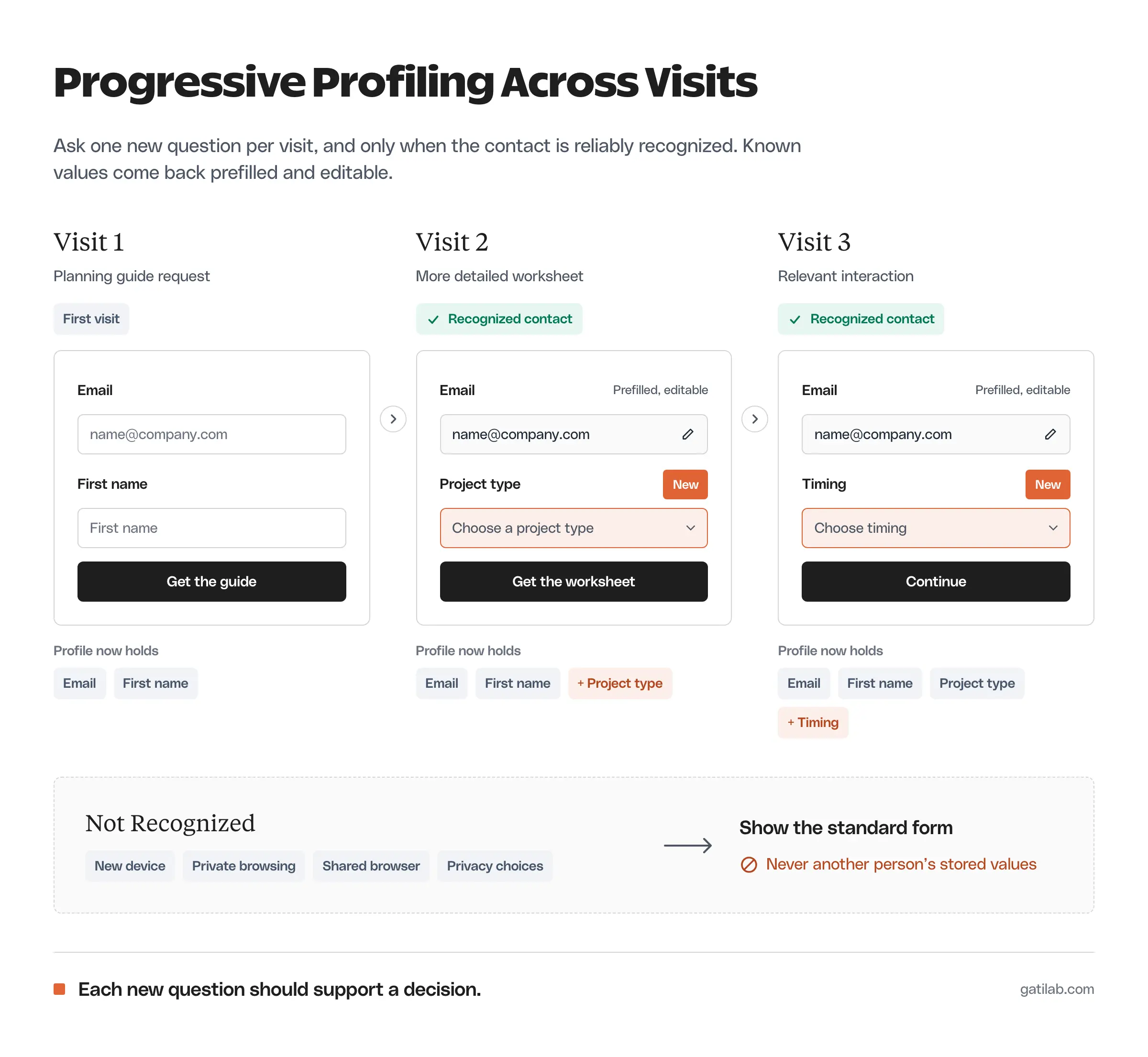
What Is Progressive Profiling?
Progressive profiling is a form technique that changes which questions appear based on what you already know about the contact. Each time a known contact fills in a form, the fields you already have are swapped for new questions, so the profile grows over several visits.
Here is an illustrative sequence:
- First visit: a person requests a planning guide and gives their email and first name.
- Later visit: the form recognizes them, keeps the email field and asks for project type while they request a more detailed worksheet.
- A further visit: the form asks about timing, if that’s still unknown and still useful.
Whether a particular form can do this depends entirely on how it identifies people and stores their answers.
Some of that information doesn’t need a field at all. Paul Boag, a UX strategist with more than 30 years in UX and conversion work, segments an audience by the resource people choose:
Instead of a form field that says “Are you a beginner or advanced,” we’re offering a choice of thank-you gifts.
It works because you’re not asking them to label themselves.
Paul Boag on X, June 29, 2026
A choice like that can replace a later question when the answer only decides which content someone gets. The stored answer still needs the recognition and privacy checks below.
The email field usually stays on every form, so a person can identify themselves or correct their address. Recognizing a browser is not the same as authenticating a person, and a saved value should never be exposed just because a cookie exists.
Check the Form Capability
Your WordPress form needs more than an integration that copies submissions into a CRM. It needs a supported way to use known contact data when deciding which fields to show.
Before building, find out:
- How the visitor gets matched to a contact record.
- Where the existing field values live.
- Which fields can be replaced or hidden.
- What happens when the contact isn’t recognized.
- How a changed email or a shared device is handled.
- Which plan and form editor support the feature.
Conditional fields usually react only to answers in the current submission. Multi-step forms split one submission across screens. Both are useful features, but neither one is progressive profiling, which works across separate visits.
HubSpot’s Legacy Form Route
HubSpot’s forms are a well-documented way to get real progressive profiling on a WordPress site. The progressive fields documentation covers forms built in the legacy form editor and requires a Marketing Hub, Service Hub or Content Hub subscription at the Professional or Enterprise tier.
The setup uses a queue. You choose an existing field and line up progressive fields behind it, and when HubSpot already has a value for that field, the next queued question appears in its place.
The conditions matter more than the setup:
- Progressive fields are not supported in HubSpot’s updated form editor, only in the legacy editor.
- They can’t be used while the “Always create contacts for new email address” option is turned on.
- A queued field shows only if the contact has no value for it now and never had one in the past.
- HubSpot advises against making the email field progressive, so people can update their address and contacts don’t get duplicated.
Check which editor your form was built in before planning anything. A tutorial for the legacy editor doesn’t mean the same controls exist on a form made in the new one.
Embed the Supported Form in WordPress
In this route WordPress hosts the page and HubSpot supplies the form behavior. Embedding a HubSpot form doesn’t give your other WordPress forms the same ability.
HubSpot’s external-site form guide explains how to place a legacy form on a site outside HubSpot and points WordPress users to its WordPress instructions. The simplest path is the official HubSpot WordPress plugin, which lets you insert HubSpot forms from the block editor. Work from the form’s current embed code or the plugin rather than an old copied script that may assume a different editor.
A practical setup sequence:
- Confirm that your account and the specific form support progressive fields.
- Choose the later questions the business will actually use.
- Build the field queue in the legacy editor.
- Keep the email field on the form.
- Place the form on a WordPress test page.
- Run the test cases below before using it for real requests.
Form Shortening Is a Different Feature
HubSpot’s updated editor offers form shortening instead. It shows the email field first, then hides fields that HubSpot’s enrichment data can fill on its own. It’s available from Starter upward across several hubs, needs enrichment configured on the account and only works with forms built in the updated editor.
That’s a different idea from progressive profiling. Form shortening fills gaps with data HubSpot already has about a company or person, while progressive fields ask the contact a new question on each visit.
Choose by the job:
- If you want a shorter first form, form shortening is the better fit.
- If you want to ask a new question after a known earlier answer, you need progressive fields and the legacy editor.
HubSpot also notes that enrichment can carry extra compliance steps, so check that with whoever handles privacy for your business.
Test Recognition and Failure Cases
A recognized return visit is only one case. The form also has to behave sensibly when identity is missing or wrong.
Test each of these:
- A new visitor with no contact record.
- A recognized contact with the expected stored values.
- A contact with one field missing.
- A changed email address.
- A private-browsing session.
- A different device.
- A shared browser used by another person.
- A visitor whose privacy choices block recognition.
For every case, write down what should appear and what must stay private. The fallback should let a legitimate visitor finish the task without ever showing another person’s stored information.
If a stored value is wrong, the person needs a way to correct it. Silently skipping a field can otherwise carry bad data through every later interaction.
A cookie can tell you a browser has been here before. It can’t tell you who is sitting at it, so never prefill or display personal details on a shared or unrecognized device.
Ask Only for Information You Will Use
Progressive profiling gives you a way to ask more questions. It doesn’t make more questions useful.
I would tie every later field to a decision. Project type can route a service inquiry. Timing can separate an immediate project from early research. A question with no defined use adds data to maintain without improving the next action. If you score leads, the lead scoring model shows how fit details like these feed a routing decision.
When a field can’t be dropped, it can often move later. Paul Boag suggested exactly that for a donation form:
One trick I have found if you can’t persuade people to drop fields is to move them back in the process. You take the donor’s money and secure that, and then follow up with additional questions right at the end.
Paul Boag on X, May 6, 2026
Progressive profiling applies the same idea across visits. The first request gets done, and the extra question waits until it supports a decision.
The form optimization guide covers field friction in general. If the problem is missing submissions or blocked visitors, the guides on form submissions not being received and form spam false positives handle those separate failures.
FAQs on Progressive Profiling
Progressive profiling is a form technique that replaces questions you already have answers to with new questions each time a known contact fills in a form. The profile builds up over several visits instead of one long form.
No. A CRM integration, conditional fields or saved submissions don’t by themselves mean a form can recognize a returning contact and swap fields. Check the exact plugin and connected system, or use a form system that documents the feature, such as HubSpot’s legacy forms.
Only if the identity method follows the person. A browser cookie stays on one device, so a visitor on a new phone usually sees the standard form. Plan the fallback for that case.
Progressive profiling asks a contact new questions on later visits. HubSpot’s form shortening uses enrichment data to hide fields it can fill itself on the first form. They solve different problems and work in different HubSpot form editors.
Only when the form has reliable information and the current task still works without the hidden fields. A returning visitor may still need to correct a value or confirm who they are.
Final Remarks
Choose one later question, name the decision it will support and confirm your account and form editor can handle it before you build. If you can’t name the decision, the question isn’t worth asking yet.
Tell Google you want more of this.
Add Gatilab as a preferred sourceOne tap, and this site shows up more often in your own Top Stories, AI Overviews and AI Mode. Remove it any time.