
Content Calendar Template for SEO Teams
A content calendar template should make the next task obvious: what you’re working on, who owns it and when it’s due. When those details are spread across chats, docs and draft folders, an approved topic can sit untouched for weeks while everyone assumes someone else has it. Updates suffer the most, because nobody schedules them until a reader complains about an old price.
This free workbook keeps new SEO articles and content updates in one plan. You start with a working title, an owner and a next action, then add the keyword, internal links and review details as the piece takes shape. It works in Google Sheets or Excel, and there’s no email signup.
Download the Content Calendar Template
One workbook for planning new articles and updates, with the same 4 tabs in Google Sheets and Excel:
- Content Plan with 11 everyday columns and optional SEO detail to the right
- This Month, which lists the month’s planned publications and the week’s actions on its own
- Review Log for results, observations and update decisions
- Built-in checks for missing owners, overdue actions, duplicate IDs and published rows without a live date
Free to use and adapt for your own work and your clients, with no email needed. The 8 example rows are fictional and easy to delete. You’ll need to be signed in to Google to make a copy of the Sheet.
What the Template Includes
The workbook has 4 tabs, and you only type in 2 of them most days. Everything else updates from the Content Plan.
| Tab | What You Do There |
|---|---|
| Start Here | Read the short instructions and edit the dropdown lists for owners, stages, work types and search intent |
| Content Plan | Add and update every article and refresh. This is the only place you edit the work itself |
| This Month | See planned publications for the month and actions due this week, filtered by owner if you like |
| Review Log | Record what happened after an article went live and the decision you made |
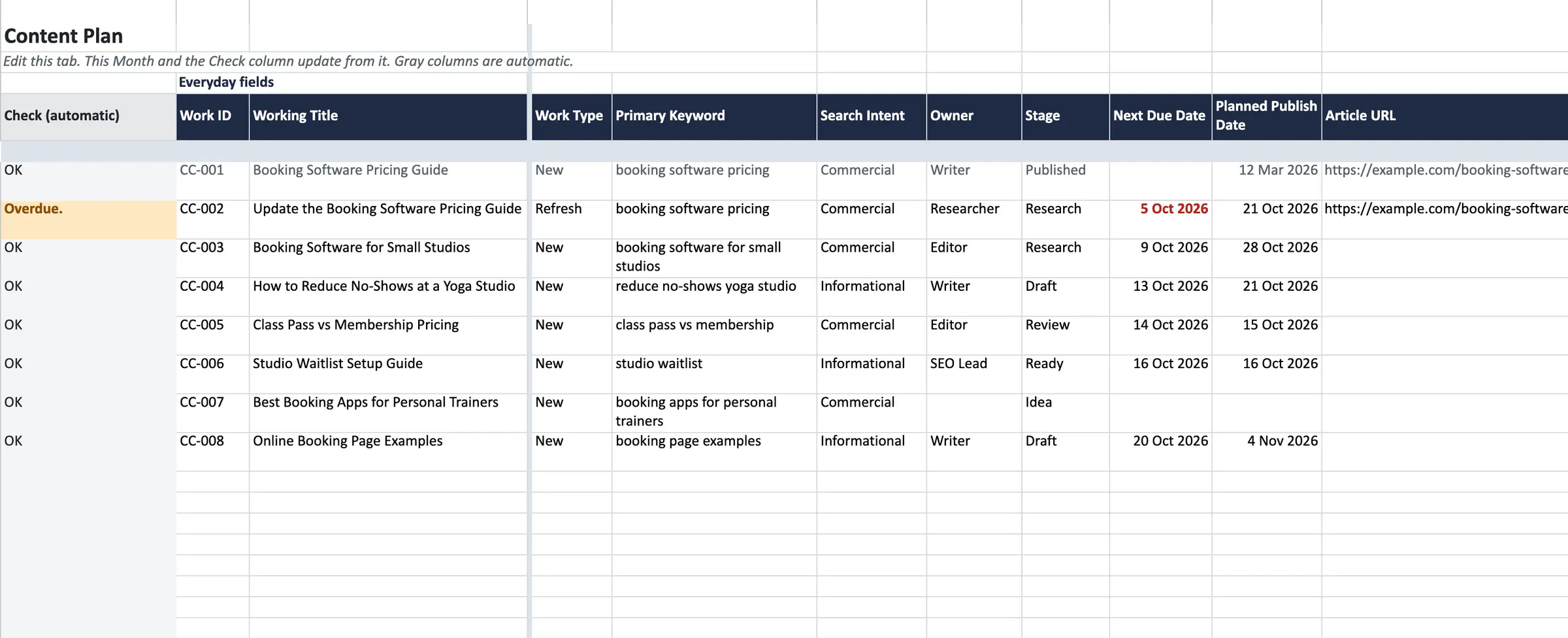
The Content Plan opens with 11 everyday columns, which is what most teams need to assign and move work:
- Work ID, a stable ID such as CC-010 that you type yourself and never change
- Working Title, the article or update being planned
- Work Type, either New or Refresh
- Primary Keyword, left blank for work that isn’t search-led
- Search Intent: Informational, Commercial, Transactional or Navigational
- Owner, the person responsible for the next action
- Stage: Idea, Research, Draft, Review, Ready or Published
- Next Due Date, the deadline for the next action
- Planned Publish Date, which can stay blank for an idea
- Article URL, the existing URL for a refresh, or the live URL once something publishes
- Next Action, one concrete task such as “replace the pricing table and check official prices”
The optional columns sit to the right: topic cluster, pillar URL, brief link, proof or assets needed, internal links out, incoming link tasks, CTA, actual live date, next review date, review trigger and notes. Fill them in when a piece needs them. A short informational post doesn’t need a full brief in a spreadsheet row.
The template keeps search intent, work type and stage apart on purpose. A refresh can have commercial intent and be at the Draft stage, and mixing the three into one Status column is how a calendar ends up saying “Refresh” for an article nobody has touched.
The gray Check column on the left reads each row and tells you what’s missing in plain words:
- Research, Draft, Review or Ready rows without an owner, a next action or a due date
- an active next action whose due date has passed
- a Published row without an Article URL or an Actual Live Date
- a Work ID used more than once
A blank date stays blank. An idea without a due date never shows as overdue.
Set Up Your Calendar
The workbook comes with 8 example rows for a fictional booking-software business, so you can see every feature working before you change anything. Here’s how I’d set it up:
- Copy the Google Sheet or download the Excel file from the box above.
- On Start Here, replace the example owners with your team’s names or roles. The Owner dropdown in Content Plan updates from that list.
- Add one real piece of work in the first empty row of Content Plan: a Work ID, a title, an owner, a stage, a next action and a due date.
- Open This Month and check that your new row shows up.
- Delete the example rows (rows 5 to 12 in Content Plan and row 5 in Review Log) once you’ve seen how they behave.
- On This Month, clear the Month and Week cells so the lists follow today’s date.
Add new work in the next empty row instead of inserting rows between existing ones. The lists on This Month read every row either way, but the Check column is filled in down to row 504, and a row inserted in the middle won’t have it.
You can sort and filter Content Plan however you like. The IDs are typed values, so they stay with their row when you sort, and nothing on This Month or Review Log depends on row order.
Plan New Articles and Updates
An approved title isn’t ready for writing. The Content Plan is built around the next action because that’s what moves a piece forward: research the topic, write the brief, finish the draft, check the facts, schedule it.
Take the example new article, CC-003, Booking Software for Small Studios:
- Work Type is New and Search Intent is Commercial, because the reader is comparing options before buying.
- The Editor owns it at the Research stage.
- The next action is “Compare official cancellation policies and write the brief”, due 9 Oct.
- The Planned Publish Date is 28 Oct, and the Article URL stays blank until it’s live.
When the Editor finishes the brief and hands the draft to a Writer, three cells change: Owner, Stage and Next Action, plus a new due date. That handoff is the whole workflow. A solo writer can skip stages that add nothing and move straight from Research to Draft.
A refresh works the same way, with two differences. CC-002 updates an existing pricing guide, so it gets its own new Work ID and the existing Article URL. The original article keeps its row as CC-001, with its live date and history intact. Two rows sharing a URL is expected for a refresh. Two rows sharing a Work ID is an error, and the Check column flags it.
The optional columns are where internal links stop depending on memory. Internal Links Out lists the pages a new article should link to. Incoming Link Tasks lists the older pages that should be updated to link to it once it’s live, which is the step most teams forget. If you’re deciding which topics belong together in the first place, our guides to SEO content strategy and content cluster strategy cover the planning before the calendar.
Review Your Publishing Week
This Month shows the same work from two angles: every planned publication in the selected month, sorted by date, and every action due in the selected week, including anything overdue. You don’t maintain it. It updates as soon as you change a row in Content Plan.
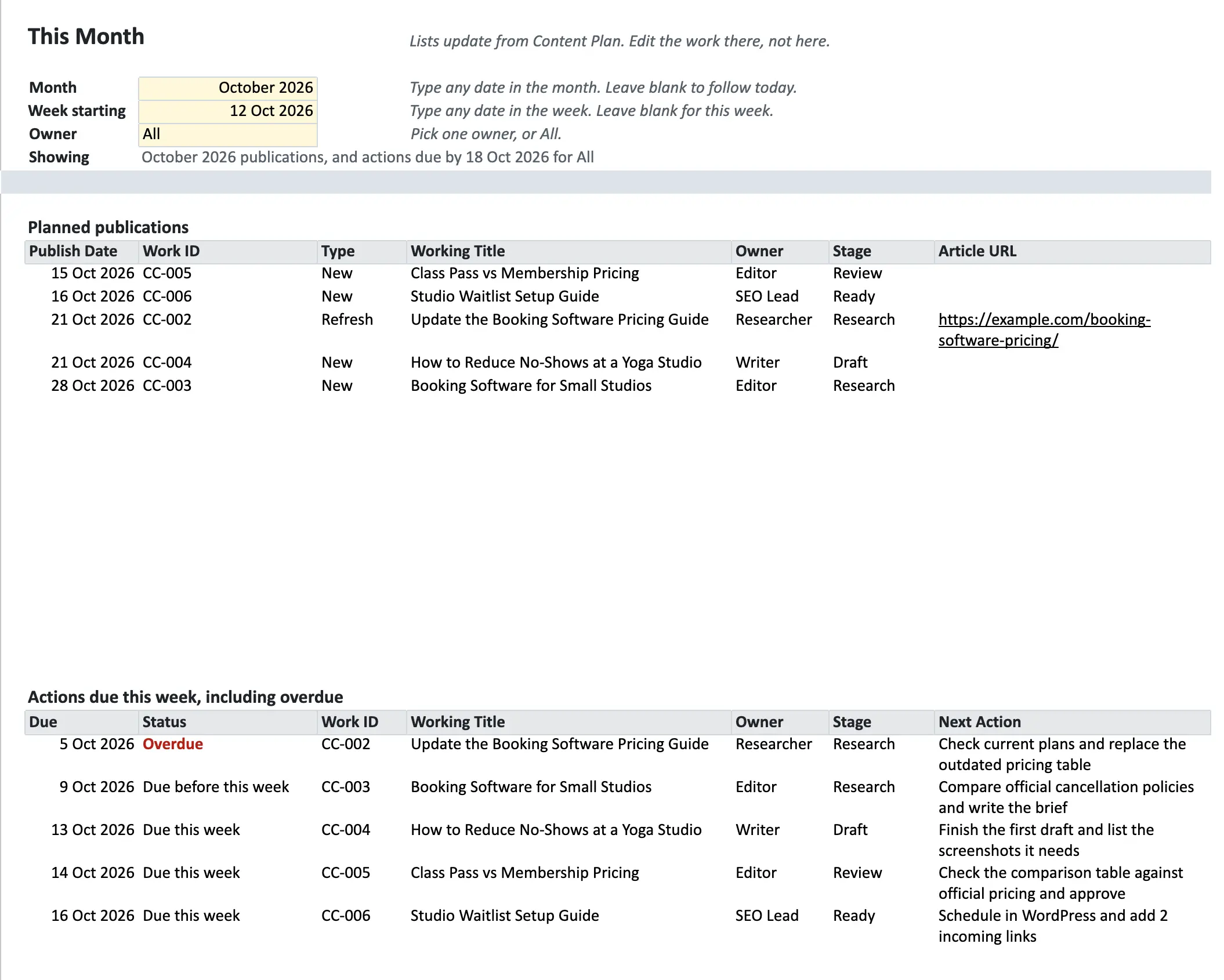
Three controls sit at the top:
- Month: type any date in the month you want to see, or leave it blank to follow today.
- Week starting: type any date in the week, or leave it blank for this week. Weeks start on Monday.
- Owner: pick one person to see only their work, or leave it on All.
The action list labels each row Overdue, Due before this week or Due this week. If a month or week has nothing in it, the list says so instead of showing an error.
I’d go through this tab once a week with whoever owns the work. When an action is overdue, change something in Content Plan: move the date, reassign the owner or split the task into something smaller. Don’t leave it red for another week.
If the month shows more publications than your team can actually finish, push the lowest-priority pieces to the next month rather than squeezing every review. A good reason to keep one piece in the plan is one you can explain: a factual error needs correcting, a launch depends on it, or readers keep asking a question nothing on the site answers. A target like 8 posts a month only helps if your team can finish 8 to a good standard, so let your capacity set the number.
Track Results and Plan Updates
A calendar that stops at Published turns into a filing cabinet. The Review Log is where you record what happened after an article went live and what you decided to do about it.

Each review is a new dated row, so earlier observations stay in place:
- Work ID and Review Date
- Comparison Window, such as 1 to 30 Sep 2026 vs 1 to 31 Aug 2026
- Data Source and Filters, such as Search Console, web search, page filter
- Clicks, Impressions and Qualified Enquiries, all optional
- Observation, Decision and Next Review Date
The Article column fills in from the Work ID. A blank number means you don’t know it, not that it was zero, so leave a cell empty rather than typing 0.
In the example, the October review of CC-001 found that two vendors in its pricing table had changed their plans. The decision was to refresh the table, so a new row, CC-002, went into the Content Plan and its ID went into the Decision cell. The original result stays on record, and the refresh has a clear reason.
Changes in the real world are the best reasons to review a page: a vendor changed its pricing, an instruction no longer works, or a product you recommend shut down. A drop in clicks is worth a look too, but check for seasonality, tracking changes and a shift in what searchers want before you rewrite anything. The Review Trigger column in Content Plan is the place to note which change should send a page back for review. For fuller reporting on a client site, our SEO client report guide covers what to include each month.
FAQs on the Content Calendar Template
Can I use the Excel version offline?
Yes. The Excel file works offline once you download it. It uses only long-standing functions that Excel has supported since Excel 2010, and no macros or newer dynamic array formulas. We tested the workbook in Google Sheets and LibreOffice Calc, so check that the This Month tab fills in when you first open it in your version of Excel.
Can several people use the same calendar?
Yes. In Google Sheets, share your copy with your team and everyone edits the same file, and each person can use a filter view to see only their rows without changing what others see. The Excel file works best with one person updating it at a time, unless you store it in OneDrive or SharePoint for co-authoring.
How do I add an owner or change a dropdown?
Go to Start Here and type the new name or option in the next empty cell of the matching list. The dropdowns in Content Plan and the owner filter on This Month pick it up automatically. Avoid renaming the stages Research, Draft, Review, Ready and Published, because the checks rely on those exact words.
Does the template publish posts or import analytics automatically?
No. It’s a planning workbook, so you type the dates, URLs and numbers yourself. It doesn’t connect to WordPress, Search Console or Google Analytics, and it has no macros or scripts.
Can I remove the example data?
Yes. Delete rows 5 to 12 in Content Plan and row 5 in Review Log, then clear the Month and Week cells on This Month. The lists show “No items planned for this period” until you add your own work.
Before You Start
Open the template and add the one article or update you’re working on next. Give it an owner, a due date and a next action specific enough that someone could start on it today. That single row is more useful than a full quarter of titles nobody owns.
If the harder problem is deciding what to write or getting it shipped every month, our content marketing team can help plan and produce it with you.
Tell Google you want more of this.
Add Gatilab as a preferred sourceOne tap, and this site shows up more often in your own Top Stories, AI Overviews and AI Mode. Remove it any time.