
WordPress Speed Optimization: 2026 Pillar Guide
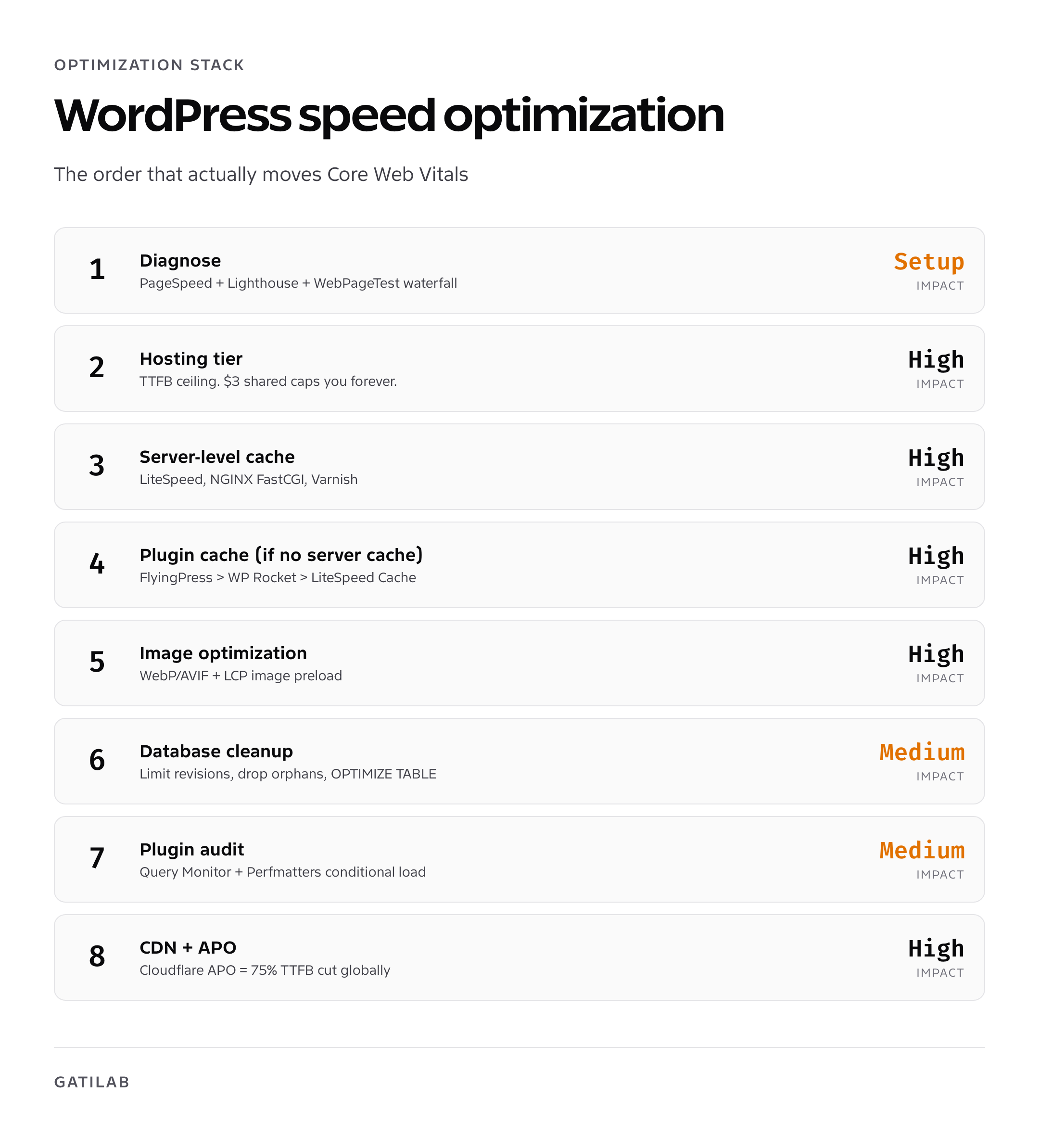
WordPress speed optimization starts with measurement. Identify whether the limiting mechanism is origin work, caching, payload, image delivery, JavaScript, fonts, or layout stability, then change one layer and repeat the same test. A fixed sequence without diagnosis can make the wrong layer faster.
This guide covers a reproducible speed-audit workflow: field and lab diagnosis, hosting and origin behavior, cache ownership, image delivery, database work, plugin auditing, CDN impact, and Core Web Vitals verification. The test boundary travels with every result.
Measure WordPress Speed First
Use field data and lab data for different jobs. Chrome UX Report aggregates eligible real-user visits, while a controlled Lighthouse or WebPageTest run gives you a repeatable diagnostic under fixed conditions.
| Core Web Vitals metric | Good threshold | How Google evaluates it |
|---|---|---|
| Largest Contentful Paint (LCP) | 2.5 seconds or less | 75th percentile of page loads |
| Interaction to Next Paint (INP) | 200 milliseconds or less | 75th percentile of page loads |
| Cumulative Layout Shift (CLS) | 0.1 or less | 75th percentile of page loads |
Those thresholds come from the Core Web Vitals guidance. CrUX API values are a 28-day rolling average and refresh daily on a best-effort basis, so a single optimization cannot cleanly explain a next-day field-data movement.
- Record mobile and desktop separately.
- Run at least 5 lab tests per condition and compare medians, not the fastest run.
- Keep location, browser, connection, cache state, page, and consent state fixed.
- Track TTFB, LCP, INP, CLS, total bytes, request count, and cache headers together.
How Hosting Affects WordPress Speed
Hosting in 2026 sets the origin’s CPU, memory, storage, network, PHP workers, database capacity, and cache options. It does not produce one universal TTFB for every site.
- Test cached and uncached HTML separately.
- Keep the 2026 region, page fixture, plugin set, database, PHP settings, and cache state fixed.
- Record median and tail latency across at least 5 runs per condition.
- Separate origin response time from DNS, TLS, CDN, image, and browser work.
- Add concurrency for logged-in users, search, carts, checkout, or API traffic.
Read the best web hosting services comparison as a 2026 workload choice, not a latency guarantee.
Server-level caching: LiteSpeed and NGINX FastCGI
The fastest cache is the one that never hits PHP. Server-level caching (LiteSpeed Cache or NGINX FastCGI cache) serves a static HTML copy of your page from disk before WordPress boots. The difference between page-cache-from-disk and page-cache-from-PHP is roughly 80ms versus 400ms on equivalent hardware. For high-traffic content sites, that gap decides whether your CPU is at 20% or 90% during a traffic spike.
- LiteSpeed Cache: free plugin paired with a LiteSpeed web server. The QUIC.cloud CDN integration is included. Hostinger and NameHero run LiteSpeed by default. Configuration is plug-and-play once the server side is set up.
- NGINX FastCGI Cache: configured at the server level on Cloudways, RunCloud, GridPane, and other VPS-style hosts. The Nginx Helper plugin handles cache invalidation from inside WordPress. Faster than any plugin-only cache.
- Varnish: still common on Kinsta and WP Engine. Same idea, different software. You don’t manage it directly; the host handles it.
If your host runs LiteSpeed, NGINX, or Varnish, use the server-level cache and skip plugin caches. Layering plugin cache on top of server cache mostly creates invalidation bugs. If your host runs vanilla Apache (some shared hosts), you have no choice but to use a plugin cache.
When a plugin cache is the right call, or when you want one owner for both the WordPress cache and the Cloudflare edge, we built GT Performance for that job. It’s free and GPL-2.0-or-later, runs unlimited sites with no account or license key, and manages Cloudflare Free cache rules and targeted purges without APO or Workers. Treat it like any cache change: stage it, then test logged-in, cart, and checkout routes before production.
Test WordPress Cache Changes
A cache plugin changes cache ownership, exclusions, purging, asset delivery, and sometimes JavaScript or image behavior. Test one owner at a time so a browser cache, edge cache, host cache, and plugin cache do not hide each other.
| Condition | Record |
|---|---|
| Cold HTML | Origin TTFB, cache headers, status, and redirects |
| Warm HTML | Hit or miss status, age, and purge behavior |
| Anonymous page | LCP, CLS, requests, bytes, and JavaScript time |
| Logged-in page | Bypass rules and personalized-state correctness |
| Cart and checkout | Session, AJAX, account, and payment behavior |
Isolate page cache, critical CSS, delayed scripts, image delivery, and CDN changes so the mechanism is visible.
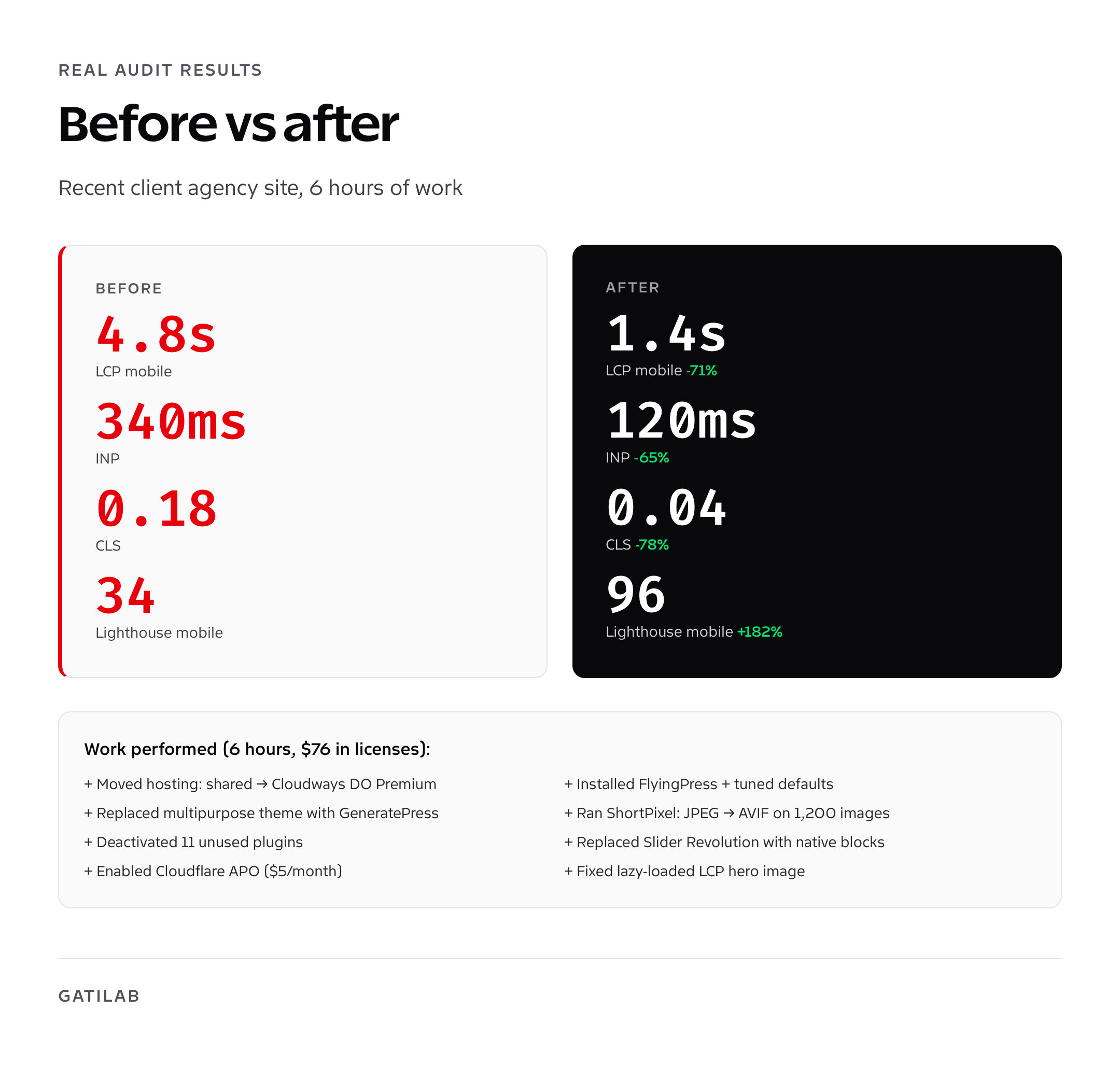
Image optimization: WebP, AVIF, and the lazy-load mistake
Images are the single biggest source of page weight on most WordPress sites. A typical homepage hero image straight from a stock photo source is 500KB to 2MB. Properly optimized, that same image is 30KB to 90KB at the same visual quality. The WordPress speed optimization with the largest immediate impact is almost always image optimization.
- Convert to WebP and AVIF. WebP cuts file size 25 to 35% versus JPEG at the same visual quality. AVIF cuts another 20 to 30% on top. Browser support for both is now over 96%. ShortPixel, EWWW Image Optimizer, Imagify, and Smush all generate WebP/AVIF versions automatically.
- Resize to actual display size. WordPress generates multiple thumbnail sizes; make sure your theme uses the correct one. Don’t serve a 2400px image into a 600px container. WordPress’s srcset handles this if your theme is properly built.
- Lazy-load below the fold. WordPress 5.5+ adds native lazy loading on all images. The mistake is lazy-loading the LCP image (the hero). Mark it as eager (`loading=”eager”` or remove the lazy attribute on the hero) or your LCP score collapses by a full second.
- Preload the LCP image. Add a `<link rel=”preload”>` for the hero image so the browser fetches it before parsing the rest of the page. FlyingPress and WP Rocket can do this automatically.
On a recent client audit, switching JPEG to AVIF and fixing one lazy-loaded hero brought LCP from 4.1s to 1.6s in 30 minutes of work. No other changes. Image optimization is, dollar for dollar, the highest-ROI WordPress speed optimization you can ship.
Database optimization: lean tables, current options
WordPress databases bloat over time. Post revisions, transients, expired sessions, abandoned carts, spam comments, and old plugin tables accumulate. A site that started with 50MB of database can be 800MB three years later, with 90% of that being garbage. The bloat slows admin queries, backup times, and (on shared hosting) page loads.
- Limit post revisions: add `define(‘WP_POST_REVISIONS’, 5);` to wp-config.php. WordPress stores every save as a revision; the default is unlimited.
- Clean transients: WP-Optimize, Advanced Database Cleaner, and the WP-CLI command `wp transient delete –expired` all do this. Run monthly.
- Drop orphaned plugin tables: when you remove a plugin, its database tables usually stay. Use Advanced Database Cleaner to find and remove orphans. Always backup first.
- Run OPTIMIZE TABLE: defragments tables and reclaims space. Most cleanup plugins do this in one click. Run monthly.
- Disable autoload on bloated options: the wp_options table autoloads rows on every request. If a plugin stored a 5MB blob in wp_options with autoload=yes, every request fetches that blob. WP-Optimize identifies and toggles autoload.
For larger sites, set up Redis or Memcached object caching. Cloudways, Kinsta, WP Engine, and most modern managed hosts include one or the other. Object cache reduces query load on the database by 60 to 90% on logged-in pages.
Plugin audit: every active plugin has a cost
Plugins are the most common source of WordPress speed regressions. Each active plugin loads PHP, sometimes loads CSS/JS into the frontend, sometimes adds database queries. Three plugin patterns cause 90% of plugin-related slowdowns:
- Plugins that load assets on every page when only one page needs them (sliders, contact forms, social-share widgets)
- Plugins that run heavy queries on every admin page (analytics dashboards, security scanners during page load instead of cron)
- Plugins that bundle multiple unrelated features into one footprint (multipurpose themes, “Swiss army knife” SEO suites with 30 features you don’t use)
Run Query Monitor on a slow page and inspect per-plugin database queries, HTTP requests, hooks, and execution time. Replace, configure, conditionally load, or remove a plugin only after the trace identifies its contribution.
Conditional asset tools can disable scripts and styles on URL patterns that do not need them. Test visual output, interactions, consent, forms, ecommerce state, and error logs after each rule; removing a request is not an improvement when it breaks the page.
Measure CDN Impact
A CDN can shorten asset distance and cache eligible HTML, but it can also add another cache owner, stale content, bot challenges, and purge delays.
- Compare edge-hit, edge-miss, and origin-bypass requests.
- Test from regions that match the audience.
- Record cache-control, age, vary, and platform cache-status headers.
- Verify logged-in sessions, previews, forms, checkout, and personalized pages.
- Confirm that a WordPress update purges every owner that can serve HTML.
Do not let caching break form Optimization, consent, carts, or account state for a cosmetic score gain.
Core Web Vitals fixes: LCP, CLS, INP
Three numbers decide your search ranking from a performance perspective. Each has a specific set of fixes.
LCP (Largest Contentful Paint)
LCP is when the largest above-the-fold element finishes painting. Target: under 2.5 seconds, ideally under 1.5. Fixes in priority order: faster hosting, server-level caching, preload the hero image, optimize the hero image to AVIF/WebP at correct dimensions, eliminate render-blocking JavaScript above the fold, fix any web font that delays text render.
CLS (Cumulative Layout Shift)
CLS measures visual instability. Target: under 0.1. Fixes: set explicit width and height attributes on every image, reserve space for ads or embeds before they load, avoid injecting content above existing content, use `font-display: optional` or preload critical fonts to avoid FOUT-related shifts.
INP (Interaction to Next Paint)
INP replaced FID in March 2024 and is now the interactivity Core Web Vital. Target: under 200ms. Fixes: defer or async-load all third-party scripts (analytics, chat widgets, A/B test tools), use `requestIdleCallback` for non-essential work, break up long JavaScript tasks into smaller chunks, avoid heavy main-thread work during page load. The biggest INP wins come from removing or deferring third-party scripts.
A Reproducible Before-and-After Test
A defensible case study preserves the page, timestamp, device, browser, location, connection, cache state, run count, and raw results for both conditions.
| Measure | Before and after requirement | Interpretation |
|---|---|---|
| CrUX field data | Comparable 28-day distributions | Real-user population, not a same-day experiment |
| Synthetic result | At least 5 fixed runs per condition | Controlled median and tail |
| LCP element | Name the measured element | Confirms the same object is compared |
| Origin TTFB | Cold and warm | Separates server and cache effects |
| Requests and bytes | Record both totals | Shows payload and dependency changes |
CrUX uses a 28-day rolling window and updates daily on a best-effort basis. CrUX API documentation
A WordPress Speed Optimization Workflow
- Capture field data and a repeatable synthetic baseline.
- Identify the LCP element, long tasks, layout shifts, origin latency, payload, and cache status.
- Fix the largest mechanism first, then rerun the same test matrix.
- Verify mobile and desktop, cached and uncached, anonymous and stateful routes.
- Keep raw evidence and a rollback for every change.
Use a comprehensive website audit when the problem crosses content, theme, plugin, database, and infrastructure boundaries. Document ownership in WordPress agency operations.
WordPress Speed Optimization Priorities
Measure first, fix the limiting mechanism, verify with the same test, and stop when the next change adds more risk than user value.
A cache plugin cannot repair slow uncached work, a CDN cannot repair a blocked main thread, and a lightweight theme cannot repair an oversized layout. The best SEO plugins for WordPress cannot substitute for fast, correct rendering.
Frequently asked questions
How do I make my WordPress site faster?
Measure field and lab data, identify the limiting mechanism, change one layer, and rerun the same test. Start with origin latency, caching, the LCP element, main-thread work, layout shifts, requests, and bytes.
What are the Core Web Vitals thresholds?
Google’s good thresholds at the 75th percentile are LCP at 2.5 seconds or less, INP at 200 milliseconds or less, and CLS at 0.1 or less.
How many speed tests should I run?
Run at least 5 fixed synthetic tests per condition and compare medians and tail behavior. Keep page, browser, device, connection, location, cache, and consent state fixed.
Why did my lab score improve before CrUX changed?
CrUX aggregates eligible real-user data over a rolling 28-day window, while a lab test changes immediately. They answer different questions.
Do I need a cache plugin?
Only when it owns a job not already handled correctly by the host or edge. Avoid multiple independent page-cache owners and verify purging and exclusions.
Will a CDN always make WordPress faster?
No. It helps when distance and cacheable delivery are meaningful constraints. It can also add stale HTML, purge delays, challenges, and broken personalized state.
How should images be optimized?
Serve correctly sized assets, choose an efficient format, set dimensions, avoid lazy-loading the LCP image, and verify the actual LCP element and transfer size.
Do too many plugins make WordPress slow?
Plugin count is a weak proxy. Measure database queries, PHP time, network requests, JavaScript work, scheduled tasks, and behavior on the route that is slow.
Tell Google you want more of this.
Add Gatilab as a preferred sourceOne tap, and this site shows up more often in your own Top Stories, AI Overviews and AI Mode. Remove it any time.