
How to Collect Payment for an Accepted Quote in WordPress
An accepted quote in WordPress should lead to a payable invoice containing the agreed work. If you have to rebuild the offer in another tool, you introduce another opportunity for the amount or scope to change between approval and payment.
You should preserve the customer’s acceptance and connect it to the invoice. Payment confirms settlement; it doesn’t replace the record of what the customer agreed to buy.
GT Extensions for FluentCart is our plugin for adding store workflows to FluentCart. Its quote and custom-invoice modules support this handoff while FluentCart remains the commerce engine.
Agree on the Work Before Billing
A useful quote states the deliverable clearly enough that both parties can recognize completion. A label such as “website work” leaves too much room for disagreement when the invoice arrives.
For a hypothetical fixed-scope engagement, the quote might cover a homepage review and a written list of recommendations. The review doesn’t include implementation unless the quote explicitly says so.
Capture these details before sending the proposal:
- The service and the deliverable.
- Quantity or scope boundary.
- Price and currency.
- Relevant tax treatment.
- Any deadline for acceptance.
- Payment and delivery terms.
Tax requirements depend on the business and jurisdiction. The presence of a tax field does not establish that an invoice satisfies every legal requirement.
Connect the Accepted Quote to the Invoice
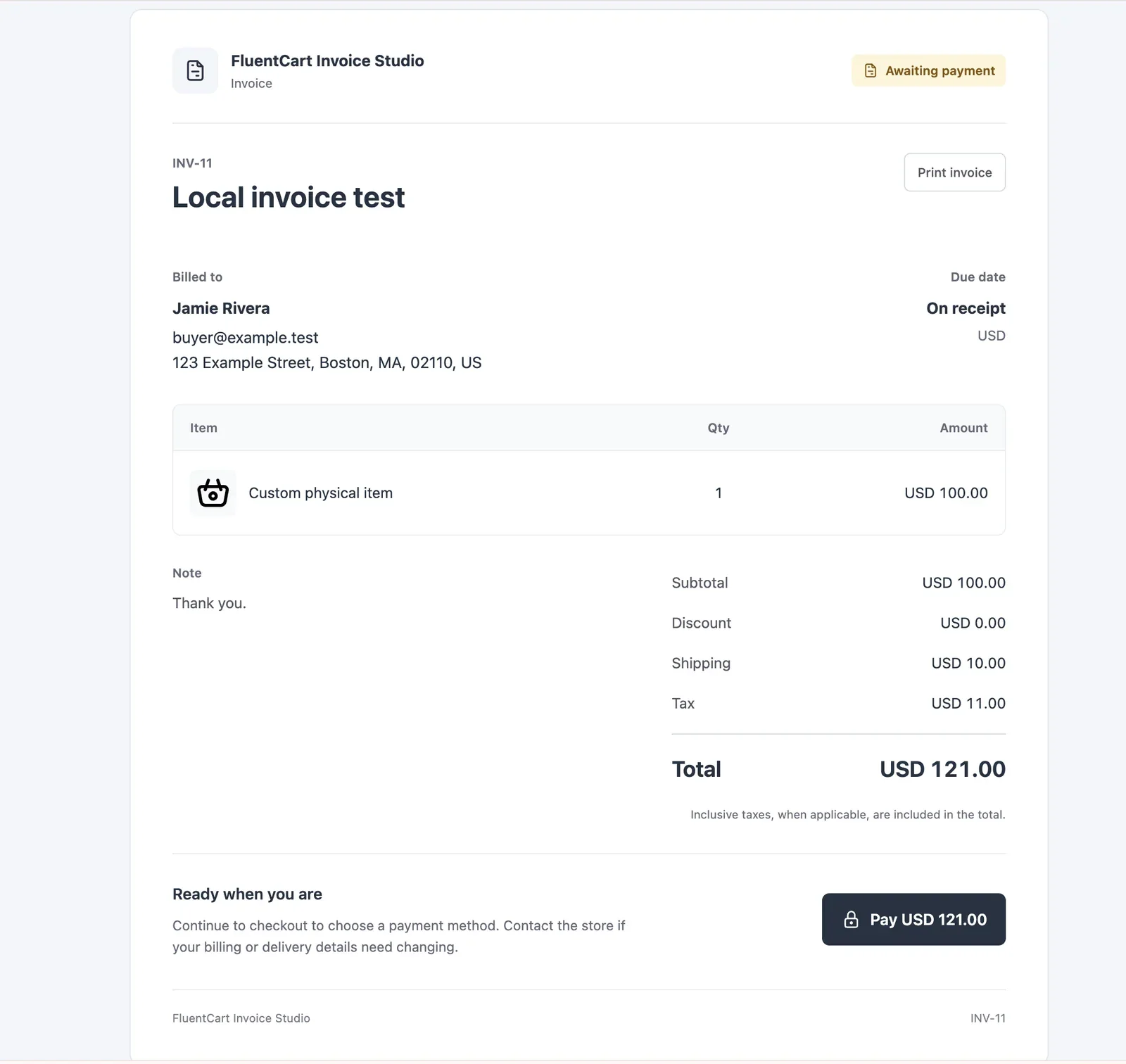
The accepted proposal should be the source for the invoice. Check the customer and currency as carefully as the total, especially when your store supports more than one currency.
The existing FluentCart quote tutorial covers the quote setup. For the handoff, the checks that matter are whether the invoice contains the accepted items and whether the customer can identify the proposal it came from.
Don’t send an old proposal link after changing its terms. When the price or scope changes, the customer needs to see and accept the revised offer before you treat the new amount as agreed.
Check the Payment Path
Open the intended payment path in your test environment using a sample customer. Confirm that the invoice shows the correct amount and that the available payment method can process its currency.
You should distinguish these events:
- The customer opens the invoice.
- The customer starts checkout.
- The payment provider reports a successful payment.
- FluentCart records the order in the expected paid state.
- The service team receives the work it must fulfill.
A return to the website after checkout is not enough evidence to begin paid work. Use the recorded payment state and account for delayed or failed provider notifications.
The custom-invoice tutorial covers the interface. A sandbox payment check should also include a failed attempt so the customer receives a useful way to continue.
Hand the Paid Order to the Right Person
The service handoff should contain the information needed to start work, with one person responsible for the next action. A payment email that nobody owns leaves the customer waiting even though the checkout worked.
For the homepage-review example, the work record needs:
- The customer and order reference.
- The accepted review scope.
- The page to review.
- Required access or files, collected through an appropriate private route.
- The delivery deadline and responsible reviewer.
GT Extensions includes service-product tools and after-payment instructions. Use those instructions to tell the customer what happens next, including anything they still need to provide. Don’t put passwords in an ordinary checkout text field.
Keep Reminders Consistent With Payment State
An unpaid invoice may need a reminder. A paid invoice should not continue receiving unpaid reminders because an automation kept an old copy of its status.
Check the current order before sending the reminder, and ensure the same event cannot create duplicate invoices or duplicate work assignments. For a manual workflow, a simple invoice register can be enough; automation becomes useful when you can describe these checks precisely.
You can use the editable accepted quote in wordpress worksheet to record your settings and checks. It is a CSV file you can open in a spreadsheet.
Quote to Payment on WooCommerce
Core WooCommerce has no quote-to-invoice flow, so the handoff above usually takes 2 extensions there. Stackless for WooCommerce, our plugin for WooCommerce stores, keeps it in one place:
- Request a Quote lets a customer ask for a quote from any page or product. You reply with a proposal they accept online, and accepting it issues the invoice and takes them to payment.
- Custom Invoices handles the invoice itself: numbered, printable, with a secure pay link, deposits with automatic balance invoices and due-date reminders.
- Service Products skips shipping and adds after-payment instructions and an optional booking or intake link to the thank-you page, emails and the customer account.
Because the accepted proposal becomes the invoice, the scope and amount the customer agreed to are the ones they pay, which is the check this article keeps coming back to.
Use a Quote-to-Payment Checklist
Before you send the invoice, confirm that the accepted version and billed version agree. After payment, verify the work handoff independently.
- Accepted scope retained.
- Customer and currency matched.
- Invoice total checked.
- Payment path available.
- Paid state confirmed.
- Work owner assigned.
- Customer given the next step.
I would start by following one sample engagement through all of these states. Add reminders and other automation after the basic handoff works consistently.
For a FluentCart store that needs this handoff, see the quote and invoice tools in GT Extensions and choose the license that fits your sites.
Tell Google you want more of this.
Add Gatilab as a preferred sourceOne tap, and this site shows up more often in your own Top Stories, AI Overviews and AI Mode. Remove it any time.