
How to Add Intake Questions to a WordPress Checkout
WordPress checkout intake fields can collect the information you need to fulfill a service before the customer pays. They are useful when every paid order otherwise starts another email asking which website to review or which option the customer wanted.
You should keep checkout questions limited to information required for that purchase. A long discovery questionnaire usually belongs after payment, where the customer has enough time and context to answer it properly.
GT Extensions for FluentCart is our plugin for FluentCart store workflows. Its Product Add-ons & Checkout Fields module supports targeted fields, required answers and conditions, so a service question can appear where it is relevant.
Decide Which Questions Belong at Checkout
Ask whether the answer changes what the customer is buying or whether you merely need it later. This keeps a short purchase from turning into a project brief.
For a hypothetical website-review service:
- The website URL belongs at checkout if it identifies the site being purchased for.
- A choice of review type belongs there if it changes the service or price.
- A preferred deadline may belong there if you can actually honor it.
- Detailed analytics access can wait for a private onboarding process.
- Passwords should not go into a general checkout field.
If an answer is optional, make that visible. Requiring a phone number without a fulfillment reason can prevent a customer from completing an otherwise simple purchase.
Target the Correct Product
Create the field for the relevant service rather than showing it on every cart. Someone buying a downloadable book should not have to provide a website URL intended for a consulting service.
Check product and variation targeting where your catalog uses both. The FluentCart checkout-customization guide covers the wider configuration; this decision is specifically about the information needed for fulfillment.
You should also test a mixed cart. If the customer buys the service and another product together, the question still needs a clear relationship to the service line item.
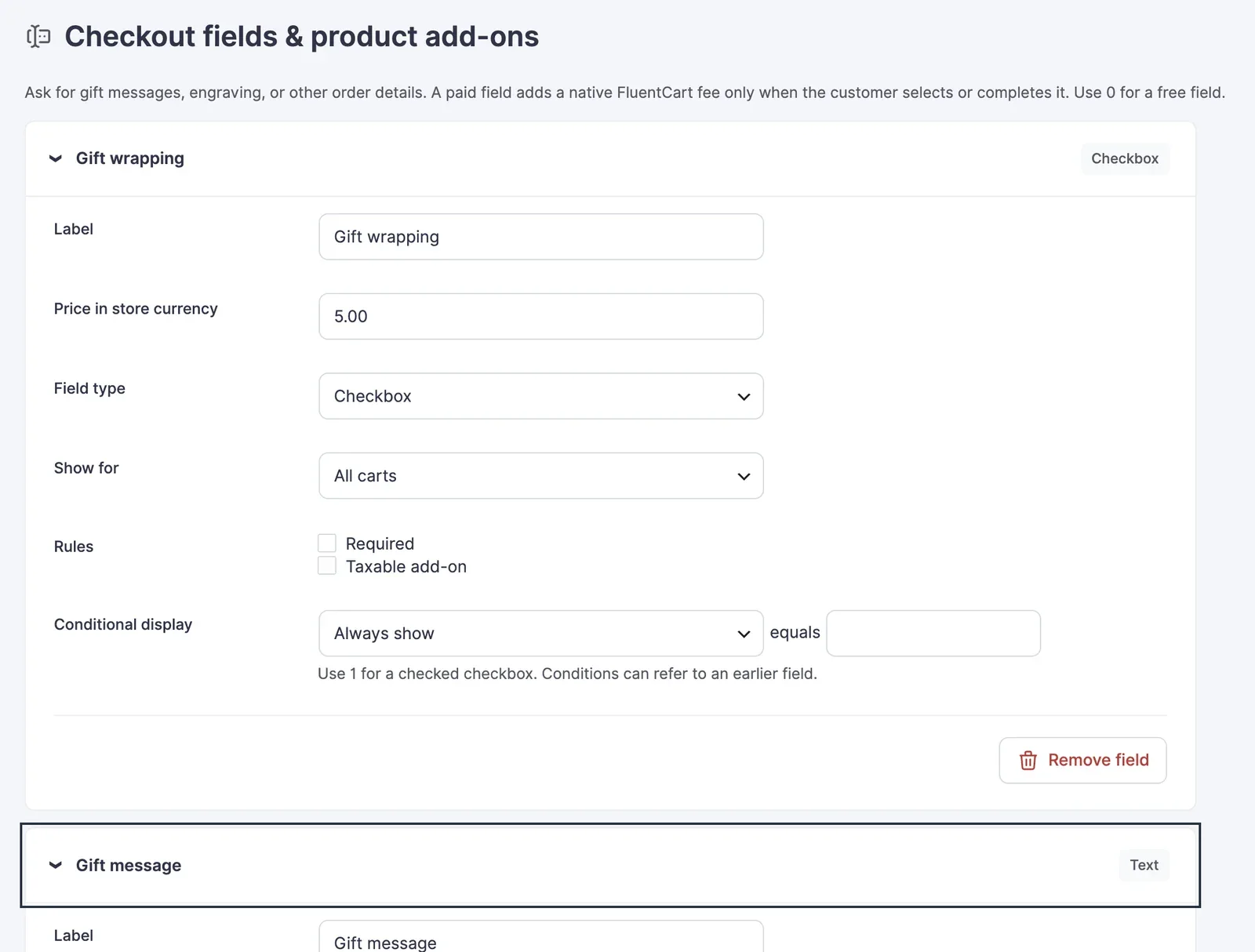
Make Conditions Understandable
Conditional fields help when one answer changes the next question. A customer selecting a written report might see a report-language question, while a call-only service does not need it.
Use plain labels and tell the customer why an unfamiliar detail is required. Keep any price consequence next to the option. A paid add-on should change the payable total visibly before payment.
Avoid making hidden fields required. When a condition hides a field, check that validation follows the same condition; otherwise the customer can become stuck on a requirement they cannot see.
Check the Saved Order
A field appearing on screen is only part of the job. The answer must reach the order or record used by the person delivering the service.
Run a harmless test purchase in a sandbox and verify:
- The field appears for the correct product.
- A missing required answer prevents completion with a readable message.
- The submitted answer is retained in the relevant order details.
- The service team can find it without searching an unrelated form inbox.
- The customer sees any price change before authorizing payment.
Repeat with the field hidden by its condition. Check browser refresh and back-navigation behavior too, because customers do not always move through checkout in a straight line.
You can use the editable wordpress checkout intake fields worksheet to record your settings and checks. It is a CSV file you can open in a spreadsheet.
Intake Questions on WooCommerce
On WooCommerce, the same job falls to Stackless for WooCommerce, our plugin for WooCommerce stores. Its Fields & Paid Add-ons module adds checkbox, dropdown, text and number fields to products, with optional prices, plus collapsible checkout fields with optional fees. Checkout Enhancements adds consent checkboxes with stored proof and a shorter checkout for virtual-only carts, which suits service orders with nothing to ship.
Product fields show on the classic add-to-cart form, so keep that form on the products that ask questions, then run the saved-order check above on a test order.
Keep Detailed Onboarding Separate
For longer projects, send a focused next step after payment. The client-onboarding process can help you decide what to collect once the engagement is confirmed.
The checkout should establish what was purchased and any detail needed to make that purchase valid. The later intake can collect deeper context without making the payment page carry the whole project.
If you already sell through FluentCart, review GT Extensions for product-specific checkout questions. Start with the one missing answer that currently causes the most follow-up.
Tell Google you want more of this.
Add Gatilab as a preferred sourceOne tap, and this site shows up more often in your own Top Stories, AI Overviews and AI Mode. Remove it any time.