
WordPress Changes Not Showing After Clearing Cache
When WordPress changes are not showing after clearing cache, you should check which cache was cleared and which response the visitor received. Your browser, WordPress host and CDN can each serve an older copy of the page.
Start with the exact page URL in a logged-out browser. If the editor contains your changes but that page doesn’t, establish whether you saved the correct page before changing optimization settings. A different homepage assignment or an unpublished template change can look like a cache problem.
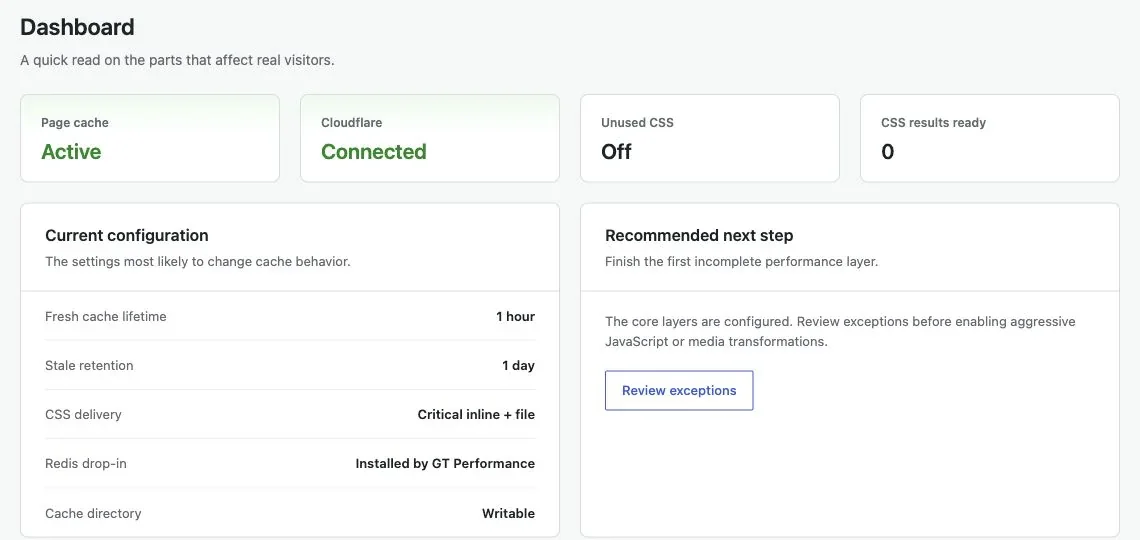
GT Performance is our WordPress caching plugin, with Cloudflare integration and cache diagnostics. It can help manage the cache layers it supports, but a separate host cache still needs its own configuration and checks.
Confirm the Published Change
Choose a distinctive sentence or value that should have changed. Check its saved state in WordPress and the URL where it belongs. For a page built from a reusable section, confirm that you changed the shared section actually used on that page.
- A draft change won’t appear in the published page.
- A saved template may not be assigned to the page you’re opening.
- A browser can show the right HTML with an older stylesheet.
- A CDN can serve an old page while WordPress serves a new one to logged-in users.
This distinction keeps the diagnosis small. You don’t need to disable every plugin to discover that a different template supplies the heading.
Identify the Cache Layers
Write down the systems between WordPress and the browser. The WordPress caching comparison explains why overlapping cache owners make maintenance harder.
The common layers have different jobs:
- Browser cache retains files or responses on the visitor’s device.
- Page cache stores generated HTML at WordPress or the web server.
- CDN cache stores eligible responses closer to visitors.
- Object cache stores application data used while WordPress builds a response.
An object-cache flush does not necessarily remove an old HTML page from Cloudflare. Equally, clearing Cloudflare can fetch another stale copy from the origin page cache.
Refresh From the Origin Outward
For a confirmed content change, refresh the layer that produces the page before refreshing the layer that copies it. Otherwise, the outer cache may refill from old content.
- Confirm the intended content is published.
- Purge the affected URL in the origin page-cache system.
- Purge the affected CDN URL if HTML is cached there.
- Open a fresh logged-out request to the normal URL.
- Compare the distinctive sentence or value you selected.
Use a targeted URL purge where possible. A whole-site purge can be appropriate for a sitewide change, but it makes many pages rebuild and can add load on a busy server.
Check Headers Without Guessing
Response headers can show whether a request came from a cache. Cloudflare may include CF-Cache-Status; an Age header can indicate how long an object has been cached. The meaning depends on the system returning it.
You can inspect headers in the browser’s Network panel. Select the document request, check the response headers and compare repeated requests. A query-string variation can change caching behavior, so a fresh-looking cache-busted URL does not prove that ordinary visitors receive the new page.
If the page content is current but its appearance is old, inspect the stylesheet URL. A versioned CSS file is easier to refresh predictably than changing the bytes behind a URL with a long cache lifetime.
You can use the editable wordpress changes worksheet to record your settings and checks. It is a CSV file you can open in a spreadsheet.
Protect Private and Transactional Pages
Don’t solve a stale checkout by making private pages cacheable. Cart and account responses need the exclusions and session handling required by the commerce system.
You should check the documented rules for your stack before changing a broad Cache Everything rule. A faster cached response is not useful if it contains the wrong visitor’s state.
For a fuller performance diagnosis, the WordPress speed guide separates caching from hosting and asset problems. If cache ownership is the recurring difficulty, review GT Performance’s supported setup and keep one clear owner for each layer.
Tell Google you want more of this.
Add Gatilab as a preferred sourceOne tap, and this site shows up more often in your own Top Stories, AI Overviews and AI Mode. Remove it any time.