
How to Schedule Local Pickup in FluentCart
FluentCart pickup scheduling should limit orders to the time slots your team can actually serve. A free-text “preferred pickup time” field records a request, but it cannot by itself stop more customers choosing the same busy hour.
You should define capacity and preparation time before offering slots at checkout. The useful limit is the amount of work your team can complete, which may be lower than the number of orders the website can accept.
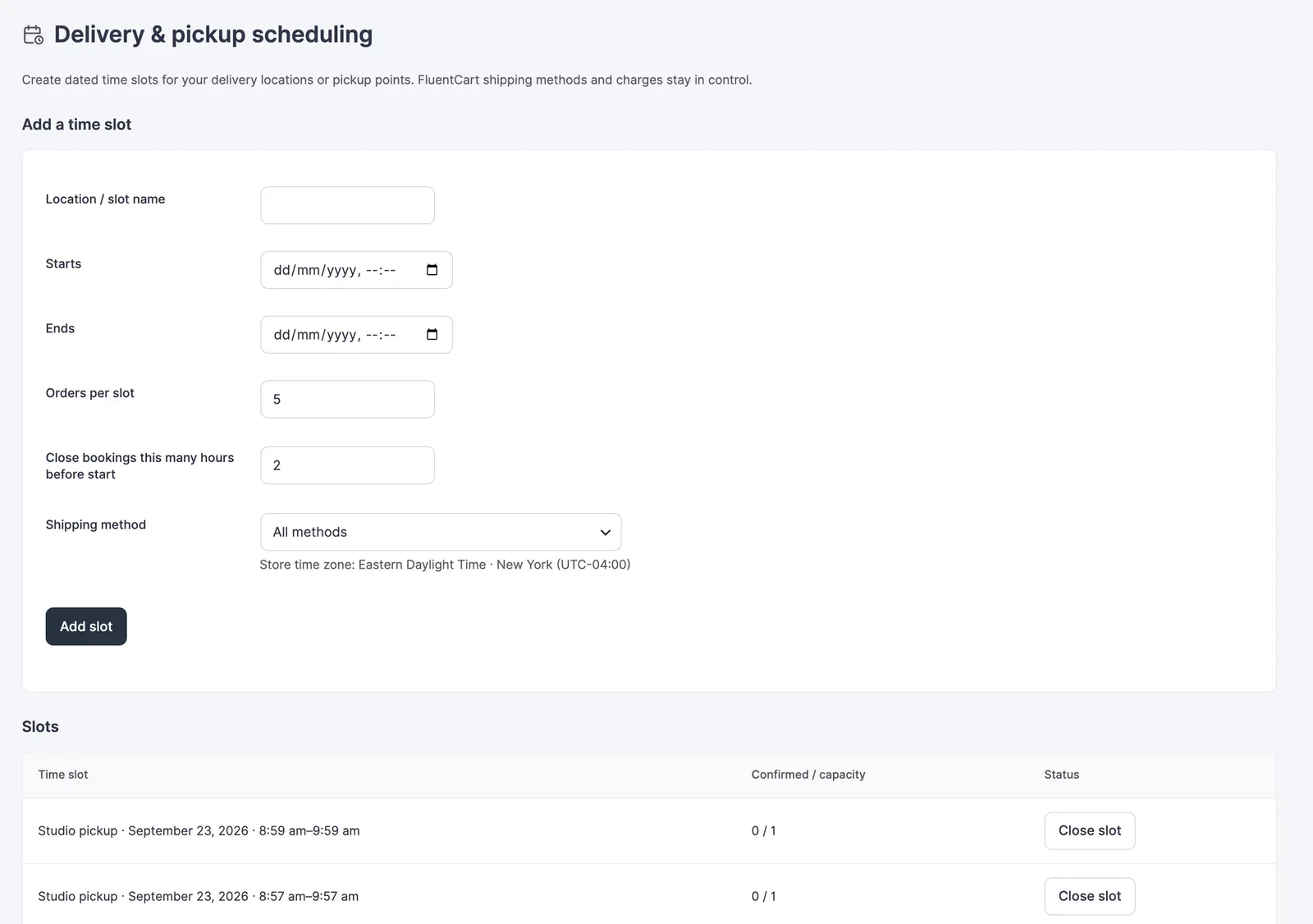
GT Extensions for FluentCart is our store-workflow plugin. Its Delivery & Pickup Scheduling module provides dated slots with capacity, cutoffs and closed-date rules.
On WooCommerce? Stackless for WooCommerce, our plugin for WooCommerce stores, has a Delivery & Pickup Slots module with weekly time windows, capacity per slot, lead time, closed dates and availability per shipping method. The planning below applies to it as well.
Define What a Slot Can Hold
Choose a slot length that matches fulfillment. A small collection desk might work with 30-minute windows, while a service requiring preparation could need longer windows. These are operating decisions rather than universal recommended settings.
For a hypothetical collection window from 16:00 to 16:30, a capacity of 4 means you expect staff to handle that workload during the window. Check how your installed module counts capacity before deciding that 4 orders and 4 items are equivalent.
Record these details for each slot:
- Date and local start time.
- Local end time.
- Capacity unit and limit.
- Last time a customer may select it.
- Products or fulfillment methods it applies to.
Avoid relying on a label alone. “Afternoon pickup” can mean different hours to the customer and the person preparing the order.
Add Preparation Cutoffs
A cutoff prevents a last-minute order from selecting a slot you can no longer prepare for. Decide it from the work involved, including any time needed to confirm payment.
For example, if a hypothetical order needs 2 hours of preparation, a 16:00 collection should not remain bookable at 15:30. Check the actual cutoff calculation rather than assuming it uses the customer’s device time.
You should state the store timezone near the pickup choice when customers may be elsewhere. The collection happens at a physical location, so an automatic browser-local interpretation can cause confusion.
Handle Closed Dates
Use closed-date rules for holidays or days when pickup is unavailable. Removing staff availability in a separate booking tool may not change commerce pickup slots.
Check the next several closed dates in a customer session. A recurring weekly pattern should not silently override a specific closure. If an exceptional slot is added for a special opening, verify that it appears only on the intended date.
Verify Capacity at Checkout
Test the final available place with harmless orders in a sandbox. The slot list and the submitted order must agree about capacity.
- Select a slot with a small test capacity.
- Create enough test orders to reach the limit.
- Confirm a fresh customer cannot choose a full slot.
- Submit a previously opened checkout that still shows the old availability.
- Check that the server handles the stale selection without exceeding the limit.
Then test failed payments and canceled orders. Record when their reservations stop counting. Don’t assume cancellation instantly restores capacity unless that is the behavior you have verified for the installed release.
You can use the editable fluentcart pickup scheduling worksheet to record your settings and checks. It is a CSV file you can open in a spreadsheet.
Give Staff the Pickup Details
The selected slot should be visible in the order information used by fulfillment staff. Check where it appears and how the customer receives confirmation.
Include the collection address and instructions in the appropriate customer message. A paid order and a reserved slot still need a practical handoff if the customer must bring an order reference or use a particular entrance.
If capacity is the problem your store is facing, review GT Extensions for FluentCart and set up one checked pickup window first. Expand the schedule after the full-slot and cancellation cases behave as your team expects.
Tell Google you want more of this.
Add Gatilab as a preferred sourceOne tap, and this site shows up more often in your own Top Stories, AI Overviews and AI Mode. Remove it any time.