
How to Set Up an Approval Workflow in WordPress
A WordPress approval workflow gives a request a defined reviewer and a recorded decision. It is useful when an email thread no longer tells your team which version was approved or who needs to act next.
You should begin with one request type and write down its decision rules. Automating an unclear rule can make the confusion move faster, especially when a requester changes the amount after someone has already approved it.
Core Approvals is our WordPress plugin for private requests and review workflows. It includes native request forms and can use authenticated Core Forms submissions as an optional source. It is early access; review its current availability and requirements before choosing it for an operational process.
Define What Requires Approval
Use a request with a clear decision. A purchase request is a manageable starting point because the reviewer can inspect the item and amount before deciding.
For a hypothetical office-equipment process, record:
- Who may submit a request.
- What supporting information is required.
- Who reviews it first.
- Which amount or condition requires another reviewer.
- What counts as approval, rejection or a request for changes.
- Who handles an overdue request.
Keep the rules readable in plain language. If nobody can explain which reviewer receives a request, the workflow needs clarification before configuration.
Build the Request Form
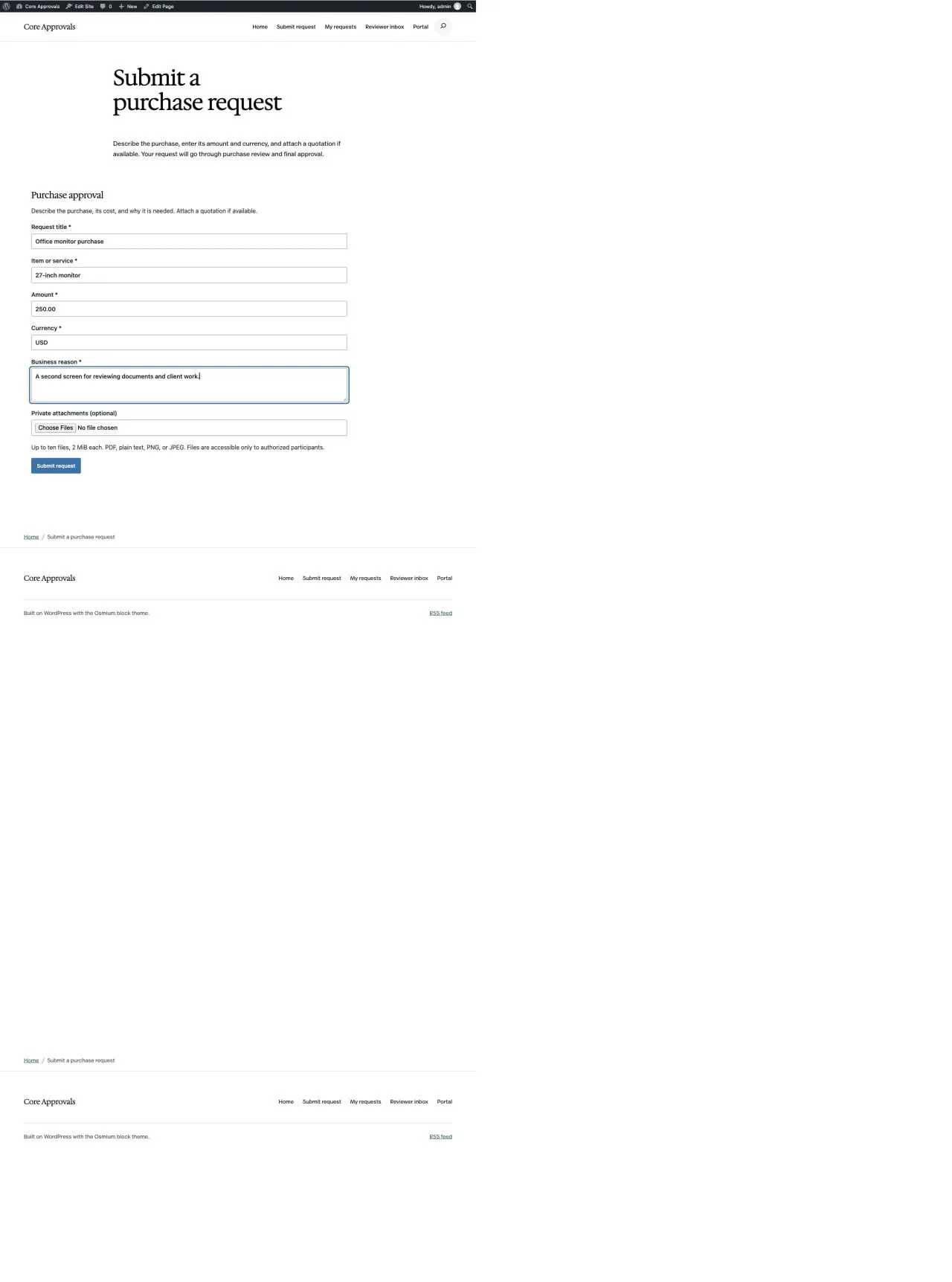
Collect the facts needed for the decision and avoid fields that nobody uses. A purchase request might need the item, amount and purpose, with a supporting file where appropriate.
Core Approvals provides a native Request Form block. You don’t need Core Forms simply to start a request workflow. If your existing intake already uses Core Forms, check the authenticated-submission mapping rather than creating a second form that asks for the same information.
Attachments should follow the request’s access rules. Don’t use an ordinary public media URL for a document that only the requester and reviewer should see.
Assign Reviewers and Decision Rules
Sequential review sends work through stages in order. Parallel review lets more than one reviewer participate at a stage. The required number of approvals determines when that stage can finish.
Core Approvals documents both approaches, along with field-based routing. Start with the simplest rule that reflects the actual business decision. A role-based inbox can help when a team shares responsibility, but somebody still needs to watch that inbox.
Check what happens when a condition matches no reviewer. An unassigned request should be visible for intervention; silence is not an approval policy.
Handle Revisions Explicitly
An approval needs to refer to the submitted details. If the requester changes the amount or attachment, reviewers should be able to see the change and understand what requires review again.
Use a staging request to check the workflow’s current revision behavior:
- Submit harmless sample details.
- Complete an approval stage.
- Request a change to a decision-relevant field.
- Resubmit the request.
- Inspect the revision comparison and the stages that require another decision.
Do not assume an old approval applies to changed information. The exact reapproval rule should agree with your process and the installed release’s settings.
Plan for Absent Reviewers
A named reviewer may be unavailable. Define a substitute and an escalation route before a request becomes urgent.
Core Approvals includes coverage and escalation tools. Its public documentation says deadlines use elapsed hours and that becoming overdue does not automatically approve or reject a request. That is an important distinction if your team thinks in working days.
Notification delivery also needs attention. The request can remain waiting even if an email is delayed, so the review inbox should be the dependable place to see current work.
You can use the editable wordpress approval workflow worksheet to record your settings and checks. It is a CSV file you can open in a spreadsheet.
Start With a Staging Workflow
Check approval, rejection and revision paths with sample requests before using the process for live decisions. Include an unauthorized account in the access checks and an absent reviewer in the operating checks.
If you want requests and decisions kept inside WordPress, review Core Approvals and its current access options. Choose it against the workflow you have written down, including the exceptions that need a human decision.
Tell Google you want more of this.
Add Gatilab as a preferred sourceOne tap, and this site shows up more often in your own Top Stories, AI Overviews and AI Mode. Remove it any time.