
How to Prevent Double Bookings in WordPress
To prevent double bookings in WordPress, every service using the same person’s time needs to check the same availability. Separate service calendars can each look correct while allowing that person to accept 2 appointments at once.
You should also include the time around the appointment. A 45-minute consultation followed by 15 minutes of notes occupies an hour of your working day, even if the customer only sees the consultation itself.
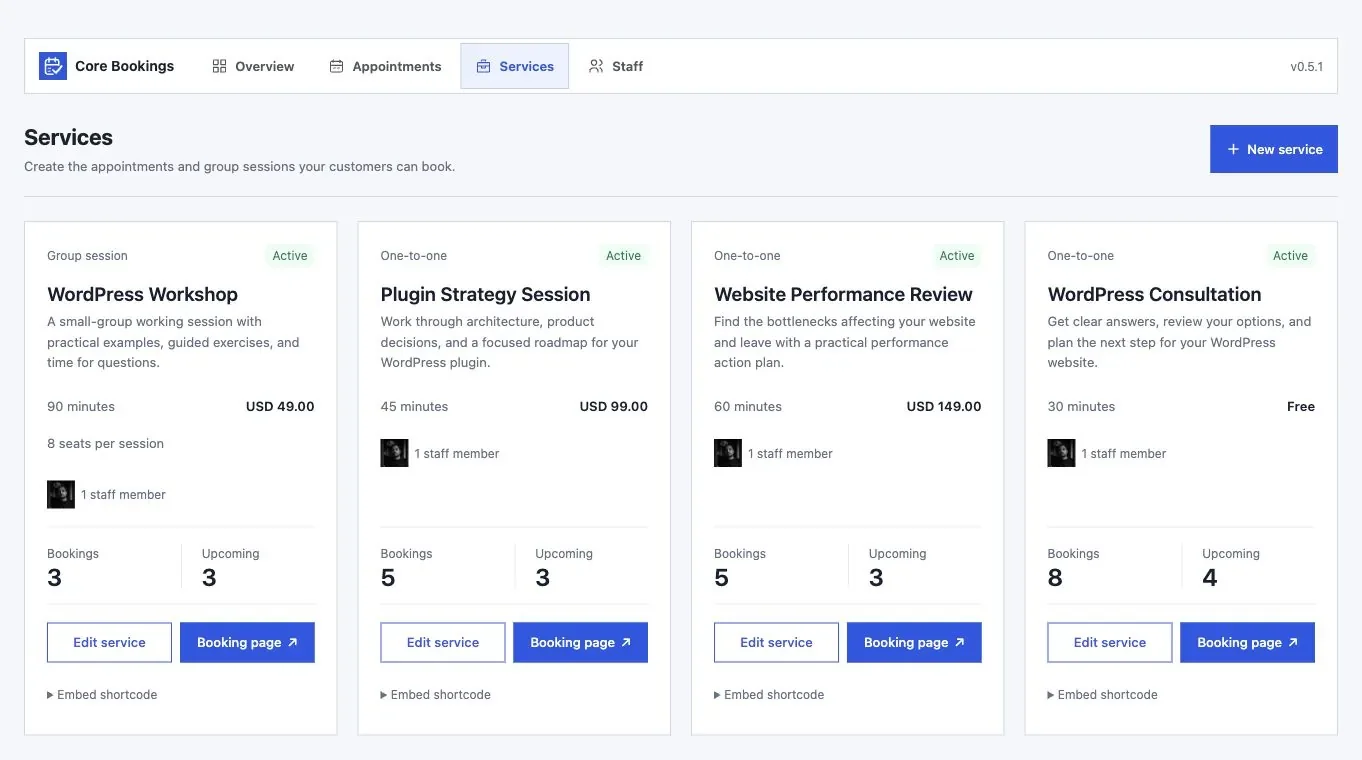
Core Bookings is our WordPress scheduling plugin. It supports staff availability and booking buffers, with appointments managed on your site. It is in beta, so your own service rules should be checked on staging before you depend on them for live bookings.
Give Each Staff Member One Availability Record
Create the person once and assign that same staff record to the services they provide. Creating a new staff record for every service makes it harder to represent the shared time correctly.
For example, suppose a consultant offers a discovery call and a technical review. Both use the same consultant, so a confirmed review should remove overlapping discovery-call availability. The different service names don’t create another person.
You should write down the constraints before configuring them:
- Working hours and breaks.
- Service duration.
- Preparation and recovery buffers.
- Minimum notice before a booking.
- Planned leave and date-specific exceptions.
- Any daily or weekly workload limit.
Core Bookings has staff and service settings for these scheduling rules. Begin with one free service while checking availability; payments add another state that can obscure a scheduling mistake.
Include Buffers in the Working Day
A buffer reserves time that customers cannot book. It can cover travel, preparation or a delay between sessions, depending on how your service operates.
Consider a hypothetical appointment from 10:00 to 10:45 with 15 minutes required afterward. The next appointment should begin no earlier than 11:00. If your working day ends at 17:00, you also need to check whether the service and its required buffer fit before that boundary.
Don’t compensate for missing buffers by asking staff to block random calendar events every day. Put predictable time requirements into the booking rules and reserve manual exceptions for actual exceptions.
Check External Calendar Conflicts
An add-to-calendar link gives the customer an event. It doesn’t necessarily make the booking system aware of other events on that calendar.
Core Bookings documents Google Calendar connections for staff conflict checks. Its Outlook add-event link is separate from Outlook calendar synchronization, which the product page says is not included.
For each external calendar you use, establish:
- Which calendars supply busy periods.
- Whether private and all-day events block availability as you expect.
- How connection failures become visible to the administrator.
- What happens when a calendar event changes after a customer opens the booking page.
If your staff depend on an unsupported calendar workflow, keep a manual approval step or choose a system that supports that dependency. A booking form looking available is not enough evidence to remove the manual check.
Test Competing Booking Attempts
Two visitors can open the same available slot before either completes a booking. Your test should include that situation, because checking slots one visitor at a time misses it.
- Open the same free service in 2 independent browser sessions.
- Select the same slot in both.
- Complete the first request, then submit the second without refreshing it.
- Confirm that the second request cannot exceed the configured capacity.
- Check the stored appointments and the availability shown to a fresh visitor.
A true simultaneous-request test needs a controlled test setup. Don’t run a load test against your live payment flow or create real customer notifications for it.
You can use the editable double bookings in wordpress worksheet to record your settings and checks. It is a CSV file you can open in a spreadsheet.
Check Holds and Cancellations
An appointment may temporarily reserve time before final confirmation. If your workflow requires approval or payment, record when the hold ends and how failed or abandoned requests release availability.
Cancellation also needs its own check. Confirm that the appointment changes state and the slot becomes available when your policy says it should. A payment refund is a separate operation; don’t infer it from a cancellation message.
I would launch with the smallest schedule you can explain completely. One staff member, one service and a checked conflict rule provide a better foundation than a large catalog whose overlaps nobody has examined.
You can review Core Bookings and its current offer against that schedule before choosing it for your business.
Tell Google you want more of this.
Add Gatilab as a preferred sourceOne tap, and this site shows up more often in your own Top Stories, AI Overviews and AI Mode. Remove it any time.