
Google Ads Conversion Tracking: How to Set It Up With GTM and GA4
Google Ads conversion tracking is the part of your account that tells Google which clicks turned into a lead or a sale, and every bidding decision Google makes rests on that signal. So if you are setting it up for the first time, or you suspect the numbers in your account are off, this guide will surely help.
I have built and fixed a good number of websites over the years, and almost all of them needed tracking at some point.
Every account is wired a little differently, so one guide cannot cover every form plugin, store and CRM out there. But most setups need the same few pieces, mainly the conversion action, the tag, the conversion linker and enhanced conversions, and I will try my best to cover those properly, along with how to test them.
I have also turned the whole setup into a one-page checklist, free in PDF and Word, and it sits a little further down. Or, if you would rather someone else handled the tracking, just reach out. Without further ado, let’s get started.
How Google Ads Conversion Tracking Works
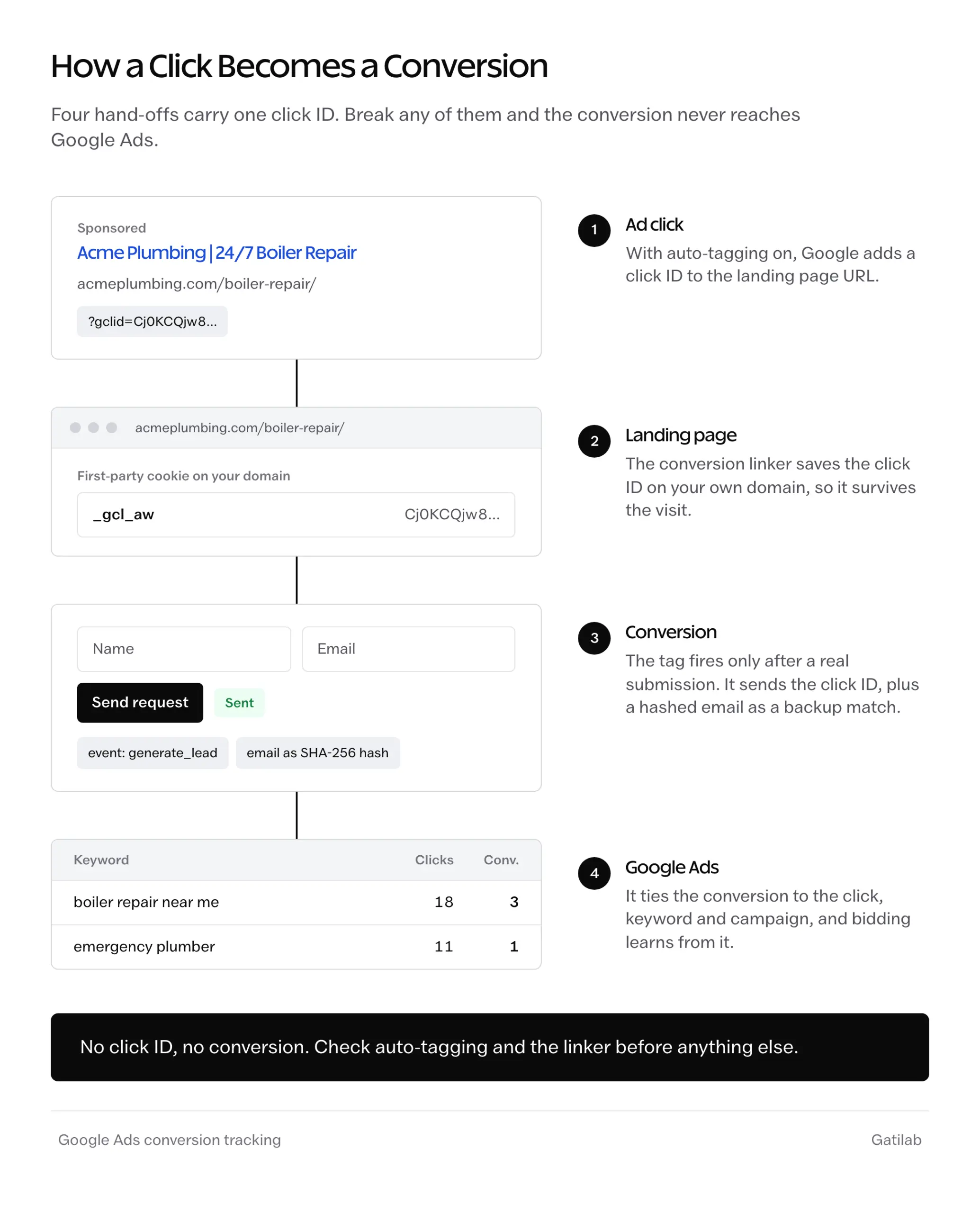
I want to start with what actually happens after the click, because most tracking problems come from a wrong picture of it. Google Ads conversion tracking is a relay with four hand-offs:
- The click. With auto-tagging on, Google Ads adds a click ID (the
gclidparameter) to the landing page URL. - The landing page. The conversion linker reads that click ID and stores it in a first-party cookie and the browser’s local storage on your domain.
- The conversion. When the visitor submits the form or completes the order, the conversion tag fires, picks up the stored click ID and sends the conversion to Google Ads with its value.
- The match. Google Ads ties the conversion back to the click, the keyword and the campaign, and Smart Bidding learns from it.
Enhanced conversions sit alongside this relay. When the cookie is missing, because the visitor switched devices or the browser cleared it, the tag can also send a hashed email or phone number from the conversion page, and Google matches that against signed-in Google users instead.
Auto-tagging is the step people forget. It lives in the Google Ads account settings, and if it is off, there is no click ID for the rest of the relay to pass along.
Choose What to Count
Broken setups tend to break in one of two directions. The first counts everything as a conversion, like page views, button clicks and scroll depth, and Smart Bidding then happily optimizes for the cheapest action on the list. The second counts one thank-you page that fires every time someone refreshes it, which quietly inflates the numbers until nobody trusts them.
Both end the same way, with bidding that learns from bad data. What works is a short list: one primary conversion for each real business outcome, and everything else kept as secondary so you can still see it without bidding on it.
Google bids on whatever you count, so count only what you would pay for.
Primary conversions are used for bidding and show up in the Conversions column. Secondary conversions are for observation only and show up under All conversions. A typical split looks like this:
| Business | Primary Conversion | Secondary Conversions |
|---|---|---|
| Lead generation | Qualified form submission, call from an ad | Brochure download, click on the email address |
| Online store | Purchase with the order value | Add to cart, begin checkout |
| Local service | Booking or call | Directions click, contact page visit |
| SaaS | Trial or demo sign-up | Pricing page view, sign-up started |
The settings on each conversion action matter as much as the choice itself:
| Setting | For Leads | For Sales |
|---|---|---|
| Count | One, since one lead per click is what matters | Every, since every order is revenue |
| Value | A fixed value, or none | The order value from the data layer |
| Conversion window | 30 days by default, longer for slow decisions | 30 days by default, shorter for quick purchases |
| Attribution | Data-driven, the default | Data-driven, the default |
| Transaction ID | Not needed | Always, so a repeated order is not counted twice |
The 30-day window is the default for Search and Display. A business whose buyers take 2 months to decide should lengthen it, and one where people buy the same day can leave it alone.
GA4 Import or the Google Ads Tag?
There are broadly two ways to get conversions into Google Ads. You can fire the Google Ads conversion tag directly on your site, or you can mark an event as a key event in GA4 and import it into Google Ads. Google supports both, and you can run them side by side.
| Factor | Google Ads Conversion Tag | GA4 Key Event Import |
|---|---|---|
| What it counts | Conversions from Google Ads clicks only | Key events from every channel, then imported |
| Bidding status | You choose primary or secondary | Linked from GA4, it arrives as secondary |
| Speed | Reaches Google Ads quickly | Waits on GA4 processing first |
| Best for | Bidding in Google Ads | Comparing channels in one place |
For most accounts, the Google Ads tag should be the primary conversion for bidding, with the matching GA4 key event imported as secondary. The tag counts Google Ads clicks directly, it carries enhanced conversions, and it does not wait on GA4’s processing before Google can learn from it.
The one rule that matters here is never to set both as primary for the same action. If a form submission is counted once by the Ads tag and once by the GA4 import, and both are primary, every lead is counted twice and bidding believes the campaign is twice as good as it is.
Set Up the Conversion Action in Google Ads
Google moves menus around from time to time, so treat the path below as a guide rather than exact clicks:
- In Google Ads, open Goals, then Conversions, and create a new conversion action for your website.
- Pick the category that matches the outcome, like Submit lead form or Purchase, and give it a name you will recognize in reports.
- Set the value, the count, the conversion window and attribution, using the tables above.
- When Google asks how to install it, choose Google Tag Manager. It shows a Conversion ID and a Conversion label, and you need both for the next step.
Conversion actions should be named by what happened, not by how they are tracked. “Lead: contact form” still makes sense in a year, and “GTM tag 3” does not.
Add the Conversion Tag in Google Tag Manager
If you are new to Tag Manager itself, the Google Tag Manager setup guide covers installing the container on WordPress. From there, the Google Ads side takes 3 pieces.
The trigger. The best trigger is an event that only happens after a successful submission or order. Many form plugins and stores can push one into the data layer, and if yours cannot, a developer can add it:
window.dataLayer = window.dataLayer || [];
window.dataLayer.push({
  event: 'generate_lead',
  form_name: 'contact'
});
In Tag Manager, create a Custom Event trigger for generate_lead. It fires only when the form really went through.
What most setups use:
Trigger: Page View where Page URL contains /thank-you/
What works better:
Trigger: Custom Event generate_lead, pushed by the form plugin after a successful submission
Both fire on a real submission. The first also fires when someone refreshes the thank-you page, bookmarks it or lands on it from search, and every one of those becomes a fake lead.
The tag. Create a new tag of type Google Ads Conversion Tracking, paste the Conversion ID and label, and attach the trigger. For sales, fill in the value, the currency and the transaction ID from the data layer. The transaction ID is important, because Google Ads uses it to throw away a second copy of the same order.
The conversion linker. If your container already loads a Google tag on every page, it handles the linking and nothing else is needed. If it does not, add a Conversion Linker tag that fires on all pages, so the click ID gets stored the moment the visitor lands.
Then open Preview mode, submit a real test through the form, and confirm the conversion tag fires once, on the success event, and nowhere else.
Turn On Enhanced Conversions
Enhanced conversions improve matching when cookies fail. The tag collects a first-party detail the visitor typed in, usually the email address, hashes it with SHA-256 before it leaves the browser and sends it with the conversion. Google compares that hash with signed-in Google accounts to recover conversions the cookie would have missed.
In Google Ads it is now a single on or off setting at the account level, and the tag, Google’s Data Manager and the API can all send the hashed data. The part that still needs work is telling the tag where the data is:
- Automatic detection: the Google tag looks for an email or phone field on the conversion page. It needs the least effort and works on most standard forms.
- Manual setup: you point the tag at the data with CSS selectors or JavaScript variables. It suits pages where the email is shown or stored but not typed on that page.
- Code: the site passes the customer details to the tag directly when it fires. It is the most reliable and needs a developer.
In Tag Manager, the Google Ads conversion tag has an option to include user-provided data, which takes a User-Provided Data variable set to one of these methods. You also need to accept the customer data terms in Google Ads, and your privacy policy should say that this data is shared for measurement.
After a few days, the conversion action should show “Recording (processing enhanced conversions)”. The effect on reported numbers can take up to 30 days to show, so judge it after a month, not after a week.
For lead generation, where the sale closes later in a CRM, enhanced conversions for leads uses the same hashed email to connect those later sales back to the original click.
Consent Mode and First-Party Measurement
If you get visitors from the EEA or the UK, your consent banner needs to pass Consent Mode signals to Google. Without them, conversions from visitors who decline cookies are simply lost, where with Consent Mode, Google can model some of them. The Google Consent Mode v2 setup guide walks through the banner side of this.
Google tag gateway for advertisers is the other piece worth knowing about. It serves Google’s tags from your own domain and sends the measurement through it, which recovers some of the signal that ad blockers and browser restrictions drop. Sites already on Cloudflare can switch it on through that integration.
Test Before You Trust the Numbers
A tag that fires in Preview mode is only half the test. The conversion action in Google Ads shows a status, and each one tells you something specific:
- Unverified: Google has not seen the tag on your site yet. This normally clears within a few hours of publishing the container.
- No recent conversions: Google sees the tag, but nothing has been recorded in the last 7 days. On a low-volume account this can be normal, and on a busy one it usually means the trigger never fires.
- Recording conversions: the tag is seen and conversions arrived within the last 7 days.
After fixing a tag, it is wise to allow 24 to 48 hours before judging the status again. Then do the one check no dashboard does for you. Count the leads or orders that actually arrived for a week and put that number next to Google Ads. They will not match exactly, but a gap of 2 or 3 times points to a duplicate or a missing conversion, not to bad luck.
Google Ads Conversion Tracking Checklist (PDF and Word)
Every step in this guide on a few pages you can print, tick off and run again after any site change.
- A conversion action inventory that forces the primary or secondary decision for each action
- Google Ads settings for count, value, window and attribution
- A Tag Manager build list with the conversion linker and transaction ID checks
- Enhanced conversions and Consent Mode steps
- A test log and a weekly comparison against the leads and orders you really got
Free to use on your own account or your clients’ accounts.
The Limits
Google Ads reports a conversion on the date of the click, not the date of the conversion. A lead from someone who clicked 10 days ago lands in the numbers of 10 days ago, so last week’s figures keep rising for a while and should not be judged on Monday morning.
Tracking still misses some conversions. Ad blockers, declined cookies and visitors who switch devices without signing in all leave gaps, and enhanced conversions and Consent Mode narrow them without closing them. Modeled conversions are estimates, which is useful for bidding and not something to quote as an exact count.
Phone calls and offline sales need their own setup. A call from a mobile number on your site needs call tracking, and a deal closed on a sales call needs a CRM connection, or the campaign that produced it gets no credit.
What Quietly Breaks Conversion Tracking
Counting page views and button clicks as primary conversions. The account looks busy, and Smart Bidding spends the budget chasing the cheapest click on the list.
Triggering on the thank-you page URL. Every refresh, bookmark and stray visit becomes a lead, and the conversion rate looks better than the business feels.
Leaving the GA4 import and the Ads tag both primary for the same form. Every lead counts twice, so the cost per lead in the report is half of what you are really paying.
Redesigning the site without checking the tags. A new form plugin, a changed thank-you URL or a removed data layer push stops conversions overnight, and nobody notices until the campaign starts to wander.
Firing the tag on the submit button click. The tag records the click even when the form fails validation, so the account fills up with leads that never reached your inbox.
Changing what counts every few weeks. Smart Bidding learns from the conversions you define, and every change sends it back to learning with less history to go on.
FAQs on Google Ads Conversion Tracking
Can I track Google Ads conversions without Google Tag Manager?
Yes. The Google tag can be added directly to the site, and many form plugins and WooCommerce extensions can send conversions for you. Tag Manager is still worth it once you track more than one or two actions, because every change then happens in one place without touching the theme.
Why do Google Ads and GA4 show different conversion numbers?
They count differently. Google Ads counts conversions from its own clicks and reports them on the date of the click, while GA4 shares credit across every channel and reports on the date of the event. A difference is normal, but a difference of 2 or 3 times usually means a duplicate or a missing tag.
Does Google Ads conversion tracking work with WooCommerce?
Yes. A WooCommerce tracking plugin or a data layer push on the order received page can send the order value, currency and transaction ID, which gives Google Ads real revenue to bid on instead of a flat value per sale.
Should phone calls count as conversions?
For most local businesses, yes, because calls are often the main outcome. Calls from ads can be counted directly, and calls from the website need a Google forwarding number or a call tracking tool so Google can tell which calls came from an ad.
Do I need a cookie banner for Google Ads conversion tracking?
It depends on where your visitors are. Visitors from the EEA and the UK need a consent banner that passes Consent Mode signals, and other regions have their own privacy rules. Your privacy policy should mention ad measurement either way.
How many primary conversions should an account have?
Usually one per real business outcome, like a lead, a booking or a sale. Everything that only shows interest, such as a brochure download or a pricing page view, works better as secondary.
Final Remarks
If you have followed along, your account now counts the things that matter to the business, once each, with a tag you have tested yourself. The one idea worth keeping is that your conversion list is really a set of instructions for Google’s bidding.
The checklist above covers every step in this guide, from choosing the actions to the weekly comparison with real leads, and it is worth running again after any site change. If you would rather have the tracking and the campaigns handled for you, the analytics tracking and Google Ads management teams at Gatilab can take it over, and I am always happy to talk it through.
I hope the next lead in your account is one you can trace all the way back to the click.
Tell Google you want more of this.
Add Gatilab as a preferred sourceOne tap, and this site shows up more often in your own Top Stories, AI Overviews and AI Mode. Remove it any time.