
Google Business Profile Verification: Methods and Fixes
Google Business Profile verification is the step where Google checks that the person managing a profile actually runs that business at that place. Until it’s done, the profile isn’t really yours to manage. You can change only the basics (name, category, address, hours, phone and website), and the rest of the profile stays locked until Google approves you.
The difficult part is that you don’t get to choose the method. Google picks it, and on a lot of new profiles the only option on screen is a video of your premises recorded on your phone. The search results for this topic are mostly forum threads from owners stuck at exactly this step, with rejected videos and a 5-day wait behind each attempt. Each method checks something specific against what you typed into the profile, so you should know what that is before you start: the name on your signboard, an address the camera can prove and a phone line a person actually answers.
If you haven’t created the profile yet, start with how to create a Google Business Profile and come back when you reach the verification screen. Everything below assumes the profile exists and Google is asking you to verify it. Older guides call this Google My Business verification, from the product’s old name, and it’s the same process.
How Google Picks Your Verification Method
Google decides, and you can’t override it. Its verification help page says the methods are automatically determined by Google and can’t be changed. The options you see depend on 4 things:
- your business type (storefront, service-area or hybrid)
- the public information Google already has about the business
- your region
- your business hours
Some profiles have to pass more than one method. When the screen lists several options, Google recommends video verification if you’re eligible for it, and if one method doesn’t work you can try another one from the same list.
So there’s no setting that turns a video into a postcard. What you can control is how ready you are when you open that screen.

Before You Start Verification
Each method compares what it sees against the profile, so a few minutes spent fixing the profile first is cheaper than a rejected attempt. I’d go through this list before pressing anything:
- The name matches your signboard. Google’s guidelines don’t allow keywords, offers or location add-ons in the business name, and a video has to show the same name on a permanent fixture.
- The address is eligible. A virtual office you don’t work from, a P.O. box or a remote mailbox isn’t eligible. A co-working desk qualifies only with clear signage, customers received there during business hours and staff present during those hours.
- A service-area business hides its address. If customers don’t come to you, Google says to clear the address from the profile, for example a plumber working from home.
- The phone reaches a person or a phone that gets texts. Interactive voice response (IVR) menus can’t receive the code.
- You can open the email shown on the verification screen, if Google offers email.
- The hours are right. Live video calls happen only within your location’s business hours, and hours are one of the inputs Google uses to choose your methods.
Online-only businesses and properties for rent or sale aren’t eligible for a Business Profile at all, so no verification method will work for them.
Google Business Profile Verification Methods
Google uses 7 routes in total, though a single profile only ever sees some of them. This table shows what each one checks and what you need ready for it:
| Method | What Google checks | What you need | How long |
|---|---|---|---|
| Video recording | The location, the business and your access to it | A phone, the profile open in it, and 30 seconds or more of one continuous take | Review up to 5 business days |
| Live video call | The same 3 things, shown to a Google support representative | To be at the location during business hours with a device that can video call | Review up to 5 business days |
| Phone or SMS | That you control the business number | A line a person answers, or a phone that receives texts | Code arrives on the call or text |
| That you control the address on screen | Access to that inbox | Follow the steps in the email | |
| Postcard | That mail reaches the address | A correct mailing address and patience | Most codes arrive within 14 days |
| Instant | That you already proved website ownership | The business website verified in Google Search Console | Immediate, when Google offers it |
| Bulk | That a chain of locations is real | 10 or more profiles of the same business | Google reviews the account |
Google says all verification reviews take up to 5 business days, and on rare occasions longer. When it’s done, you get a confirmation email.
How to Verify Your Google Business Profile
The steps are the same for every method up to the point where Google shows you the options:
- Sign in with the Google account that owns the profile and open your Business Profile.
- Select Get verified.
- Pick one of the methods shown. If More options appears, open it to see the rest, including Verify later.
- Complete the method: enter the code from the call, text, email or postcard, record the video, or join the live call.
- Wait for the review. Don’t edit the business name, address or category while it runs.
That last step matters more than it looks. For postcards, Google says an edit to the name, address or category makes the code it sent stop working. I’d leave those 3 fields alone during every method, because each review is comparing what you show against what you typed.

Google Business Verification Video
Video is the method most new profiles get, and the one Google recommends when you’re eligible. The rules come from Google’s video recording requirements, and every one of them is a reason for rejection if you miss it:
- The video is at least 30 seconds long.
- It’s one unedited, complete recording with no breaks.
- It’s recorded live and uploaded from a mobile device through your Business Profile. Pre-recorded videos and offline recordings uploaded later aren’t allowed.
- It doesn’t show bank account, tax or ID numbers, private information about you or anyone else, or other people’s faces.
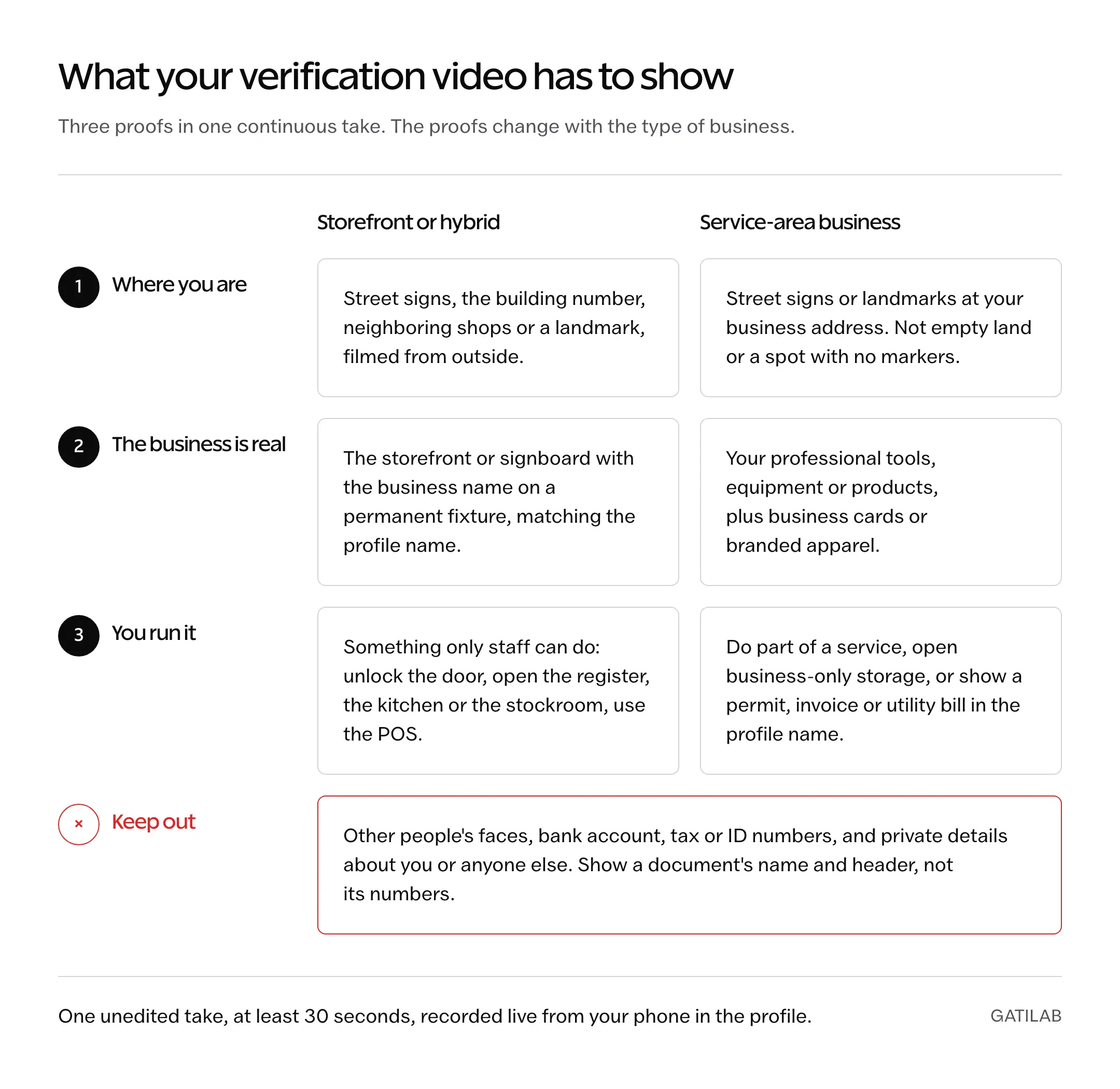
Inside those rules the video has to prove 3 things, and what counts as proof depends on whether customers come to you.
Storefront and Hybrid Businesses
- Location: street signs, building numbers, nearby businesses or familiar places.
- The business: your storefront, showroom or signage, with the business name clearly printed on a permanent fixture. It has to match the name on the profile.
- Management: something only an employee can access, such as opening a cash register, the kitchen or a storage room, or using the point-of-sale system.
A good order is the one Google’s own tips suggest: start outside on the street, walk to the sign, go in and finish on the staff-only part. Google says most successful videos run 1 to 2 minutes, so you don’t need a tour of the whole place.
Service-Area Businesses
- Location: street signs, nearby landmarks or other identifiers at your business address. Google specifically warns against filming empty land or places with no clear markers.
- The business: professional tools, equipment or products, or business cards and branded apparel.
- Management: record yourself performing a service or accessing business-only assets, or show a business permit, invoice or utility bill that matches the profile name.
The document option needs some care, because the same rules ban tax and ID numbers on camera. Show the document’s header and the business name, and keep account numbers, tax numbers and anyone’s personal details out of the frame. A video that proves the name but shows a tax ID number still breaks the rules.


If the video is rejected, the profile shows a Review issues notification, which means the video didn’t meet all the requirements. Select it, follow the instructions and record a new video that fixes the specific issue Google named.
Live Video Call Verification
The live call checks the same 3 things as the recorded video, but a Google support representative watches in real time. It isn’t available for every business, and calls run only within your location’s business hours.
Before you start, be at the business with a device that supports video calls and be ready to show:
- the outside signs
- your products or equipment
- proof that you manage the place, such as access to employee-only areas, a tool, the stockroom or non-sensitive business documents
Google also mentions using your keys to open the facility. To start, select Get verified, then Live video call, choose a language and select Start call. A text chat with a representative opens first, and they move you to the video call when they’re ready.
Phone, Text and Email Verification
These are the simplest methods when Google offers them, because the code comes to you on the call, text or email and all you do is enter it.
- Phone or SMS: select Get verified, then Phone or SMS, answer the call or open the text and enter the code on your profile. The number has to reach a person or a phone that can receive texts; an IVR menu won’t pass the code through.
- Email: select Get verified, then Email, and follow the steps in the email. It only works if you can open the address shown on the verification screen.
A business that routes its main number through a call center or a menu should know this before choosing phone. Use a direct line on the profile, or pick another method from the list if Google shows one.
Google Business Verification Postcard
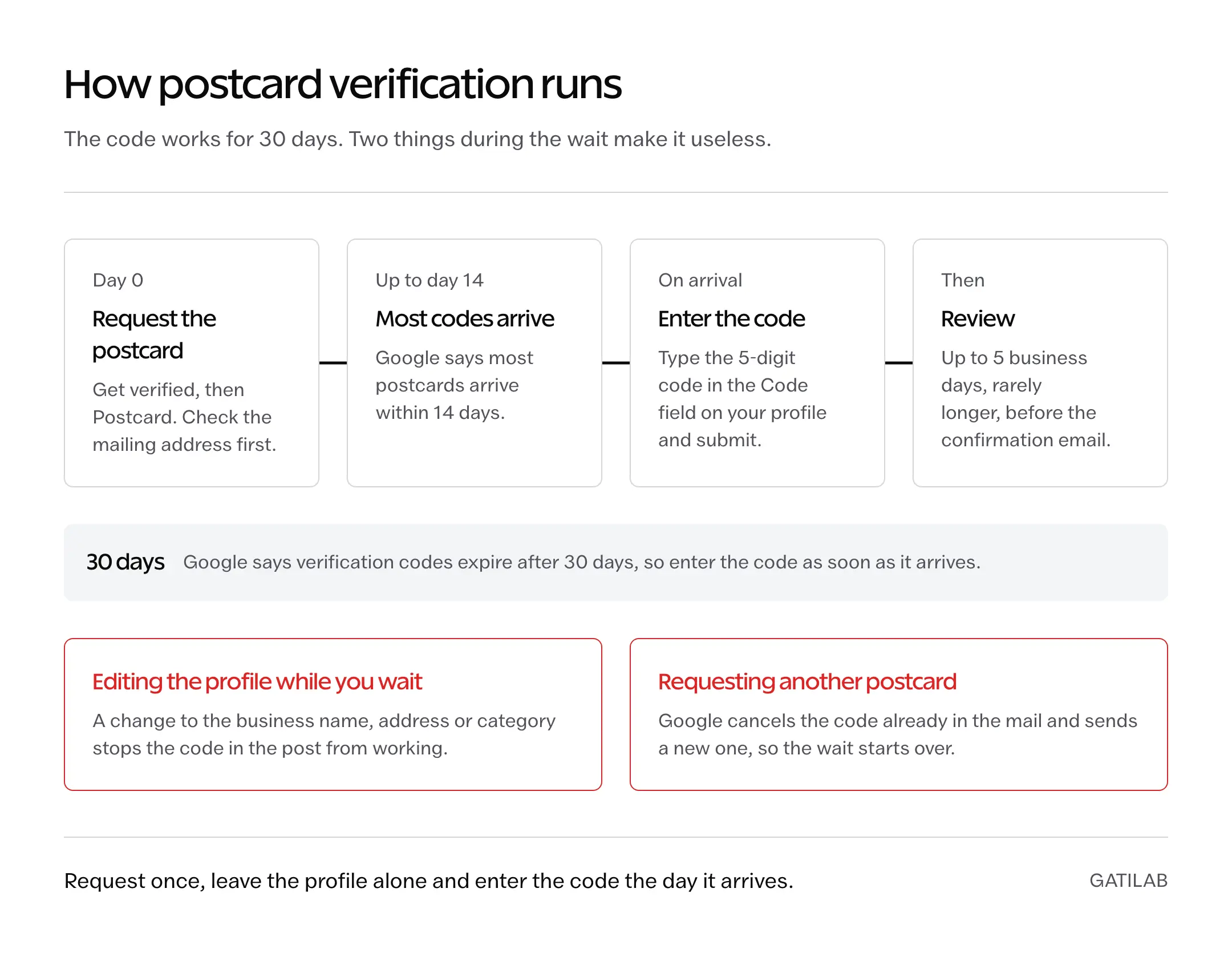
The postcard is the slowest method, and Google doesn’t offer it to every business. To request one, select Get verified, then Postcard, check that the mailing address is correct and request the code. After that, the rules are strict:
- Most codes arrive within 14 days.
- Don’t edit the business name, address or category while you wait. If you do, the code in the post won’t work.
- Don’t request a new code. Google invalidates the one already in the mail and sends another, which makes the whole process longer.
- Codes expire after 30 days.
- When the postcard arrives, enter the 5-digit code in the Code field on your profile and select Submit.
Google will never ask you for your verification code, so a caller or email asking for it isn’t Google. Don’t share the code with anyone, including people who manage your profile for you.
Instant and Bulk Verification
Google sometimes verifies a profile instantly. According to its help page, this can happen in 2 cases:
- You verify your business website with Google Search Console.
- You use bulk verification for a chain.
You can’t request instant verification as a method. It’s still worth verifying the business website in Search Console before you create the profile, because it’s free and it’s one of the 2 routes Google names for instant verification.
Bulk verification is for chains. Google’s bulk verification rules allow it when:
- your spreadsheet has 10 or more profiles from the same business, with every profile you manage included
- the business isn’t a service-area business
- a verified account doesn’t already exist
Agencies with more than one business in one account can’t bulk verify, and duplicate, suspended or disabled profiles don’t count toward the 10. To apply, sign in to Business Profile Manager on a computer, select Verifications, then Chain, then Start, fill in the form and submit it. Uploading the spreadsheet doesn’t send a request on its own. Google may still ask for video verification, with an authorized representative present at a location.
Verification Problems and How to Fix Them
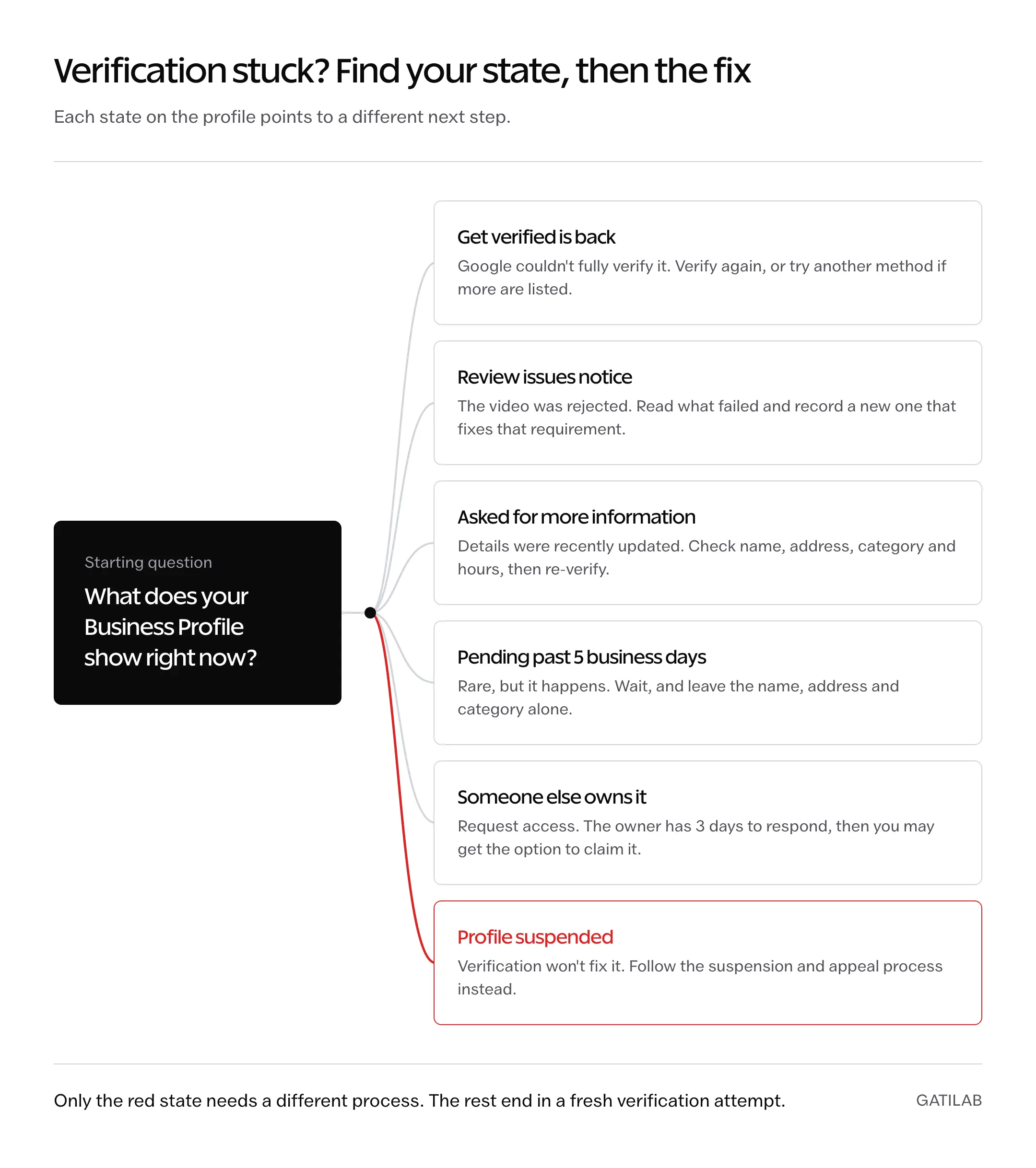
Most stuck profiles show one of a few states, and each one points to a different fix.
The Get Verified Button Came Back
This means Google couldn’t completely verify the business. Select Get verified and verify again. If the profile now shows more than one method, you can try a different one.
A Review Issues Notification
This appears after a video recording wasn’t accepted. Open it, read what failed and record a new video that covers that requirement. Recording the same video again in better light won’t help if the problem was a missing street sign or a name mismatch.
Google Asks for More Information
If Google asks for additional info to re-verify, it’s usually because some business details were recently updated. Check that the name, address, category and hours are accurate, then select Get verified and re-verify.
Still Pending After 5 Business Days
Google says reviews take up to 5 business days and, on rare occasions, longer. Leave the name, address and category alone while you wait. Edits go through their own review, and for a postcard an edit stops the code from working.
Someone Else Already Verified the Business
You can’t verify a profile another account already owns. Request ownership instead: go to business.google.com/add, find the business and select Request access. The current owner gets 3 days to respond. If they don’t, you may get the option to claim the profile through the link in your confirmation email, and if they deny the request you can suggest an edit or appeal.
The Profile Was Suspended
Suspension is a different process from verification. If the profile is restricted or suspended, follow the Google Business Profile suspension recovery guide rather than trying to verify again.
When You Have to Verify Again
Verification isn’t permanent if the facts it checked change. Google’s editing help is clear about the 2 biggest changes:
- A new address: if you move after verifying, you must verify again.
- A new business name: if you change the name after verifying, you might need to verify again.
So a rebrand or a move should be planned like a new verification. Put the new signboard up before you change the name on the profile, and change the address only once you’re operating from the new place. Otherwise the next video shows a sign or a street that doesn’t match, and you’re back to waiting.
FAQs on Google Business Profile Verification
Can I verify my business on Google without a video?
Only if Google shows you another method. The methods are automatically determined and can’t be changed, so if video is the only option on your screen, video is the route. If the profile lists more than one method, you can try another one.
Can I verify a business I run from home?
Yes, as a service-area business if customers don’t come to you. Clear the home address from the profile, then prove the business with street signs or landmarks at your address, your tools or equipment, and a service or a business document that matches the profile name.
Can my agency or marketer verify the profile for me?
Google says only business owners or authorized representatives may verify a business, and the video and live call both have to be done at the location. The practical setup is that the owner or a staff member does the verification on site, then adds the agency to the profile as a manager. Never send anyone the verification code; Google tells you not to share it, even with people who manage the profile.
How long does Google Business verification take?
Google says verification reviews take up to 5 business days, and on rare occasions longer. A postcard adds its own delivery time on top, with most codes arriving within 14 days. Instant verification, when Google offers it, skips the wait.
What should I do if my postcard never arrives?
Wait the full 14 days before doing anything, and don’t edit the name, address or category in the meantime. Each new request cancels the code already in the mail, so request again only once, and only if the first postcard clearly isn’t coming.
Why does Google keep asking me to verify again?
Usually because something changed. A new address always needs verification again, a new name might, and recent edits to business details can make Google ask for more information. If the Get verified button reappears without any change, the earlier attempt didn’t complete, so verify again.
Final Remarks
Open the profile, look at the methods Google actually offers you, fix the name, address, phone and hours to match the real business, and only then start. One prepared attempt is faster than 3 rushed ones, because each rejection costs another review.
Once the profile is verified, the work that brings calls and visits starts. The Google Business Profile local SEO playbook covers categories, photos, reviews and posts. If you’d rather hand the whole setup over, Gatilab offers Google Business Profile optimization services; we’ve set up Google Business Profiles for 60+ clients across 200+ setups.
Tell Google you want more of this.
Add Gatilab as a preferred sourceOne tap, and this site shows up more often in your own Top Stories, AI Overviews and AI Mode. Remove it any time.