
A table copied from Google Sheets into WordPress is correct until someone edits the sheet. After that, your team has 2 versions, and visitors see the older one until somebody remembers to paste it again.
A WordPress Google Sheets integration removes that copying. We recommend an embed for a simple public sheet and a synced WordPress table when you need private columns or a review before changes go live.
Core Tables is the WordPress table plugin we built for the second job. It reads a range from your sheet with view-only access and saves each refresh as a draft by default.
Ways to Connect Google Sheets to WordPress
There are generally 3 ways to do this, and they differ in setup and in how much control you keep:
| Route | Setup | Review before it’s public | Suits |
|---|---|---|---|
| Google embed | A few minutes | No, when automatic republishing is on | A simple sheet that is already public |
| Sync plugin | Varies by plugin | Varies by plugin | A site that already runs a table plugin with Sheets support |
| Core Tables | A Google Cloud service account, once | Yes, by default | Data with private columns, reuse or a review step |
If you already use a table plugin with Sheets support, it is wise to check it before switching. The 2 questions are whether it needs a public sheet and whether a failed sync can replace good data.
Embed Google Sheets in WordPress
The embed needs no plugin:
- In Google Sheets, open File, then Share, then Publish to web.
- Choose what to publish, select Embed and click Publish.
- Copy the embed code into a Custom HTML block in WordPress.
The convenience has limits, which Google documents in its publishing guide:
- Visibility: a published file can be open to everyone on the web, so it’s a poor home for internal notes.
- Updates: changes follow only when automatic republishing is checked, and they can take a few minutes.
- Work accounts: an administrator may have turned publishing off.
- WordPress roles: WordPress removes iframes saved by users without permission to post unfiltered HTML, such as Contributors.
Prepare Your Google Sheet
A synced table needs a tidier sheet than an embed, because WordPress reads the values and checks their types. These are the rules Core Tables applies:
- one heading row, with a different name in every column
- plain numbers in number and price columns, so 5 instead of the text $5
- dates displayed as YYYY-MM-DD
- up to 30 columns and 10,000 data rows in the range
- no image columns in the destination dataset
Formulas are fine, since the refresh reads their results.
Connect Google Sheets to WordPress Tables
The connection needs an administrator, the PHP Sodium extension and an AUTH_KEY of at least 32 characters in wp-config.php. Core Tables uses the last 2 to encrypt your Google key.
Create the Google Service Account
A service account is a Google account for software. It gets its own email address, and you share the sheet with it as you would with a colleague.
- In Google Cloud, enable the Google Sheets API for a project.
- Create a service account with no project roles and no domain-wide delegation.
- Create a JSON key and download it.
- Share the spreadsheet with the service account’s email address as a Viewer.
That JSON file is a credential, and it needs the same care as the private columns in your table. It should never go into the media library, a support ticket or a chat.
Create the Dataset and Map Its Columns
- Create a dataset in Core Tables with one column for each sheet column, set the types and save the draft.
- Turn off Public for any internal column, such as the notes column in the sample.
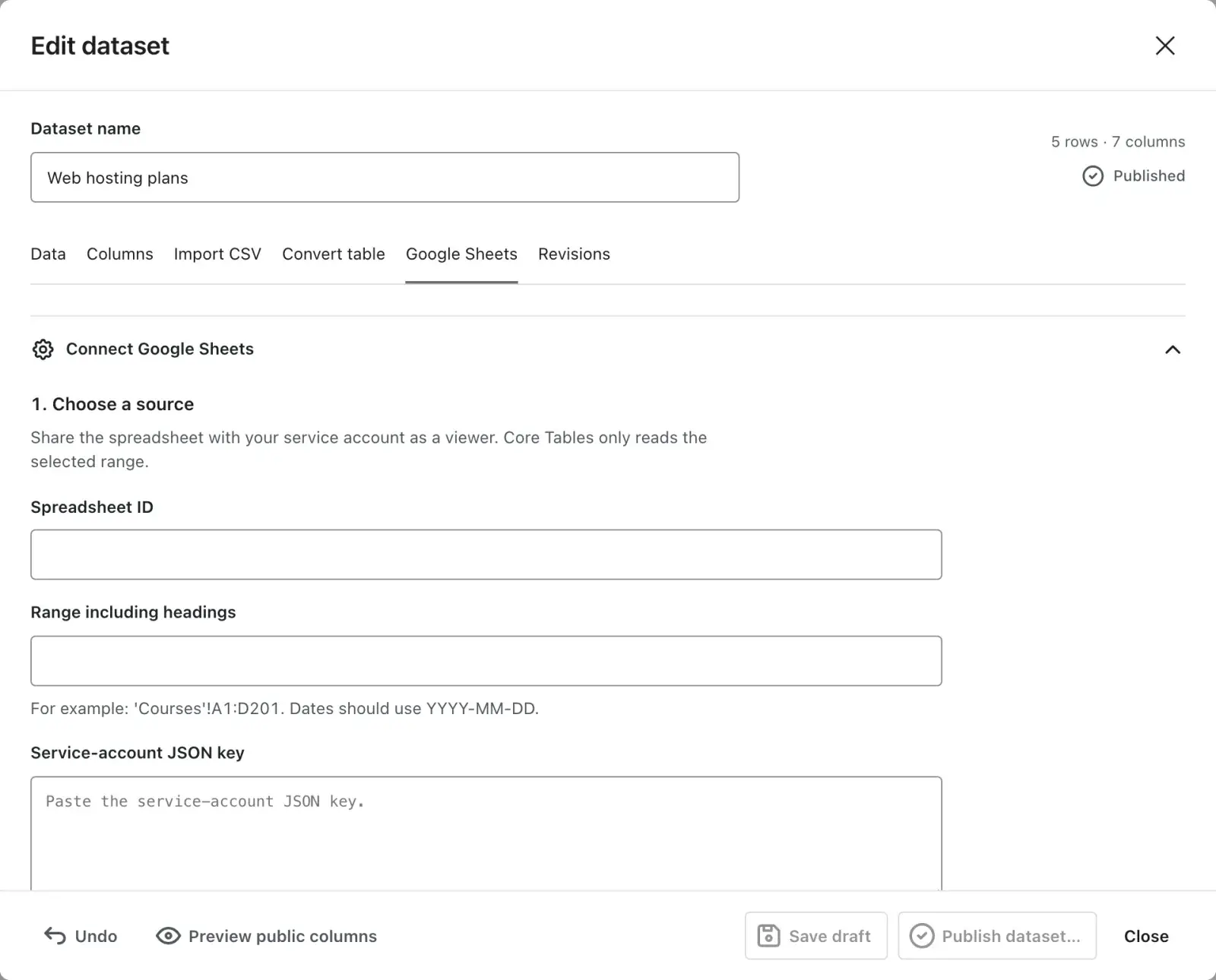
- Open the Google Sheets tab and enter the spreadsheet ID and the range, such as ‘Workshops’!A1:E5.
- Paste the JSON key and click Preview source.
- Match every dataset column to a sheet heading.
- Keep the schedule on Manual for the first run, then click Save connection and mapping.
Run the First Refresh
- Click Refresh now and wait for the Ready status.
- Click Load latest draft and check the rows on the Data tab.
- Click Publish dataset and confirm.
- Add a Core Table block to a post and choose the dataset.
To check the whole path, we would change one number in the sample and refresh again. The public table should keep the old number until you publish the new draft. The same dataset can then appear on several pages, as our guide to reusable WordPress tables shows.
Keep the WordPress Table Updated
Core Tables can refresh manually, hourly or daily. Automatic publishing is a separate switch, and our advice is to leave it off until you trust the mapping.
A few behaviors can make a working sync look broken:
- Quiet sites refresh late. Schedules run on WP-Cron, which waits for a visit. A real server cron fixes this.
- Manual edits pause the schedule. Scheduled refreshes wait while a hand-edited draft needs review.
- Renamed headings stop the refresh. The source has to be previewed and mapped again.
- Caches serve the old page. Publishing clears LiteSpeed Cache and WP Super Cache. Cloudflare, WP Rocket and host caches need their own purge, and our guide to WordPress caching plugins explains those layers.
A failed refresh leaves the last published table in place. The refresh and error reference lists each message with its fix.
FAQs on Google Sheets and WordPress
An embed for public visitors needs the sheet published to the web. Core Tables doesn’t, because you share the sheet privately with a service account as a Viewer.
The Core Tables connection is read-only, so the sheet stays the master copy. Lasting changes belong in the sheet.
Each dataset reads one range. A second tab gets a second dataset, and each can appear on as many pages as you need.
Core Tables deletes the stored key and cancels pending refreshes. The dataset and its revisions stay.
Where to Start
If the sheet is already public and looks fine in a frame, we would embed it and move on. For prices, schedules or anything with an internal column, the setup for a reviewed sync is worth the time.
The sample is the safest first connection, and the same data can become a WordPress chart. The Google Sheets connection guide has every field if you get stuck.
Tell Google you want more of this.
Add Gatilab as a preferred sourceOne tap, and this site shows up more often in your own Top Stories, AI Overviews and AI Mode. Remove it any time.