
An AI assistant can now edit a WordPress site directly, instead of suggesting code for you to paste. That is useful right up to the moment it rewrites a live page or runs a command you never meant to allow.
A WordPress AI assistant is safe to use when 3 things are true, and our advice is to set these limits first and choose the tool second:
- It reads the current version of a page or file before it writes.
- Its changes to live content wait for your review.
- It can only reach the parts of the site you switched on.
What a WordPress AI Assistant Can Do
There are broadly two kinds of AI assistant in WordPress today, and they solve different problems.
- Assistants inside WordPress. The official AI plugin from the WordPress Core AI team adds opt-in tools to the admin and the block editor. Nothing turns on until you enable it, and image generation and editing is its only stable feature so far.
- Assistants that connect from outside. Claude, ChatGPT, Cursor and other AI clients can work on a site through MCP. They read your posts, settings and code, and they can make changes when you allow it.
MCP, the Model Context Protocol, is the standard way an AI client connects to outside tools. A WordPress MCP plugin turns parts of your site into tools the assistant can call, such as reading a post or saving a draft.
WordPress itself is moving the same way. WordPress 6.9 added the Abilities API, which gives plugins a standard way to describe actions with permission checks. The official MCP Adapter plugin exposes those abilities to AI clients, and it is still a pre-1.0 release.
Where AI Edits Go Wrong
Most problems come from giving the assistant more reach than the job needs. These are the ones worth planning for:
- Live content changed without review. An edit to a published post goes straight to visitors unless something stages it.
- Stale edits. The assistant reads a page, someone else updates it, and the assistant saves its older version over the new one.
- Broken code. A PHP change with a fatal error can take the whole site down.
- Access that is too broad. An administrator password or an unrestricted application password gives the assistant everything the account can do.
- Page builders. Elementor and Bricks keep layouts in post meta, so block markup written into those pages changes nothing visitors see.
- No record. Without a log, nobody can tell later which change came from the assistant.
A Safety Checklist for WordPress AI Assistants
We would check any AI assistant plugin against this list before connecting it to a live site:
| Check | What to look for |
|---|---|
| Sign-in | OAuth through WordPress, with no shared admin or application password |
| Permissions | A consent screen where you choose what each client can do |
| Defaults | Read access only, with writes, code and commands switched off until needed |
| Safe writes | Every save checked against the version the assistant read |
| Published content | Changes staged as a draft or autosave until you publish |
| Code changes | PHP checked before saving and rolled back after a fatal error |
| Sessions | Short-lived tokens and a way to revoke a client everywhere at once |
| History | A log of each call, with the tool, the target and the result |
It is wise to keep PHP and WP-CLI access off on a production site entirely, and to give them only on a staging copy. Content drafts are a much safer place to start.
Connecting Claude, ChatGPT or Cursor to WordPress
The setup is similar in every client. You install an MCP plugin on the site, add the site’s MCP address to the AI client as a connector, sign in through WordPress and approve the permissions.
There are several ways to run the server side, including the official MCP Adapter, community plugins and hosted services. Gaurav Tiwari’s WordPress MCP setup guide compares them and covers each client’s connector screen.
Site Agent: Our WordPress AI Assistant Plugin
Site Agent is the free WordPress MCP plugin we built around that checklist. Claude, ChatGPT, Cursor and other AI clients sign in with OAuth, read your real content and code, and change only what you have switched on.
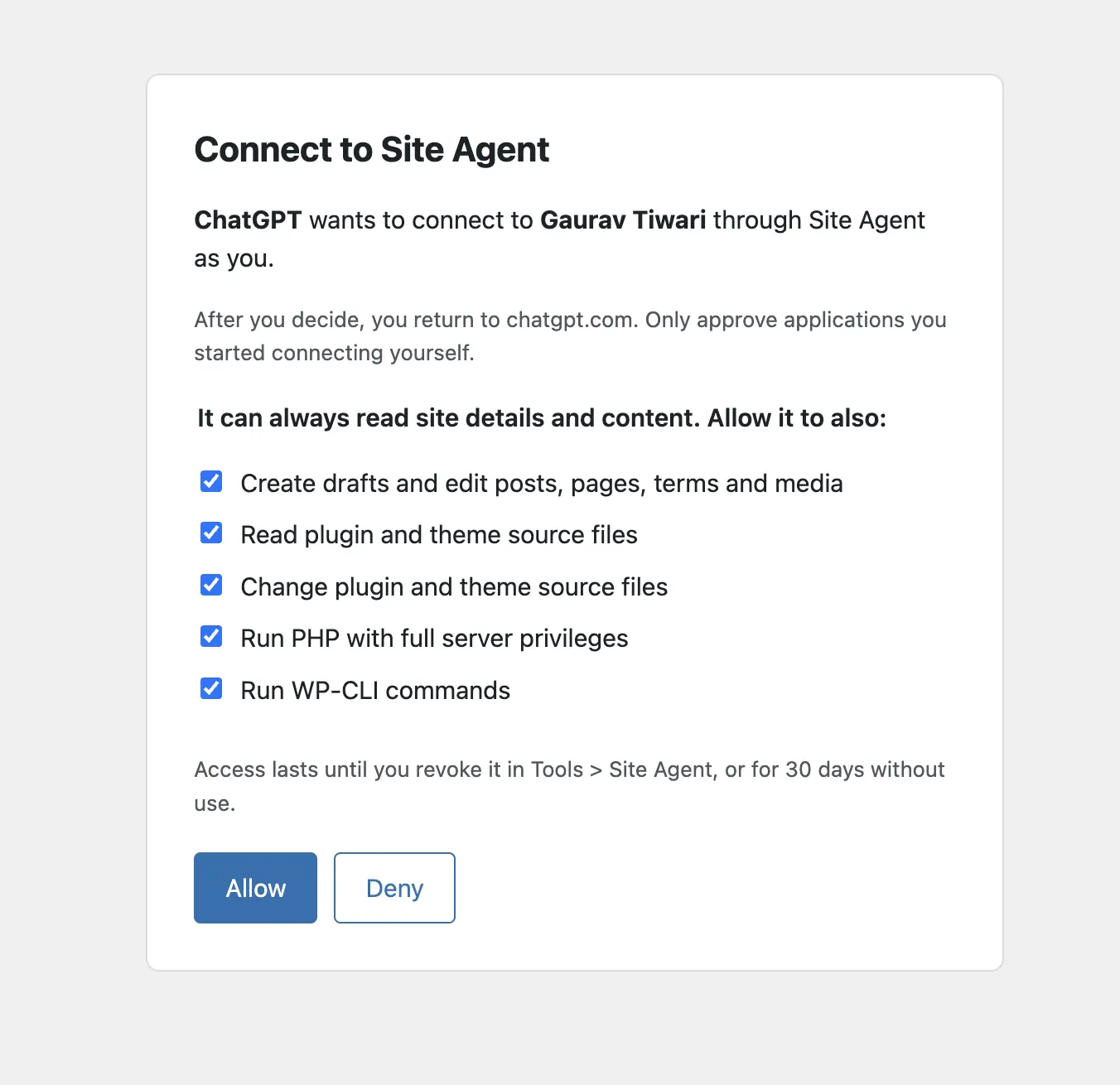
This is how it covers each point on the list:
| Check | How Site Agent handles it |
|---|---|
| Sign-in | Clients sign in through WordPress with OAuth |
| Permissions | You tick the tool groups each client gets on the consent screen |
| Defaults | New installs start disabled, and only read tools work once it is enabled |
| Safe writes | Every write must carry the hash from the assistant’s last read, or it is refused |
| Published content | Edits to published posts are saved as an autosave you review in the editor |
| Code changes | PHP is checked before saving, and a file that still causes a fatal error is swapped back |
| Sessions | Access tokens last an hour, refresh tokens rotate and revoking a connection ends it everywhere |
| History | The last 100 calls with tool, target, client and result, with content and credentials left out |
It has 18 core tools in groups: reading the site, content writes, source inspection, source editing, PHP and WP-CLI. Each group has its own switch, and a site owner can block every tool from wp-config.php with SITE_AGENT_DISABLED.
Site Agent also tells the assistant where each page builder keeps its layout, with bundled skills for Elementor, Bricks, GenerateBlocks and Divi. It needs WordPress 6.9 and PHP 8.0, and the Site Agent page has the download and explains how clients connect.
What to Let an AI Assistant Do First
We would grow an assistant’s access in steps, and move to the next step only after the last one has run smoothly for a while:
- Read-only work. Content audits, finding thin or outdated posts, checking internal links and summarizing what is on the site.
- Staged content edits. Drafts and autosaves on published posts that a person reviews before publishing.
- Media and terms. Uploading images, writing alt text and tidying categories and tags.
- Code on staging only. Source edits, PHP and WP-CLI on a staging copy, with the changes moved to production the normal way.
FAQs on WordPress AI Assistants
Yes. With a WordPress MCP plugin installed, ChatGPT, Claude and Cursor can connect to the site, read content and make the changes you allow. Without one, they can only suggest code for you to paste.
It shouldn’t. A good MCP plugin uses OAuth, so you sign in through WordPress and approve the client without sharing a password with it.
No. The AI plugin adds opt-in AI features inside the admin and the block editor. An MCP plugin lets an outside AI client such as Claude or ChatGPT work on the site.
No. Site Agent runs its own MCP server inside WordPress. The MCP Adapter is a separate plugin that exposes abilities registered by other plugins.
We would keep it off. PHP execution runs with full server privileges, so it belongs on a staging copy, even with safety checks in place.
Where to Start
If you have never connected an AI assistant to WordPress, we would start with read-only access and one real task, such as auditing your oldest posts. The assistant’s answers will show quickly whether it understands your site.
Once that works, the next step we would take is content writes, with every change staged for review. For more on where AI fits into a site’s day-to-day work, our guide to AI for customer support covers the support side.
Tell Google you want more of this.
Add Gatilab as a preferred sourceOne tap, and this site shows up more often in your own Top Stories, AI Overviews and AI Mode. Remove it any time.