
How to Create a Google Business Profile
Your business isn’t on Google Maps yet, or it’s there with no owner, and you want to fix that before the next customer searches for you. To create a Google Business Profile you go to business.google.com/create, fill in 7 short screens (name, category, whether customers visit you, address or service area, phone and website, verification), and the profile is free. The screens take only a few minutes. The part that stalls people is the verification Google assigns at the end, and for a new profile that is usually a video you record on your phone, not a postcard.
Two mistakes are worth avoiding before you start: creating a second profile for a business that already has one, which can get the Google account suspended, and recording a verification video that shows the wrong things. I’ve put 60+ clients on Google Business Profile across 200+ setups, and every step below uses the screens and labels Google shows today, including the ones where older tutorials still describe a website builder, a chat button and a Q&A tab that Google removed.
Who Can Create a Google Business Profile
Google’s rule is that a business needs to make in-person contact with customers during its stated hours, either at a location customers visit or by traveling to them. That one sentence decides most eligibility questions:
- A shop, office, clinic or restaurant that customers walk into qualifies as a storefront business and shows its address.
- A plumber, cleaner, tutor or photographer who goes to the customer qualifies as a service-area business, hides the address and lists up to 20 service areas, which Google says should sit within about 2 hours’ drive of the base.
- A home-based business qualifies in either form; if customers don’t come to the house, set it up as a service-area business so the address stays private.
- An office in a co-working space qualifies only if it has clear signage, receives customers there during business hours and is staffed by your own people during those hours.
- Online-only businesses with no in-person contact: an Etsy shop, a SaaS product, a blog.
- A rented mailing address with no staff working there, which Google calls a virtual office, and PO boxes or remote mailboxes.
- Sales associates and lead-generation agents working for a company they don’t own.
- Rental properties where the platform, not you, deals with the guests.
The name you enter is the real-world name, the one on your signboard, website and invoices, as customers know it. It is not necessarily the legal entity name, and it must not carry extra words: “Sharma Dental Clinic” passes, “Sharma Dental Clinic Best Dentist Lucknow” is a guideline violation that gets the profile suspended. The category and the address handle the ranking; the name does not need to.
Already on Maps? Claim It Instead
Before you create anything, search the business name on Google Maps. Google builds listings from public data long before owners show up, so an established business is often already there, unverified. Creating a new profile on top of it produces a duplicate, and Google’s help page says plainly that an account may be suspended when it finds multiple profiles for the same business in the same metropolitan area.
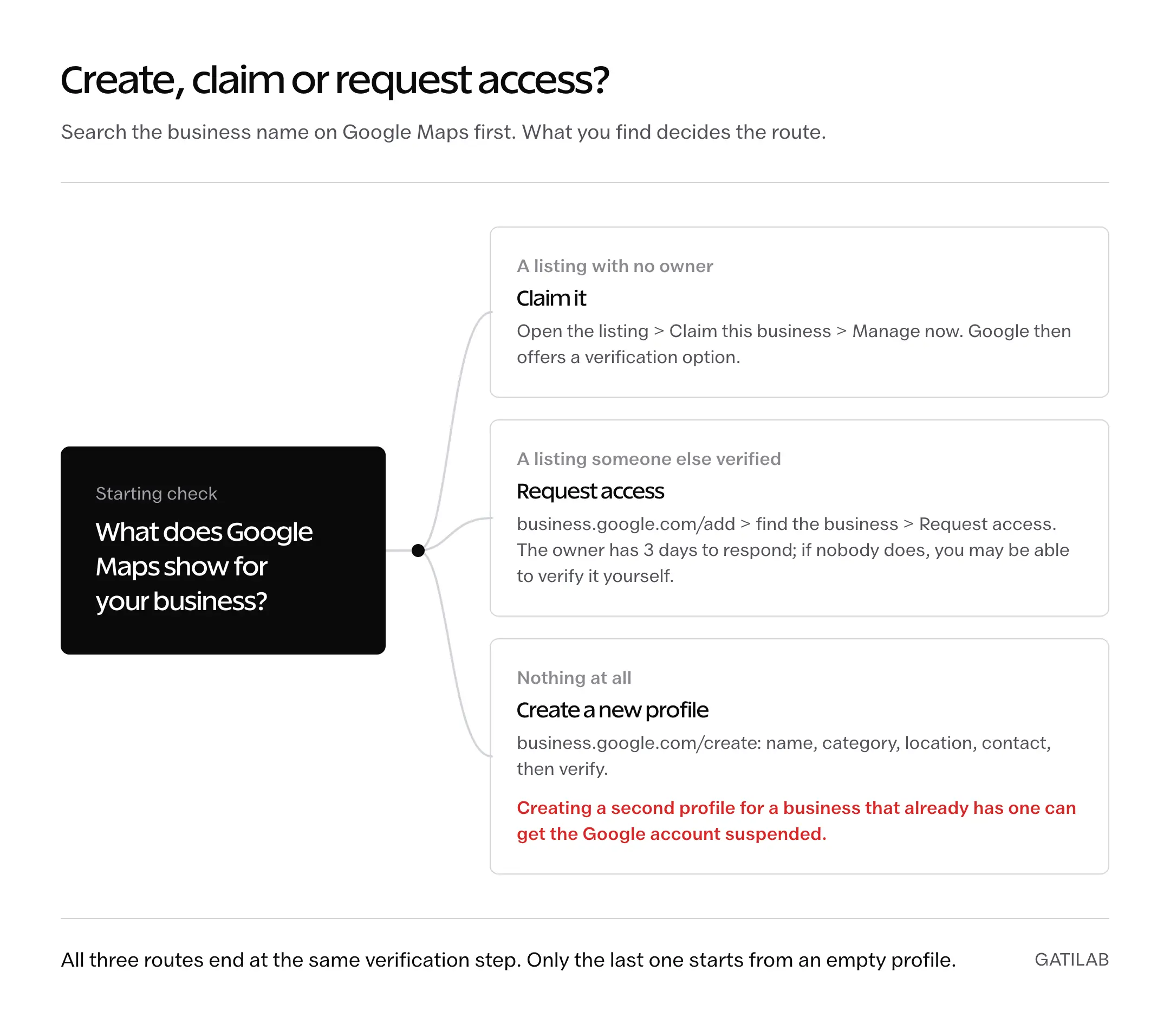
- The listing exists and nobody owns it: on a computer, open the listing in Google Maps and select Claim this business, then Manage now. In the Maps app, open the business, tap About, then Claim this business and Manage now. Google then offers you a verification option, the same as for a new profile.
- The listing exists and someone else verified it: go to business.google.com/add, find the business and choose Request access. The current owner gets an email and 3 days to respond; if nobody does, your confirmation email may let you verify and claim it yourself. This is the route when a former agency or employee holds the profile.
- Nothing on Maps: create a new profile, using the steps below.

How to Create a Google Business Profile Step by Step
Google’s create flow runs in this order, and each screen is short. Sign in first with the Google account that should own the profile, because that account becomes the primary owner and a transfer later carries a 7-day wait. A Workspace or business Gmail account you control is better than an employee’s personal one.
- Go to business.google.com/create, or to business.google.com/add and choose Add your business to Google.
- Enter the business name. If Google already has a listing with that name, it offers it here; pick it rather than typing a new one.
- Search for the business category and pick the most specific match. “Family law attorney” ranks for more of the right searches than “Lawyer”. You can add up to 9 more categories after the profile exists.
- Say whether you have a location customers can visit. Yes leads to an address screen; no leads to a service area screen.
- Enter the address and position the marker on the map, or enter the service areas by city or postcode, up to 20.
- Enter a phone number and website. The phone can be a mobile; what won’t work is a number that answers with an automated menu, because Google’s verification call can’t get through an IVR. If you have no website, leave the field blank. The free website builder that used to live here was switched off in 2024.
- Select a verification option, or choose Verify later. Later is fine if you need to prepare for a video; the profile exists but stays invisible to customers until you verify.


Pick the primary category carefully. It decides which searches the profile can appear for, and the additional categories, services and description only get added after verification, so none of them can rescue a primary category that’s too broad.
Google Business Profile Verification
Verification is Google checking that you really run the business at that place, and the one rule that matters is that Google picks the method. Its help page says verification methods are automatically determined and can’t be changed, so there’s no setting that turns a video into a phone call. What Google may offer:
- Video recording: a continuous video of the location, the signage and something only staff can access, recorded on your phone through the profile. For new profiles this is the common case, and often the only option shown.
- Live video call: the same proof shown to a Google support representative on a call during business hours.
- Phone or text: a code by call or SMS to the business number, entered on the profile.
- Email: a code or link sent to the address Google shows on the verification screen.
- Mail: a postcard with a 5-digit code. Most arrive within 14 days and the code expires after 30. Don’t edit the name, address or category while it’s in the post, and don’t request a second one, because that invalidates the first.
- Instant: available when the business website is already verified in Google Search Console under the same account, and for chains using bulk verification.


How to pass video verification
Google’s recording screen lists exactly what the video has to capture, in 1 continuous recording from your phone, and the list is shorter than most tutorials make it:
- The surroundings: street signs, building numbers or neighboring businesses, so the location matches the address you entered.
- The business name on a permanent fixture: the signboard, a door decal, a printed board, matching the name you entered.
- Proof you run the place: unlock the entrance, open a staff-only area, operate the cash register or the point-of-sale system.


The video has to be at least 30 seconds, and Google says most successful ones run 1 to 2 minutes. It must be recorded live in the app; a pre-recorded or edited file is rejected. Start outside with the street and the signboard, walk in, then do the staff-only part. Keep people’s faces out of the shot and don’t film ID cards, bank details or tax documents; Google’s screen tells you to avoid them, and older guides that advise holding your driver’s license up to the camera are telling you to do the one thing Google says not to do. For a service-area business with no storefront, show the branded vehicle, the equipment and the paperwork at your base; the requirement that the name and address match what you entered still applies.
Review takes up to 5 business days. If Google rejects the video it tells you why, and you can record and submit another one. The Google Business Profile verification guide covers every method, the postcard rules and what to do when verification gets stuck.
What to Set Up on Day 1
Once verified, the profile is live with only the name, category and contact details, and a profile that thin ranks for almost nothing. These fields are the ones worth filling the same day:
- Hours, including the “describe your opening hours” field, which lets you type the schedule in plain words and have Google fill the grid.
- Photos: the exterior, the interior, the team at work and the main products or services, from your own camera rather than stock.
- The description, up to 750 characters, with the main service and the area in the first sentence and no keyword stacking.
- Additional categories, up to 9, only for things you genuinely offer.
- Services or products, each as its own entry, because Google matches searches against them.
- A review link sent to your first few customers; the rating and review count show in the listing and feed into local ranking.
Three features you’ll see in older checklists no longer exist. The free website built from the profile was turned off in March 2024 and the business.site addresses went dark that June. Chat through the profile ended in July 2024. The public Q&A section was discontinued in late 2025. If a tutorial tells you to enable messaging or seed your Q&A, it predates all three.
The Google Business Profile editor walkthrough covers every field after launch, and the local SEO playbook for Google Business Profile covers the ranking work that starts once the basics are in.
Common Problems When Creating a Google Business Profile
Most failed setups trace back to one of these, and each has a specific fix.
- “Someone else has already verified this business.” Request ownership through business.google.com/add. The owner has 3 days to answer; after that the confirmation email may let you verify it yourself.
- Google only offers video. That is the normal case for a new profile and there’s no way to switch it. Prepare the 3 things above and record it.
- The postcard hasn’t come. Wait the full 14 days before doing anything, keep the name, address and category untouched, and don’t request a new code until the old one has expired at 30 days.
- The name was rejected. Remove anything that isn’t on the signboard: city names, service words, taglines. Google’s filter reads these as spam.
- Suspended right after verification. Usually a guideline problem Google caught on its first pass: a virtual office, a stuffed name, a category that doesn’t match the business. The suspended profile recovery guide walks through the appeal.
- Recent edits sent the profile back into review. Google says changes to a profile’s details may trigger a request for more information or a fresh verification, so make the big edits before you verify, not the day after.
Creating Profiles for Multiple Locations
Single profiles are managed from Search and Maps, but a chain uses Business Profile Manager, which still exists for exactly this job. You add locations one by one or upload a spreadsheet of them, and once the account holds 10 or more profiles of the same business you can request bulk verification under Verifications, then Chain, instead of verifying each one. Google reviews the account, asks for more information if it needs any and confirms by email; it publishes no fixed timeline. An agency account holding several different businesses can’t use bulk verification, so each client’s profiles live in that client’s own account.
Set the roles before you hand the account to a team. A profile has exactly 1 primary owner, who alone can remove the profile or transfer it, plus any number of owners and managers; managers can’t add or remove people. Keep the primary ownership with the business and add a second owner as the backup, so a departing marketing manager’s account can’t take the whole portfolio with them. An agency belongs in the owner or manager seat, never the primary one. The multi-location SEO playbook covers the website side, where the location pages and the store locator decide how much the profiles can do.
After Verification
The profile starts earning its place when the reviews, photos and services accumulate, and that takes weeks rather than days, so leave the panic edits alone and keep the hours and phone number accurate above all else. Add the same business to Apple Maps while the documents are still to hand, because iPhone users searching in Maps won’t see the Google listing at all. And if the business ever moves, closes or changes hands, edit or close the profile rather than deleting it; the guide to removing a Google Business Profile explains why deletion doesn’t do what most owners expect.
FAQs on Creating a Google Business Profile
Is it free to create a Google Business Profile?
Yes. Creating, verifying and managing a Google Business Profile costs nothing, and Google never charges for the verification postcard, call or video review. Agencies charge for the optimization work that comes afterwards, such as photos, services, reviews and citations, not for the profile itself.
Do I need an LLC or a registered company to create one?
No. Google asks for a real business that deals with customers in person during stated hours, not a registration certificate. A sole trader, a freelancer who visits clients or a home-based service can all create a profile. Some trades may be asked for a license during verification, but incorporation is not a requirement.
Can I create a Google Business Profile without a physical address?
Yes, as a service-area business. On the screen that asks whether customers can visit you, answer no, then list up to 20 cities or postcodes you serve, within about 2 hours’ drive of your base. Google hides your address from customers and shows only the service area. Verification works the same way; for a video you show the branded vehicle, equipment and paperwork instead of a storefront.
Why does Google only show me video verification?
Because Google chooses the verification methods for each profile and does not let you change them. For a new profile, video is the common case and often the only option offered. Prepare the 3 things Google asks for (the surroundings, the business name on a permanent fixture, and access to a staff-only area or the register), record it in 1 continuous take on your phone, and expect a review within 5 business days.
What happens if I choose Verify later?
The profile is saved to your account but stays invisible to customers on Search and Maps until you complete verification. Open the profile when you are ready, pick the verification option Google offers and finish it. Avoid changing the name, address or category in the meantime, because edits can send the profile into review.
Can I have two Google Business Profiles for the same business?
No. Google allows one profile per business location, with exceptions for individual practitioners and departments inside a larger organization. A second profile for the same business in the same area counts as a duplicate, and Google says the account may be suspended when it finds one. If a listing already exists, claim it or request access instead of creating another.
Is it a violation to manage profiles from multiple Google accounts?
Using more than one Google account is not itself a violation. The right way to share management is to add people as owners or managers under People and access, each with their own account, rather than sharing a password. What Google penalizes is multiple profiles for the same business, not multiple people managing one profile.
Can I still create a free website from my Business Profile?
No. Google switched off websites made with Business Profile in March 2024 and stopped redirecting the old business.site addresses in June 2024. If you have no website, leave the website field empty; a profile without a website is still eligible and still ranks.
Can customers still message me through my Google Business Profile?
No. Google removed chat and call history from Business Profiles in July 2024. Customers reach you through the phone number, the website link, booking links where your category supports them, and reviews. Keep the phone number and hours accurate, since those are now the main contact routes.
Tell Google you want more of this.
Add Gatilab as a preferred sourceOne tap, and this site shows up more often in your own Top Stories, AI Overviews and AI Mode. Remove it any time.