
Google Business Profile Editor: Complete 2026 Walkthrough
The Google Business Profile editor in 2026 lives entirely inside Google Search and Google Maps. The standalone dashboard at business.google.com was retired in late 2024, and the migration confused tens of thousands of business owners who suddenly couldn’t find their listing controls. If you searched for “where did my Google Business Profile dashboard go,” this is the article that solves it. Every field, every menu, every shortcut, with the new flow Google rolled out to most accounts by mid-2025.
I’ve onboarded 60+ business owners onto the new Google Business Profile editor in the last year and the same six questions come up every single time: how do I open the editor, where did the insights tab go, can I still bulk-manage locations, why does the editor look different on my phone, what changed about messaging, and why does it keep logging me out. All answered below. Bookmark this; the editor changes more often than the documentation.
Where the Google Business Profile editor lives in 2026
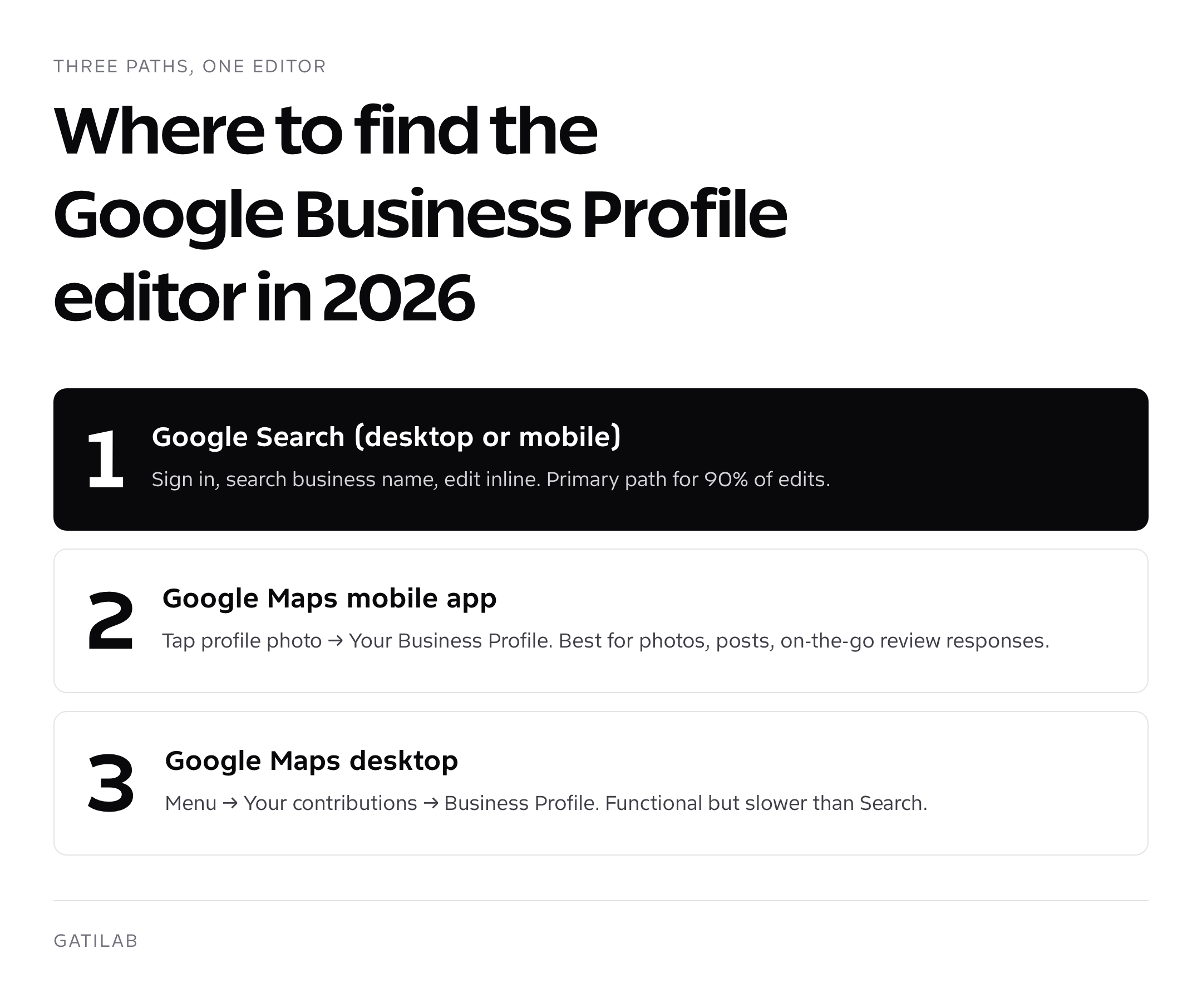
The Google Business Profile editor opens in two places, and which one you use depends on what you’re editing and which device you’re on. There’s no third path. If somebody tells you to log into business.google.com, they’re working from outdated documentation, that URL now redirects to a “manage your profile from Search or Maps” landing page with no editor.
- Google Search (desktop or mobile): log in with the Google account that owns the listing, search your business name, and a “Your business on Google” panel appears at the top of results. Click any field to edit. This is the primary path for 90% of edits.
- Google Maps mobile app: open the Maps app, tap your profile photo top-right, then “Your Business Profile.” Best for photo uploads, posts, and review responses on the go.
- Google Maps desktop: open maps.google.com, click the menu (three lines), then “Your contributions” → “Business Profile.” Functional but slower than Search.
For businesses with 10+ locations, the Google Business Profile Manager (formerly Google My Business bulk dashboard) still exists at business.google.com/locations, but it’s intentionally hidden from the main flow now. Google nudges large operators toward the API or third-party tools like Uberall, Yext, and Rio SEO instead. If you’re managing 20+ locations and you’re still clicking through one profile at a time, you’re losing 10+ hours per month to grunt work.


Field-by-field walkthrough of the new editor
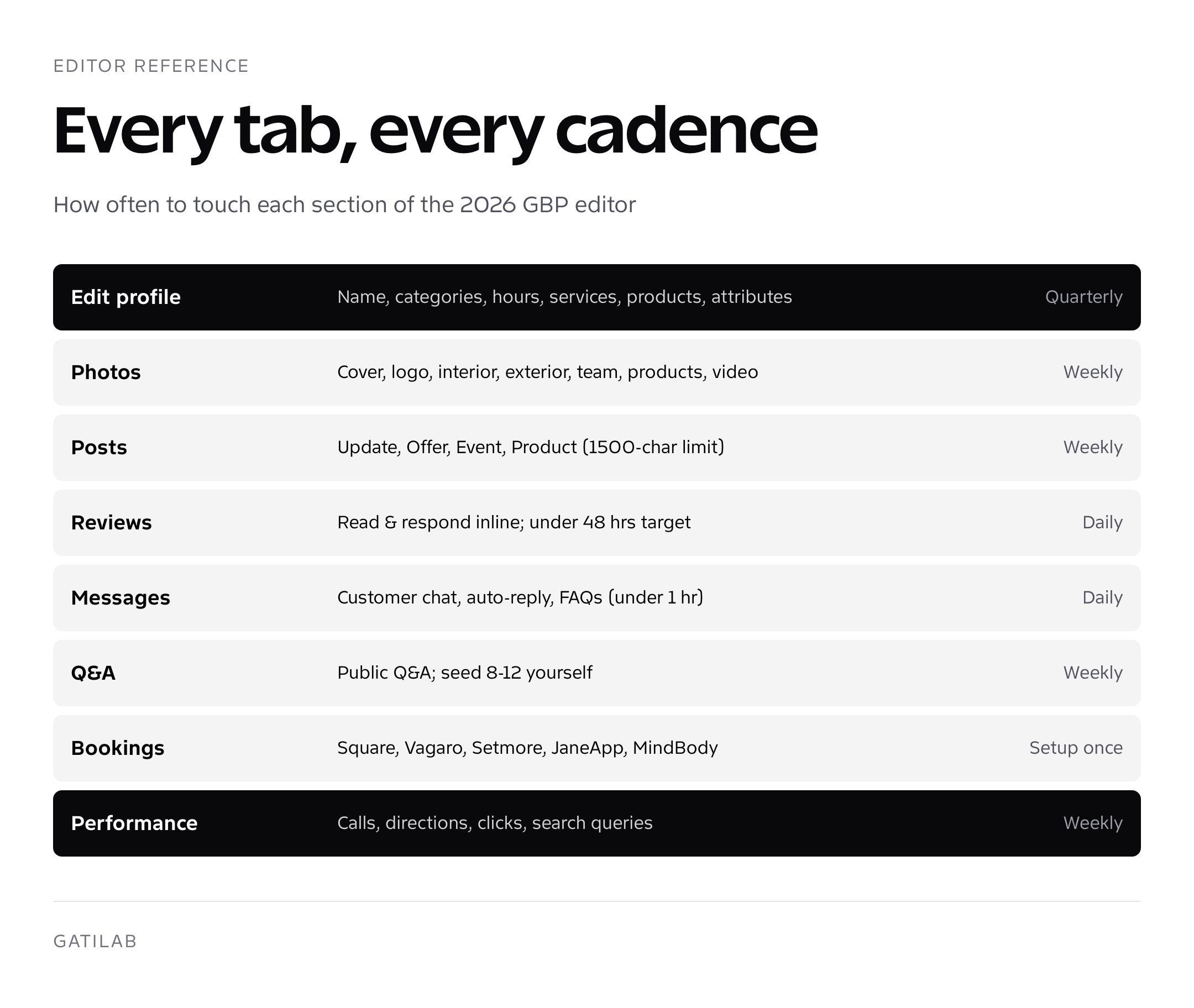
Once the in-Search panel is open, the field menu runs in this order in 2026: Edit profile, Photos, Posts, Reviews, Messages, Q&A, Bookings, Performance, Advertise, and More. The “Edit profile” tab itself is the densest one, it contains every business detail Google indexes. Here’s what each tab actually controls.

| Tab | What it controls | How often to touch it |
|---|---|---|
| Edit profile | Name, categories, hours, address, phone, website, services, products, attributes, description, opening date | Quarterly review, edit on changes |
| Photos | Cover, logo, interior, exterior, team, products, videos, 360 photos | Weekly uploads (5+ per month) |
| Posts | Updates, offers, events, products | Weekly minimum |
| Reviews | Read and respond to customer reviews | Daily (within 48 hours of receipt) |
| Messages | Customer chat, auto-reply, FAQs | Daily during business hours |
| Q&A | Public questions and answers | Weekly check, seed 8-12 yourself |
| Bookings | Integrate Square, Vagaro, Setmore, JaneApp | Once at setup, quarterly review |
| Performance | Calls, directions, clicks, search analytics | Weekly review |
| Advertise | Smart Campaigns linked to GBP | If running Local Services Ads or Smart Campaigns |


Hours, holiday hours, and special hours
Hours are the field most often wrong on profiles I audit. Roughly 40% of the listings I open have at least one of: missing holiday hours for the current month, “open 24/7” set incorrectly when actually open 8 to 8, or “permanently closed” remnants from a renovation that ended 18 months ago. Each of these triggers either a soft suspension or a measurable drop in visibility.
To edit hours: Edit profile → Hours. The 2026 editor splits hours into three categories. Regular hours (your weekly schedule), Holiday hours (specific dates that override regular hours), and Special hours (one-off closures or extended hours for specific events). Set them all. Set them quarterly. Add holiday hours at minimum 7 days before the holiday, Google’s spam team flags last-minute changes as suspicious if your account is newer than 12 months.


If your business is “open 24 hours,” set it that way explicitly in the regular hours dropdown. Don’t leave hours blank thinking it’ll default to always-open. Blank hours equal “hours unknown” in Google’s index, which Google penalizes by hiding the listing from “open now” filtered searches.
Services and products, the most underused fields
Services and products are the two fields that consistently surprise business owners with how much visibility they unlock. Most profiles I audit have either both empty or one populated with three generic entries. Filled out properly, these fields produce dedicated mini-cards in the Knowledge Panel, surface in AI Overviews for “do you offer X” queries, and provide semantic signals that broaden which queries trigger your profile.


To edit services: Edit profile → Services. Google pre-populates suggested services based on your primary category. Add every relevant suggestion, then add custom services for anything they missed. Each service gets a name (60 characters max), description (300 characters), and price (optional but recommended for transparency). Aim for 15 to 30 services if your category supports it. Plumbing, legal, medical, and home services categories typically support 25+.
Products work similarly but only appear for retail, restaurant, and product-based categories. The editor puts products into collections (think departments). Each product has a name, photo, price, and 1,000-character description. Restaurants use this for menu items; retailers use it for catalog highlights; service businesses skip it.
Photos, upload paths, sizing, and order
Photos in the 2026 editor go through a faster pipeline than the legacy dashboard offered. Cover and logo are pinned positions; everything else feeds into a date-sorted feed. Customers can upload photos too, and you can’t delete theirs unless they violate policy. You can request removal through the support form for clearly inappropriate or wrong-business photos, but turnaround is 5 to 14 days.
- Cover photo: 1080×608 pixels (16:9), pinned to top of profile
- Logo: 720×720 pixels (1:1), shown in Knowledge Panel
- Interior, exterior, team, at-work, products: 1080×1080 minimum, JPG or PNG, 100KB to 10MB
- Video: 30 seconds max, 75MB max, MP4 or MOV
- 360 photo: uploaded via Google Street View app, then linked to your profile
One quirk in the 2026 editor: there’s no native bulk upload from the in-Search interface. You select photos one at a time. The Maps mobile app lets you select multiple at once but caps at 25 per upload session. If you’re loading 100+ photos for a new client, the API or a third-party tool is the only sane path.
Posts, types, character limits, expiration
The 2026 editor supports four post types, each with different rules and expiration behavior. Pick the type that matches your intent because it changes how Google displays the post and how long it stays visible.
| Type | Use case | Lifespan | CTA buttons |
|---|---|---|---|
| Update | News, announcements, milestones | 7 days | Book, Order, Buy, Learn more, Sign up, Call |
| Offer | Discounts, coupons, promotions | Ends on offer end date | Redeem code field, Learn more |
| Event | Workshops, open houses, seasonal | Until event end date | Book, Learn more, Get tickets, RSVP |
| Product | New product, featured product | Indefinite (until you delete) | Buy, Order online, Learn more |
Character limit for all posts is 1,500 characters in 2026, but only the first 75 to 100 characters show in the preview before “Read more” truncates. Front-load the message. Image is required for visual feedback in the panel; aim for 1200×900 pixels. Posts can be edited within their lifespan, but editing resets the freshness signal Google uses for ranking.
Bookings, connecting the right scheduler
The Bookings tab in the 2026 Google Business Profile editor connects your profile to a third-party scheduler. Once connected, a “Book online” button appears on your Knowledge Panel and customers can book directly without leaving Google. The integration adds an estimated 3 to 7% to total profile-driven conversions when set up properly. Profiles without bookings integration lose those conversions to competitors who have it, especially for categories where customers expect online booking (salons, restaurants, medical, fitness).
Supported integrations in 2026 include Square Appointments, Vagaro, Setmore, JaneApp, Booksy, Schedulicity, Zocdoc (medical), MindBody (fitness), and OpenTable (restaurants). Each handles a different category and has different pricing. Square Appointments is free for solo, $29/month per staff after that. Vagaro runs $30 to $90/month. Setmore has a free tier and a $12/month Pro tier. Pick the one your category and existing tooling already supports, switching schedulers just to please Google is rarely worth it.
Setup runs through Edit profile → Bookings → Add a provider. Choose your scheduler, log into the scheduler account, authorize the connection, then test by clicking “Book” on your live profile. Edits to availability inside the scheduler propagate to GBP within 5 to 30 minutes. If they don’t, disconnect and reconnect, most sync issues resolve with a fresh OAuth token.
Messaging, setup, hours, and policy traps
Messaging in the 2026 Google Business Profile editor is opt-in. Turn it on under Messages → Turn on chat. Once enabled, customers see a “Chat” button in your Knowledge Panel and can text you directly. Messages route to the Maps mobile app (with notifications) or to the desktop in-Search panel. Set up an auto-reply (under Messages → Settings → Welcome message) and aim for under-1-hour response time during business hours.
The traps to avoid: never share customer payment info or full credit card numbers in chat (Google scans for and flags this), never share medical or legal advice that creates liability, and never ignore messages for more than 24 hours, Google removes the chat button from your profile if average response time exceeds 24 hours over a rolling window. Once removed, you have to re-enable it manually and rebuild the response time average.
Performance, what changed in the analytics tab
The Performance tab in the 2026 editor consolidated what used to be three separate dashboards (Insights, Customer Actions, Search Queries). Click “Performance” from your in-Search panel and you get six tabs: Overview, Calls, Messages, Bookings, Directions, Searches. Each shows a 6-month historical chart by default with a 30-day or 90-day toggle.
The Searches tab is the highest-leverage one and the most underused. It shows the actual queries that triggered your profile (anonymized, aggregated weekly). This is the keyword research goldmine for local SEO, every query showing up here is a query you already rank for. Use that list to prioritize service descriptions, post copy, and on-site content. Export the top 50 queries quarterly and you’ll have more relevant keywords than any paid tool will give you.
Tactical guidance on extracting more from Performance data and tying it to broader local strategy lives in our deep dive on SEO services for local businesses. For agencies offering this work as a service, our breakdown of what a real local SEO marketing company charges and delivers covers pricing tiers and scope.
Reviews tab, response workflow inside the editor
The Reviews tab in the 2026 Google Business Profile editor shows every review in reverse chronological order with star rating, reviewer name, review text, and a Reply field inline. New reviews surface a notification dot on the in-Search panel, and the Maps app pushes a notification within 1 to 3 hours of a new review landing. Response cadence target: every review answered within 48 hours, no exceptions.
What the editor doesn’t tell you: review responses are scanned by Google’s spam team for keyword stuffing, retaliatory language, and customer privacy violations. A response like “Thanks for the review of our 24-hour emergency plumbing service in downtown Dallas, the best plumbing service in Texas” is keyword-stuffed and risks an account-level penalty. Keep responses human. Mention what was done if it wasn’t already in the review (this is a natural way to seed semantic context Google reads as legitimate).
Negative reviews require the most care. Don’t dispute facts publicly. Don’t cite confidential customer information. Don’t threaten legal action in the response. The proven pattern: acknowledge briefly, take responsibility for the experience, offer a private channel (phone or email), commit to a fix. That’s it. Three sentences. Customers reading future reviews see how you handle problems and that often matters more than the original star rating.
Common editor problems and fixes
- “Edit not allowed” message: account doesn’t have owner or manager access, request transfer from current owner
- Profile keeps logging out: cookies issue or multi-account collision; try Incognito and add only the owning account
- Edit submitted but pending review: standard for new owners, can take 1 to 5 days
- “Suspended” banner: see our GBP suspended recovery guide
- Editor missing on mobile but works on desktop: update the Maps app to latest version, sign out and back in
- Categories you need don’t appear: search exact phrasing; Google’s category list expands every quarter, but if it’s truly missing, file feedback through Help
- Photos rejected as “low quality”: resolution under 720p, blurry, or contains overlay text, re-upload originals
Q&A editor inside the new flow
The Q&A tab in the 2026 Google Business Profile editor is functionally simple but politically complex. Anyone with a Google account can post a question on your listing. Anyone can answer. The order of answers is partly chronological and partly upvote-driven, which means a competitor or troll can plant a misleading top answer that you’ll have to actively counteract.
The defensive playbook: seed 8 to 12 questions yourself from a separate Google account (one without owner access to the listing), then answer each one as the business owner from the in-Search panel. Owner answers are visually distinguished with a colored “From the owner” badge that pins to the top regardless of upvotes. This pattern was confirmed by Sterling Sky’s testing in 2024 and remains accurate in 2026.
Question topics that consistently produce conversion: hours and availability, pricing or estimate process, service area boundaries, scheduling friction points, payment methods, what to expect at first visit, emergency response capability, and a category-specific FAQ. Each answer runs 200 to 400 characters, includes the focus keyword once if it fits naturally, and sounds human rather than corporate.
Categories editor and the secondary slot strategy
The categories editor in the 2026 GBP flow lives under Edit profile → Category. The primary category field accepts one entry. The secondary categories field accepts up to 9. Most profiles I audit have one primary picked correctly, zero or one secondary, and a stack of unused slots that could each unlock impressions for a different query type. Each empty secondary slot is impressions you don’t capture.
The category research workflow inside the editor: type your suspected category into the search field, scroll Google’s suggestions, then cross-reference with GMBspy or PlePer browser extensions on your top 5 competitors. Add every category that appears on at least 3 of those competitor profiles. The filtering rule: only add categories you legitimately offer. Adding “Lawyer” when you’re a paralegal service is the kind of category gaming that triggers suspension reviews in 2026.
One quirk to know: changing your primary category triggers a re-evaluation of your profile by Google’s algorithm and sometimes a temporary impression dip lasting 7 to 14 days while the system reclassifies. Make this change once, deliberately, with confidence about the choice. Don’t toggle primary categories monthly chasing data.
Editor shortcuts that save hours
Three shortcuts most owners don’t know about, in order of leverage. First, you can pin specific posts by setting “Promote this post”, the post stays at the top of your profile feed even after it would normally expire. Second, services and products both support bulk import via CSV through the Google Business Profile API or third-party tools like Localo, BrightLocal, or Surfer Local. Third, the in-Search panel responds to keyboard shortcuts: P for posts, R for reviews, M for messages, Q for Q&A. Once you learn them, daily upkeep takes 8 minutes instead of 25.

For agencies and managers running multi-location optimization, our breakdown of SEO for multiple locations covers the per-location structure that pairs with the editor workflow above. And if you’re picking a partner to run all of this for you, the criteria in finding the best local SEO agency will save you a bad hire. The full GBP optimization playbook this editor walkthrough complements is in GBP for local SEO.
Account permissions and ownership transfer
The 2026 Google Business Profile editor distinguishes between three permission levels: Primary owner, Owner, and Manager. Primary owner has full edit + transfer + delete rights, plus the ability to add and remove other users. Owner has full edit rights but cannot remove the primary owner. Manager can edit most fields but cannot add users or change ownership. The “Site Manager” role from the legacy GMB system was retired in 2024.
To add or remove a user: in the in-Search panel click your profile name → Manage users → Add user. The new user receives an email invite and accepts through their own Google account. Bulk-managed locations through Google Business Profile Manager support adding users at the location group level, which propagates to every location underneath. This is the cleanest way to grant agency access across a multi-location portfolio.
Ownership transfers are slower than they used to be. The current owner has to invite the new owner as a Manager, the new owner accepts, then the current owner upgrades them to Primary owner, then the original primary owner can leave. Total clock: 7 days minimum because Google enforces a 7-day cooling period between primary owner promotion and the original primary owner leaving the profile. Plan for it during agency onboarding.
Frequently asked questions
Where is the Google Business Profile editor in 2026?
Inside Google Search and Google Maps. The standalone business.google.com dashboard was retired in late 2024. Sign in as the owner, search your business name in Google, and the in-Search panel appears with editable fields. The Maps mobile app offers the same editor.
Why can’t I find my GBP dashboard anymore?
Google retired the standalone Google My Business dashboard at business.google.com in late 2024. Editing now happens directly in Google Search results when you’re logged in as the profile owner. The Maps mobile app and maps.google.com on desktop both work too.
How do I bulk-manage 10+ Google Business Profile locations?
The Google Business Profile Manager at business.google.com/locations still works for bulk edits, though it’s hidden from the main flow. For 20+ locations, use the GBP API or third-party tools like Uberall, Yext, Rio SEO, and BrightLocal Local at $5 to $25 per location per month.
Can I bulk upload photos in the new GBP editor?
Not from the in-Search interface, it’s one at a time. The Maps mobile app supports up to 25 photos per upload session. For 100+ photos, use the GBP API or a third-party tool like Localo or BrightLocal.
How do I respond to reviews from the GBP editor?
Click the Reviews tab in the in-Search panel or open the Maps mobile app and tap the review notification. Type your reply inline and submit. Aim for under 48 hours per review. Avoid keyword stuffing in responses; Google’s spam team flags it.
What’s the character limit for GBP posts?
1,500 characters in the 2026 editor, but only the first 75 to 100 characters preview before truncation. Front-load the message and CTA. Image is required at 1,200×900 pixels minimum. Post types: Update, Offer, Event, Product.
Can I schedule GBP posts in advance?
Not natively in the in-Search editor. Third-party tools like Hootsuite, SOCi, Localo, and BrightLocal Reach support scheduled posting via the GBP API. Pricing runs from $30 to $200 per month depending on tool and location count.
Why do my GBP edits keep going to ‘pending review’?
New owner edits, accounts under 12 months old, and edits to the business name, address, or category routinely route through manual review. Standard wait is 1 to 5 days. Multiple edits in one session also trigger holds. Edit one field at a time for faster approvals.
Does the GBP editor work on iPhone and Android?
Yes. Both the Maps mobile app and the in-Search experience on mobile browsers expose the full editor. Make sure you’re logged in with the Google account that owns the listing, and update the Maps app to the latest version if the editor doesn’t render.
How do I connect a booking provider to my GBP?
Edit profile → Bookings → Add a provider. Choose from Square Appointments, Vagaro, Setmore, JaneApp, Booksy, MindBody, OpenTable, Zocdoc, and others. Authorize the connection, then test the Book button on your live profile. Sync delays are typically 5 to 30 minutes.
Tell Google you want more of this.
Add Gatilab as a preferred sourceOne tap, and this site shows up more often in your own Top Stories, AI Overviews and AI Mode. Remove it any time.