
What Is Googlebot? How the Googlebot Crawler Works
Googlebot is the web crawler Google Search uses to discover and download pages, and it’s the name you see in your server logs when Google fetches a URL from your site. It comes in 2 versions, Googlebot Smartphone and Googlebot Desktop, and the smartphone crawler does most of the work.
People usually look up what is Googlebot for one of two reasons. A page isn’t showing up in Google, or the logs are full of requests that claim to be Googlebot and nobody is sure they’re real. Both problems come back to the same few facts about the Googlebot crawler: what it fetches, how much of each file it reads, which robots.txt rules it follows and how to prove a request came from Google.
A Googlebot visit only means Google fetched a page. Indexing and rankings are decided later, in separate steps, so the first job in any diagnosis is working out which step failed: crawling, rendering or indexing.
How Googlebot Works
Googlebot is one client of a shared crawling platform. In a March 31, 2026 post on the Search Central blog, Google’s Gary Illyes explained that Google Shopping, AdSense and dozens of other products send their fetches through the same infrastructure under their own crawler names. So when Googlebot shows up in a log file, the request is for Google Search.
The name covers 2 crawlers:
- Googlebot Smartphone simulates a visitor on a mobile device. Google finished moving every site to mobile-first indexing on July 5, 2024, so most Googlebot requests now come from this crawler.
- Googlebot Desktop simulates a desktop visitor and still makes a minority of requests.
- Both obey the same
Googlebottoken in robots.txt, so there’s no way to allow or block one of them on its own.
A page goes through 5 steps on its way into Google:
- Discovery. Googlebot finds the URL, mostly from links on pages it already crawled, plus sitemaps.
- robots.txt check. It reads the site’s robots.txt, usually from a copy cached for up to 24 hours, and skips the URL if a rule disallows it.
- Fetch. It downloads the first 2MB of the HTML (64MB for a PDF) and passes that on.
- Rendering. Pages that return 200 join a render queue, where the Web Rendering Service runs the JavaScript in an evergreen version of Chromium.
- Indexing. Google’s indexing systems decide whether to keep the page. A 200 response and a clean render don’t guarantee it.
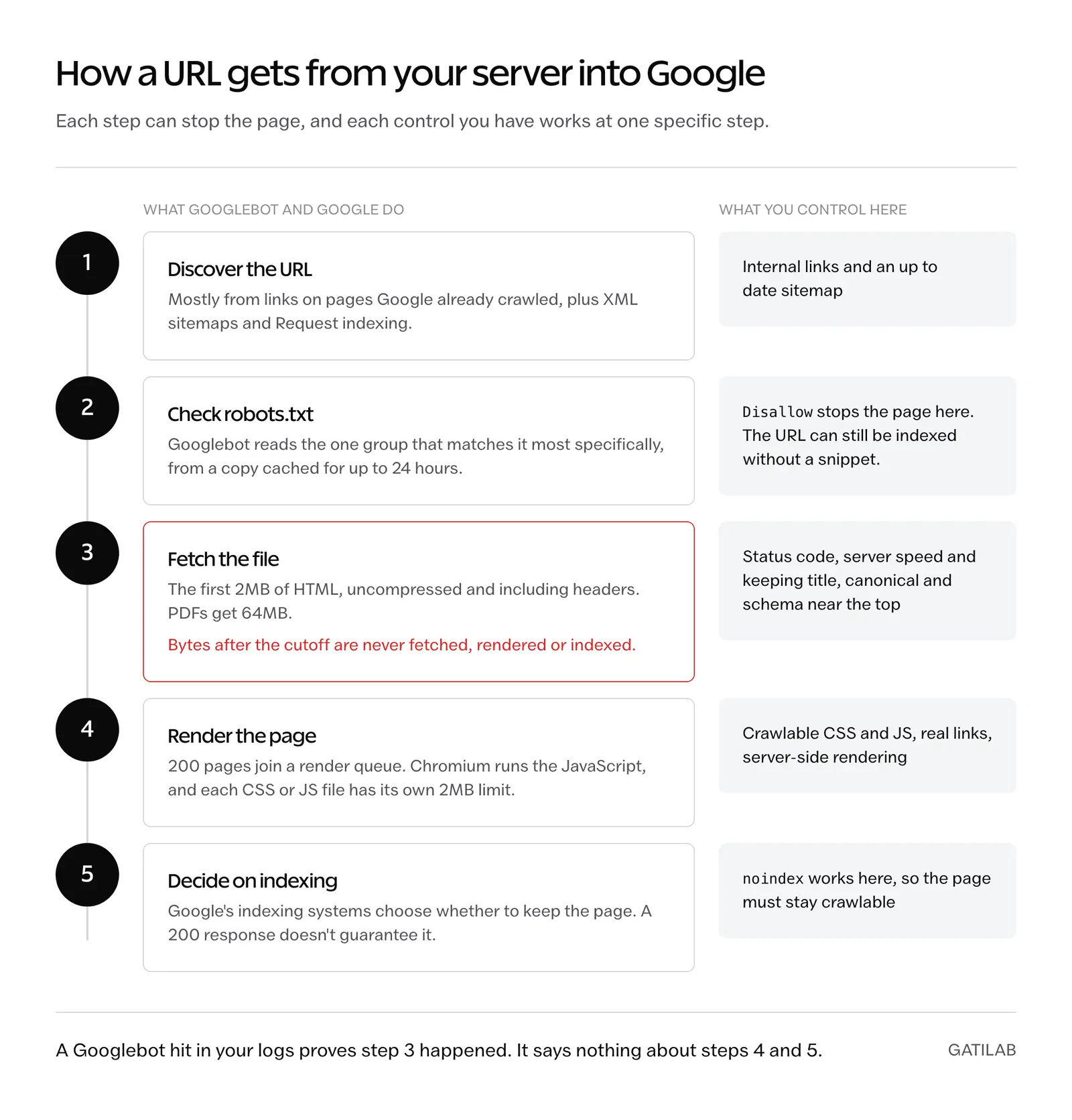
Rendering is where a lot of older advice goes wrong. Google’s JavaScript SEO documentation says a page “may stay on this queue for a few seconds” and that it can take longer. Google doesn’t publish a typical delay of hours or days, so when content that depends on JavaScript never appears in Search, the render itself is the first thing to check.
The rendering service is also stateless. It clears local storage and session data between requests, so content that only appears for a returning visitor never appears for Googlebot.
A few operating details help when you’re reading logs:
- Pace: for most sites, Googlebot shouldn’t request pages more than once every few seconds on average, though short bursts can look faster.
- Location: requests come mainly from US IP addresses. If Google detects a site blocking US traffic, it may crawl from IPs in other countries.
- Time zone: when it crawls from US IPs, Googlebot runs on Pacific Time.
- Protocols: HTTP/1.1 by default and HTTP/2 when that’s more efficient. HTTP/2 brings no ranking benefit, and a server can opt out by answering HTTP/2 requests with a 421 status.
- Compression: gzip, deflate and Brotli.
- Caching: ETag with If-None-Match, and Last-Modified with If-Modified-Since. Google recommends ETag, and a 304 Not Modified response lets it reuse its stored copy.
How Googlebot Finds Pages
Google says Googlebot discovers new URLs “primarily from links embedded in previously crawled pages.” That makes links the main discovery route, and a sensible internal linking structure does more for discovery than any submission tool.
Googlebot learns about URLs from 4 places:
- Links from pages Google has already crawled, on your site and on other sites.
- XML sitemaps. WordPress has generated one at
/wp-sitemap.xmlsince version 5.5, and SEO plugins such as Rank Math and Yoast replace it with their own at/sitemap_index.xml. Whichever one is live should be submitted in Search Console and listed in robots.txt. - Request indexing in Search Console’s URL Inspection tool, which asks Google to crawl a single URL. It runs on a daily quota and doesn’t guarantee indexing; the guide to submitting URLs to Google covers when it’s worth using.
- The Indexing API, which Google limits to pages with JobPosting structured data and livestream videos marked up with BroadcastEvent. It isn’t a general route for blog posts or product pages.
Hiding a page by never linking to it doesn’t work well either. Google points out that a “secret” URL leaks the moment someone follows a link from it to another site, because the referrer can end up in that site’s published logs. Pages that must stay private need a password.
Googlebot Fetch Limits
The Googlebot crawler reads only the first 2MB of an HTML page. Google put this figure on its Googlebot documentation in February 2026. Many older guides still quote 15MB, which is now the default only for Google crawlers that don’t set a limit of their own.
The current limits:
- HTML and other supported text files: the first 2MB per URL, measured on the uncompressed data and including the HTTP headers.
- PDF files: the first 64MB.
- CSS, JavaScript and other referenced resources: fetched separately, each with its own 2MB counter. They don’t count toward the parent page.
- Googlebot Image and Googlebot Video: their own limits, which vary by product.
- Other Google crawlers with no limit set: 15MB.
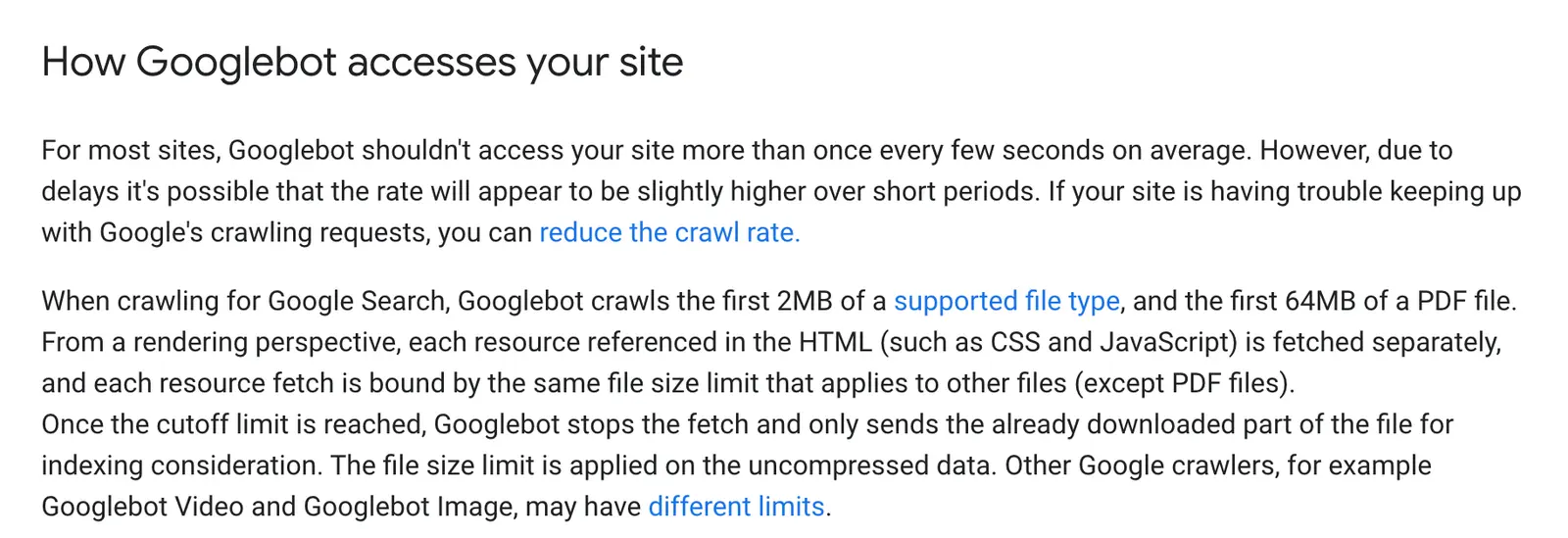
When Googlebot reaches the cutoff it doesn’t reject the page. It stops downloading and sends what it has to indexing and rendering as if that were the whole file. Anything after the 2MB mark isn’t fetched, rendered or indexed.
For most pages, 2MB of HTML is a lot of room. The pages that run into it usually carry one of these:
- base64 images embedded straight in the HTML
- large blocks of inline CSS or JavaScript
- megabytes of navigation or markup before the main content starts
Heavy CSS and JavaScript belong in external files, which get their own limit, and the title, meta tags, canonical and structured data belong near the top of the document. To check a page, open the Network tab in Chrome DevTools. It shows 2 sizes for the document: the transferred size, which is compressed, and the resource size, which is the uncompressed figure the limit applies to.
Googlebot User Agents
Every Google crawler has 2 identities. The user agent string is the full text that appears in the HTTP request and your logs. The user agent token is the short name that goes on a User-agent: line in robots.txt. Rules have to use the token, and log filters have to match the string.
Google sorts its crawlers into 3 groups, and the group decides how robots.txt treats them:
- Common crawlers, including Googlebot, always obey robots.txt when they crawl automatically.
- Special-case crawlers, such as AdsBot, work under an agreement between the site and a Google product and may ignore robots.txt. AdsBot and Mediapartners-Google ignore the global
User-agent: *group, so they only follow rules that name them. - User-triggered fetchers, such as Google Site Verifier and Google-Agent, act on a person’s request and generally ignore robots.txt.
This table covers the Google crawlers most likely to appear in your logs, based on Google’s common crawlers list and its pages on special-case crawlers and user-triggered fetchers.
| Crawler | robots.txt token | In your logs | What its rules affect |
|---|---|---|---|
| Googlebot Smartphone | Googlebot | Android Chrome string ending in (compatible; Googlebot/2.1; +http://www.google.com/bot.html) | Google Search, Discover, Google Images, Google Video, Google News |
| Googlebot Desktop | Googlebot | Desktop Chrome string containing compatible; Googlebot/2.1 | Same as Googlebot Smartphone |
| Googlebot Image | Googlebot-Image or Googlebot | Googlebot-Image/1.0 | Google Images, Discover, images and favicons in Search |
| Googlebot Video | Googlebot-Video or Googlebot | Googlebot-Video/1.0 | Video features in Search |
| Googlebot News | Googlebot-News or Googlebot | No string of its own; uses the Googlebot strings | news.google.com and the Google News app |
| Google StoreBot | Storebot-Google | Chrome string containing Storebot-Google/1.0 | Google Shopping surfaces |
| Google-InspectionTool | Google-InspectionTool or Googlebot | String containing Google-InspectionTool/1.0 | URL Inspection and the Rich Results Test only |
| GoogleOther | GoogleOther | Chrome string containing (compatible; GoogleOther) | No specific product |
| GoogleOther-Image and GoogleOther-Video | GoogleOther-Image, GoogleOther-Video or GoogleOther | GoogleOther-Image/1.0, GoogleOther-Video/1.0 | No specific product |
| Google-CloudVertexBot | Google-CloudVertexBot or Googlebot | Contains Google-CloudVertexBot | Vertex AI Agents that the site owner builds |
| Google-Extended | Google-Extended | No string of its own; a control token only | Gemini training and grounding; not Google Search |
| AdsBot | AdsBot-Google, AdsBot-Google-Mobile; ignores * | AdsBot-Google (+http://www.google.com/adsbot.html) or a mobile string with AdsBot-Google-Mobile | Google Ads landing page quality checks |
| Mediapartners-Google | Mediapartners-Google; ignores * | Mediapartners-Google | Google AdSense, Google Ad Manager and other ad products |
| Google-Agent | None; a user-triggered fetcher | Chrome string containing (compatible; Google-Agent; ...) | Agents on Google infrastructure acting on a user’s request |
These are the 2 full Googlebot strings as Google documents them:
Googlebot Smartphone
Mozilla/5.0 (Linux; Android 6.0.1; Nexus 5X Build/MMB29P) AppleWebKit/537.36 (KHTML, like Gecko) Chrome/W.X.Y.Z Mobile Safari/537.36 (compatible; Googlebot/2.1; +http://www.google.com/bot.html)

Googlebot Desktop
Mozilla/5.0 AppleWebKit/537.36 (KHTML, like Gecko; compatible; Googlebot/2.1; +http://www.google.com/bot.html) Chrome/W.X.Y.Z Safari/537.36
W.X.Y.Z stands for the Chrome version, which rises as Googlebot’s Chromium is updated, so a log filter should use a wildcard there. Google also lists 2 rare short forms: Mozilla/5.0 (compatible; Googlebot/2.1; +http://www.google.com/bot.html) and Googlebot/2.1 (+http://www.google.com/bot.html).
Google-Extended deserves its own note because it’s easy to confuse with Googlebot. It has no user agent string. Google crawls with its usual crawlers and checks the Google-Extended token to decide whether content can be used to train future Gemini models and for grounding in Gemini Apps and Vertex AI. Google states that it doesn’t affect inclusion in Google Search and isn’t a ranking signal. Blocking Googlebot to keep content out of AI training would take the site out of Search, while a Google-Extended group with Disallow: / does the targeted job. The guide to AI crawlers covers the other companies’ bots.
GoogleOther is the other name that’s easy to misread. Its rules don’t affect any specific Google product. Google uses it for one-off crawls such as internal research and development, so blocking it has no documented effect on Search.
How to Verify Googlebot
Fake Googlebot traffic is easy to produce because the user agent costs nothing to copy. Google’s own documentation says the Googlebot user agent “is often spoofed by other crawlers,” so a log line that says Googlebot is only a claim until the IP checks out. Blocking the real crawler by mistake takes your pages out of Search, which is why verification comes before any block.
There are 2 established ways to verify Googlebot, and Google says the manual one is enough for most cases. A third, for some of Google’s AI agents, is still experimental.
Reverse DNS Lookup
For a single suspicious Googlebot IP, the host command on macOS or Linux (or nslookup on Windows) does the job in 4 steps:
- Run a reverse DNS lookup on the IP from your log.
- Check that the hostname ends in
googlebot.com,google.comorgoogleusercontent.com. - Run a forward DNS lookup on that hostname.
- Confirm it returns the same IP you started with.
$ host 66.249.66.1
1.66.249.66.in-addr.arpa domain name pointer crawl-66-249-66-1.googlebot.com.

$ host crawl-66-249-66-1.googlebot.com
crawl-66-249-66-1.googlebot.com has address 66.249.66.1
Both lookups matter, because whoever controls an IP block controls its reverse DNS. A scraper can make its own IP return a name like crawl-1-2-3-4.googlebot.com. It can’t make Google’s DNS point that name back to its IP, and the forward lookup catches it. A hostname that merely contains the word google, such as googlebot.com.example.net, fails step 2.
The hostname also tells you which kind of Google client sent the request:
| Hostname pattern | Who sends it | robots.txt |
|---|---|---|
crawl-***-***-***-***.googlebot.com or geo-crawl-***-***-***-***.geo.googlebot.com | Common crawlers such as Googlebot | Always obeyed on automatic crawls |
rate-limited-proxy-***-***-***-***.google.com | Special-case crawlers such as AdsBot | May be ignored |
google-proxy-***-***-***-***.google.com | User-triggered fetchers that Google controls | Ignored |
***-***-***-***.gae.googleusercontent.com | User-triggered fetches from apps running on Google Cloud | Ignored |
That last row catches people out. A valid googleusercontent.com hostname proves the request came through Google’s infrastructure, for example a Google Cloud app fetching an RSS feed for its own users. It doesn’t prove the request was Googlebot.
Matching Googlebot IP Ranges
For high-volume checks, such as a firewall rule or a log pipeline, the faster route is to match the IP against the lists Google publishes. Since February 11, 2026, the files live under /static/crawling/ipranges/ on developers.google.com, and the old /search/apis/ipranges/googlebot.json address redirects to the new common crawlers file. There are 5 lists:
- common-crawlers.json: Googlebot and the other common crawlers
- special-crawlers.json: AdsBot and the other special-case crawlers
- user-triggered-fetchers.json: fetches triggered through users’ apps on Google Cloud
- user-triggered-fetchers-google.json: user-triggered fetchers that Google controls
- user-triggered-agents.json: Google-Agent
The files list IPv4 and IPv6 ranges in CIDR notation and carry a creationTime stamp that updates as the ranges change, so it is wise to download them on a schedule instead of hardcoding ranges. The common crawlers file alone holds more than 300 prefixes, and dozens of the IPv4 ones sit outside the 66.249.x.x block that older guides treat as “the Googlebot range.”
A small Python check against the common crawlers file looks like this:
import ipaddress, json, urllib.request

URL = "https://developers.google.com/static/crawling/ipranges/common-crawlers.json"
data = json.load(urllib.request.urlopen(URL))
networks = [ipaddress.ip_network(p.get("ipv4Prefix") or p.get("ipv6Prefix"))
            for p in data["prefixes"]]

def is_google_crawler_ip(ip):
    address = ipaddress.ip_address(ip)
    return any(address in network for network in networks)

print(is_google_crawler_ip("66.249.66.1"))   # True
print(is_google_crawler_ip("203.0.113.10"))  # False
In production, the file should be cached and refreshed daily rather than fetched on every request.
Web Bot Auth for Google-Agent
Google added a third method in May 2026, and it’s experimental. Web Bot Auth is an IETF draft protocol in which a bot signs its requests with a cryptographic key, so a site can check identity without trusting the user agent or the IP. Google is testing it with some AI agents, and a subset of Google-Agent requests now arrive signed:
- Signed requests carry the header
Signature-Agent: g="https://agent.bot.goog". - The public keys are published at
https://agent.bot.goog/.well-known/http-message-signatures-directoryand should be cached according to that file’s Cache-Control header. - The
SignatureandSignature-Inputheaders labeledgare verified under HTTP Message Signatures (RFC 9421).
Google doesn’t sign every request, even for the agents in the test, and it describes the test as limited to some AI agents. Googlebot itself still has to be verified with DNS or IP checks. Many CDNs and firewalls that support Web Bot Auth verify these signatures automatically, so it is worth checking your provider before writing a verifier of your own.
A request that fails verification can be blocked safely at the firewall or CDN. A rule that matches the Googlebot user agent string alone would block the real crawler too, and when real Googlebot gets a 403 from a security rule, the affected pages start dropping out of Search. The Cloudflare 403 guide shows how to trace a block back to the rule that caused it.
Controlling Googlebot With robots.txt
Google gives site owners 3 separate controls, and each one does a different job:
- robots.txt stops crawling. A blocked URL can still appear in results without a snippet if other pages link to it, because Google can index the URL without reading the page.
- noindex stops indexing. Googlebot has to crawl the page to see the tag, so a page carrying noindex must stay crawlable.
- A password or other authentication stops access for crawlers and people alike.
The pairing that fails is robots.txt plus noindex on the same URL. The block stops Googlebot from ever reading the tag, so the URL can stay in the index.
Which Group Googlebot Follows
A robots.txt file is made of groups. Each group starts with one or more User-agent: lines followed by its Allow and Disallow rules. The detail that trips people up is how Google picks the group, which the robots.txt specification spells out:
- Only 1 group applies to a crawler: the one whose user agent matches it most specifically. Every other group is ignored.
- A
User-agent: Googlebotgroup therefore replaces theUser-agent: *group for Googlebot. Google never combines the two. - If several groups name the same crawler, Google merges them into 1 group.
- The order of the groups in the file doesn’t matter.
- Inside the chosen group, the longest matching rule path wins. When an
Allowand aDisallowmatch equally, Google uses the less restrictiveAllow.
Here is what that means in practice. This file looks as if it blocks the cart, checkout and search results for everyone and gives Googlebot access to admin-ajax.php:
User-agent: *
Disallow: /wp-admin/
Disallow: /cart/
Disallow: /checkout/
Disallow: /?s=

User-agent: Googlebot
Disallow: /wp-admin/
Allow: /wp-admin/admin-ajax.php
For Googlebot it does something else. Googlebot matches the Googlebot group, ignores the * group completely and is free to crawl the cart, checkout and search URLs. Only the other crawlers follow the * rules.
There are 2 ways to fix it. The Googlebot group can go, so Googlebot falls back to the * group, or every rule can be repeated inside the Googlebot group. Unless Googlebot genuinely needs different rules from everyone else, we’d keep one shared group, because it’s much easier to keep correct.
A WordPress robots.txt Template
For a typical WordPress or WooCommerce site, one shared group covers Googlebot and every other crawler that respects robots.txt:
User-agent: *
Disallow: /wp-admin/
Allow: /wp-admin/admin-ajax.php
Disallow: /?s=
Disallow: /search/
Disallow: /cart/
Disallow: /checkout/
Disallow: /my-account/
Disallow: /*add-to-cart=
Disallow: /*orderby=
Disallow: /*filter_

Sitemap: https://example.com/wp-sitemap.xml
What each part does:
/wp-admin/with the admin-ajax.php exception matches the default robots.txt WordPress generates, because some front-end features call admin-ajax.php./?s=and/search/cover WordPress search results, which can produce an endless supply of URLs./cart/,/checkout/and/my-account/are WooCommerce’s default page slugs. They should match the store’s real slugs, and a site without WooCommerce can drop these lines along with the 3 below.add-to-cart=,orderby=andfilter_match WooCommerce add-to-cart links, sort orders and layered navigation filters wherever they appear in the URL.- The sitemap line should point to the sitemap that’s actually live, such as
/sitemap_index.xmlwhen Rank Math or Yoast generates it.
CSS, JavaScript and /wp-content/ should stay crawlable. Googlebot needs those files to render the page, and Google won’t render JavaScript from blocked files.
Google reads only 4 fields in robots.txt: user-agent, allow, disallow and sitemap. It ignores crawl-delay, so a crawl-delay line does nothing to Googlebot’s pace. And because AdsBot and Mediapartners-Google ignore the * group, a rule meant for them has to sit in a group that names AdsBot-Google, AdsBot-Google-Mobile or Mediapartners-Google.
How Googlebot Handles robots.txt Errors
The status code your robots.txt returns changes how Google crawls the whole site:
- 2xx: Google processes the file as served.
- 3xx: Google follows at least 5 redirect hops, then treats the file as a 404.
- 4xx other than 429: Google treats the site as having no robots.txt, so nothing is restricted. A 401 or 403 here doesn’t block crawling.
- 5xx or a network error: Google stops crawling the site for the first 12 hours while it retries. After that it uses the last good copy for up to 30 days. If the errors outlast 30 days, Google behaves as if there’s no robots.txt on a site that’s otherwise available, and stops crawling a site with general availability problems.
Google caches the file for up to 24 hours, longer when it can’t refresh it, and reads only the first 500 KiB. A robots.txt change can take a day to take effect for that reason.
Crawl Budget and Crawl Rate
Crawl budget is the set of URLs Google can and wants to crawl on a site. Google treats each hostname as a separate site, so www.example.com and shop.example.com get separate budgets. Most sites never need to think about it. Google’s crawl budget guide is written for:
- sites with more than 1 million unique pages whose content changes about once a week
- sites with 10,000+ unique pages whose content changes daily
- sites where Search Console lists a large share of URLs as “Discovered – currently not indexed”
Google describes those numbers as rough estimates rather than exact thresholds. The budget itself comes from 2 things:
- Crawl capacity limit, which Google also calls hostload: how much connection time Google will spend on your server, counting parallel connections and their duration. Every site starts with the same conservative limit. It rises when responses stay fast and stable, and falls on slow responses, 5xx errors and HTTP 429. The limit is shared by all Google crawlers, so heavy AdsBot or Shopping crawling leaves less room for Googlebot.
- Crawl demand: how much Google wants to crawl. For Googlebot it depends on site size, update frequency, page quality and relevance. The parts you can influence are the URL inventory Google knows about, how popular those URLs are and how stale Google’s copy is.
Older guides call the first one “crawl rate limit.” Google’s current guide uses crawl capacity limit throughout.
Of those factors, the URL inventory is the one a site owner controls most. Google’s crawl budget guidance comes down to these practices:
- Block URL patterns that should never be crawled with robots.txt. Google recommends this over noindex for crawl budget, because a noindex page still costs a fetch.
- Return 404 or 410 for pages that are gone for good. Blocked URLs stay in the crawl queue much longer than 404s.
- Fix soft 404s, which keep getting recrawled.
- Keep sitemaps current, with accurate
lastmoddates. - Support 304 Not Modified so unchanged pages cost very little to recrawl.
- Avoid long redirect chains.
One combination backfires: blocking filter URLs in robots.txt and counting on their canonical tags as a backup. Googlebot never fetches a blocked URL, so it never sees the canonical. Each URL pattern needs one tool, robots.txt when the URLs shouldn’t be crawled at all, or a canonical tag when they should be crawled and consolidated.
Blocking URLs also won’t push crawling toward your other pages. Google only shifts that budget if it was already hitting the site’s crawl capacity limit. Google names 2 ways to get more budget: more server capacity when URL Inspection reports “Hostload exceeded,” and content that’s more popular, more unique and more useful.
Slowing Googlebot Down
Search Console’s crawl rate limiter was removed on January 8, 2024, and Google ignores crawl-delay, so no setting slows Googlebot. Google’s page on how to reduce the crawl rate lists 2 options:
- For an emergency lasting a few hours to 1 or 2 days, return 500, 503 or 429 instead of 200. Google slows crawling for the whole hostname and speeds back up on its own once the errors stop.
- If serving errors isn’t possible, file a special request with Google about the unusually high crawl rate and state the rate you want. It can take several days, and nobody can request a faster rate this way.
Keeping those errors up for longer than 1 or 2 days is risky. If Googlebot sees the same error on a URL for several days, that URL can drop out of the index. A crawl spike is usually better fixed at the source, and Google’s list of common causes starts with faceted navigation, calendars with a URL for every date and Dynamic Search Ad targets.
Common Googlebot Problems
These problems all stop Googlebot from getting a usable copy of a page, and each one leaves a trace in Search Console or your server logs.
Server Errors and 429
5xx responses and HTTP 429 make Googlebot slow down, and the slowdown grows with the number of URLs that fail. Already indexed URLs stay in the index for a while, but URLs that keep returning server errors are eventually dropped. Once the server returns 2xx responses again, Google ramps crawling back up gradually.
401 and 403 work differently. They have no effect on crawl rate, so they can’t be used to throttle Googlebot, and Google removes indexed pages that start returning them.
Soft 404s
A soft 404 is a page that returns 200 but shows an error message or almost no content. Search Console flags it, and Google keeps recrawling it, which wastes crawl budget. On WordPress, the typical candidates are empty search results, empty category or tag archives and product pages that print a “no longer available” message with a 200 status. A page that’s gone should return a real 404 or 410, or redirect to a close replacement. The guide to fixing 404 errors in Search Console covers the triage.
JavaScript Rendering
Sites that build their content with JavaScript depend on the rendering step. Googlebot queues every 200 page for rendering, then indexes the rendered HTML. These things break it:
- JavaScript or CSS files blocked in robots.txt, since Google won’t render JavaScript from blocked files
- content that depends on stored state, because the rendering service clears local storage and session data between requests
- navigation built from click handlers instead of
<a href>links, which Googlebot can’t follow - a script bundle larger than 2MB, which gets cut off at the limit like any other file
Server-side rendering or pre-rendering avoids most of this. Google still calls it “a great idea” because it makes a site faster for users and crawlers, and not every bot runs JavaScript.
Blocked Resources
The live test in URL Inspection shows what Googlebot could load. Under More info, the Page resources list shows every file the page requested and flags the ones that couldn’t be loaded, including files blocked by robots.txt.
Redirect Chains
Googlebot generally follows up to 10 redirect hops, and Search Console reports a redirect error beyond that. Google’s inspection tools don’t follow redirects at all, so a redirected URL should be tested at its final destination. Long chains also eat into crawl budget, so internal links should point straight at the final URL. The 301 vs 302 guide covers which redirect fits which case.
Checking Googlebot in Search Console
Server logs record every request, while Search Console shows what Google made of them. 3 reports cover crawling:
- Crawl Stats (Settings > Crawl stats) works only on root-level properties, meaning a Domain property or a URL-prefix property at the root. It shows:
- total crawl requests, total download size and average response time
- host status for robots.txt fetching, DNS resolution and server connectivity over the last 90 days
- breakdowns by response, file type, purpose (Discovery for new URLs, Refresh for recrawls) and Googlebot type, including Smartphone, Desktop, Image and Page resource load
- URL Inspection shows the last crawl date, which Googlebot fetched the page, whether crawling and indexing were allowed and a live test of the current version.
- Page indexing explains why known URLs aren’t indexed, including “Discovered – currently not indexed” and “Crawled – currently not indexed.”
Google says a site with fewer than 1,000 pages shouldn’t need Crawl Stats at all. For those sites, URL Inspection on the pages that matter and a current sitemap are enough. On larger sites, a red host status or a rising share of 5xx responses in Crawl Stats is the signal to act on first, because both lower the crawl capacity limit for the whole host.
When Crawl Stats, the server logs and the Page indexing report still don’t agree, the Search Console audit workflow works through them in order. For larger sites, Gatilab’s technical SEO services include crawl and indexing audits.
FAQs on Googlebot
Why is Googlebot crawling my site so much?
Heavy crawling usually means Google has found a large number of URLs to fetch. Google lists faceted navigation, calendars with a URL for every date and Dynamic Search Ad targets as the most common causes of sudden spikes. Check the URL patterns in your logs and verify the IPs first, because fake Googlebot traffic can look like a crawl spike. If the server is struggling right now, returning 503 or 429 for a few hours slows Google down.
Does blocking Googlebot also block AI crawlers?
No. Googlebot rules cover Google’s search crawling. Other companies’ AI crawlers, such as OpenAI’s GPTBot, follow rules addressed to their own tokens, and Google uses the separate Google-Extended token to control Gemini training and grounding. Blocking Googlebot to stop AI use would take the site out of Google Search.
How often does Google crawl a site?
There’s no fixed schedule. Google says Googlebot shouldn’t visit most sites more than once every few seconds on average, and how often it returns to a page depends on crawl demand: how popular the URL is, how often it changes and how much load the server handles well. The Crawl Stats report in Search Console shows the actual daily request count for a site.
How do I check if Google crawled a page?
Inspect the URL in Search Console. URL Inspection shows the last crawl date and whether Googlebot Smartphone or Googlebot Desktop fetched it. For a full history, filter your server logs for the Googlebot user agent and verify the IPs with a reverse DNS lookup.
Can I force Google to crawl a page?
No. Request indexing in URL Inspection asks Google to crawl a single URL within a daily quota, and an updated sitemap with an accurate lastmod date tells Google something changed. Neither one guarantees a crawl time or indexing.
Why does Search Console say robots.txt is blocking Googlebot?
A Disallow rule in the group Googlebot follows matches that URL. Check which group applies first: if the file has a User-agent: Googlebot group, Googlebot ignores the * group entirely. The robots.txt report under Settings in Search Console shows the version Google fetched and when it fetched it.
Should I block GoogleOther?
Blocking it has no documented effect on Google Search. Google says rules for GoogleOther don’t affect any specific product and that it’s used for one-off crawls such as internal research and development. Block it if it uses bandwidth you’d rather keep, and leave the Googlebot rules alone.
What is the difference between Discovered and Crawled – currently not indexed?
Discovered – currently not indexed means Google knows the URL but hasn’t fetched it yet. Google’s usual explanation is that crawling it then could have overloaded the site, so the crawl was rescheduled. Crawled – currently not indexed means Googlebot fetched the page and Google chose not to index it, so the fix lies in the page itself: duplication, thin content or low value.
Tell Google you want more of this.
Add Gatilab as a preferred sourceOne tap, and this site shows up more often in your own Top Stories, AI Overviews and AI Mode. Remove it any time.