
How to Migrate Pretty Links Without Changing Your URLs
To migrate Pretty Links without changing your URLs, you need to preserve the complete public path as well as the destination. Importing a slug into a new plugin can still break links if the new plugin adds a different prefix.
You should treat the migration as a route change with a rollback plan. The goal is for an existing link in an old article or email to keep reaching the intended destination after the new plugin takes responsibility for it.
GT Link Manager is our free WordPress redirect plugin. It includes a Pretty Links CSV import preset and a mapping preview. Those tools reduce manual entry, but the preview and route checks still matter.
Export the Existing Links
Keep both a database backup and the link export before changing the active redirect system. The database backup preserves more context than the CSV alone.
Pretty Links provides CSV import and export, although the interface can differ between installed versions. Use the export from your own installation and inspect its column names rather than building a file from an old tutorial’s example.
Create a route inventory containing:
- The complete current public URL.
- The destination URL.
- The redirect status.
- Query-string forwarding behavior.
- Link relationship settings.
- Any special country or role rules.
Don’t assume historical click reports will move with the link definitions. Retain the old reports separately if you need them for later comparison.
Preview the Column Mapping
Use the Pretty Links preset in GT Link Manager’s import flow, then inspect representative rows. Check a simple route and a deep product route as well as any unusual path.
Confirm that the destination column is not being mistaken for the public path. That kind of mapping mistake can create valid-looking records that answer the wrong request.
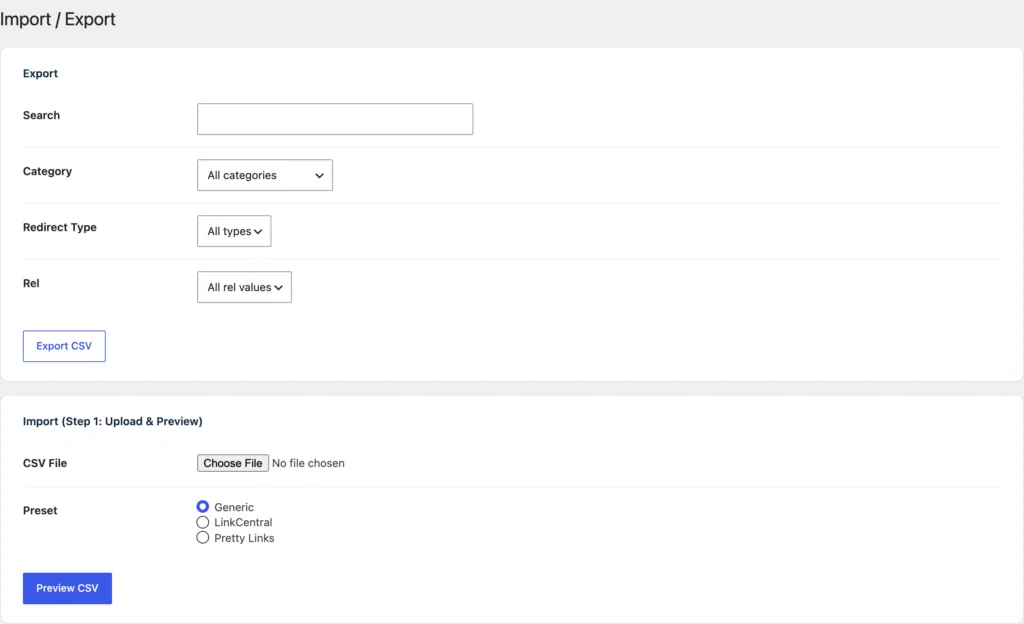
If the preview changes a route from /example-tool/ to /go/example-tool/, stop and resolve the path mode before importing the full set. Your old emails will continue requesting the old address.
Check Path Conflicts
A redirect path may conflict with a WordPress page or another redirect rule. Identify collisions on staging before changing the live route owner.
You should also account for any redirect rules outside WordPress, including the web server or CDN. A successful response from one of those layers can hide the fact that the imported WordPress route is wrong.
Keep one clear owner for each route. Leaving two plugins to compete for the same paths makes the result depend on which one handles the request first.
Verify Representative Routes
Test links before and after the handoff and keep the results. A useful check records the requested URL, response status and final destination.
Include:
- A plain route.
- A route with a trailing slash variation.
- A link carrying query parameters.
- A deep merchant destination.
- A path without the new plugin’s normal prefix.
- A country-specific route if you use one.
Preserve affiliate parameters required by the program. A redirect that reaches the merchant but loses attribution is not a successful affiliate migration.
You can use the editable migrate pretty links worksheet to record your settings and checks. It is a CSV file you can open in a spreadsheet.
Keep Rollback Available
Do not delete the old plugin’s data as part of the initial handoff. Keep the export and database backup until the route checks and normal operation are satisfactory.
If a problem appears, restore the previous route owner through the planned procedure. Avoid repeatedly enabling both plugins and hoping one wins; that makes the failure harder to reproduce.
For a site with many managed links, GT Link Manager provides a free migration route with import previews. Begin with a small checked set and preserve the public paths before moving the rest.
Tell Google you want more of this.
Add Gatilab as a preferred sourceOne tap, and this site shows up more often in your own Top Stories, AI Overviews and AI Mode. Remove it any time.